
Last Updated on November 6, 2025 by
Have you ever wanted to turn your favorite photos into a short, beautiful video with music? Whether it’s for a birthday, a wedding, a product showcase, or a travel vlog — making a video from pictures and background music can instantly bring your memories to life.
The good news? You don’t need to be a professional video editor. With today’s online tools, anyone can create a stunning photo slideshow with music — quickly, easily, and for free.
Why Make a Video with Pictures and Music?
Combining pictures and music is one of the easiest ways to tell a story. A single photo can capture a moment, but a video sequence — enhanced with background music — can capture emotion.
Here are some common reasons people make picture videos:
- Memories & Events: Birthdays, weddings, graduations, and travel recaps.
- Social Media Content: Short videos for Instagram Reels, TikTok, or YouTube Shorts.
- Marketing & Branding: Product showcases or event highlights.
- Gifts: A heartfelt slideshow video for family or friends.
Whether you’re celebrating a milestone or sharing content online, creating a video with photos and music helps your story connect more deeply with your audience.
Best Free Tools to Make a Video with Pictures and Music
Here are some of the most reliable and beginner-friendly tools available in 2025 to help you create videos with pictures and music — no software installation required.
1. Animoto
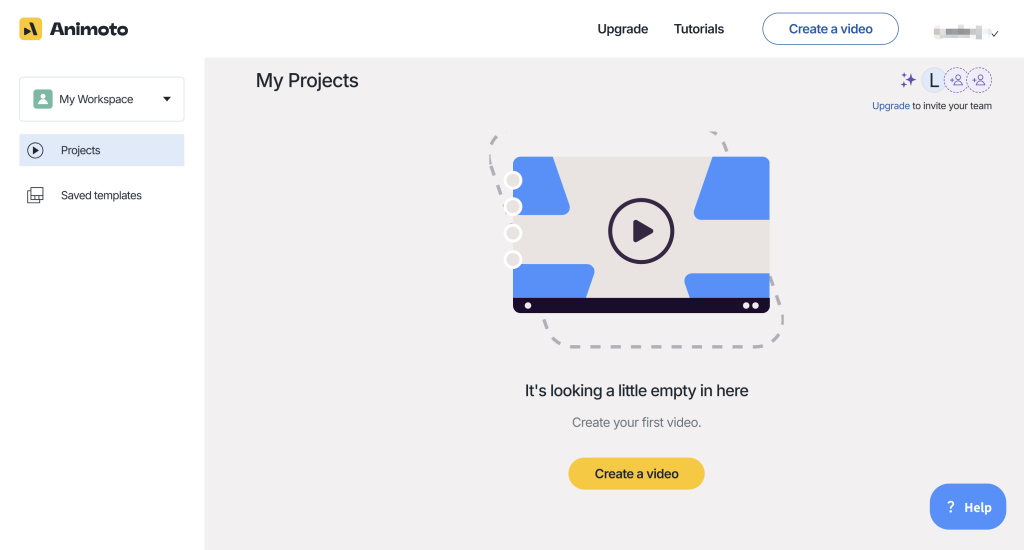
Animoto is built specifically for creating photo slideshows. You can upload your images, choose from hundreds of licensed soundtracks, and apply professional transitions automatically.
“Animoto’s drag-and-drop interface makes it easy to create cinematic slideshows from your photos — no editing skills required.”
2. FlexClip
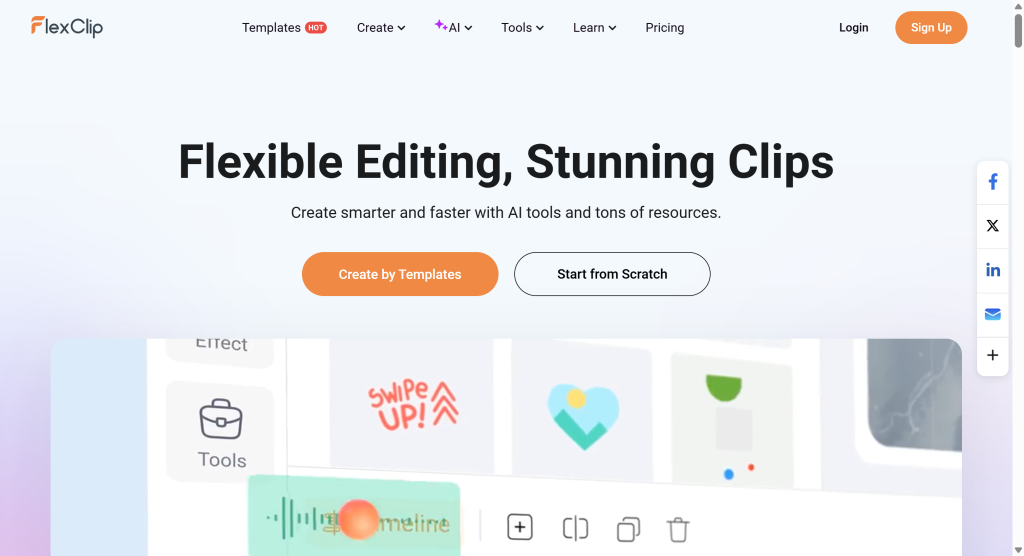
FlexClip is a modern online video editor powered by AI. It lets you import multiple photos, choose background music, and generate a dynamic slideshow with transitions and captions in minutes.
“FlexClip allows you to turn multiple photos into a video with music effortlessly — ideal for social media and marketing content.”
3. Kapwing
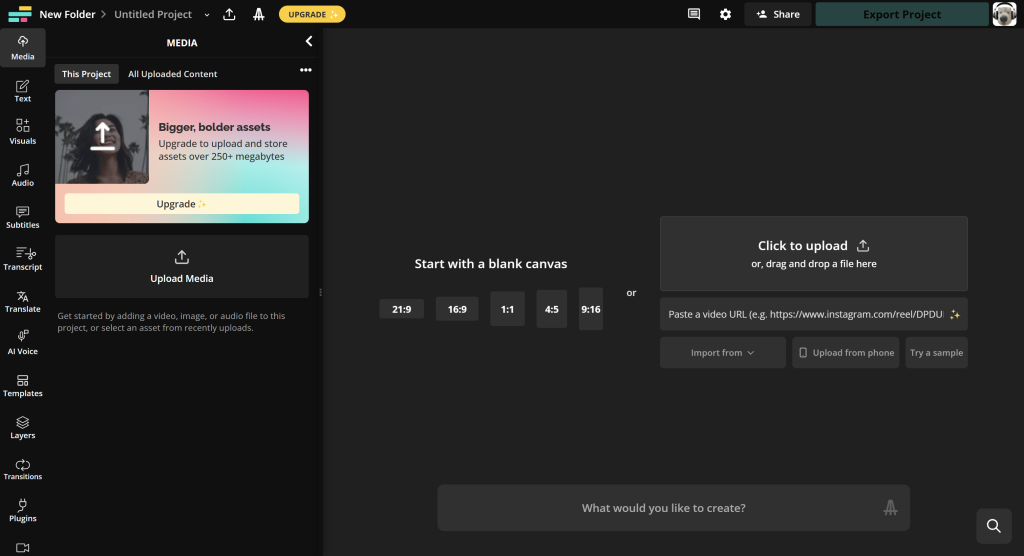
Kapwing is a versatile video editing platform that also supports generating videos from images. It automatically matches image transitions with your chosen music, helping you create rhythm-synced slideshows.
“Kapwing’s AI video generator can match your images to the beat of your music, giving your photo slideshow a cinematic touch.”
💡 Tip:
Before you start making your video, enhance your pictures for better quality.
Try GStory.ai’s AI Photo Enhancer to automatically improve brightness and sharpness — perfect for preparing images before video creation.
Step-by-Step Guide: How to Make a Video with Pictures and Music Online
Ready to create your own photo video? Follow these simple steps:
Step 1: Choose a Photo Video Maker Tool
Pick one of the online tools above. Most support free use and require no installation.
Keywords like photo slideshow, music video creator, and short video maker are good to search for if you want more options.
Step 2: Upload Multiple Photos
Upload your pictures in order. Most tools let you drag and drop images directly from your computer or phone.
You can upload as many as you want — just make sure they’re in high quality.
Step 3: Add Background Music
Select from the app’s built-in music library or upload your own track.
Choose a tune that matches your video’s tone — upbeat for celebrations, calm for memories, etc.
This is where you add music to photo or add audio to image functions come in.
Step 4: Arrange Photos and Add Transitions
Organize your photo order and apply fade-in, fade-out, or slide transitions.
Some AI tools can automatically sync transitions with music beats for a smoother effect.
Step 5: Add Text, Captions, or Filters
To make your video more engaging, include short captions or quotes between photos.
You can also apply filters or effects that match your theme — vintage, cinematic, minimal, etc.
Step 6: Preview, Export, and Share
Preview your slideshow before downloading.
Export it in MP4 format for easy sharing on Instagram, YouTube, or TikTok.
Many online makers allow direct posting from their platforms.
🎬 That’s it!
You’ve just learned how to make a free video with pictures and music — all without complicated software.
How to Make a Video on iPhone or Android
You don’t even need a computer. If you’re on your phone, there are several free apps that make the process seamless:
- iMovie (iPhone): Comes pre-installed and supports adding photos, transitions, and music directly from your library.
- CapCut (iOS/Android): Great for short social videos; offers built-in effects and trending music.
- Canva Video: Lets you use templates, upload images, and overlay text easily.
Simply open the app, import your photos, pick your background music, and export your finished video.
Now you know how to make a video with pictures and music on iPhone for free — perfect for quick stories or travel recaps.
How Long Should a Photo Video Be?
There’s no strict rule, but here are some general recommendations:
- Instagram Reels / TikTok: 15–60 seconds
- YouTube or Facebook: 1–3 minutes
- Personal slideshows: 2–5 minutes
Try to keep your video short and emotionally engaging. Long videos tend to lose attention unless they tell a strong story.
Tips to Make Your Photo Video More Engaging
Want your photo slideshow to stand out? Try these creative tips:
- Match the music tempo: Use slower songs for emotional videos and faster beats for upbeat themes.
- Add subtle motion: Zoom-in or pan effects make still images feel alive.
- Use captions or quotes: Add meaning to each photo or mark a timeline of memories.
- Stick to a theme: Consistent colors or filters make the video feel cohesive.
- Enhance your photos first: Sharpen blurry images or adjust lighting with tools like AI Photo Enhancer before compiling them.
FAQs About Making Videos with Pictures and Music
Q1: How to make a free video with pictures and music?
Use free tools like Kapwing, Animoto, or FlexClip. Upload your pictures, choose background music, and export the final video — no watermark or sign-up required.
Q2: Which app can I use to make videos using my photos for free?
Apps like iMovie, CapCut, and Canva are free and support adding both photos and music.
Q3: How do I turn multiple photos into a video?
Most online video editors let you upload several images, arrange their order, and automatically generate a slideshow with transitions.
Q4: How to make a video with pictures and music on iPhone for free?
Open iMovie, import your photos, add background music, and export the result in MP4 format — all free on iOS.
Q5: How long can a photo video be?
It depends on where you share it. Social media prefers under 1 minute, while personal slideshows can go longer.
Q6: Is there a free app to make videos with music?
Yes, CapCut and Canva both offer free templates, background tracks, and export options without watermarks.
Final Thoughts
Turning your photos into a video with music is one of the easiest ways to create something meaningful — whether it’s a memory reel, a brand story, or just a fun creative project.
You don’t need editing experience or expensive software. Just pick your photos, add the right soundtrack, and let the tool do the rest.
And if you want to make your pictures look extra stunning before turning them into a slideshow, try GStory.ai’s AI Photo Enhancer — it automatically improves brightness and clarity with one click.
So go ahead — bring your photos to life, add music that fits your mood, and share your story with the world.
Leave a Reply