
Last Updated on November 26, 2025 by
Have you ever taken a photo or downloaded an image — only to find there’s unwanted text, watermark, or logo overlaying it? Maybe it’s a date stamp, a logo from a screenshot, or a watermark from a free stock image site. Such distractions can spoil a good picture.
The good news: you don’t need to be a Photoshop expert. Today, thanks to free online tools powered by AI, you can remove text or watermarks from an image quickly — sometimes in just one click. In this article, we’ll show you why text removal matters, which free tools work well, how to do it step by step, and what to watch out for to get clean, natural-looking results.
Why Many Images Have Text or Watermarks
Before we talk about removing text, let’s understand why images often come with text overlays or watermarks:
- Copyright / ownership marks — Many photographers or stock-photo sites add watermarks to protect their work.
- Automatic stamps or logos — Screenshots, downloaded social-media images, or exported visuals may include logos, timestamps, or brand marks.
- Text overlays in design — Sometimes images include captions, quotes, or embedded text that you don’t want in your final version.
- Reuse scenarios — You might want to reuse an image (for a presentation, blog post, social media) but need a “clean” version without extra text.
While watermarks serve a purpose (copyright protection), there are plenty of legitimate reasons — personal use, editing your own images, redesigning something — to want a clean, text-free picture.

What Tools Can Help You Delete Text from Image Easily
You might expect needing complex software. But in 2025, many free online tools use AI to detect and erase unwanted text or watermarks automatically — no editing skills required. Here are a few examples of tools offering such features (and doing it well):
- Many platforms let you remove logos, stamp texts, or unwanted overlays with automatic AI inpainting — you just upload the image and let the tool do the rest.
- Some tools also allow manual touch-ups (using brush or lasso) for more control — useful when the watermark or text is on a complex background.
One good example is GStory’s Photo Watermark Remover. According to its description, you can drag & drop your image, mark the text or watermark region, and the tool’s AI fills in the background so the image looks natural and clean.
The advantage of these tools: you get a clean result without installing software, without Photoshop experience, and often for free (or with free credits).
Step-by-Step: How to Delete Text or Watermark from an Image (Using GStory)
Here’s a clear, easy-to-follow guide — even a beginner can do it (works on desktop or phone if browser supports it):
- Go to the tool’s website
- For example, open GStory’s Photo Watermark Remover.
- Upload your image
- Click “Upload” or drag & drop the image that has unwanted text/watermark. GStory supports common formats (PNG, JPG, WEBP) and sizes up to 10 MB.
- Select (paint over) the text or watermark in the image
- Use the tool’s brush or selection tool to highlight the text/area you want removed. This tells the AI what to erase.
- Let AI remove it
- Click the “Process” (or similar) button. The AI will analyze the surrounding pixels and attempt to fill the selected region with a natural-looking background, removing the text/watermark.
- Preview and download
- Once done — preview the result. If it looks good, download the clean image. If the result leaves artifacts (blurry patches, odd background), you can try manual touch-up (re-select, brush, fix) or undo and try again.
That’s it. No software installation, no steep learning curve — just upload, select, process, download.
When Each Method Works Best — Choose the Right Tool for Your Situation
Not all images are the same. The background, watermark size, color, or complexity will affect how well the AI does. Here’s a quick guide to help you choose which method works best:
| Scenario | Recommended approach |
| Simple background (solid color / gradient), small watermark/text | Use automatic AI removal — quick and usually flawless |
| Slightly complex background (texture, gradient, mild patterns) | Automatic removal + manual brushing to refine edges |
| Busy background (lots of texture, photo details, multiple elements) | Use manual selection + careful brush touch-ups after AI fill, or consider re-framing/cropping |
| Batch of images / multiple watermarked files | Use batch-capable tools (if supported) or repeat the above steps for each image — but expect more manual checking |
| Need highest quality (for print, publication) | After AI removal, check carefully: zoom in, verify no strange artifacts or mismatched background; maybe touch up with a real photo editor |
Many watermark removal services support different formats and aim to preserve image quality, while giving flexibility between automatic and manual editing.
Common Mistakes and How to Avoid Them
Even with AI help, mistakes can happen. Here are some pitfalls — and how to avoid them:
- Blurred or distorted areas after removal — Happens when the background is complex or the tool mis-interprets surroundings. Fix: manually brush the area again, or choose a different tool/approach.
- Missing details or obvious artifacts — Can occur if watermark overlay intersects with important image features (edges, patterns). Fix: zoom in, inspect after removal, and retouch manually if needed.
- Over-relying on “automatic” mode — Sometimes manual selection + fine brushing yields better, professional-looking results.
- Legal / ethical issues — Removing watermark or text from images you don’t own may violate copyright or licensing terms. Always ensure you own the rights or have permission to edit. Many sites even warn about this.
Why Many Online Watermark / Text Removers Exist — and What Underpins Their Technology
These AI-powered tools typically rely on “inpainting” algorithms: the system analyzes surrounding pixels, textures and colors, and tries to fill in the area where text or watermark was. As a result, it attempts to regenerate the “hidden” background in a realistic way.
Because of advances in AI and image-processing, results are often quite good — especially on simple or moderately complex backgrounds. That’s why free web-based watermark removers (with drag-and-drop support) are so popular these days.
However, in some academic research, it’s shown that for more advanced watermarking (especially “invisible watermarks” or watermarks embedded in pixel data), AI removal or other attacks can succeed — which raises questions about watermark effectiveness for copyright protection.
For ordinary visible text/watermark overlays — what most people see — the online tools are usually enough.
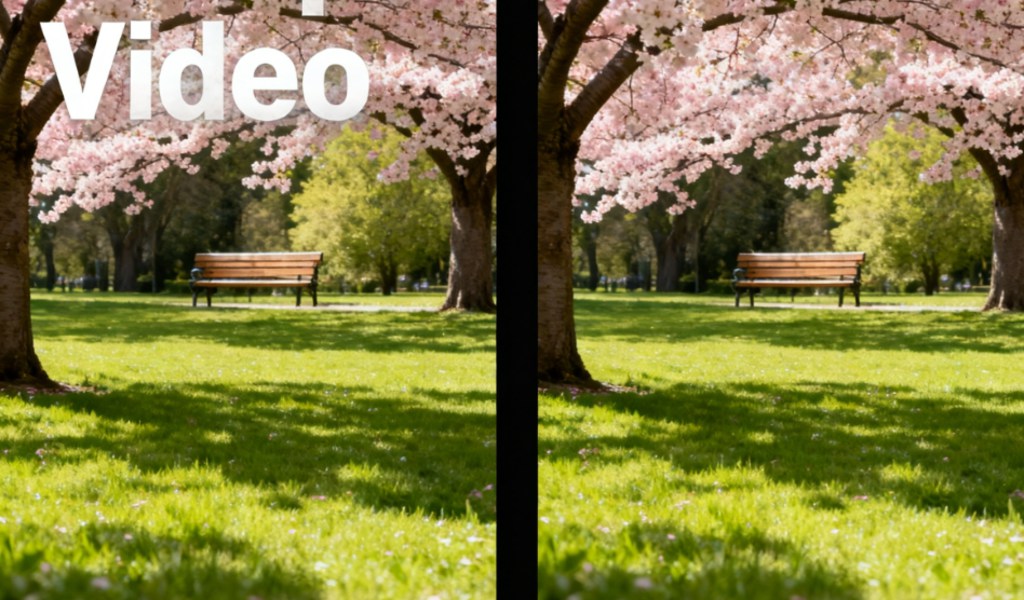
Ethical & Legal Reminders: Use Watermark Removal Responsibly
It’s important to stress: just because you can remove watermark or text doesn’t always mean you should. Here’s what to keep in mind:
- If the image is copyrighted and you don’t own the rights, removing watermark/text and re-using the image may violate copyright laws.
- Always get permission or buy the images properly before editing.
- If you merely want to clean up your own photos (e.g. remove timestamp, remove your own logo, or clean personal pictures), using such tools is perfectly fine.
- For stock or shared images — check license terms. Some may allow editing for personal use, some may prohibit redistributing edited version.
Many watermark-removal services (and image-editing guides) remind users to respect intellectual property rights — and so should we.
Example: Removing Text from an Image with GStory — What to Expect
Let’s say you have a screenshot from a video that includes a date stamp or logo in the corner, and you want to clean it before using it in a presentation or social media post.
- Upload to GStory → highlight the logo / stamp → let the AI process → download.
- After removal: you get a clean, watermark-free image. According to GStory’s own claims, their AI preserves the image quality and restores the background smoothly.
- If background was complex (e.g. textured, gradient, or photo scenery), result might need a quick manual retouch to ensure no visible seams or weird artifacts.
For many simple cases — quotes over solid backgrounds, date stamps on screenshots, logos on product photos — this process works surprisingly well.
When You Shouldn’t Use Text/Watermark Removal — Think Twice
There are situations where you should avoid removing text or watermarks:
- If the watermark represents someone else’s copyright, especially for redistribution or commercial use.
- If the watermark is meant to show ownership — removing it may be dishonest or infringing.
- If the image background is very complex and removal would create visible artifacts, making the image look worse than before.
- If you care about legal and moral integrity. Always respect creators’ rights.
If in doubt — find images with proper license, or ask permission.
Final Tips for Getting Clean Results
- Try different tools if one fails: some tools handle certain backgrounds/text types better than others.
- Always zoom in and inspect after removal — look for odd patches, blur, repeated patterns.
- If ready for print or professional use — consider manual editing + fine tuning after AI removal.
- Keep the original image in case you need to revert or compare.
- Respect Copyright & License — only remove text/watermark from images you own, or have license to edit.
Conclusion
Deleting text or watermarks from images used to be a job only for advanced editors. Now, thanks to free AI-powered online tools like GStory, Pixelfox, Fotor, and others, almost anyone can get a clean, text-free image in minutes.
Leave a Reply