Last Updated on December 18, 2025 by
If you’ve ever tried to convert YouTube video to mp4, you already know the “simple” task usually turns into a mess. The download fails at 70%. The file looks fine—until it turns blurry. Or you click one button and suddenly you’re fighting pop-ups and fake “Download” banners.
Here are the most common failures people hit: long or HD videos won’t convert, 1080p options disappear, and the MP4 you get won’t edit cleanly (out-of-sync audio, weird stutters, or a file that won’t import). This guide gives you a safe, realistic workflow that helps you pick the right approach based on what you need—especially if you’re starting from a YouTube link to mp4 situation and just want a result you can trust.
Why converting YouTube to MP4 is harder than it sounds
A lot of websites make it look like you paste a link and magically get a perfect file. In real life, that’s where the trouble starts: pop-ups, fake download buttons, and converters that quietly downgrade quality. Many “free” pages act like a YouTube to mp4 converter, but they’re really ad traps that push you into clicking the wrong thing.
Also, not every video is equally “convertible.” YouTube often serves different quality layers (video and audio can be delivered separately), and some videos have restrictions that limit what third-party tools can access. If you’re searching “YouTube movie to mp4,” pause—most movies are copyrighted, and many conversion routes you’ll find online are unsafe or unauthorized.
The other hidden issue is this: MP4 doesn’t always mean “editable MP4.” Two files can both end in .mp4 and still behave very differently. One imports smoothly into editors. The other looks okay when you play it, but editing reveals problems like choppy frame rate, audio drift, or strange compression.
That’s why a “one-click” YouTube video to mp4 converter often disappoints. You’re not just trying to “get an MP4.” You’re trying to get an MP4 that matches your purpose—watching offline, editing, or creating content—without sacrificing safety or quality.
A safe, high-quality workflow to convert YouTube video to MP4
Step 1 — Decide what you need the MP4 for (watching vs editing vs sharing)
Before you touch any converter, ask one thing: what will you do with the MP4 after it downloads?
If it’s just offline watching, a “good enough” file is fine—even if it’s a little smaller or slightly compressed. But if you plan to edit, you need an MP4 that stays stable: clean encoding, consistent frame rate, and audio that doesn’t drift. And if you’re converting for sharing or reposting (only with permission), you’ll care about final resolution and how it holds up after uploading again.
This matters because the safest path changes depending on your goal. Many people try to convert YouTube videos to mp4 the same way every time, then get inconsistent results. Your workflow should be different for “watch on a plane” versus “cut footage for a timeline edit.” Simple rule: if you’ll edit it, prioritize quality and stability—not speed.
Step 2 — The “safety check” before you use any converter (red flags to avoid)
When you paste a link into any site, do a quick safety check first. Most beginners don’t get hurt by the conversion itself—they get tricked by the page.
If a site acts like a YouTube link to mp4 converter but pushes installers, browser extensions, “security updates,” or asks you to enable notifications, back out. A normal conversion flow should not require extra software.
Also watch for the classic trap: multiple “Download” buttons. The real download is usually tied to the file you requested, not a flashing banner. If you can’t tell which button is real, leave.
Even if you want a YouTube to mp4 converter, the safest ones are usually calm and boring: no urgency, no scare warnings, no countdown that keeps resetting.
Step 3 — How to get better quality (1080p expectations, what causes limits)
This is where most people get frustrated: you pick MP4, but 1080p is missing, or the file looks soft and blurry.
Reality check: not every tool can reliably pull the highest resolution from every video. Some methods grab the easiest stream they can reach (often lower quality). Others fail on long videos, live content, or certain formats.
If you try a YouTube link to mp4 conversion and can’t get 1080p, it’s usually because the converter can’t access separate HD streams, the video has restrictions, or the site caps quality to reduce costs. Sometimes the video is HD on YouTube, but the converter only grabs a lower “combined” version.
For better results, choose methods that show resolution options clearly and don’t hide settings behind mystery buttons. And if you’ll edit, watch for frame rate stability—an MP4 can be “1080p” and still feel glitchy if the frame rate jumps.
One more thing: converting isn’t the same as preserving. If the tool re-encodes aggressively, you can lose detail even when it says “1080p.”
Step 4 — Quick fixes when conversion fails (short checklist)
When conversion fails, it’s usually the method—not you. Long videos, HD streams, and unstable sites break often.
If the video is long, test with a shorter section or a lower resolution first. If 1080p is missing, try a method that supports HD streams. If you see endless pop-ups, stop—your risk is rising. If the MP4 plays but won’t edit, the encoding may be wrong. If audio drifts out of sync, re-download using a different approach instead of trying to “patch” a broken file.
A practical rule: if a YouTube video to mp4 converter fails once on the same video, it will often fail again. Sometimes switching to another YouTube to mp4 converter is the most quality-preserving move, because repeated conversions and re-uploads can stack damage fast.
If you’re converting for content creation, don’t stop at MP4
Here’s the creator truth: most of the time, you don’t actually need a full MP4 download. You need moments—the best 15–60 seconds, the strongest hook, the cleanest explanation, the part people will actually watch.
So after you convert YouTube video to mp4 successfully, the next step is usually clipping. That’s how long tutorials become Shorts, how webinars become highlight reels, and how interviews become shareable quotes. The MP4 is just the container—it’s not the content strategy.
A simple example: you download a 20-minute tutorial, then you turn it into 3 short clips—(1) the “big promise” intro, (2) the 3-step method, and (3) one quick proof/result. That’s a week of posts from one source file, without rewatching the whole thing ten times.
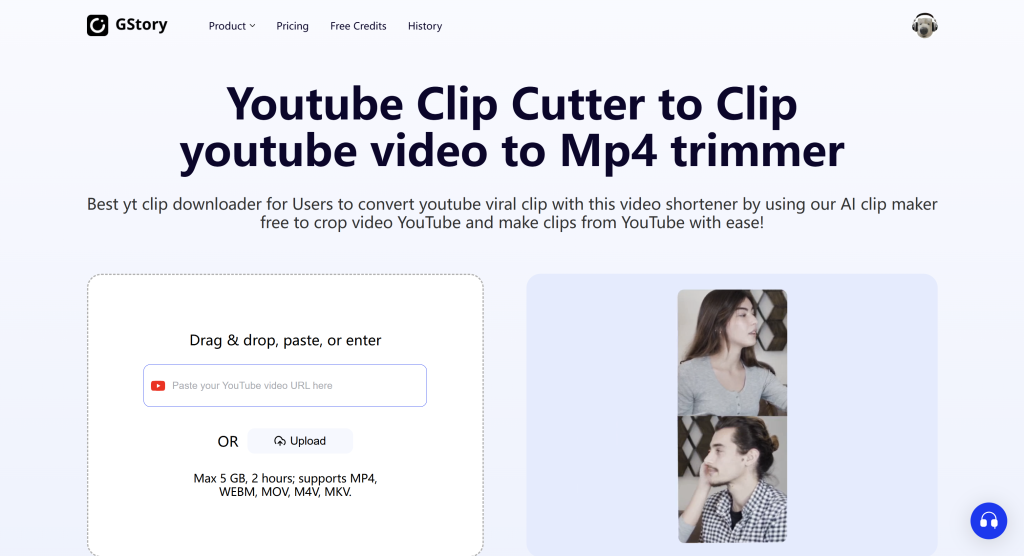
If you want an easy next step, GStory AI Clip Generator fits naturally here: you feed in the MP4 and turn the long video into short, shareable highlights without making the workflow feel like a full-time job.
FAQ
Is it safe to use a free YouTube to mp4 converter?
Sometimes, but you have to be picky. Safety depends less on “free vs paid” and more on behavior: avoid sites that push installers, show fake buttons, or pressure you with scary warnings. If a page feels chaotic, leave—even if it promises perfect quality.
Why can’t I get 1080p when I convert YouTube link to mp4?
Many converters can’t access the HD version because YouTube may deliver HD video and audio separately, or the site caps quality to save resources. Try a method known to support HD streams, and remember: “1080p available on YouTube” doesn’t guarantee “1080p available through every conversion flow.”
Why does my MP4 look blurry or out of sync?
Blurry output usually means heavy re-encoding or a low-quality source stream. Out-of-sync audio often comes from unstable encoding settings or variable frame rate issues. Instead of trying to patch a bad file, re-convert using a different method and aim for stable settings suited for editing.
Can I convert YouTube videos to mp4 on mobile?
Yes, but mobile is where risky pop-ups and fake buttons are most painful. If you use a YouTube to mp4 converter on a phone, be extra strict with safety checks. For creator work, it may be easier to download on desktop first, then move the MP4 to your phone for posting.
Is converting YouTube to MP4 legal?
It depends on rights and permission. Download only videos you own, videos you have explicit permission to use, or content allowed under the platform’s terms and applicable law. If you’re unsure, the safest move is to request the original file from the creator or use official options where available.
Conclusion
If you want to convert YouTube video to mp4 safely and without losing quality, don’t chase the fastest button on the loudest page. Decide what the MP4 is for, run a basic safety check, set realistic expectations about 1080p limits, and troubleshoot by switching methods—not by repeating the same failed attempt.
Once you have a clean file, creators usually don’t stop at “downloaded.” They clip, repurpose, and publish. And if your goal is content, the smartest workflow is: get a usable MP4 first, then turn it into highlights.
Leave a Reply