Last Updated on December 18, 2025 by
You’re watching a video and thinking, “Cool, I’ll grab a 20-second moment and share it.” You’ve seen other people do it. They have a Clip option right under the video. But on your screen? Nothing. Or you tap Clip and it won’t let you create one.
If you’re trying to clip youtube video moments and the Clip button is missing, it’s usually not a random glitch. Most of the time, it’s one of three things: the creator disabled Clips, the video isn’t eligible, or you’re watching from a place where YouTube hides that feature.
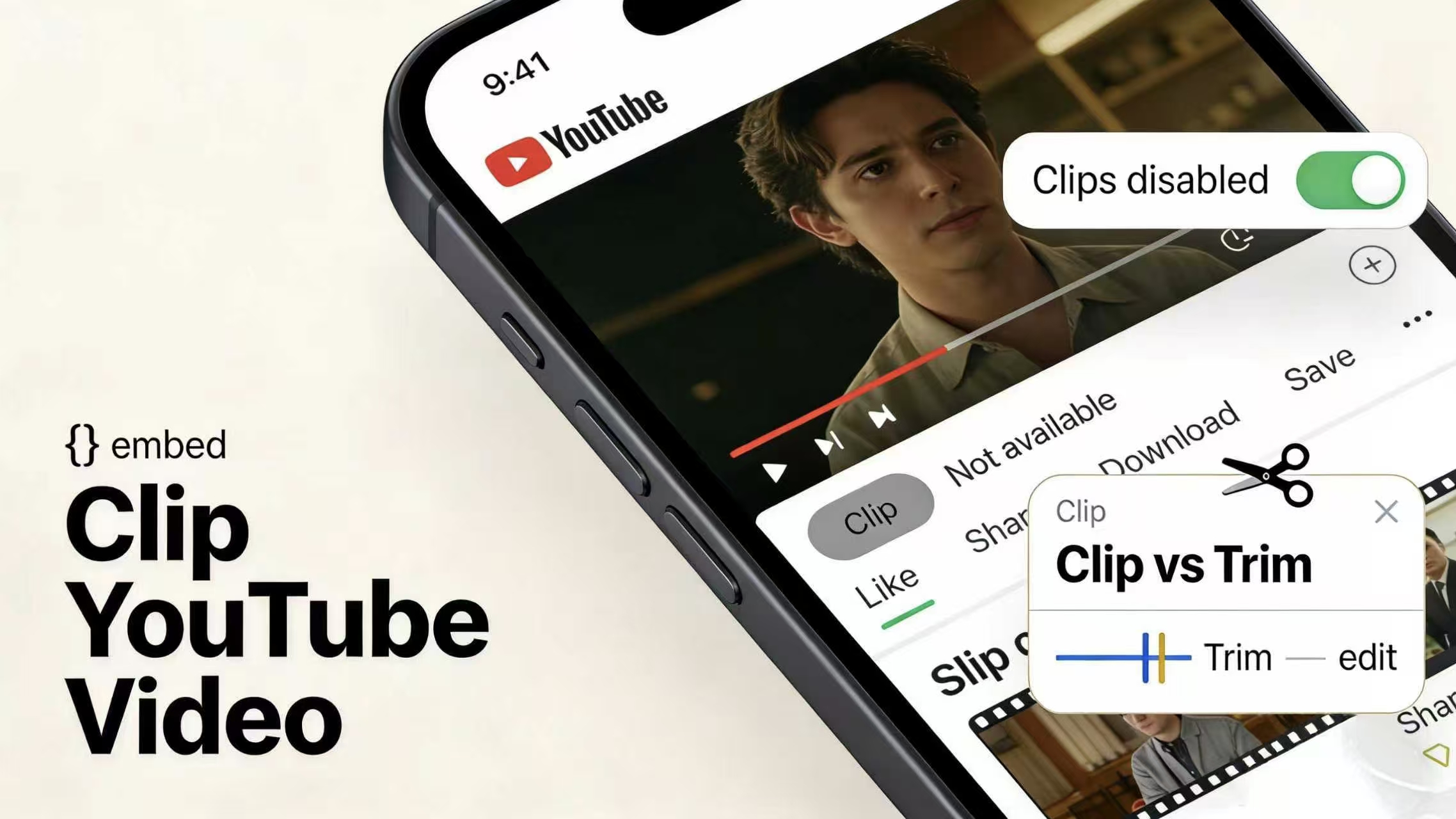
One quick clarity before we troubleshoot: Clip (capital C) is YouTube’s shareable “segment” feature (5–60 seconds). Trim is editing/cutting a video (usually your own upload). Different tools, different rules.
Here’s the promise: follow the checks below in order, and you’ll diagnose the real reason in minutes.
A simple decision guide: if you just want to share a moment → Clips. If you want to edit your own upload → trim inside YouTube Studio. If you need quick repurposing cuts for your own content workflow → “trim cut video online” tools can help (without turning this into a download-and-rip guide).
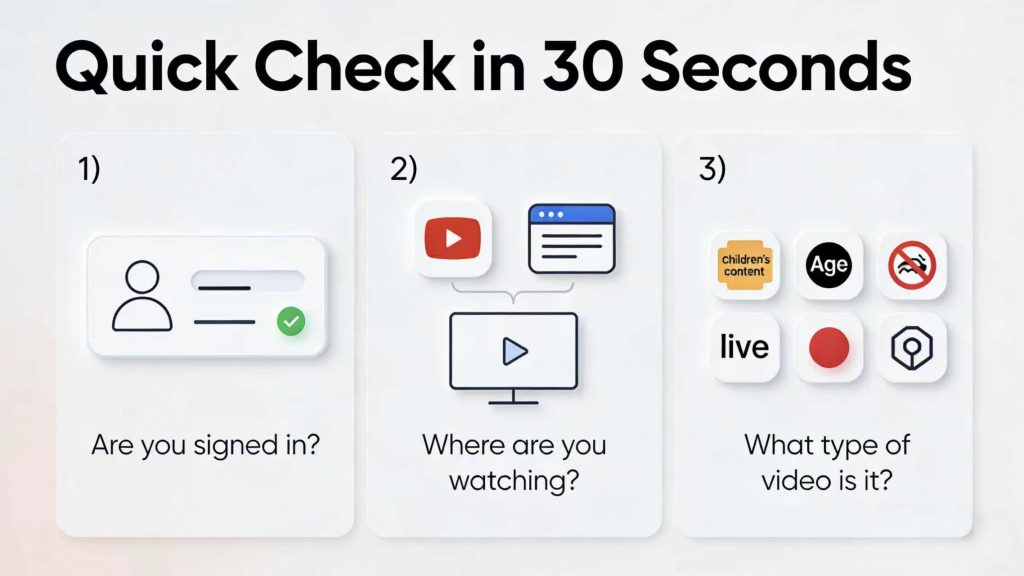
Quick Check in 30 Seconds
Do this fast “triage” first. Short, boring, but it saves you 20 minutes.
1) Are you signed in?
Clips require you to be logged in. If you’re signed out, the button can vanish.
2) Where are you watching?
Are you on:
- The official YouTube app? (best odds)
- YouTube in a full browser (Chrome/Safari/Edge)?
- Or inside another app’s in-app browser (Instagram/TikTok/Reddit) or an embedded player?
Embedded players and in-app browsers often don’t show the same controls as the main YouTube watch page. And some restricted videos can’t play properly on third-party pages anyway.
3) What type of video is it?
Ask yourself: could this be Made for kids, age restricted, live, a premiere still live, or a Short? Several of these are explicitly not eligible for Clips.
If you pass these checks and still can’t clip, move to the deeper fixes below.
Fix #1 (Most Common): The Creator Turned Clips Off
Symptom
You’re logged in, watching a normal-looking video, but the Clip button never appears (even on desktop), or it shows on some videos but never on this channel.
Reason
Creators can opt out and prevent viewers from creating Clips from their content. YouTube treats this as a channel-level setting (and creators may also manage it more granularly depending on current Studio options). The key point is: if the creator disabled it, you can’t override it from the viewer side.
Creators disable Clips for very human reasons:
- They don’t want short snippets taken out of context (misquotes happen).
- They’re cautious about copyright claims or sensitive content.
- They’ve had past issues with people clipping and reposting in a misleading way.
Fix (what you can do)
As a viewer, you can’t “turn it back on.” Your best move is to use a safe alternative (I’ll cover those later) like sharing a timestamp link.
Creator-side note (if this is your channel)
In YouTube Studio, there’s a setting that conceptually reads like “Allow viewers to clip my content.” Turning that off disables clip creation for viewers.
If you’re troubleshooting your own channel and wondering why fans can’t clip, this toggle is the first place to look.
Fix #2: The Video Isn’t Eligible (Kids / Age / Live / Shorts / Restrictions)
This is the “it’s not you, it’s the video” category. Here’s the symptom → reason → next step flow for the common cases.
1) “Made for kids”
Symptom: No Clip button, and you may notice other engagement features missing or limited.
Reason: Kids content has restricted features because of child privacy rules. YouTube explicitly says Clips can’t be made from videos set as made for kids.
What to try next: You can’t fix this as a viewer. Use a timestamp link instead. If you’re the creator and accidentally marked it “made for kids,” you’ll need to correct the audience setting in Studio (only if that’s accurate and compliant).
2) Age-restricted videos
Symptom: Clip is missing, or the video behaves oddly when watched somewhere other than YouTube (embedded/on other sites).
Reason: Age-restricted content has tighter viewing rules (often requiring sign-in and age verification), and YouTube notes these videos may not be viewable on most third-party websites. This “restricted context” often pairs with missing features.
What to try next: Make sure you’re signed in and watching on the official YouTube watch page/app. If you’re under 18 or can’t verify age on that account, you may hit a wall.
3) Live streams (and DVR issues)
Symptom: You’re watching live and can’t clip, or you “clipped” but it doesn’t play right.
Reason: Clips can’t be made from live streams without DVR, streams over 8 hours, or certain live contexts (like premieres while still live). YouTube also notes clips from a live stream may only behave normally after the stream finishes and processes.
What to try next: If the creator controls the stream, they may need DVR enabled. As a viewer, try again after the stream ends, or use a timestamped share link.
4) Shorts vs Clips confusion
Symptom: You’re on a Short and searching everywhere for “Clip.”
Reason: Shorts are a different format and don’t behave like standard long-form watch pages. The Clips feature is designed around clipping segments from eligible videos/live streams, not the Shorts interface.
What to try next: If there’s a long-form version of the content, open that. If it’s only a Short, your practical alternative is sharing the Short link or using platform-native sharing/remix tools (without expecting the Clip button).
5) Region/account restrictions (high-level)
Symptom: It works on your friend’s device/account but not yours.
Reason: Some features depend on account state, age settings, supervised experiences, or restrictions in certain environments. YouTube’s Clips help page also frames eligibility around being signed in and the channel being opted-in.
What to try next: Test quickly: switch accounts, try on desktop, and try a different network (home vs school/work). If it appears elsewhere, it’s probably an account or environment restriction—not the video itself.
Mini example (this happens a lot): you check on desktop and the Clip option appears immediately. But on mobile web (especially inside a social app browser), it’s missing. That’s usually “wrong place,” not “broken feature.”
Fix #3: You’re Trying from the Wrong Place (Embed / Mobile Web / In-App Browser / Restricted Mode)
Symptom
You can clip some YouTube videos, but not this one—until you change where you’re watching. Or you never see Clip when you watch inside another app.
Reason
YouTube features aren’t distributed equally across every viewing surface.
Embedded players often show a slimmer control set. If you’re watching a YouTube video inside a blog post or a forum embed, the Clip button may not be present even if the video is eligible.
In-app browsers (the built-in browser inside TikTok/Instagram/X/Reddit) can also hide or break certain controls. Sometimes the page loads a “lite” version, sometimes a login flow doesn’t complete properly, and sometimes it’s just missing UI.
Mobile web vs app differences are real. YouTube’s own help instructions for creating clips emphasize being signed in and using standard YouTube flows.
Restricted Mode / parental controls / school & work networks can suppress features. If you’re on a managed device (school Chromebook, workplace laptop), settings may be enforced beyond what you can toggle.
Fix (simple action path)
Try this in order:
- Tap “Open in YouTube” (or copy the link and open it in the YouTube app).
- If you’re already in the app, try the same video on desktop in a full browser.
- Turn off Restricted Mode (if it’s enabled and you control it), or test on a different network/device.
You’re not looking for a “magic setting.” You’re trying to move the video into the cleanest, most official viewing context so the Clip UI can appear.
Still Can’t Clip? Here Are Safe Alternatives
If you can’t clip a YouTube video, you can still share the moment—without doing anything sketchy.
1) Share a timestamp link (fastest)
Pause the video at the exact moment and use the Share option that includes “start at” a specific time (or add ?t=123 style timing). It’s not as pretty as a Clip card, but it reliably sends people to the exact second you meant.
2) If it’s your own upload, consider “Trim”
This is the clip-vs-trim moment: Clips are shareable snippets that point back to the original. Trim YouTube video is editing your actual upload in YouTube Studio. If you made the video and want to remove a section permanently, trimming is the correct tool. (This article won’t turn into a full trimming guide—just know it’s a different feature with a different purpose.)
3) For repurposing your own content, “trim cut video online” tools
If your goal is content repurposing (cutting your own footage into short-form edits for socials), online cutters can be useful. Keep it clean: use them for content you own or have rights to, and treat Clips/timestamps as the better option for sharing someone else’s moment.
FAQ
Why can’t I clip a YouTube video on iPhone/Android?
Most of the time it’s one of two things: you’re not in the official YouTube app, or the video isn’t eligible. Start by opening the same video in the YouTube app while signed in.
If you’re watching inside a social app’s built-in browser, the Clip button may not show. Copy the link, open it directly in YouTube, and check again.
Why do some YouTube videos have Clip but mine doesn’t?
That usually means the creator disabled Clips for their channel, or the specific video type isn’t eligible (made for kids, certain live streams, etc.). YouTube explicitly lists categories that can’t be clipped.
A quick reality check: if every video on that channel lacks Clip, it’s probably a channel setting. If only some videos lack Clip, it’s probably eligibility.
Can I clip someone else’s YouTube video?
Yes—if the channel allows it and the video is eligible. Clips are designed for viewers to share moments from videos, not just creators. But the creator can opt out, and certain videos can’t be clipped at all.
If you don’t see Clip, assume it’s not allowed or not eligible and use a timestamp link instead.
Is there a free YouTube clip cutter?
If you mean “a free way to create a YouTube Clip,” the built-in Clip feature is free—but only appears when you’re signed in, the channel opted in, and the video qualifies.
If you mean a free tool to cut video files, that’s a trim workflow, not Clips. And for anything that isn’t your own content, it’s smarter (and safer) to share a timestamp than to chase “free cutters.”
Can I trim an existing YouTube video?
Yes, creators can trim their own uploads in YouTube Studio (that’s editing, not the shareable Clips feature). If your real goal is “remove a part permanently,” trimming is the right term and tool—not “how to clip youtube videos.”
Conclusion
When the Clip button is missing, it’s usually a clean, explainable reason: the creator turned Clips off, the video type isn’t eligible (kids/age/live/Shorts contexts), or you’re watching from a place where YouTube hides features.
Run the 30-second quick check, then follow the fixes in order. In most cases, you’ll either make the Clip button appear—or you’ll confidently know why it won’t. And if all you need is to share a moment today, timestamp links are the fastest “no drama” alternative.
Leave a Reply