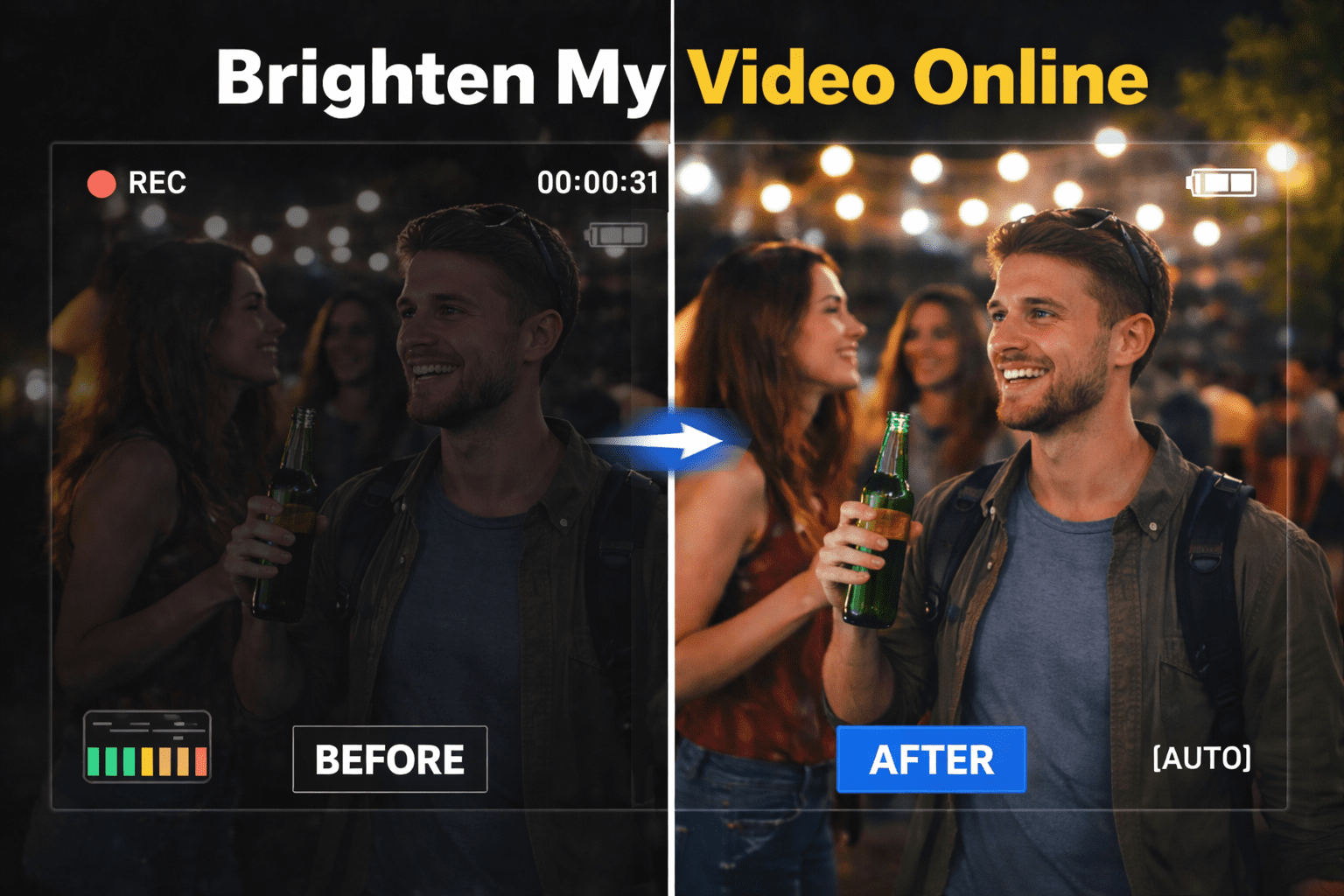
Last Updated on December 22, 2025 by
You know that feeling when you swear the room was bright enough… but later your video looks like it was shot in a cave with one dying candle?
Maybe it’s your kid’s school play, a vlog, or a product demo you really cared about. On your phone screen it looked fine. On your laptop, it’s basically a podcast with moving silhouettes.
That’s usually the moment people rush to Google and type: “brighten my video online” or “how to increase brightness without ruining quality.”
The good news: you can rescue a lot of dark footage—especially with modern AI video enhancer tools that act like an automatic quality improver, fixing brightness, contrast, and noise in one go.
The bad news: if you just crank sliders blindly, you’ll often end up with a bright but ugly mess: grainy shadows, ghostly skin, and highlights that look like someone turned on a nuclear screen brightener.
This guide walks you through a realistic, beginner-friendly workflow to brighten your video online and keep it watchable—with some help from AI.
Why I Need to Brighten My Video Online
Dark video hurts engagement and clarity
On social platforms and streaming sites, people scroll fast. Bright, clear visuals are more likely to grab attention and keep viewers watching.
When your video is too dark:
● Faces are hard to read, so emotions don’t land.
● Text overlays are harder to see.
● Important details (product textures, gestures, background context) just disappear.
Even if your audio is great, viewers subconsciously treat low-visibility content as “low effort” or “low quality” and bounce. Brightening isn’t just cosmetic—it’s how you make your message actually land.
Common causes of low brightness in footage
A dark clip isn’t always your fault. Common causes:
● Auto-exposure getting confused
Phone cameras expose for the brightest part of the frame. A window or lamp can make your subject underexposed.
● Shooting indoors with mixed light
Warm indoor lights plus daylight = weird white balance and uneven exposure. Faces end up half in shadow, half yellowish.
● Low-light environments
Events, concerts, bars, night streets—all force high ISO, which adds noise and still leaves things dark.
● Wrong manual settings
Fast shutter or low ISO by mistake? Everything comes out darker than expected.
● Watching on a different screen
On your phone, you might have your screen brightener (display brightness) maxed out. On a normal laptop, that same file suddenly looks two stops darker.
So people only realize the problem after the moment is gone. Cue the panic search: “how to change brightness on my video,” “how to turn up brightness without ruining it,” and, of course, “brighten my video online.”
How brightness affects viewer perception
Brightness doesn’t just make things visible; it changes how content feels:
● Brighter, well-lit videos feel more energetic, modern, and trustworthy.
● Dim, muddy footage feels depressing, low effort, or even suspicious.
When you turn up brightness in a smart way, you’re not just fixing a technical issue—you’re changing how your audience emotionally reads your content.
How AI Video Enhancer Helps Improve Video Quality
What is an AI video enhancer
A video enhancer is any tool that improves visual quality—sharpening details, fixing color, reducing noise, or brightening dark scenes. An AI video enhancer goes further by using machine learning instead of simple filters.
Modern AI video enhancement tools can:
● Analyze each frame to detect low light, blur, and noise.
● Automatically adjust brightness, contrast, saturation, and sharpness to a more pleasing level.
● Upscale low-resolution footage to HD or even 4K while reducing grain.
Instead of guessing how to increase brightness, where to put your contrast slider, and how much sharpening is “too much,” an AI engine acts as a smart quality improver, proposing a balanced look by default.
Different platforms describe this differently—”remove grain & brighten low-light video,” “auto-correct color and exposure,” and so on—but the goal is the same: better-looking video with minimal manual work.
How automatic brightness fixes work
At a high level, AI brightening follows a few steps:
- Detect exposure problems
The model looks at histograms and patterns in your video to see if pixels are mostly in the dark (underexposed) or blown out. - Estimate “ideal” brightness and contrast
Instead of pushing one “brighten” slider, AI adjusts brightness, contrast, gamma, and sometimes local exposure together so the image doesn’t look washed out. Many online tools pair brightness changes with contrast and saturation so the image stays punchy. - Apply local corrections
Some tools don’t treat the frame as one flat image. They brighten shadows more than highlights, or protect already-bright areas while lifting dark ones. That helps you turn up brightness without destroying clouds, lights, or screens. - Optional noise reduction and sharpening
Because brightening reveals noise, many AI video enhancer platforms combine exposure adjustments with denoising and sharpening in a single pass.
So when you click “auto” in a modern AI video enhancer, you’re getting something closer to a mini colorist than a simple filter.
Tools to Brighten My Video Online
Free online brightener editors
If you just need basic adjusting brightness and don’t want to install anything, free browser-based editors are a good start.
Most “video brightener” tools follow the same pattern:
- Upload your clip in MP4 or another common format.
- Use sliders for brightness, contrast, saturation, and hue.
- Preview and export.
They’re perfect if you:
● Only need small tweaks.
● Already understand how to change brightness and contrast by eye.
● Want a quick fix for a short clip.
If your footage is very dark or gets noisy and flat after edits, you’ll want an AI-based video enhancer instead of purely manual sliders.
AI-powered video enhancement options
AI-powered tools combine brightening with broader video enhancement:
● Adjust brightness, contrast, and color vibrancy automatically.
● Reduce grain and sharpen soft details.
● Work in an “upload → AI fixes → download” flow.
They’re ideal when you:
● Don’t want to learn curves, histograms, or color wheels.
● Have multiple issues at once: low light and noise and soft details.
● Want a smart ai video enhancer that takes a solid first pass at everything.
Avoiding Common Problems After Increasing Brightness
Dealing with noise after brighten
The biggest shock after you brighten my video online is usually noise. All that grain was hiding in the shadows, and once you lift them, it’s suddenly everywhere.
That’s why many AI tools that call themselves AI video enhancer or video quality improver include noise reduction alongside exposure fixes. They specifically mention “remove grain & brighten low-light video” or “reduce noise and modify the brightness.”
To manage noise:
- Use an AI video enhancer that denoises and brightens in one go, so it can keep detail while smoothing grain.
- Avoid over-brightening. If the clip looks “clean enough” at +1 stop, don’t push it to +3. Slightly dark but natural beats bright and crunchy.
- If your tool allows it, do a moderate brighten, then a separate pass of light denoising—too much will make faces look plastic.
Keeping faces and subjects natural
Viewers are extremely sensitive to faces. If your rescue attempt:
- turns skin gray or orange,
- removes natural shadows, or
- makes eyes and teeth glow unnaturally,
people will notice immediately.
When you turn up brightness, always check:
- White balance
Many AI enhancers automatically correct color temperature and tint while brightening, helping skin look realistic.- If your tool has a “temperature” or “warm/cool” slider, nudge it so whites (like walls or shirts) look neutral instead of green or yellow.
- Contrast and vibrance
Just raising brightness without contrast makes everything flat. Tools like Fotor specifically emphasize adjusting contrast to keep a balance between brighter highlights and darker shadows.- A little vibrance (subtle color boost) can revive skin tones without turning the whole frame neon.
- Local vs global changes
If your editor supports masks or subject detection, brighten faces more than the background. That keeps the scene believable while making the subject pop.
Prevent washed highlights and flat color
One of the most common “oops” after learning how to increase brightness is blowing out highlights:
- Windows become pure white.
- Lamps and screens lose detail.
- Clouds turn into blank white blobs.
To avoid this:
- Combine brightness with contrast or curves, not brightness alone.
- Watch the brightest parts of the frame while you tweak. If they start losing detail, back off a little.
- Use tools that explicitly mention controlling both brightness and contrast to maintain visual consistency, like Fotor’s video brightener or Canva’s enhancer.
In short: you’re not just learning how to change brightness; you’re aiming for a balanced exposure where shadows are visible, midtones are natural, and highlights still have texture.
Brighten My Video Online With GStory (Fast Rescue Workflow)
Now let’s talk about doing all of this without turning yourself into a full-time colorist.
GStory is an online AI-powered editing platform that focuses on simple, one-click workflows: enhance videos, remove watermarks, clean up images, and more in your browser.
Its dedicated AI video enhancer is designed for exactly this problem: dark, noisy, or low-quality footage that needs a realistic rescue—without downloading heavy software or learning a complex timeline.
One-click brighten & cleanup for clips
Here’s how a typical “dark footage rescue” looks with GStory’s AI video enhancer:
- Upload your clip
Go to the video enhancer page and upload the dark video straight from your computer or phone. - Let the AI analyze the problem
GStory’s enhancer uses machine learning to inspect each frame and detect issues like poor lighting, blurriness, and visible noise. - Apply AI video enhancement in one step
Instead of manually guessing which sliders to touch, you apply an ai video enhancement preset. Under the hood, GStory:- Brightens underexposed areas
- Adjusts contrast and color to keep things natural
- Reduces noise so your newly bright shadows don’t turn into static
- Sharpens details for a clearer, more HD look
- Preview, tweak, and export
If the first pass looks good, you can export right away. If you want a little more punch, you can do light adjusting brightness and contrast on top of the AI result, rather than pushing raw dark footage.
In practice, this feels less like manual editing and more like handing your clip to a smart quality improver that knows how not to overdo it.
When to switch to “enhance” instead of pushing brightness
A helpful rule of thumb:
- If your footage is only slightly underexposed, any basic online brightener or manual slider will probably do.
- If your video is very dark, or brightening it makes the image noisy and flat, it’s time to switch from “just brighten” to full video enhancer mode.
That’s where GStory‘s AI video enhancer shines:
- It’s built for the “upload → AI process → download” workflow, so you don’t fight with a complex interface.
- It treats brightness, contrast, sharpness, and noise as linked problems, instead of one slider at a time.
- It’s fully online, aligning perfectly with the brighten my video online intent—no heavy GPU, no software install.
So instead of endlessly retrying how to change brightness and wondering why your “fixed” clip still looks weird, you can let AI handle most of the heavy lifting and focus on the story you’re trying to tell.
If your next video looks like it was filmed in a shoe box, don’t panic.
Use basic tools when the fix is small. But when your footage is really struggling, let an AI video enhancer work as your silent colorist. And if you want that rescue to happen fully online, with minimal effort, AI video enhancement is a solid way to turn “oops, it’s too dark” into “okay, this is actually watchable.”
Leave a Reply