Last Updated on December 31, 2025 by
You’ve just found a box of old family VHS tapes in the attic. Or maybe you have years of smartphone footage that looks grainy and blurry. The promise of AI video enhancement sounds almost too good to be true—take your low-quality videos and magically transform them into crisp 4K content.
HitPaw Video Enhancer is one of the most talked-about tools in this space, promising one-click AI upscaling that anyone can use. But with so many bold marketing claims floating around, it’s hard to separate fact from fiction.
Here’s the problem: most reviews you’ll find online read like advertisements. They gloss over real issues that users encounter—licensing confusion, support quality, and whether the output actually matches the hype. We’ve dug through Reddit threads, Quora discussions, and extensive user feedback to give you the complete picture.
In this comprehensive review, we’ll examine HitPaw Video Enhancer from every angle. You’ll learn about its actual features, real user experiences (including the complaints), how it stacks up against Topaz Video AI, and whether it’s worth your money. By the end, you’ll know exactly if HitPaw is right for your needs—or if an alternative makes more sense.
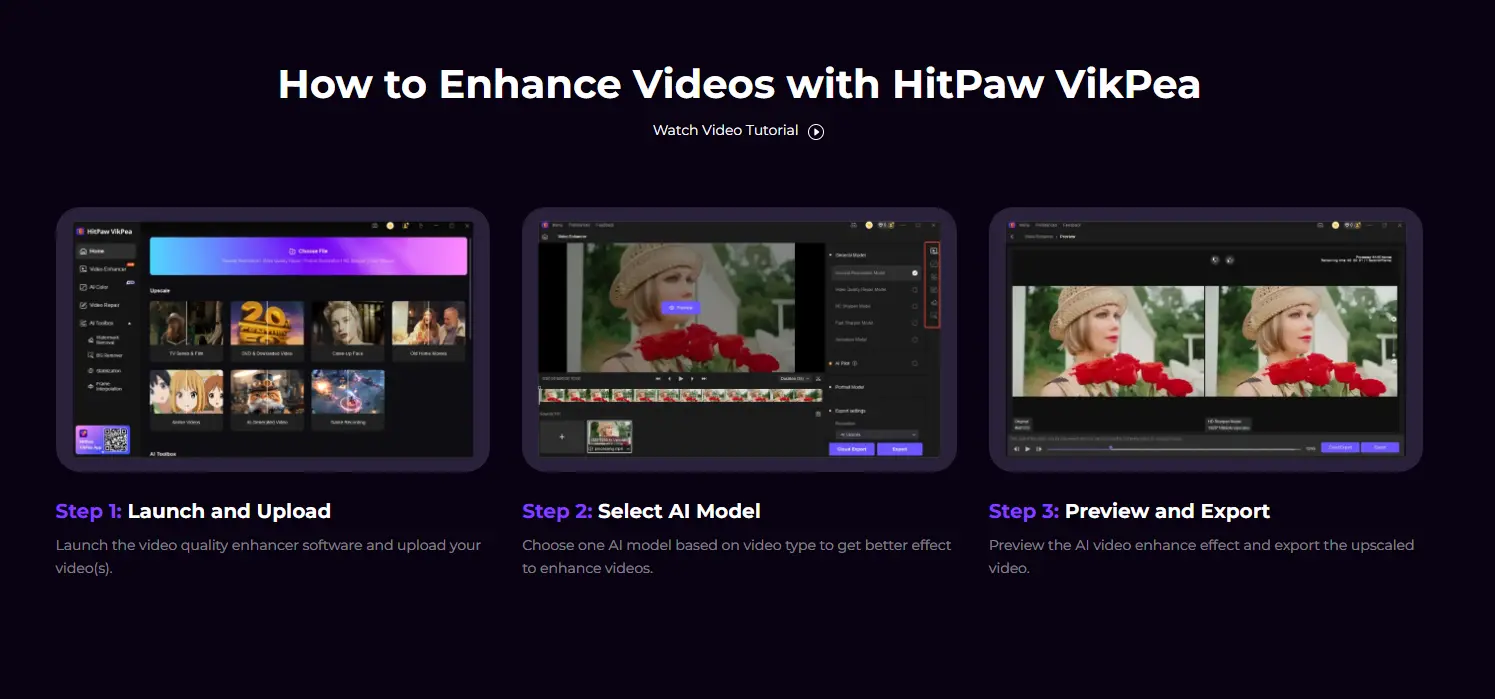
What is HitPaw Video Enhancer (VikPea)?
HitPaw Video Enhancer, recently rebranded as HitPaw VikPea, is an AI-powered video enhancement software designed to upscale and improve video quality. It targets users who want to restore old footage, enhance low-resolution videos, or improve overall video clarity without technical expertise.
The software uses artificial intelligence to analyze and enhance video frames, offering capabilities like upscaling to 4K or even 8K resolution, noise reduction, and colorization.
Core Features Overview
HitPaw Video Enhancer includes several key capabilities:
- AI-powered video upscaling to resolutions up to 4K and 8K
- Multiple AI models optimized for different video types
- One-click enhancement designed for beginners
- Batch processing for handling multiple videos
- Object and background removal capabilities
- Frame interpolation for smoother playback
The software positions itself as a beginner-friendly alternative to more complex professional tools, emphasizing ease of use over granular control.
Supported Platforms & System Requirements
HitPaw Video Enhancer runs on both Windows and Mac operating systems. However, if you’re looking for mobile options, the Android version has significant limitations compared to the desktop application.
For optimal performance, you’ll need a relatively modern computer. A dedicated GPU (NVIDIA is recommended) significantly speeds up processing times. Without dedicated graphics, expect much longer wait times for video enhancement.
Key Features & AI Models Explained
Understanding which AI model to use is crucial for getting the best results from HitPaw. Each model is trained for specific content types, and choosing the wrong one can lead to disappointing output.
General Denoise Model
The General Denoise Model works best for everyday footage with noise or grain. It’s your go-to choice for:
- Smartphone videos shot in low light
- Standard definition footage that needs cleaning up
- General-purpose enhancement tasks
This model removes visual noise while attempting to preserve detail. Results vary depending on how degraded your source material is.
Animation Model
Optimized specifically for cartoons, anime, and animated content, this model understands the unique characteristics of drawn animation. According to user comparisons on Reddit, HitPaw performs particularly well with animated content and black-and-white movies compared to some competitors.
Face Enhancement Model
This specialized model focuses on portrait and face detail restoration. It’s designed to enhance facial features in videos where people are the main subject.
Important caveat: User feedback on Reddit indicates mixed results with face enhancement in motion. One user described an artifact issue as appearing like “transparent ants crawling on faces” when the enhanced video plays. The effect may look fine on single frames but become noticeable during playback. Test thoroughly before committing to a large project.
Colorize Model
The Colorize Model converts black-and-white footage to color. This is particularly useful for:
- Historical family films
- Old movie restoration projects
- Archival footage enhancement
Results depend heavily on the source material quality. Don’t expect perfect Hollywood-grade colorization, but it can breathe new life into old memories.
Frame Interpolation
Frame interpolation increases the frame rate for smoother playback. You can convert choppy 24fps footage to 60fps for a more fluid viewing experience. This feature is especially useful for:
- Old video game recordings
- Action footage that feels stuttery
- Creating slow-motion effects
How to Use HitPaw Video Enhancer (Step-by-Step)
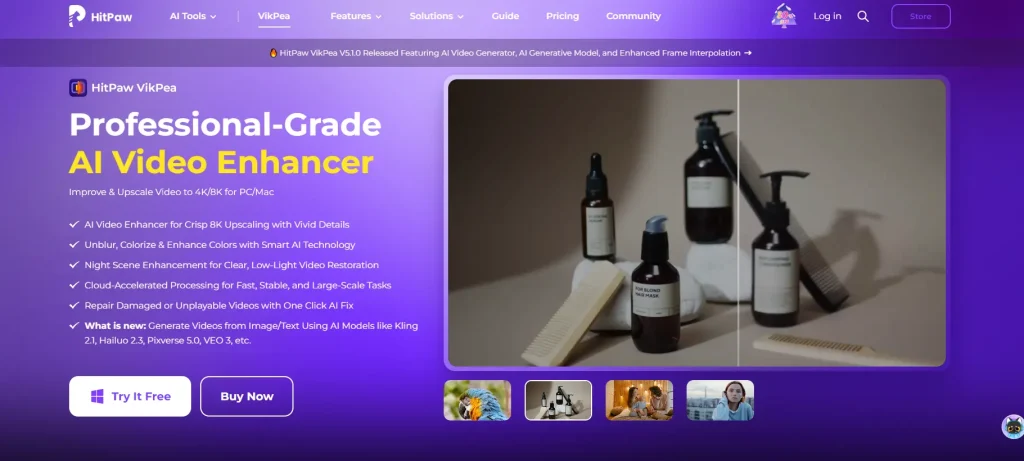
One of HitPaw’s main selling points is its simplicity. Here’s how the basic workflow operates:
Importing Your Video
Start by launching the application and importing your video file. HitPaw supports most common video formats. You can either:
- Drag and drop files directly into the interface
- Use the file browser to select videos
- Set up batch processing for multiple files
Selecting the Right AI Model
Choosing the correct model is critical for good results:
| Content Type | Recommended Model |
|---|---|
| General footage | General Denoise |
| Cartoons/anime | Animation |
| Videos with faces | Face Enhancement |
| Black-and-white | Colorize |
| Low frame rate | Frame Interpolation |
When in doubt, start with the General Denoise model and compare results.
Adjusting Enhancement Settings
After selecting your model, configure the output settings:
- Resolution: Choose your target resolution (1080p, 4K, 8K)
- Quality preset: Balance between processing speed and output quality
- Output format: Select your preferred video format
Higher resolutions require more processing time and result in larger file sizes.
Exporting Your Enhanced Video
Once configured, start the enhancement process. According to user benchmarks, HitPaw can process 1080p to 4K upscaling in under 4 minutes on capable hardware—faster than some competitors.
Preview the results before full export when possible. This saves time if you need to adjust settings or try a different AI model.
Real User Reviews: What People Actually Say About HitPaw
This is where we get honest. Rather than just listing features, let’s look at what real users are saying across Reddit, forums, and review sites.
What Users Love
Beginner-friendly interface: Multiple users praise how easy HitPaw is to use. The one-click approach means you don’t need video editing experience to get started.
Faster processing: Compared to Topaz Video AI, HitPaw generally processes videos more quickly. For users who prioritize speed over maximum quality, this is a significant advantage.
Multiple AI models included: Having different models for different content types (animation, faces, general footage) provides flexibility without needing to purchase add-ons.
Good for quick tasks: If you need “good enough” results fast, HitPaw delivers without the learning curve of professional tools.
Common Complaints & Concerns
Here’s where things get important—issues that other reviews often skip.
Licensing Confusion: Multiple Reddit threads flag serious concerns about HitPaw’s licensing practices. Users report confusion between “perpetual” and “lifetime” licenses. According to discussions in r/VideoEditing, some users purchased what they believed was a “lifetime” license, only to discover it applied to a specific version. When new versions released, they were asked to pay upgrade fees.
One commenter described the situation as a “swindle,” while others threatened FTC complaints. If you’re considering a purchase, read the license terms carefully and understand exactly what you’re buying.
Customer Support Quality: User reports indicate inconsistent support experiences. Complaints include language barriers with support staff and receiving canned responses that don’t address actual problems.
Credit-Based Pricing Frustrations: Some users express frustration with credit-based pricing models that can feel nickel-and-diming compared to straightforward subscription or one-time purchase options.
Who HitPaw Works Best For
Based on user feedback, HitPaw is best suited for:
- Beginners who want simple one-click solutions
- Users prioritizing speed over maximum possible quality
- Casual users with occasional enhancement needs
- Budget-conscious buyers who find Topaz too expensive
If you need professional-grade results or plan heavy use, you may find limitations frustrating.
HitPaw Pricing: Is It Worth the Cost?
Understanding HitPaw’s pricing structure is essential before purchasing—especially given the licensing concerns discussed above.
Free Trial Limitations
HitPaw offers a free trial that lets you test the software, but with restrictions:
- Enhanced videos include a watermark
- Limited processing capabilities
- Preview functionality available
The free trial is useful for testing whether the tool works for your specific footage before committing money.
Subscription Plans Breakdown
HitPaw offers multiple pricing tiers:
- Monthly subscription: Highest per-month cost, maximum flexibility
- Annual subscription: Reduced per-month rate with yearly commitment
- “Lifetime” license: One-time purchase (see caveats below)
Some plans use a credit-based system where you purchase credits for processing. Review exactly what you’re getting before purchasing.
Understanding “Perpetual” vs “Lifetime” Licenses
This is critical. Based on user complaints:
- “Perpetual” license may only apply to the specific version you purchased
- “Lifetime” license definitions vary—it may mean lifetime of that product version, not lifetime access to all future versions
- New major versions may require additional payment
Recommendation: Contact support before purchasing to get written clarification on exactly what your license covers. Screenshot or save this communication.
Refund Policy & Guarantees
HitPaw offers a money-back guarantee, but user experiences with refund requests vary. Some users report smooth processes; others describe difficulties. Check the current refund policy directly on their website before purchasing.
HitPaw vs Topaz Video AI: Head-to-Head Comparison
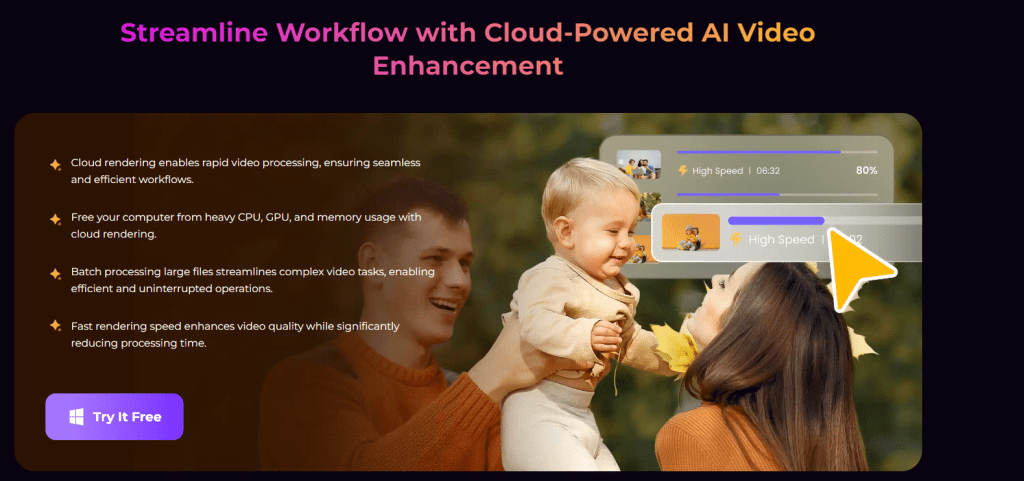
This is the comparison most users want to see. Topaz Video AI is HitPaw’s primary competitor in the AI video enhancement space.
Quality Output Comparison
Topaz Video AI: Produces superior detail retention and professional-grade results. Multiple comparisons and user feedback consistently rate Topaz higher for pure output quality.
HitPaw Video Enhancer: Good for quick enhancement tasks. As one Reddit user in r/TopazLabs put it, “Nero and HitPaw are like the very early versions of Topaz Video AI.”
For portraits and realistic restoration, Topaz generally wins. For cartoons and black-and-white movies, HitPaw can actually compete well.
Processing Speed Comparison
HitPaw: Generally faster processing times. If you’re working with many videos or need quick turnaround, this matters.
Topaz: Slower but more thorough enhancement. The additional processing time often translates to better results.
Ease of Use Comparison
HitPaw: More beginner-friendly interface. One-click enhancement requires minimal learning.
Topaz: Steeper learning curve with more granular control. Professional users appreciate the options; beginners may feel overwhelmed.
Pricing Comparison
| Aspect | HitPaw | Topaz Video AI |
|---|---|---|
| Entry Price | Lower | Higher |
| Pricing Model | Subscription/Lifetime options | One-time purchase |
| Updates | May require additional payment | Included (within version) |
Verdict: Which Should You Choose?
Choose HitPaw if:
- You’re a beginner seeking simplicity
- Budget is a primary concern
- Speed matters more than maximum quality
- You have occasional, casual enhancement needs
Choose Topaz Video AI if:
- Output quality is your top priority
- You’re doing professional or semi-professional work
- You prefer one-time purchase over subscriptions
- You want more control over the enhancement process
Best HitPaw Alternatives to Consider
If HitPaw doesn’t seem right for your needs, here are other options worth evaluating:
Topaz Video AI (Premium Choice)
Best for: Professionals and quality-focused users
Topaz consistently ranks as the top AI video enhancer for quality output. The higher price point reflects professional-grade capabilities. If quality is non-negotiable, Topaz is the standard.
- One-time purchase model
- Superior output quality
- More processing control
- Larger learning curve
AVCLabs Video Enhancer AI
Best for: Batch processing and technical users
AVCLabs offers multiple AI models and strong batch processing capabilities. The interface is less user-friendly than HitPaw, making it better suited for users comfortable with more technical software.
Aiarty Video Enhancer
Best for: Modern AI technology seekers
An emerging competitor gaining attention in 2025 reviews. Aiarty focuses on texture detail enhancement and represents newer AI technology entering the market. Worth watching as it develops.
VideoProc Converter AI
Best for: All-in-one solution seekers
VideoProc combines video enhancement with other video processing tools. If you need image and video enhancement in one package, it offers good value. It’s positioned as a comprehensive solution rather than a specialist tool.
Free Alternatives
If budget is your primary constraint:
DaVinci Resolve: Professional-grade video editor with a free tier. While not AI-focused like HitPaw, it includes powerful enhancement tools. Steep learning curve but capable software.
CapCut: Free video editor with some enhancement features. Limited compared to dedicated AI enhancers but costs nothing. Good for basic improvements.
Reality check: Free tools generally can’t match the AI enhancement capabilities of paid options. Manage expectations accordingly.
Best Use Cases for AI Video Enhancement
Understanding what AI video enhancement can and cannot do helps set realistic expectations.
Restoring Old Family VHS Tapes
This is one of the most common use cases. AI enhancement can:
- Reduce noise and grain from analog recordings
- Improve overall clarity
- Upscale resolution for modern displays
- Add color to black-and-white footage
Reality check: You cannot truly create HD detail from VHS. AI enhancement interpolates and estimates detail that wasn’t captured in the original recording. Results will be better than the original, but don’t expect miracles. A VHS tape enhanced to “4K” won’t look like native 4K footage.
Upscaling Old YouTube Videos
Content creators with older videos can use enhancement tools to:
- Improve archived content for modern viewing
- Batch process multiple videos efficiently
- Create better-looking compilations of older material
Enhancing Smartphone Footage
AI enhancement works well for smartphone videos, especially:
- Low-light footage with excessive noise
- Older phone videos at lower resolutions
- Shaky footage (when combined with stabilization)
Modern smartphones already produce good quality, so enhancement benefits decrease with newer footage.
Colorizing Black & White Videos
AI colorization has improved significantly. Use cases include:
- Historical family films
- Documentary footage
- Personal archival projects
Results vary based on content complexity. Simple scenes colorize better than busy, detailed footage.
Frequently Asked Questions
Do AI Video Enhancers Actually Work?
Yes, but with caveats. AI enhancement genuinely improves video quality—noise reduction, sharpening, and upscaling all work. However, AI cannot recreate detail that was never captured. It makes educated guesses about what “should” be there.
Expect improvement, not magic. A blurry 240p video won’t become crisp 4K. A grainy VHS will look better, but won’t match modern footage.
Is HitPaw Safe to Download?
Download only from the official HitPaw website. Third-party download sites may bundle unwanted software or malware. Avoid “free download” sites promising cracked versions—these pose security risks and won’t receive updates.
Be especially wary of searches for “hitpaw video enhancer mod apk”—these typically lead to malicious software.
Can You Really Upscale VHS to 4K Quality?
Technically, yes. Practically, understand limitations. VHS resolution is approximately 240-320 lines of horizontal resolution. AI upscaling to 4K adds pixels, but the underlying detail remains limited.
Enhanced VHS looks noticeably better on modern displays. But comparing it to native 4K footage reveals the difference immediately. Think of it as the best possible version of your VHS, not a transformation into modern quality.
Is the HitPaw Lifetime License Really Lifetime?
Based on user reports: be cautious. Multiple users have reported that “lifetime” applies to specific versions, not perpetual access to future versions. New major releases may require additional payment.
Before purchasing, get written clarification from HitPaw support about exactly what your license covers. Document this communication.
What’s the Difference Between HitPaw and HitPaw VikPea?
HitPaw VikPea is the rebranded name for HitPaw Video Enhancer. They’re the same product with a new name. The core functionality remains identical—if you see references to either name, they’re describing the same software.
Conclusion
HitPaw Video Enhancer is a capable tool that delivers on its core promise: making AI video enhancement accessible to beginners. Its one-click interface, multiple AI models, and faster processing times make it attractive for casual users who want quick results without a learning curve.
However, this review wouldn’t be complete without acknowledging the concerns. Licensing practices have frustrated multiple users, customer support quality varies, and the output quality—while good—doesn’t match professional tools like Topaz Video AI.
Here’s the bottom line:
- For beginners wanting simple enhancement with minimal effort, HitPaw provides a legitimate solution
- For professionals or quality-critical projects, invest in Topaz Video AI
- For budget-conscious users, the free trial lets you test before committing—use it
- For anyone purchasing, read license terms carefully and get written clarification on what “lifetime” actually means
AI video enhancement is genuinely useful technology. HitPaw makes it accessible, if not perfect. Test the free trial with your actual footage before deciding. Your specific use case matters more than any review.
Ready to try it? Download the free trial from HitPaw’s official website to test with your own videos before purchasing. And if you want to explore alternatives, check out our comparison guides for Topaz Video AI and other AI video enhancers.
Leave a Reply