Last Updated on January 19, 2026 by
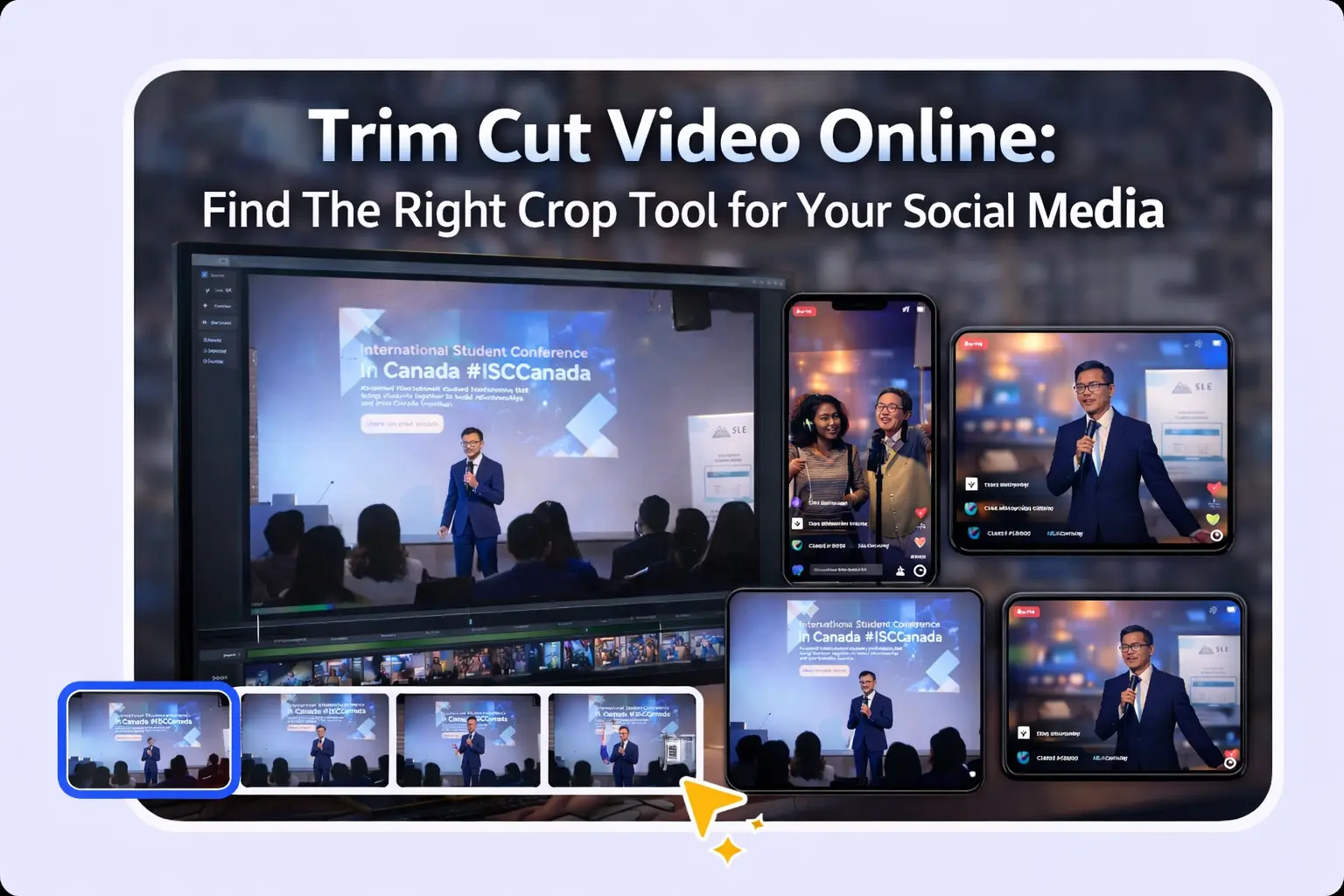
You’ve recorded the travelling videos for making a lovely vlog—but you only need the most fantasy 15 seconds from a 5-minute-long clip for the final trimming. The tool you choose to trim it matters more than you think.
Here’s the reality: a casual user who trims one vacation clip per month doesn’t need the same features as a live streamer extracting highlights from a 4-hour broadcast. Using the wrong tool wastes time, degrades quality, and delivers subpar results. According to Wistia’s research, engagement drops significantly when videos exceed optimal length—viewers retain 77% engagement for videos under 2 minutes, but that number plummets to just 57% for videos over 6 minutes.
This guide matches your creator profile to the ideal video trimming tools and workflows. Whether you’re a casual clipper, content creator, or streaming professional, you’ll find exactly what you need to cut videos efficiently for any social platform.
Your Creator Type Determines How You Cut and Trim Video Online
One-size-fits-all tool recommendations fail because different creators have fundamentally different needs. A parent trimming a birthday party video has no use for batch processing features. Meanwhile, a YouTuber repurposing content for TikTok needs exactly that capability.
Understanding your workflow type is the first step toward choosing the right tool. Let’s break down the three main categories that shape how you should approach video trimming.
How to Shorten Video: Quick Trims vs. Batch Processing vs. AI-Powered Extraction
Different workflows require different capabilities:
- Quick Single-Video Trims: Need simplicity above all else. Upload, drag handles to set start/end points, export. No learning curve required.
- Batch Processing: For creators handling multiple files regularly. Automation and template support save hours of repetitive work.
- AI-Powered Extraction: For long-form content like streams or podcasts. AI analyzes audio spikes, visual events, and even chat activity to identify clip-worthy moments automatically.
Your primary workflow determines which features matter most. A tool that excels at batch processing might be overkill—and overly complex—for someone who trims one video per week.
Quality vs. Speed: The Lossless Trimming Trade-Off
Here’s something most online tools don’t tell you: most browser-based trimmers re-encode your video, which means:
- Processing takes longer
- File sizes can actually increase
- Quality degrades with each export
Lossless cutting preserves your original quality by only removing data at specific points without re-encoding the rest. The trade-off? It requires desktop software and cuts must align with keyframes (typically every 0.5-2 seconds) for truly lossless results.
When lossless matters: professional content, archival footage, videos you’ll edit further.
When lossy is fine: quick social shares, casual clips, content that will be re-encoded by the platform anyway.
Casual Users: Finding the Best Video Cutter for Quick & Simple Trimming
If you trim videos occasionally—a vacation highlight, a funny moment to share with friends, a quick clip for a family group chat—you need simplicity above all else. No account creation, no learning curve, no subscription fees.
Best Browser-Based Trimmers for One-Off Edits
For occasional trimming, browser-based tools offer zero-install convenience. Here are the most reliable options:
- Best for: Fastest simple trims
- Limits: 4GB file size in free tier
- Verdict: Clean interface, supports MP4/MOV/MKV, no account required
- Best for: Truly free usage (no watermarks ever)
- Limits: 200MB file size
- Verdict: No-frills, developer-friendly, ad-supported but completely free
- Best for: Suite of related tools (trim, merge, compress)
- Limits: Watermark on free exports; $9/month to remove
- Verdict: Polished interface but not truly free
For most casual users, EZGIF delivers exactly what you need: upload your video, drag the handles, download the result. No surprises.
Mobile-First Options for On-the-Go Trimming
When you capture content on your phone, sometimes the fastest path is trimming right there. Unfortunately for me, if I don’t edit and upload my footage on the same day I shoot it, once the trip is over I usually lose motivation and rarely find the time to turn it into a polished vlog.
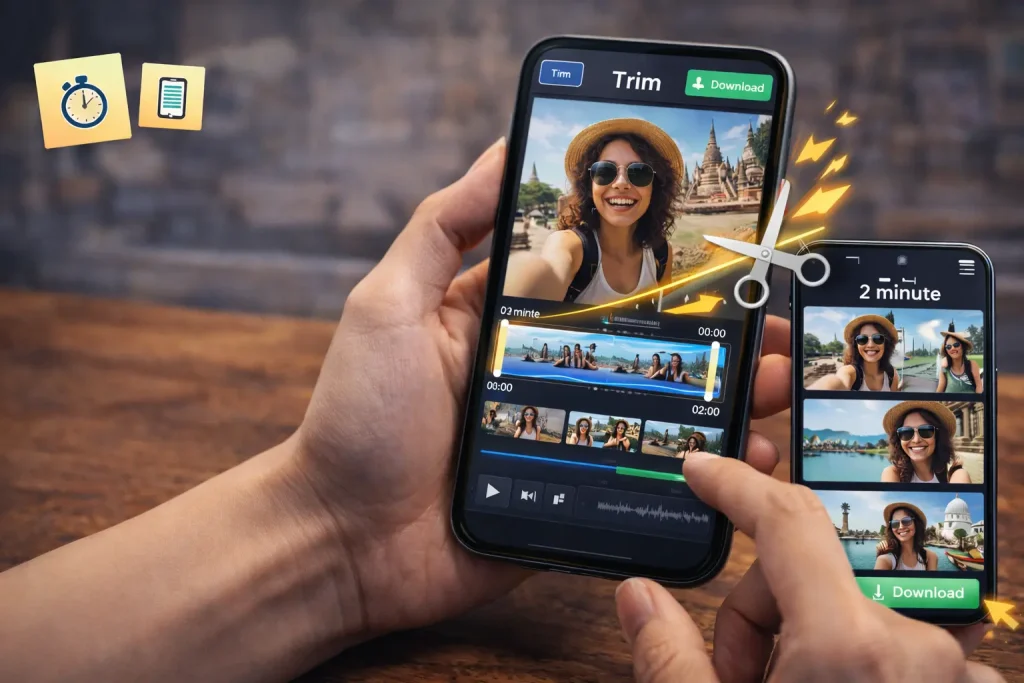
Built-in options handle basic cuts with zero downloads:
- iOS Photos app: Tap Edit > drag trim handles > Save as New Clip
- Android Gallery: Open video > Edit > Trim
For more control, third-party apps offer additional features:
CapCut Mobile (with major caveat)
- Feature-rich with transitions, effects, and social presets
- Warning: As of late 2025, CapCut’s free tier now adds watermarks to exports. This caught many users off guard after investing time editing.
InShot
- Intuitive touch-based trimming
- Platform-specific export presets (TikTok, Reels, Shorts)
- Free tier includes watermark; one-time purchase removes it
Influencers & Content Creators: How to Cut Video for Polished Multi-Platform Output
When your brand depends on video quality, you need tools that deliver consistency, no watermarks, and efficient multi-platform repurposing. The good news? Some of the best options are completely free.
Desktop Powerhouses for Quality-Conscious Creators
Desktop software offers capabilities that browser tools simply can’t match:
DaVinci Resolve (Free)
- Professional-grade editor used in Hollywood productions
- No watermarks on free version
- Includes color grading, audio mixing, effects
- Learning curve: Moderate—more complex than simple trimmers
- Best for: Creators who want room to grow into advanced editing
LosslessCut (Free, Open Source)
- Instant lossless trimming without re-encoding
- Reddit’s overwhelming favorite for quality-conscious trimming
- Batch processing support
- Preserves every pixel of original quality
- Best for: Anyone who values quality and speed over fancy effects
- Open-source editors with robust trimming capabilities
- Middle ground between simple trimmers and full editing suites
- Best for: Users who want more than basic trimming but find Resolve intimidating
Repurposing Long-Form Content Into Multiple Short Clips
A single 20-minute YouTube video can yield 5-10 short clips for TikTok, Reels, and Shorts. This is where smart creators maximize their content investment.
Manual approach: Watch through, note timestamps, trim individually. Works, but time-consuming.
AI-powered approach: Tools like GStory’s AI Clip Maker analyze your long-form video to automatically identify viral-worthy moments with engagement scoring. The tool outputs directly in vertical formats optimized for each platform.
The hybrid workflow that works best:
- Let AI identify candidate clips (saves hours of scrubbing)
- Review AI suggestions and select the best
- Fine-tune timestamps manually if needed
- Export in platform-native formats
This approach balances automation efficiency with creative control. For creators producing weekly long-form content, the time savings compound dramatically.
Batch Trimming & Template-Based Workflows
Consistency matters for personal brands. Create a trimming template that defines:
- Standard intro duration
- Outro placement
- Aspect ratio presets for each platform
- Consistent export settings
For visual learners, DaVinci Resolve’s timeline templates let you apply consistent trims across multiple videos without command-line work.
Key Takeaway: Invest time upfront in creating templates. A 30-minute setup saves hours over months of consistent content production.
Live Streamers & Clip Creators: Extracting Highlights at Scale
Streamers face a unique challenge: hours of broadcast footage containing scattered moments of gold. Manually scrubbing through a 6-hour stream isn’t just tedious—it’s unsustainable.
AI-Powered Clip Detection for Multi-Hour Streams
Modern AI tools analyze multiple signals to identify clip-worthy moments:
- Audio spikes: Laughter, shouting, excitement
- Chat activity: Moments when viewers engage most
- Visual events: Action sequences, reaction faces
GStory’s AI Clip Generator scores potential clips for viral potential and handles batch extraction. Similar tools like Opus Clip focus on identifying emotionally engaging moments from podcasts and interviews.
The key is getting a shortlist of candidates fast, then curating the best manually. Let AI do the heavy lifting of review; keep creative control for final selection.
Processing Multiple VODs with Batch Tools
Regular streamers accumulate VODs quickly. Processing them one-by-one doesn’t scale.
LosslessCut supports project files (.llc) that save segment selections, letting you:
- Mark multiple clips across a VOD
- Export all segments in one batch
- Reopen projects later if you need different cuts
FFmpeg scripts can process timestamp lists automatically—ideal for streamers with consistent highlight formats.
For cloud-based batch processing, some creators use Descript’s timeline to mark multiple export points across several videos simultaneously.
The goal: process an entire week’s streams in one focused session rather than clip-by-clip throughout the week.
Maintaining Quality When Compressing Long Recordings
Stream recordings are massive—often 10GB+ for just a few hours. Trimming reduces size, but re-encoding introduces quality loss and can actually increase file size if settings are wrong.
For quality preservation:
- Use lossless cutting when possible
- If re-encoding is necessary, match your export bitrate to the original source
- For clips that need extra polish, Video Enhancer can upscale clips to 4K after trimming
Platform-Specific Trimming: Getting the Format Right
Getting your trim points perfect matters less if you export in the wrong format. Here’s how to optimize for each major platform.
TikTok & Instagram Reels: How to Crop and Optimize Vertical Video
Both platforms favor 9:16 vertical aspect ratio.
TikTok specs:
- Max duration: 10 minutes
- Best performing: 15-60 seconds
- Resolution: 1080×1920 minimum
Instagram Reels specs:
- Max duration: 90 seconds
- Best performing: 15-30 seconds
- Resolution: 1080×1920 minimum
When trimming horizontal footage for vertical:
- Manual framing yields better results than auto-crop
- Keep subjects centered (heads visible, action in frame)
- Tools with vertical presets (Canva, CapCut, Clipchamp) auto-crop but may cut important elements
The statistics are compelling: Sprout Social data shows that vertical videos on Instagram generate 78% more engagement than horizontal or square formats.
YouTube Shorts & Horizontal Repurposing
Shorts require under 60 seconds and vertical format, but many creators want horizontal versions for main channel uploads too.
Smart workflow:
- Trim to your tightest cut first (the Shorts version)
- Expand with padding for horizontal repurposing
- Add captions that work across both formats
Captions are critical—Verizon Media research found that 92% of consumers watch video with sound off on mobile. GStory’s Subtitle Generator can auto-add captions with 95% accuracy, saving manual transcription time.
Free vs. Paid Tools: What You Actually Get
The term “free” gets abused in video software marketing. Let’s cut through the confusion.
Truly Free Tools That Deliver
These tools are legitimately free without watermarks or major limitations:
Desktop (no watermarks, no limits):
- LosslessCut – Open source, donation-supported
- DaVinci Resolve – Professional-grade, free version is remarkably full-featured
- Kdenlive – Open source, Linux/Windows/Mac
- Shotcut – Open source, cross-platform
Online (with some limits):
- EZGIF – Ad-supported, 200MB limit, no watermarks
- Online Video Cutter – 4GB limit, no watermarks
Credit-based (free to try):
- GStory – 50 free credits on signup, and 50 gift credits for referral rewards—enough for testing AI features like clip extraction and enhancement
When Premium Features Are Worth the Investment
Consider paying when:
- You need cloud storage/sync across devices (Clipchamp Pro, Canva Pro)
- You require batch processing at scale (Descript Pro)
- You want AI features like auto-captioning and translation
- Your time cost exceeds tool cost (a $15/month tool that saves 5 hours monthly is obvious ROI)
For creators earning from content, the math usually favors paid tools. For casual users, free options cover virtually every need.
The Hidden Cost of “Free”: Re-encoding, Privacy & Watermark
Free online trimmers come with costs that aren’t measured in dollars. First, most re-encode your video during export—degrading quality and often inflating file sizes beyond the original. Second, your footage gets uploaded to remote servers, raising privacy concerns for personal or business-sensitive content. Third, and perhaps most frustrating, many tools reveal watermarks only after you’ve invested time editing—turning “free” into a bait-and-switch.
I would always advise you to test a short clip through a tool’s full export process before committing to a longer project.
Conclusion
The best video trimmer for clips depends entirely on who you are and what you need.
Casual users thrive with simple browser tools. EZGIF handles occasional trims without watermarks or account requirements. For files over 100MB, Online Video Cutter scales up while staying free.
Content creators and influencers benefit from desktop powerhouses. DaVinci Resolve offers professional-grade editing at no cost. LosslessCut provides instant quality-preserving cuts for creators who value every pixel. For repurposing long-form content into multiple shorts, AI-powered tools like GStory’s AI Clip Maker transform hours of footage into platform-ready clips.
Live streamers should leverage AI highlight detection to tame hours of broadcast footage. Batch processing capabilities and lossless cutting preserve stream quality while keeping workflows sustainable.
Match your tool to your workflow, not the other way around. The right choice saves hours every week and keeps your content looking professional across every platform.
Ready to start trimming? Casual users can try EZGIF right now—no signup needed. Content creators should download LosslessCut for lossless quality. And if you’re extracting clips from long content, test GStory’s AI Clip Maker with free credits to see AI-powered highlight detection in action.
Your viral clip is just a trim away.
Leave a Reply