Last Updated on February 26, 2026 by
“Please be warned that it doesn’t take off the watermark but makes it blur, don’t waste your money.”
That warning from a frustrated user captures what happens to most people searching for video watermark removal tools. You find a promising app, upload your video, wait for processing—only to discover the “removed” watermark is now just a blurry smudge.
Whether you’re removing an editor watermark from your own content, cleaning up AI-generated video from Sora or NotebookLM, or eliminating a logo from footage you have rights to use, most tools promise clean removal but deliver something that looks worse than the original.
This guide cuts through the noise with 11 tested methods across free online tools, professional software, and mobile apps to show you exactly which ones truly remove watermarks versus which just blur.
Quick Comparison: 11 Methods at a Glance
| Method | Cost | True Removal vs Blur | Best For | Skill Level |
| GStory.ai | Free credits, then paid | True removal | Static watermarks, TikTok logos | Beginner |
| online-video-cutter.com | Free + Premium | True removal (basic) | Static corner watermarks | Beginner |
| media.io | Freemium | True removal | General purpose | Beginner |
| After Effects Content-Aware Fill | $23/month | True removal (best quality) | Professional projects | Advanced |
| DaVinci Resolve Studio | $295 one-time | True removal | Semi-professional | Intermediate |
| DaVinci Resolve Free | Free | Limited (manual) | Budget-conscious editors | Intermediate |
| Mocha Pro | $595+ | True removal | Moving watermarks | Expert |
| Pixbim | Free | Variable | Desktop users | Beginner |
| CapCut Mobile | Free | Overlay/crop only | Quick social media edits | Beginner |
| InShot + Magic Eraser | Free | Variable | Mobile workflow | Beginner |
| Wan VACE (ComfyUI) | Free | True removal | Tech-savvy users | Advanced |
Why Most Watermark Removers Just Blur
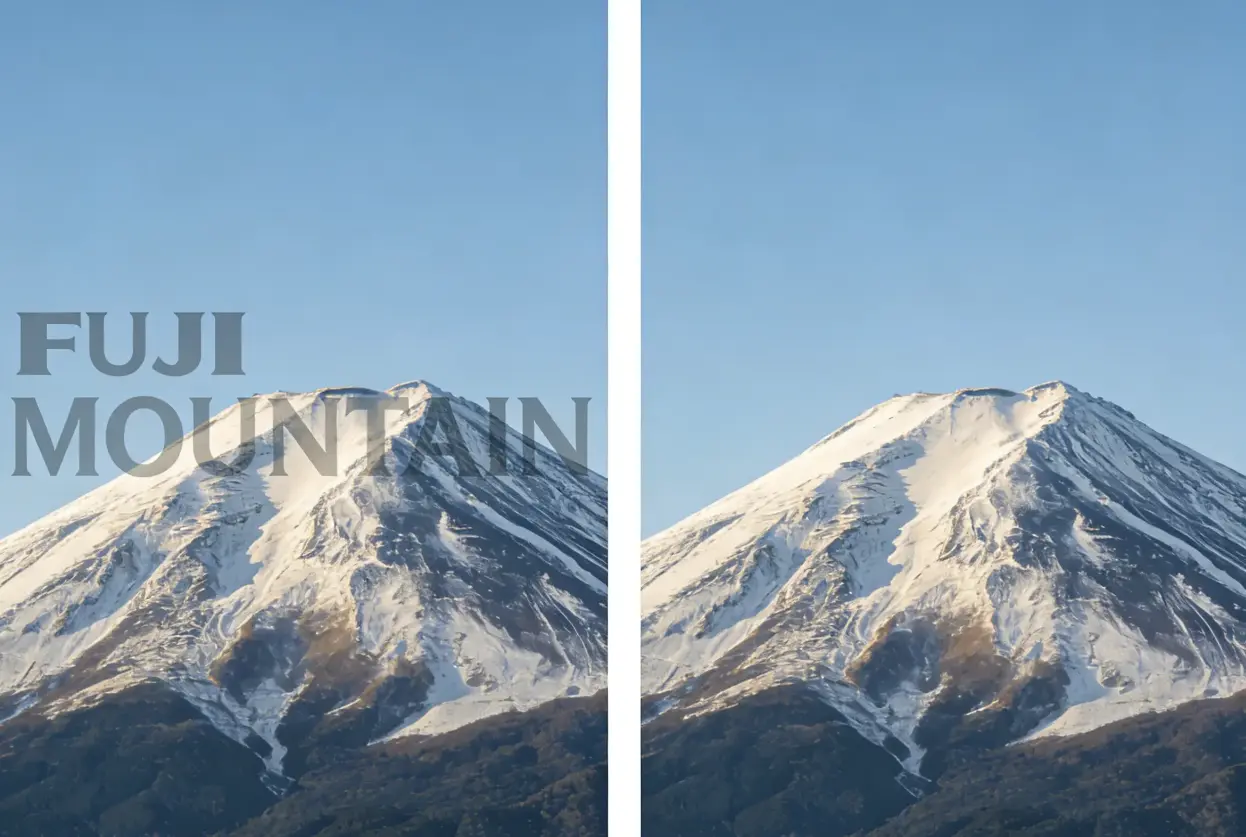
Basic watermark removal tools work by painting over the watermark area with surrounding pixels. The algorithm looks at colors near the watermark and creates a blend—resulting in a blurry patch where the watermark used to be.
True watermark removal requires a different approach called inpainting. Advanced AI tools analyze multiple frames of video, understanding what the background should look like behind the watermark, then reconstruct the missing visual information rather than just smearing existing pixels.
Watermark Types and Removal Difficulty
Understanding your watermark type helps you choose the right tool:
- Static corner logos: Easiest to remove. Most AI tools handle these well.
- Semi-transparent overlays: Require tools that can separate the watermark layer. Moderate difficulty.
- Moving or dynamic watermarks: NotebookLM’s branding shifts around the frame, requiring professional software with manual tracking.
- Center watermarks: Most challenging. Often require cropping rather than removal.
AI-Powered Online Tools (Best for Quick, Clean Removal)
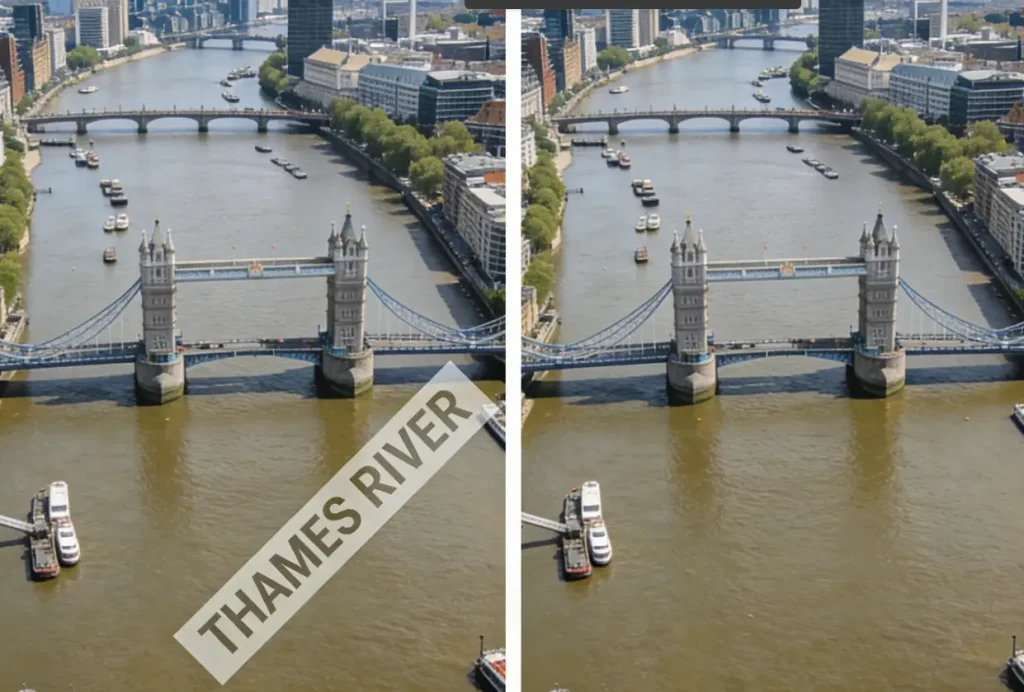
Browser-based AI tools offer the fastest path from watermarked video to clean output with no downloads or learning curve.
GStory.ai Video Watermark Remover
GStory.ai’s Video Watermark Remover uses AI to analyze surrounding frames and reconstruct what’s behind the watermark—no blur or artifacts in the output.
Upload your video, use the brush tool to paint over the watermark area, and let the AI process the removal. The system examines multiple frames to understand the background content, then fills in the watermark area with reconstructed video.
- Supported formats: MP4, WEBM, MOV, M4V, MKV, GIF
- Limits: Max 5 GB, 2 hours of video
- Pricing: 50 free credits upon signup, then credit-based pricing
Works directly in browser on Windows, macOS, and Linux. If you’re also dealing with unwanted elements in photos, GStory offers a dedicated photo watermark remover that uses the same AI technology for images.
online-video-cutter.com
This free browser-based tool handles straightforward watermark removal without signup for basic use.
Navigate to the site, upload your video, select the “Remove Logo” tool, draw a box around the watermark area, and download the result.
Works well for static corner watermarks on simple backgrounds. Struggles with complex textures, moving watermarks, or semi-transparent overlays.
media.io AI Watermark Remover
Another popular AI option with multiple editing features beyond watermark removal. User feedback is largely positive: “I use media io, an online tool that works so well.”
Good results on standard watermark types with a clean interface. Freemium model with limited free processing, subscription for full access.
Professional Desktop Software (Best Quality Results)
When online tools aren’t enough—complex watermarks, moving logos, or professional quality requirements—desktop software provides the control you need.
Adobe After Effects Content-Aware Fill
After Effects is the gold standard for clean watermark removal. Content-Aware Fill analyzes the entire video clip, understands the scene content, and intelligently reconstructs what should be behind the watermark, considering motion, texture, lighting, and perspective.
Import your video, create a mask around the watermark, apply Content-Aware Fill, adjust settings, and render. This feature is built into After Effects with a Creative Cloud subscription (~$23/month). Skill level is advanced but results are excellent.
DaVinci Resolve
DaVinci Resolve offers a middle ground between free and premium. The free version includes basic editing, while Resolve Studio ($295 one-time) adds advanced features including better object removal via the Patch Replacer tool in Fusion.
Advantages include one-time purchase versus subscription and professional color grading tools. The learning curve is steeper than online tools, but skilled users achieve excellent results.
Mocha Pro Remove Module
For the most challenging watermarks—moving logos, dynamic positioning—Mocha Pro ($595-995) uses planar tracking to follow surfaces in video. This is a professional VFX tool with significant learning investment, but it handles what others can’t.
Mobile App Solutions
For creators working primarily on phones for TikTok, Instagram Reels, or YouTube Shorts, these workflows provide quick solutions.
CapCut + Overlay Method
CapCut doesn’t have true watermark removal, but clever use of overlays works for certain situations. Import your watermarked video, duplicate the video layer, crop or zoom the top layer to cover the watermark area, use masking to blend edges, and export without CapCut’s watermark.
Best for quick social media edits where perfect removal isn’t critical. Not true removal—you’re covering rather than reconstructing.
InShot + Magic Eraser Combo
Export key frames from your video using InShot, remove watermarks from frames using Magic Eraser, then reconstruct the video with cleaned frames. Tedious for anything longer than a few seconds, but works for mobile-only situations.
Removing AI-Generated Video Watermarks
AI video generators like Sora and NotebookLM add watermarks to their output. User frustration is high: “the branding makes it unusable for serious business applications.”
Sora 2 Watermarks
Sora watermarks typically appear in a corner, making them easier to handle. Try online AI tools first (GStory.ai, media.io). If those fail, use After Effects Content-Aware Fill. As a last resort, strategic cropping maintains most content.
NotebookLM Moving Watermarks
NotebookLM’s watermark changes position throughout the video, making automated removal extremely difficult. Best approaches include Mocha Pro with manual tracking for professional results, or After Effects with keyframed masks. For casual use, many users find it easier to wait for paid watermark-free tiers or explore alternative AI video tools.
How to Choose the Right Method
By Watermark Type
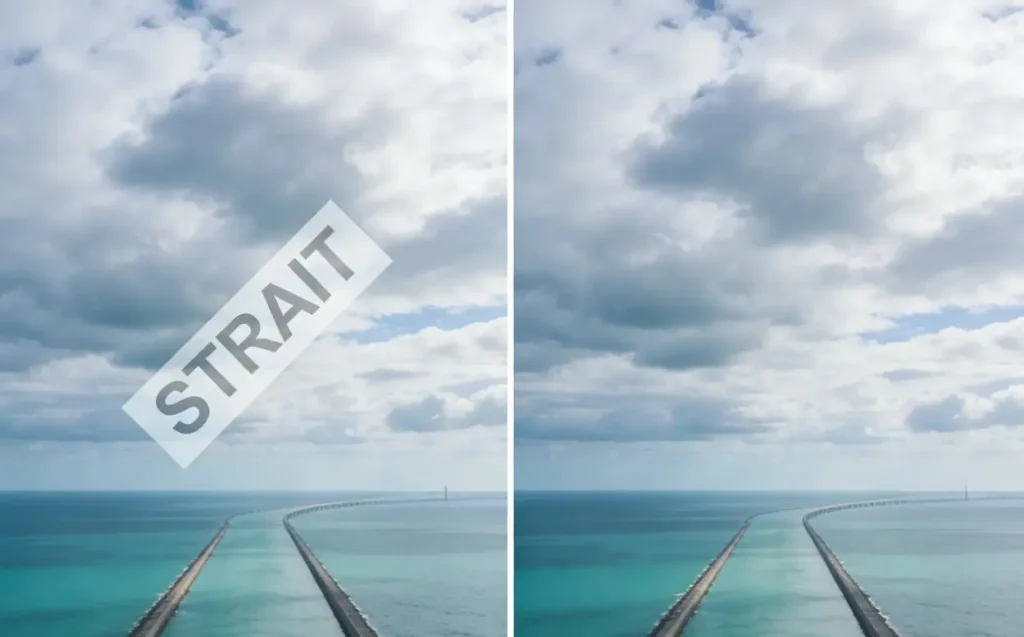
- Static corner watermark: Start with GStory.ai or online-video-cutter.com. If unsatisfactory, try After Effects.
- Semi-transparent overlay: AI tools often handle transparency well. For stubborn cases, After Effects or DaVinci Resolve Studio.
- Moving/dynamic watermark: Mocha Pro for professional results, After Effects with manual keyframing for budget option.
- Large center watermark: Professional software required, or consider strategic cropping.
- TikTok or social media watermark: Online AI tools handle these well.
Budget vs. Quality Trade-offs
Free options (online-video-cutter.com, DaVinci Resolve Free, Pixbim): Good for simple watermarks, personal projects, occasional use. Variable results, less control.
Low cost (GStory.ai credits, Filmora): Good for regular use, better quality than free, handles most watermark types. Per-use costs add up.
Professional (After Effects, DaVinci Resolve Studio, Mocha Pro): Good for complex watermarks, commercial projects, consistent high quality. Significant cost and learning curve.
FAQs
Can I remove a moving watermark that changes position?
Yes, but it requires advanced tools. For watermarks that move throughout the video, you’ll need Mocha Pro with manual planar tracking or After Effects with keyframed masks. Evaluate whether the removal effort justifies the result.
Is removing watermarks from videos legal?
Legal uses include removing watermarks from your own content, free editor watermarks, AI-generated videos you created, and content where you have explicit permission. Removing watermarks from copyrighted content you don’t own is potentially illegal.
Will video quality be affected after watermark removal?
Quality impact depends on the tool. Professional software and quality AI tools like GStory.ai maintain original resolution. Some free online tools limit output to 720p. Always verify output specifications before processing.
What’s the best free option that doesn’t just blur?
online-video-cutter.com handles static watermarks without signup. GStory.ai provides 50 free credits with proper AI removal. DaVinci Resolve Free includes manual removal tools requiring more effort.
Conclusion
The key insight from testing 11 methods: true removal requires AI inpainting that reconstructs background content, not pixel smearing that creates obvious artifacts.
For most users, start with free AI tools. GStory.ai’s Video Watermark Remover offers 50 free credits with no-blur AI removal, and online-video-cutter.com handles basic cases for free.
For complex situations—moving watermarks, professional quality requirements—After Effects Content-Aware Fill or DaVinci Resolve Studio justify their investment.
Whatever method you choose, test with a short clip first to verify results, check output resolution, and confirm true removal rather than blur.
Leave a Reply