Last Updated on March 11, 2026 by
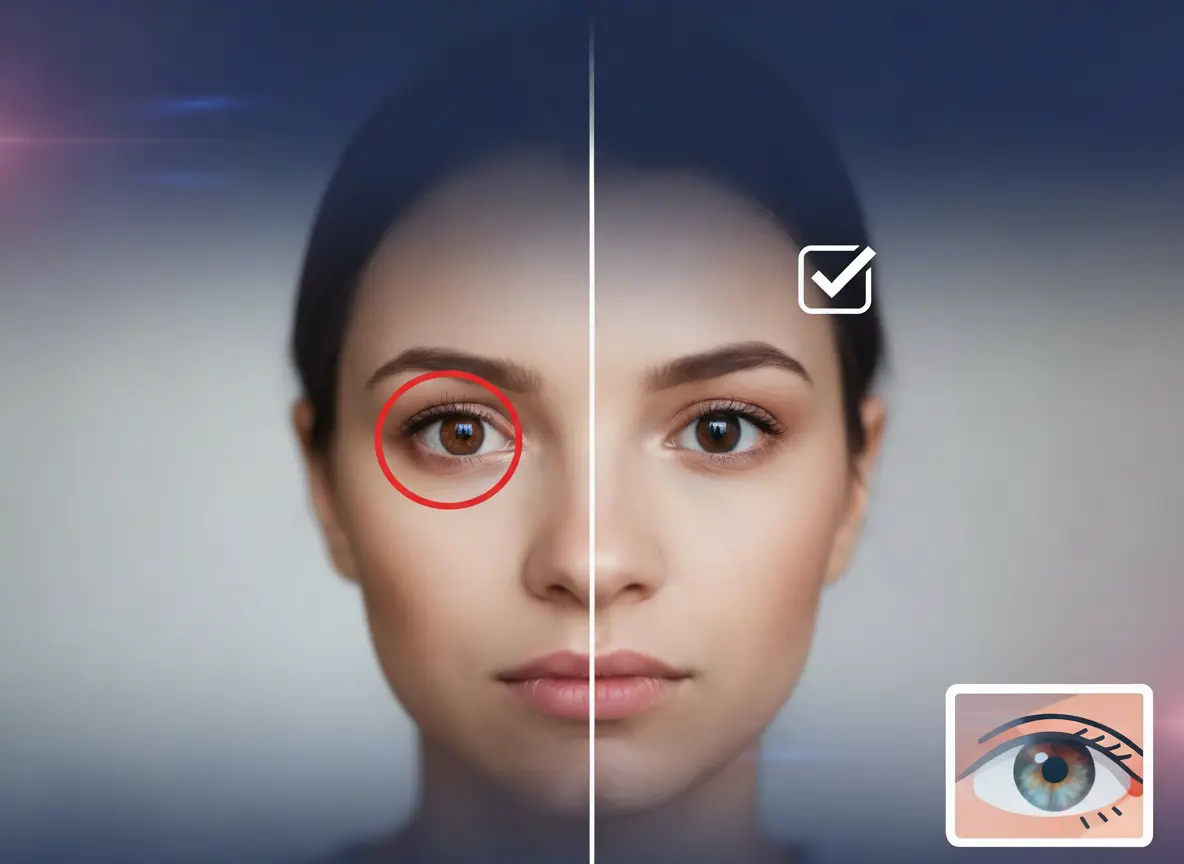
That glowing red gaze staring back from an otherwise perfect photo – the dreaded red eye effect has ruined countless memories since the dawn of flash photography. Whether it’s a family portrait, a candid party shot, or your pet’s adorable pose, those eerie red or green orbs can turn a treasured moment into something almost demonic.
The good news? Red eye is one of the easiest photo problems to fix. In this comprehensive guide, you’ll learn exactly what causes red eye, how to prevent it from happening, and the fastest methods to fix it on any device – from your iPhone to professional software like Photoshop. We’ll even cover the tricky issue of pet eye correction, which requires different techniques than human red eye.
What Causes Red Eye in Photos?
Understanding why red eye happens helps you prevent it and choose the right fix. Let’s break down the science behind this common photography problem.
The Science Behind Red Eye
Red eye occurs when your camera’s flash reflects off the blood vessels in the back of your eye (the retina). In low light conditions, your pupils dilate to let in more light. When the flash fires, that light travels straight into your open pupil, bounces off the blood-rich retina, and reflects back to the camera lens.
The red color you see is literally the blood supply behind your retina. The closer the flash is to the camera lens, the more likely red eye will occur – which is why compact cameras and older point-and-shoots were notorious for this problem.
Why Do Some People Get Red Eye More Than Others?
Several factors affect your susceptibility to red eye:
- Eye color: People with light-colored eyes (blue, green, hazel) have less melanin, allowing more light to penetrate and reflect back
- Pupil size: Larger pupils in dark environments capture more flash light
- Alcohol consumption: Dilates pupils, increasing red eye likelihood
- Age: Children tend to have larger pupils relative to their eye size
Why Do Pet Eyes Glow Green or Yellow Instead?
Dogs, cats, and many other animals have a reflective layer called the tapetum lucidum behind their retinas. This “eye shine” helps them see better in low light by reflecting light back through the retina twice.
Unlike the red of human eyes, pet eyes typically glow green, yellow, or even blue-white. This is crucial to know because automated red eye tools are designed to detect and correct red pixels – they simply don’t work on pet eyes.
Why Red Eye Has Almost Disappeared from Modern Photos
Have you noticed that red eye rarely appears in smartphone photos? Modern smartphones position the flash further from the camera lens, breaking the direct light path that causes red eye. They also use:
- Multiple LED flashes with pre-flash sequences
- Advanced algorithms that minimize red eye at capture
- Better low-light sensors that reduce flash dependency

How to Prevent Red Eye Before Taking Photos
Prevention is easier than correction. These techniques help you avoid red eye at the source.
Use Red Eye Reduction Mode
Most cameras and some smartphones offer a red eye reduction mode. This fires a series of pre-flashes before the main exposure, causing your subject’s pupils to contract. The result? Less exposed retina and reduced red eye.
Look for an eye icon with a line through it in your camera settings.
Improve Your Lighting
The simplest prevention method is adding ambient light. Before taking photos:
- Turn on room lights
- Position subjects near windows
- Use lamps to brighten the environment
When pupils naturally constrict in brighter light, there’s less retina exposed to the flash.
Bounce or Diffuse Your Flash
For those using external flash units:
- Bounce the flash off the ceiling or wall for indirect light
- Use a diffuser to soften direct flash
- Attach tissue or paper over built-in flash to scatter the light
Change Your Shooting Angle
Have your subjects look slightly away from the camera, or position yourself so the flash isn’t firing directly into their eyes. Even a small angle change can significantly reduce red eye.
How to Remove Red Eye on iPhone
iPhone’s built-in Photos app includes a simple one-tap red eye correction tool.
Using the Built-in Photos App (Step-by-Step)
- Open the Photos app and select your image
- Tap Edit in the upper right corner
- Tap the red eye icon (eye with diagonal line through it)
- Tap each red eye in the photo – the app automatically corrects it
- Tap Done to save your changes
[Image: iPhone Photos app showing the red eye tool in the Edit menu]
The process takes seconds and works remarkably well for standard human red eye.
When iPhone Red Eye Tool Doesn’t Work
The built-in tool has limitations:
- Pet eyes: The green/yellow glow isn’t detected as red eye
- Partially closed eyes: May struggle with unusual angles
- Extreme cases: Very bright or oddly-shaped reflections
For these situations, third-party apps like PhotoDirector or Snapseed offer more control.
How to Remove Red Eye on Android
Android offers various solutions through built-in tools and third-party apps.
Using Samsung Gallery App
Samsung devices include red eye correction in the Gallery editing suite:
- Open Gallery and select your photo
- Tap Edit (pencil icon)
- Look for the red eye tool in the editing options
- Tap on affected eyes to correct
Using Google Photos
Google Photos has limited red eye features depending on your version. If the tool isn’t available, use a dedicated app instead.
Best Third-Party Apps for Android
PhotoDirector (CyberLink): Free with automatic red eye detection. Cross-platform availability makes it a solid choice.
Eye Color Changer: Simple drag-and-drop interface for quick fixes.
Pixlr: Professional features in a free package, including manual red eye tools.
Key Takeaway: Android users often get best results with third-party apps rather than built-in tools.

How to Fix Red Eye in Photoshop
Adobe Photoshop offers the most control for professional-quality results.
Using the Red Eye Tool (Quick Method)
- Select the Red Eye Tool (under Spot Healing Brush, keyboard shortcut J)
- In the options bar, adjust Pupil Size (default 50%) and Darken Amount (default 50%)
- Click directly on each red eye, or drag a selection around the eye area
- Photoshop automatically corrects the red
For most photos, this takes about 10 seconds per image.
[Image: Photoshop Red Eye Tool location under the Spot Healing Brush menu]
Manual Technique for Difficult Cases
When the Red Eye Tool creates grey or unnatural-looking results, use this professional technique from Digital Photography School:
- Zoom in on the affected eye
- Select the Brush Tool, set mode to Color, opacity 100%
- Set foreground color to black
- Paint over the red area to desaturate it
- Switch to the Burn Tool (Midtones, 20% exposure)
- Gradually darken the pupil to a natural dark gray – avoid pure black
This method gives you complete control and avoids the artificial look that automated tools sometimes produce.
Fixing Pet Eye Glow in Photoshop
Pet eye correction requires a different approach:
- Select the glowing eye area with any selection tool
- Open Hue/Saturation adjustment (Ctrl/Cmd + U)
- Desaturate the bright glow color
- Use the Burn Tool to restore a natural dark pupil
- Paint in realistic eye color if needed
Best Free Red Eye Remover Tools
Don’t have Photoshop? These free alternatives work great.
Mobile Apps (iOS & Android)
- PhotoDirector (CyberLink): Free with automatic detection, available on both platforms
- Snapseed: Google’s powerful free editor with manual correction tools
- CapCut: AI-powered with both photo and video editing capabilities
Desktop Software
- GIMP: Free open-source Photoshop alternative with full red eye correction
- PhotoDirector: Windows and Mac versions available free
- Paint.NET: Lightweight Windows option with plugin support
Online Tools (No Download)
- LunaPic: Browser-based, completely free, instant access
- Pixlr: Professional features without installation
- Fotor: Simple online editor with one-click red eye fix
For photos that need additional touch-ups beyond red eye removal, tools like GStory.ai Photo Watermark Remover can help clean up unwanted watermarks or logos from your images – useful when repurposing photos from various sources.
How to Remove Red Eye from Pet Photos
Pet eye correction is significantly underserved by most tools. Here’s how to handle it.
Why Regular Red Eye Tools Don’t Work on Pets
Standard red eye algorithms are programmed to detect red pixels in a specific range. Your pet’s green, yellow, or white eye glow falls completely outside this detection range. The tool literally can’t see what needs fixing.
Manual Correction Method
This works in any photo editor with basic tools:
- Zoom in on your pet’s eyes
- Select the glowing area carefully with a brush or selection tool
- Desaturate or shift hue to remove the color cast
- Darken to restore natural pupil appearance
- Add subtle catchlight if the eye looks too flat
Apps That Work Better for Pet Eyes
For pet photos, choose editors with manual brush tools over auto-detection:
- PhotoDirector’s manual eraser brush
- Photoshop’s Color brush mode technique
- Any editor with Hue/Saturation controls
Key Takeaway: Pet eye correction requires manual work – no app will fix it automatically.
FAQs About Red Eye Removal
Why do I always get red eye in photos?
People with light-colored eyes (blue, green, hazel) have less melanin in their irises, allowing more light to reach the blood vessels. You may also have naturally larger pupils or frequently be photographed in dark environments where pupils dilate.
Can I fix red eye in old printed photos?
Yes – scan the photo at high resolution (at least 300 DPI), then use any digital red eye tool. For valuable or damaged photos, consider professional restoration services.
Why does the red eye tool make my eyes look grey?
This happens when the tool over-desaturates or when you’re using it incorrectly. For better results, use manual techniques: Color brush mode to desaturate, then Burn tool to restore natural darkness without going pure black.
Is there a way to batch remove red eye from multiple photos?
Yes. PhotoDirector and Photoshop both support batch processing. In Photoshop, create an Action for red eye removal, then apply it via File > Automate > Batch. This is essential for processing large photo collections efficiently.
Conclusion
Red eye removal is straightforward once you know the right tools for your device. iPhone and Android users can fix most cases with built-in apps, while Photoshop offers advanced control for difficult corrections. Pet eye glow requires manual techniques since automated tools are designed for human red pupils only.
Start with your device’s built-in tools for quick fixes – they handle the majority of cases perfectly. For tricky situations like pet eyes or stubborn red reflections, the manual Photoshop technique delivers professional results every time.
Ready to fix your photos? Open your camera roll, find those red-eyed photos you’ve been ignoring, and try the techniques in this guide. Most fixes take under 30 seconds once you know where to click.
Leave a Reply