
Last Updated on April 1, 2026 by
If you are looking for a Sora watermark remover, the best option depends on what kind of file you have and how much quality you want to preserve. For creators who can access an official clean export, that is usually the best path. For downloaded clips, AI video cleanup tools and manual editing software are the most practical ways to reduce or remove a visible watermark.
The problem is that not every Sora watermark remover works equally well. Some tools are fast but soften the image. Others preserve more detail but take longer and require manual work. This guide compares the most useful workflows for quality, speed, ease of use, and privacy so you can choose the right option for your own Sora videos.
Quick Answer: Which Sora Watermark Remover Is Best?
Here is the short answer for most users:
- Best final quality: official watermark-free export options, when available
- Best for downloaded Sora videos: AI video object removal tools
- Best free professional workflow: DaVinci Resolve
- Best for privacy-sensitive projects: offline editing instead of browser uploads
If you need the fastest and easiest workflow, use an online AI cleanup tool on a downloaded clip. If you need the best result for client work, use a manual editor or an official clean export whenever possible.
What Is the Sora Watermark?
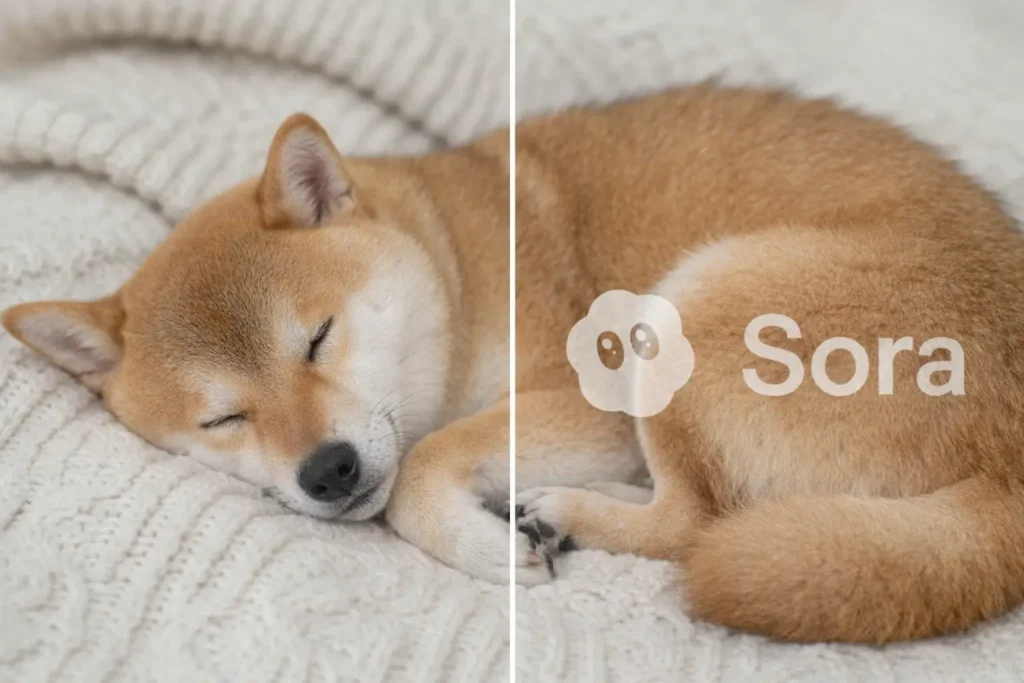
The Sora watermark is a visual marker added to some Sora-generated videos to identify AI-created content. Depending on the export and account type, the watermark may appear in a corner or move during playback, which makes clean removal harder than a simple static image edit.
For creators, the main issue is presentation. A visible watermark can distract from the final output, especially in portfolio reels, demos, mock ads, and concept videos. That is why many users search for a Sora watermark remover that can clean the clip without introducing blur, ghosting, or obvious patching.
Official Ways to Get Cleaner Sora Videos First
Before using any third-party Sora watermark remover, check whether you can solve the problem at the source. In many cases, the highest-quality workflow is not “removal” at all, but getting a cleaner export.
1. Use the best export option available in your current plan
If your account or workflow includes access to cleaner exports, that will usually outperform any AI cleanup tool. You avoid extra reprocessing, preserve original detail, and reduce the chance of visible artifacts.
2. Reframe or crop for short-form content
For social posts, a small crop or reframe can sometimes remove a corner watermark while keeping the composition strong. This is especially useful for vertical clips, trailers, and cutdowns.
3. Regenerate with safer framing
If you are creating a new clip anyway, try leaving more empty space around the edges during generation. That gives you more flexibility to crop later without harming the shot.
4. Edit around the affected frames
If the watermark only appears in a few shots, replacing those moments with B-roll, overlays, or cutaways may be faster than full-frame cleanup.
For many creators, these simple steps are more reliable than testing multiple tools.
Best Sora Watermark Remover Workflows Compared
Below is a practical comparison of the most common workflows.
| Workflow | Best For | Quality | Speed | Privacy | Cost |
| Official clean export | Users with eligible export options | Excellent | Fast | Excellent | Plan-based |
| Online AI watermark remover | Beginners with downloaded files | Good to very good | Medium | Moderate | Free / credits |
| DaVinci Resolve | Advanced users who want control | Very good to excellent | Slower | Excellent | Free |
| Crop or reframe | Social edits and short clips | Good | Fast | Excellent | Free |
Bottom line:
If quality matters most, use an official export or a manual editor. If convenience matters most, an online Sora watermark remover is often the easiest place to start.
How We Evaluated Each Sora Watermark Remover
To make this comparison useful, evaluate each tool using the same type of short Sora sample clip. A practical test should include:
- a visible watermark over movement
- a textured background, not just a flat wall
- at least one shot with fine detail such as hair, fabric, or lighting transitions
- export checks for resolution, bitrate, and frame consistency
When testing a Sora watermark remover, focus on these five things:
- Artifact control – does the cleaned area look natural?
- Motion stability – does the patch flicker or drift between frames?
- Sharpness retention – is the cleaned area softer than the rest of the image?
- Ease of use – can a beginner finish the task quickly?
- Privacy requirements – does the tool require file uploads to a third-party server?
This matters because many watermark removal tools look good in static previews but fall apart during motion.
Best Sora Watermark Remover Tools to Try
The tools below are the most common starting points for creators who already downloaded a Sora video. Feature limits, pricing, and privacy policies can change, so always verify current details before uploading important footage.
1. GStory.ai Video Watermark Remover
Best for: creators who want a simple browser-based workflow
GStory.ai is often used as a beginner-friendly Sora watermark remover for short clips. The general workflow is straightforward: upload the video, mark the watermark region, let the AI analyze the frames, then export the result.
Pros
- easy to use
- browser-based
- suitable for quick cleanup tests
Cons
- image softness can appear on motion-heavy shots
- quality depends on background complexity
- free access is usually limited by credits or usage rules
Our verdict: a good first test if you want convenience more than fine control.
2. Media.io AI Video Eraser
Best for: users who want automatic detection and a clean interface
Media.io is another common option for people searching for a Sora watermark remover online. It is usually easier for casual users who do not want to learn full editing software.
Pros
- beginner-friendly workflow
- useful for basic moving watermark cleanup
- quick for short clips
Cons
- some scenes may show blur or ghosting
- free exports may be limited
- not ideal for sensitive client work if privacy is a concern
Our verdict: solid for simple videos, but always review the cleaned area frame by frame before final export.
3. BasedLabs Watermark Removal Workflow
Best for: creators who want more control over masking
Tools in this category usually give more control over the selection area, feathering, and the cleanup process. That extra control can help on difficult shots where the watermark overlaps textured backgrounds.
Pros
- more precise masking in some cases
- better for detailed edge cleanup
- useful for creators who want more control than one-click tools
Cons
- more setup time
- free plans may be restrictive
- still not perfect on fast motion or fine textures
Our verdict: worth testing when basic AI tools leave obvious artifacts.
4. DaVinci Resolve
Best for: creators who want the strongest free manual workflow
DaVinci Resolve is not a one-click Sora watermark remover, but it is one of the best free options for serious cleanup. It gives you manual control over tracking, patching, compositing, and frame-by-frame fixes.
Pros
- free professional software
- offline workflow for better privacy
- excellent control over difficult shots
Cons
- steeper learning curve
- slower than browser-based tools
- requires more editing knowledge
Our verdict: the best free choice if you care about quality and do not mind extra work.
How to Use an Online Sora Watermark Remover
If you already have a downloaded file, this is the easiest workflow for most users.
Step 1: Export or download the highest-quality source file
Always start with the best version you have. A low-bitrate file will fall apart faster after AI cleanup.
Step 2: Upload the clip to the tool
Choose a browser-based Sora watermark remover and upload the full-quality file. If the site offers multiple quality modes, start with the highest one available.
Step 3: Mask only the watermark area
Keep the selection as tight as possible. A larger mask may remove more detail than necessary.
Step 4: Run a short preview first
If the platform allows preview processing, test a small section before exporting the whole clip. This saves time and helps you spot artifacts early.
Step 5: Inspect the result frame by frame
Pay close attention to:
- edges around the cleaned area
- motion continuity
- texture consistency
- any flashing or smearing
Step 6: Export in the original resolution
If possible, keep the same resolution and frame rate as the source to avoid extra quality loss.
How to Remove a Sora Watermark in DaVinci Resolve
If an online Sora watermark remover produces blur or ghosting, switch to a manual workflow.
Step 1: Import the original clip
Create a new timeline with the same resolution and frame rate as your source.
Step 2: Track the watermark area
Use motion tracking so your cleanup patch follows the watermark accurately across frames.
Step 3: Apply patching or object removal
Depending on the shot, you can use:
- patch replacement
- clone/paint tools
- compositing from nearby clean areas
- frame-by-frame corrections on difficult moments
Step 4: Review at full size
Do not trust the small preview window. Check the clip at 100% scale and scrub slowly through the cleaned frames.
Step 5: Render to a high-quality codec
Use a high-quality export setting first. You can compress a delivery version afterward.
This workflow takes longer, but it often beats a one-click Sora watermark remover on hard scenes.
How to Preserve Quality When Using a Sora Watermark Remover
Removing a watermark is only half the job. The real goal is to keep the video looking natural.
Use the original resolution
Do not upscale and clean at the same time unless you have to. Remove the watermark first, then upscale later if needed.
Avoid unnecessary re-encoding
Every extra export can reduce detail. Keep your workflow short.
Match the original frame rate
Frame interpolation or FPS changes can make the repaired area more obvious.
Test a short section first
Before processing the whole video, run a preview on the most difficult shot.
Use manual cleanup on faces, hair, and patterns
AI tools struggle when the watermark overlaps:
- faces
- hands
- hair
- detailed clothing
- crowds
- textured walls
- moving light patterns
These are the scenes where manual editing usually wins.
Compare before and after at 200%
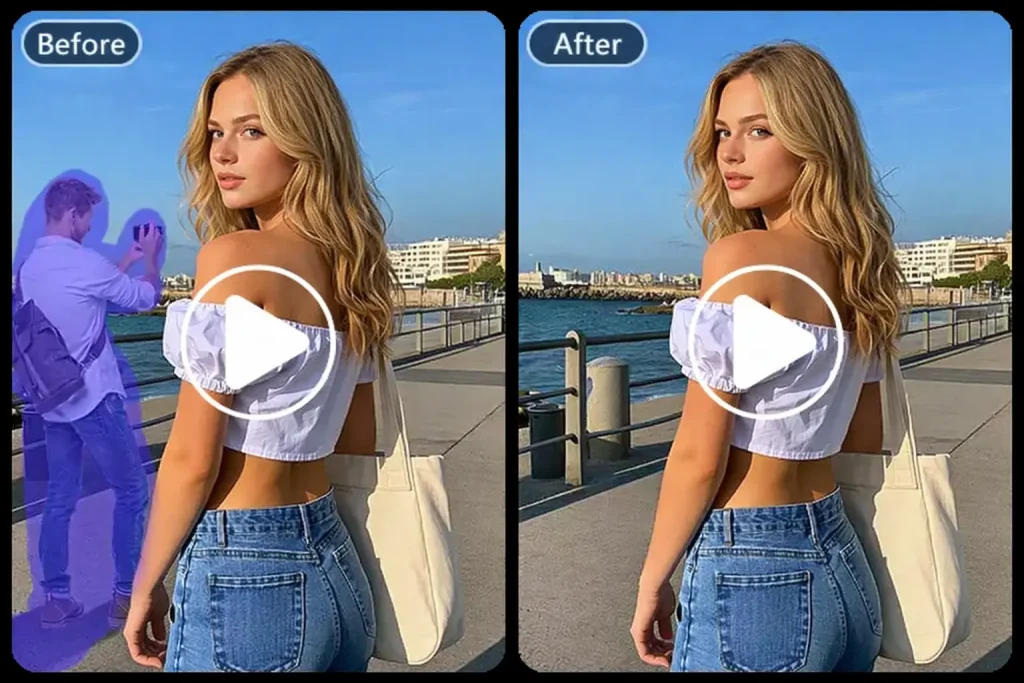
Zoom in and compare the patched region against the surrounding image. If the cleaned area looks too smooth, try a tighter mask or another tool.
Privacy, Terms, and Ethical Considerations
Any Sora watermark remover should be used carefully, especially for commercial work.
Review privacy before uploading
If the video includes client work, unreleased campaigns, or private footage, avoid uploading it to unknown sites. Check:
- file retention policy
- deletion policy
- account requirements
- export limits
- whether your files may be used for model training or service improvement
Follow the platform’s current rules
Terms can change. Review the latest platform policies before relying on any third-party workflow.
Be transparent about AI-generated content
Cleaning a video for presentation is one thing. Using removal tools to mislead viewers about how content was created is another. For brand, editorial, and client work, transparency still matters.
Common Problems When Using a Sora Watermark Remover
1. Blur after removal
This usually happens when the tool rebuilds the area with too much smoothing.
Fix: reduce the mask size, try a different model, or switch to manual cleanup.
2. Ghosting or flicker
The patched area may shift from frame to frame in moving shots.
Fix: use a stronger tracking workflow or repair the shot manually in an editor.
3. Visible patch edges
Sometimes the corrected region is too sharp or too soft compared with the surrounding image.
Fix: adjust feathering, refine the mask, or blend with a nearby texture sample.
4. Lower export resolution
Some tools reduce the final quality on free plans.
Fix: confirm the output settings before processing long clips.
5. Bad results on detailed backgrounds
Crowds, water, smoke, hair, and fine patterns are hard for AI cleanup.
Fix: use a professional editor instead of relying on a one-click Sora watermark remover.
Best Use Cases for Each Workflow
Choose an online Sora watermark remover if:
- you want the fastest test
- the clip is short
- the background is relatively simple
- you do not want to learn editing software
Choose DaVinci Resolve if:
- quality matters more than speed
- the watermark crosses faces or detailed textures
- you are working on client-facing material
- privacy matters
Choose crop or reframe if:
- the clip is for social media
- the watermark stays near an edge
- you can afford a small composition change
Choose an official export if available if:
- you want the cleanest result
- you can access a watermark-free workflow directly
- you want to avoid any extra processing
FAQs About Sora Watermark Remover
What is the best Sora watermark remover?
The best Sora watermark remover depends on your goal. For maximum quality, an official clean export is best when available. For downloaded files, online AI cleanup tools are easiest, while DaVinci Resolve gives the strongest free manual control.
Can I use a Sora watermark remover for free?
Yes. Some browser tools offer free trials or limited usage, and DaVinci Resolve is a strong free option for manual cleanup. Always check current free-plan restrictions before relying on a specific tool.
Can I remove a Sora watermark without losing quality?
Sometimes. Official clean exports preserve the highest quality. AI cleanup tools can work well, but difficult scenes may show blur, softness, or ghosting.
Which Sora watermark remover is safest for private projects?
An offline editor is usually safer than an online uploader. If privacy matters, avoid sending sensitive footage to third-party sites unless you have reviewed their current data policies.
Does DaVinci Resolve work as a Sora watermark remover?
Yes. It is not an automatic Sora watermark remover, but it can be one of the best free options for manual cleanup, especially when AI tools fail on complex shots.
How long does watermark removal take?
A simple online cleanup may take a few minutes. Manual editing in DaVinci Resolve can take longer, depending on how much movement and detail the affected shot contains.
Can I use a Sora watermark remover on mobile?
Some browser-based tools work on mobile, but detailed masking and quality review are much easier on desktop. For serious work, desktop editing is recommended.
Final Verdict
The best Sora watermark remover is the one that matches your workflow, quality standard, and privacy needs. If you can get a clean export directly, that is usually the best solution. If you already have a downloaded file, AI cleanup tools are the easiest starting point. If the shot is important and one-click tools leave artifacts, DaVinci Resolve is the strongest free option for higher-quality manual cleanup.
For the best long-term results, test on a short clip first, compare the repaired area at full size, and avoid unnecessary re-encoding. That simple workflow will help you create cleaner Sora videos with fewer surprises at export time.
Leave a Reply