Last Updated on April 10, 2026 by
Choosing an AI video editor in 2026 isn’t just about features—it’s about whether your device can handle it, your data stays private, and you can learn it quickly. Most lists overwhelm you with options but ignore these basics. This guide simplifies the decision by ranking 15 popular AI video tools based on hardware requirements, privacy, and ease of use. If you’re a beginner, you’ll also get three top recommendations so you can skip the research and start editing right away.
Best AI Video Editors for Low-Spec Hardware
Not everyone has a gaming rig or a brand-new MacBook Pro. If your laptop is a few years old or running on integrated graphics, heavy editors like DaVinci Resolve will stutter, lag, or crash outright. In fact, hardware requirements are one of the biggest pain points in video editing communities — mentioned in over 40% of Reddit threads about beginner editors.
These five AI video editors solve that problem. They’re either fully browser-based or lightweight enough to skip the RAM and GPU bottlenecks that plague desktop-heavy software.
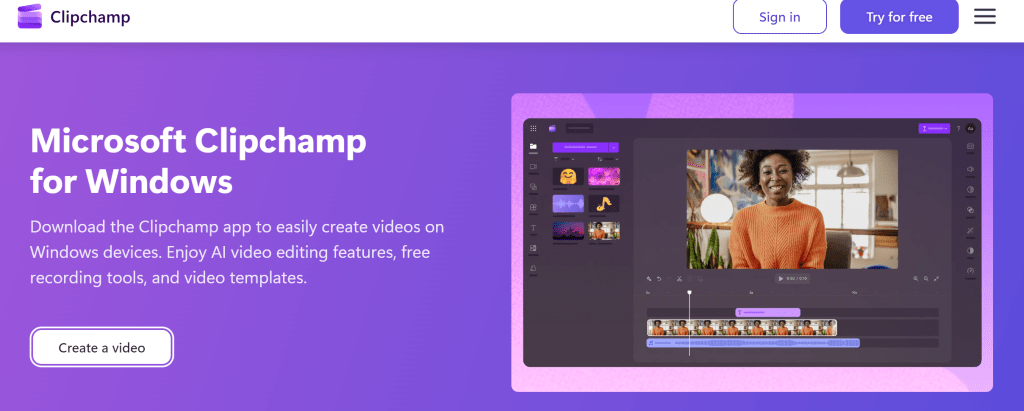
Clipchamp
Microsoft’s built-in editor for Windows 11 uses a cloud-hybrid processing model that keeps local demands low. Its AI features include text-to-speech, auto-captions, and content-aware trimming — enough for basic YouTube videos and presentations. The free tier exports at 1080p, which is plenty for most beginners. The biggest limitation is a 30fps export cap, so it’s not ideal for fast-paced gaming content. But if you’re already on Windows 11, it’s right there — no download needed.
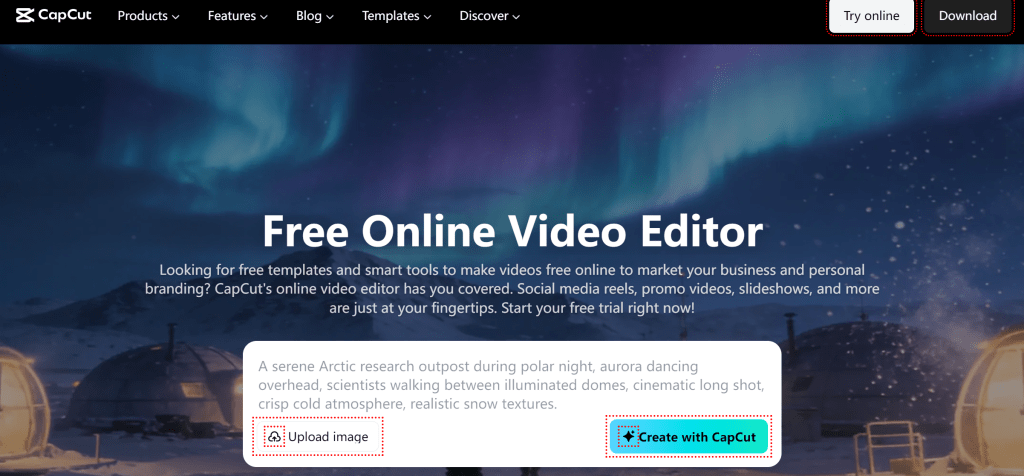
CapCut Online Editor
CapCut’s desktop app can be demanding, but its browser-based mode offloads processing to the cloud. That makes it viable even on older machines. You get access to AI auto-captions, background removal, and smart cut — the same tools that made CapCut a favorite among TikTok creators. Most features are free, though some AI effects have recently moved behind a paywall. Worth noting: privacy-conscious users should read the data policy before committing (more on that later).
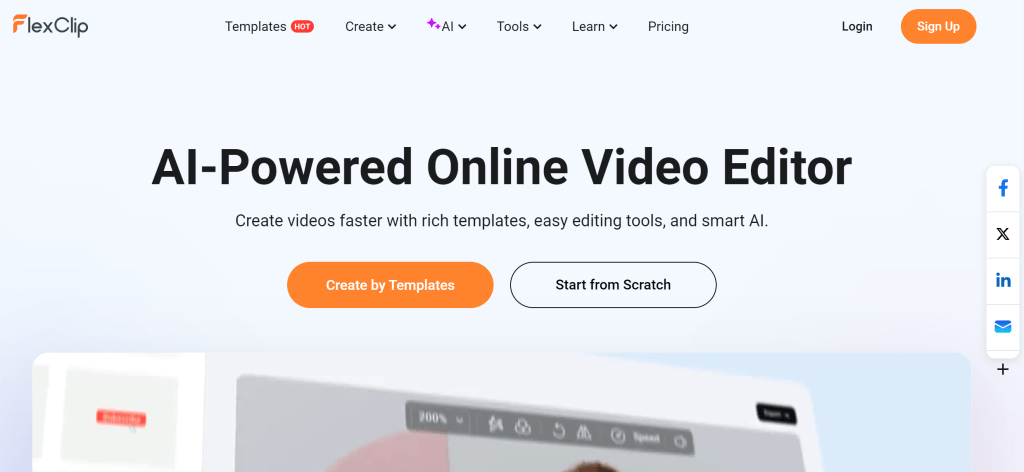
FlexClip
A fully browser-based video editor with no installation required. FlexClip offers AI text-to-video, automatic subtitles, and AI image generation. It runs on any machine with a modern browser, making it one of the most accessible options for users with older hardware. The free tier adds a watermark to exports, but paid plans start affordably and remove it. If your laptop can open Chrome, it can run FlexClip.
Canva
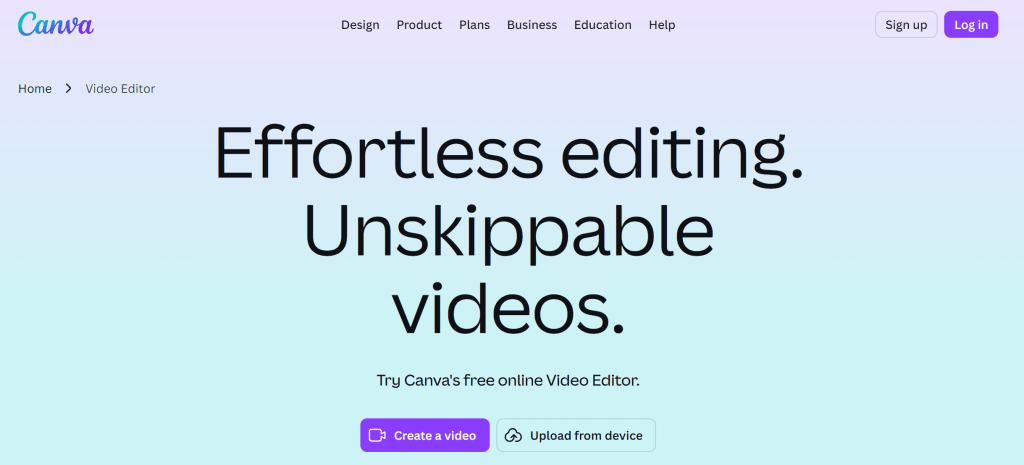
If you already use Canva for graphics, its video editor is a natural extension. It runs entirely in-browser and includes AI features like Magic Resize, Beat Sync, and background remover. Canva Video is best suited for social media clips, promotional content, and simple slideshows rather than complex multi-track editing. The free tier covers basics; Pro unlocks the full AI toolkit. Lightweight, familiar, and zero-install.
InVideo AI
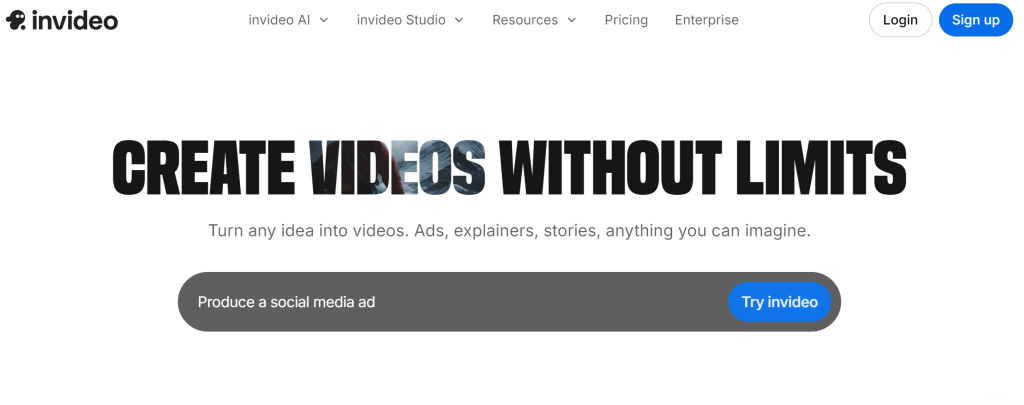
InVideo AI takes a different approach — it generates videos from text prompts. All rendering happens server-side, so your local specs are completely irrelevant. Type a topic, pick a style, and the AI assembles footage, voiceover, and captions for you. The free plan includes 10 minutes per week of AI generation with a watermark. It’s ideal for creators who want content fast without learning timeline editing, though the trade-off is less granular control.
Best AI Video Editors for Privacy-Conscious Users
These five editors keep your data local or come from transparent open-source projects — no uploads, no opaque data collection.
DaVinci Resolve
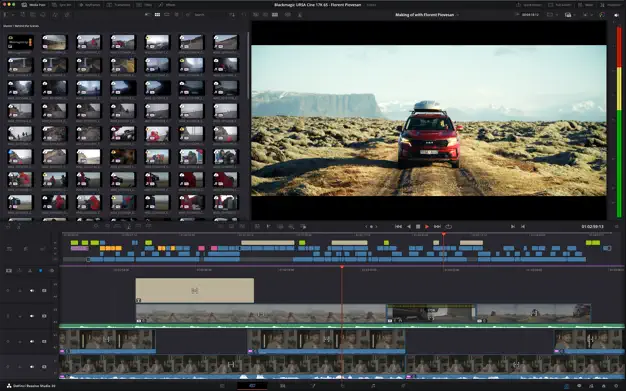
The industry-standard free editor from Blackmagic Design. All processing is local — no cloud dependency, no account required for the free version. The paid Studio version ($295 one-time) adds AI features like magic mask, face refinement, object removal, and voice isolation. Even the free version includes AI-assisted color matching. The catch: it demands solid hardware (16GB RAM minimum recommended). But for creators who want professional-grade editing without sending footage anywhere, it’s the gold standard.
Shotcut
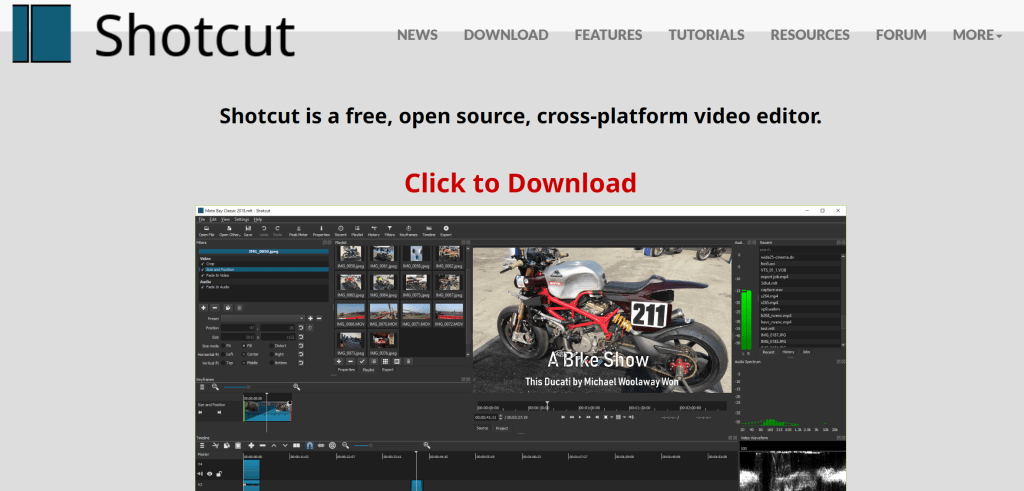
A fully open-source, offline editor with no telemetry, no accounts, and no cloud uploads. Shotcut runs on Windows, Mac, and Linux. Its AI features are limited compared to commercial tools, but it handles cuts, filters, transitions, and color correction reliably. The interface is functional rather than flashy — community feedback calls it “less polished but trustworthy.” For privacy-first creators who want a transparent codebase, Shotcut delivers.
Kdenlive
KDE’s open-source video editor runs completely offline. No data leaves your machine. Kdenlive supports proxy editing for smoother playback on modest hardware and includes Whisper-based speech-to-text for subtitle generation. It has particularly strong Linux support, making it the go-to choice for open-source enthusiasts. Some users report occasional audio crackling and slower render times, but active community development keeps improving stability.
VSDC Video Editor
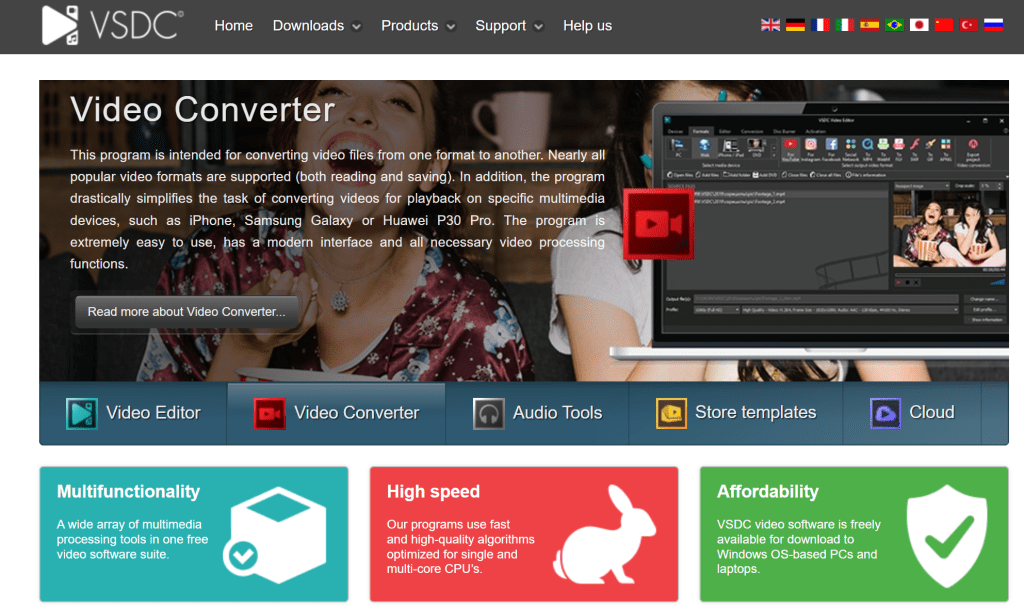
A Windows-only, fully offline editor with no data collection and no watermark on exports. That combination is rare among free editors. The Pro version ($19.99/year) adds AI-powered object and background removal plus an AI Art Generator. The free version covers timeline editing, effects, and color correction without any sign-up or account creation. The interface is less intuitive than competitors, so expect a moderate learning curve.
OpenShot
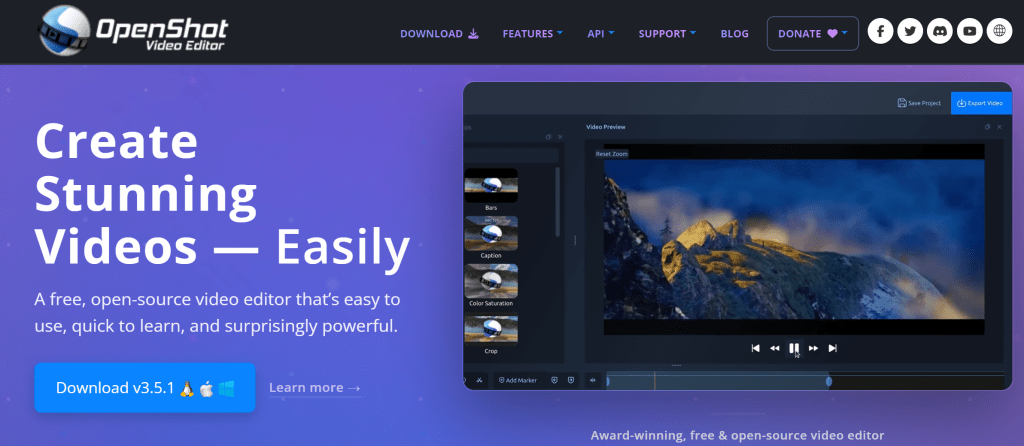
Open-source, cross-platform, and completely local. OpenShot’s codebase is community-driven and publicly auditable — no hidden data collection. AI features are minimal, but the editor handles basic cuts, transitions, effects, and audio mixing competently. No cloud, no sign-up, no subscription. Some users report stability issues with longer projects, so save frequently. Best for simple edits where privacy is the top priority.
Best AI Video Editors by User-Friendly Degree
A powerful editor is useless if it takes weeks to learn — and for most beginners, the learning curve is the number one barrier. Research across Reddit, Quora, and YouTube consistently shows that creators want to go from zero to published as fast as possible.
These five tools minimize the learning curve and maximize speed to first export. They let complete beginners produce polished videos within minutes, not hours.
GStory
A browser-based, AI platform providing video and photo editing toolkits with no download, no setup, and no timeline to learn. GStory takes a fundamentally different approach — instead of asking you to arrange clips on a timeline, it gives you one-click AI tools for specific tasks. Need to upscale a video to 4K? One click. Remove a background? One click. Generate subtitles, remove watermarks, translate to 150+ languages, or create clips from long videos? Each task is a single tool with a clear input and output.
The platform works on any OS through a web browser and uses a credit-based model — you get 50 free credits on signup and only pay for what you use. No subscription commitment needed. It’s ideal for creators who want AI to do the heavy lifting without ever touching a traditional editing interface. The trade-off is that it’s a toolkit of individual AI tools rather than a full timeline editor, so complex multi-clip projects with custom transitions aren’t its strength.
Filmora
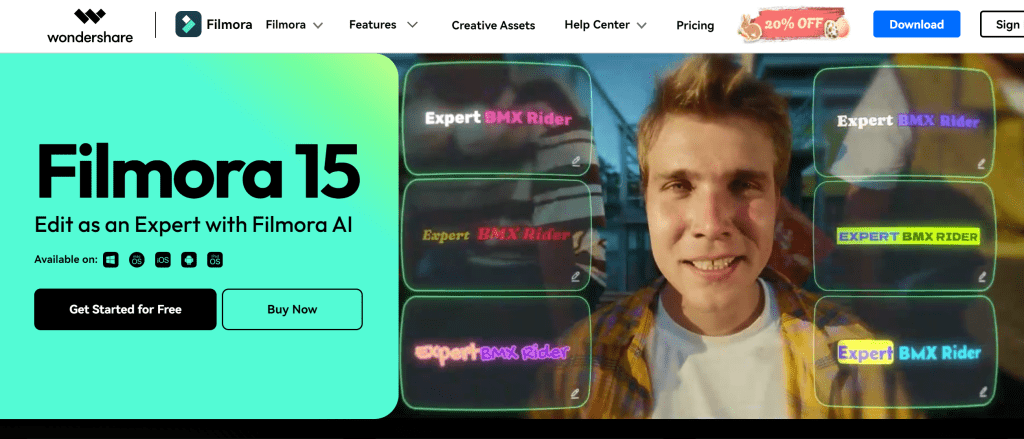
Wondershare’s flagship beginner editor has earned its reputation as the gentlest on-ramp to timeline-based editing. The drag-and-drop interface is clean and intuitive, with tooltips and guided workflows designed specifically for first-time editors. AI features include Smart Cutout, AI Music generation, auto-beat sync, AI text-to-video, and AI Copywriting for descriptions and titles.
Filmora offers both a perpetual license and subscription options, giving flexibility on pricing. The main drawback: the free version adds a watermark to exports, which frustrates creators who want professional-looking output without paying upfront. Long-time users note that Filmora handles the basics beautifully but can feel limiting once you outgrow the beginner stage.
iMovie
Apple’s free, pre-installed editor for Mac and iOS is the definition of zero-setup simplicity. Open your MacBook, launch iMovie, and you’re editing. Magic Movie and Storyboard modes auto-assemble footage into polished videos with transitions and music. AI-powered stabilization, color balancing, and background noise reduction work automatically behind the scenes.
The limitation is obvious: it’s locked to the Apple ecosystem. Feature depth is also limited compared to DaVinci Resolve or Filmora. But for Mac users who want the absolute fastest path from raw footage to finished video, nothing beats the convenience of an editor that’s already installed and ready to go.
VN Video Editor
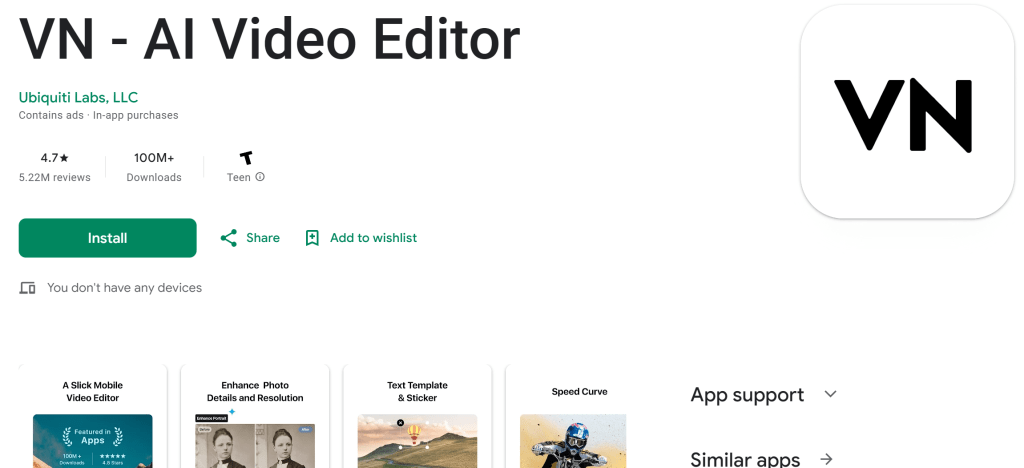
A mobile-first editor (also available on desktop) that’s completely free — no watermark, no subscription. VN stands out for its clean multi-track timeline that’s simpler than most desktop editors. AI features include auto-captioning, beat-matching, and curve-based speed ramping. It’s growing rapidly among short-form creators who need to edit on the go.
VN doesn’t have the brand recognition of CapCut or Filmora, but users who discover it tend to stick with it. The combination of a genuinely free product with no watermark and an intuitive interface makes it one of the best-kept secrets in beginner video editing.
Adobe Express
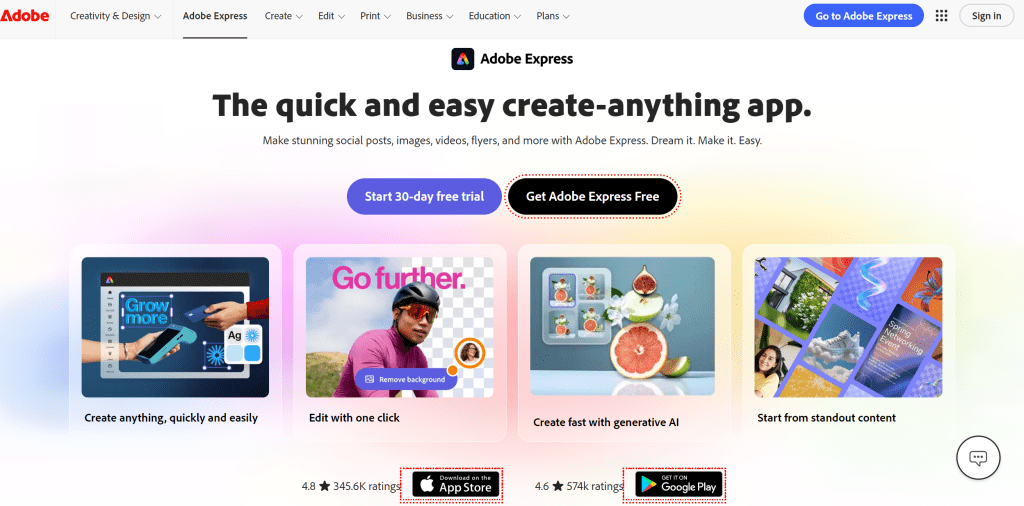
Adobe’s simplified, template-driven editor built for non-professionals. AI features powered by Adobe Firefly include generative fill, auto-resize for different platforms, and text-to-template creation. Available as both a browser and mobile app. The free tier provides access to basic editing, while Premium unlocks the full AI suite.
Adobe Express inherits Adobe’s design polish without Premiere Pro’s complexity. It’s particularly strong for creators making social media content who want professional templates and AI-assisted design. The downside: the free tier is more limited than competitors, and heavy AI features require the paid plan.
The Verdict — Top 3 Easiest AI Video Editors Overall
After comparing all 15 tools, three stand out for the widest combination of low barrier to entry, fast time-to-first-edit, and strong AI automation.
#1 CapCut — Easiest for Short-Form Social Content
Templates, trending effects, and AI auto-captions make CapCut the fastest path from phone to TikTok or Reels post. The web version also works well for users with low-spec hardware. Most features are free, though some AI tools are moving to paid tiers. Privacy-conscious users should review its data policy carefully, given its ByteDance ownership. For pure speed in short-form content creation, it’s hard to beat.
#2 GStory — Easiest for AI-Powered One-Click Editing
No download, no timeline, no learning curve. Upload a file, pick an AI tool, get results. GStory.ai is browser-based and works on any device — the processing happens in the cloud, so hardware specs don’t matter. It’s best for creators who want AI to handle the editing, not just assist it. With 50 free credits on signup, there’s no commitment needed to try it. If your goal is “get this video improved fast,” this is the shortest path.
#3 Filmora — Easiest Full-Featured Desktop Editor
Filmora is the gentlest introduction to real timeline editing. Its drag-and-drop interface, AI assistants for routine tasks, and perpetual license option make it ideal for creators who want room to grow into more complex editing without switching software later. The watermark on free exports is the biggest downside — but for users ready to invest a modest amount, it’s a reliable long-term choice.
Conclusion
Choosing the right easy AI video editing software comes down to knowing your biggest pain point. If your hardware is the bottleneck, browser-based tools like Clipchamp, FlexClip, and Canva Video keep everything in the cloud. If privacy matters most, offline editors like DaVinci Resolve, Shotcut, and Kdenlive ensure your footage stays on your machine. And if you just want the simplest, fastest experience, the user-friendly category delivers editors that get you from zero to published in minutes.
Our top three — CapCut for short-form social content, GStoryfor one-click AI editing, and Filmora for full-featured desktop editing — cover the widest range of beginner needs. Each lets AI handle the heavy lifting so you can focus on creating.
Ready to start? Try GStory’s free credits for instant, no-install AI video editing — or revisit any section above to find the perfect match for your specific hardware, privacy, and usability needs.
Leave a Reply