Last Updated on April 30, 2026 by
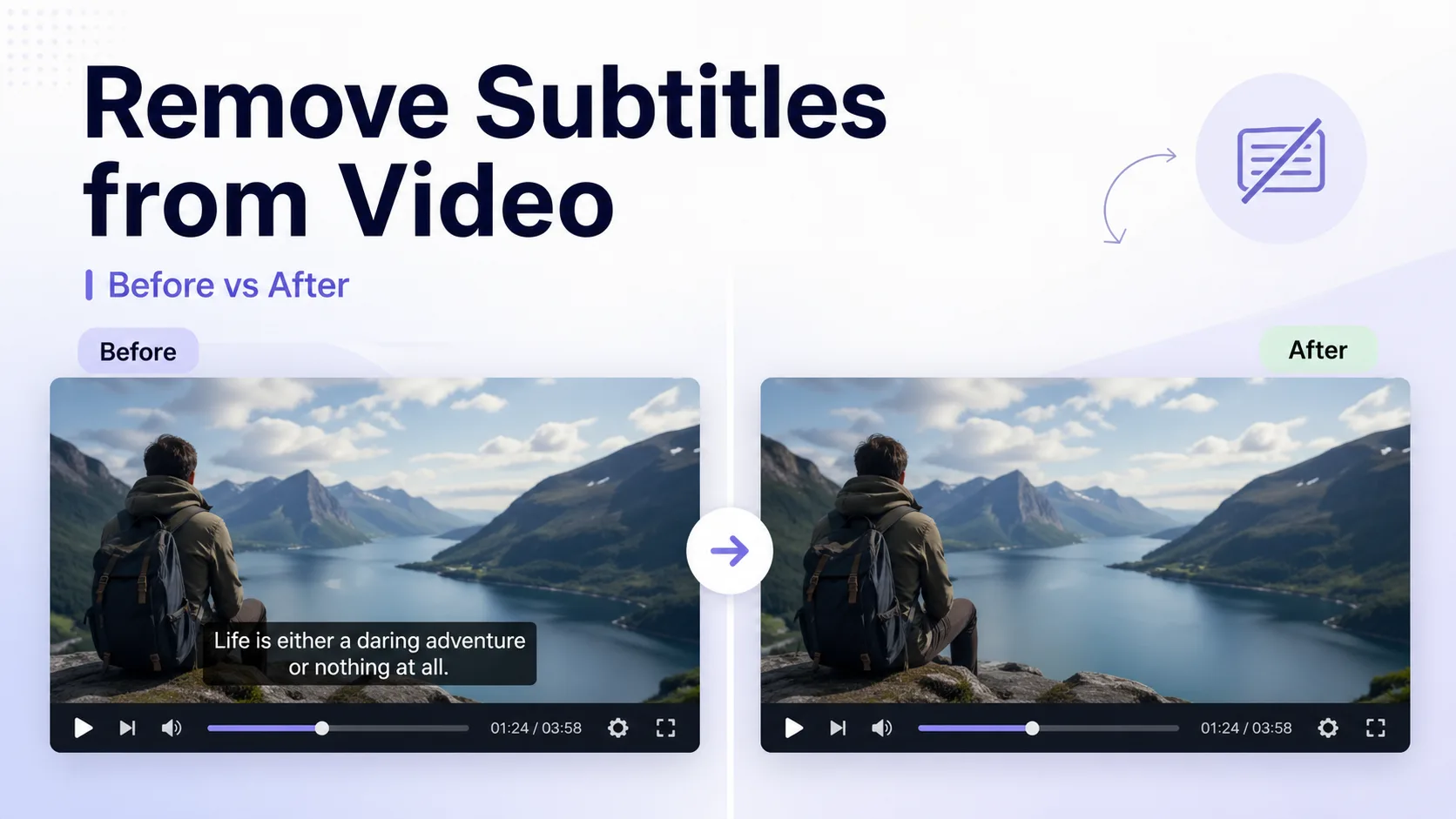
Some subtitles are separate from the video. You can turn them off, delete the subtitle file, or remove the caption track without changing the video quality. But some subtitles are burned into the video itself. They are part of the picture, so normal caption settings will not remove them.
That is why many subtitle remover tools seem to fail. They may work for removable subtitles, but not for text that is already baked into the video.
This guide explains how to check what type of subtitles you have and what method to use, whether you need a free fix, a simple crop, or an AI subtitle remover.
Quick Answer: Which Subtitle Removal Method Should You Use?
Before trying any tool, use this quick table to check what kind of subtitle problem you have. The right method depends on whether the subtitles are removable or already burned into the video.
| What You See | What It Usually Means | Best Fix |
| You can turn subtitles off in the video player | The subtitles are stored as a separate track | Turn them off or remove the subtitle track |
| You see a subtitle file like .srt, .vtt, or .ass next to the video | The subtitles come from a separate caption file | Delete or move the subtitle file |
| The text stays on screen even after captions are turned off | The subtitles are burned into the video | Use an AI subtitle remover |
| The subtitles only appear at the bottom of the frame | The subtitle area may be easy to cut out | Crop the bottom of the video |
| The subtitles cover faces, products, or moving objects | The removal will be harder and may leave artifacts | Try AI removal, but check the preview carefully |
| You only need a quick social media edit | A perfect clean-up may not be necessary | Cover the old subtitles with blur, a bar, or new text |
| You need the cleanest possible result | Any removal method may reduce quality | Find the original video without subtitles if possible |
For most users, the rule is simple: if the subtitles can be turned off, remove the subtitle track or caption file. If the text is stuck inside the video image, use AI removal, cropping, or a cover-up method.
If you want to remove subtitles from a video, the first thing to know is this: not all subtitles can be removed the same way.
Why Some Subtitles Can’t Be Removed with One Click
Before choosing a subtitle remover, you first need to know what kind of subtitles are in your video.
Here is the simplest test: can you turn the subtitles off in your video player?
If you can, they are probably removable subtitles. These are stored separately from the video, so you can usually remove them without changing the video quality.
If you cannot, they are probably burned into the video. That means the text is already part of the picture, so normal caption settings will not work.
How to Remove Soft Subtitles from a Video
Some subtitles are not part of the actual video image. They are stored separately, either as a subtitle track inside the video file or as a separate file, such as .srt, .vtt, .ass, or .sub.
The easiest way to check is to open the video in a player like VLC and look at the subtitle settings. If you can choose “Disable” or switch between subtitle tracks, the subtitles are removable.
If the subtitles come from a separate file, simply delete or move that file. For example, if your folder has video.mp4 and video.srt, removing the .srt file will stop the subtitles from appearing.
If the subtitles are stored inside the video file, you can use a free tool like MKVToolNix to remove the subtitle track. You open the video, uncheck the subtitle track, and export a new file.
Since this method does not change the actual video image, the video quality stays the same.
How to Remove Burned-In Subtitles from a Video
Burned-in subtitles cannot be turned off like regular subtitle tracks because they are already part of the video image. But they can still be removed in a few practical ways.
A quick way to check is to open the video in a player like VLC media player. If there is no subtitle track to disable and the text is still visible, then the subtitles are likely burned in.
This is common with TikTok videos, Instagram Reels, YouTube Shorts, CapCut exports, screen recordings, and reposted clips, where captions are added before the video is exported.
Once subtitles are burned into the video, you usually have three realistic options: use AI to remove them, crop the subtitle area, or cover the text with something new.
Use an AI Subtitle Remover
AI subtitle removers are usually the best option if you don’t want to cut off part of the video.
Instead of deleting a subtitle track, these tools detect the text area and try to rebuild the background behind it, similar to removing a watermark.
This works best when the subtitles stay in the same position and the background is relatively simple, such as a wall, sky, or flat surface. It can be less effective if the subtitles overlap with faces, hands, or detailed moving objects.
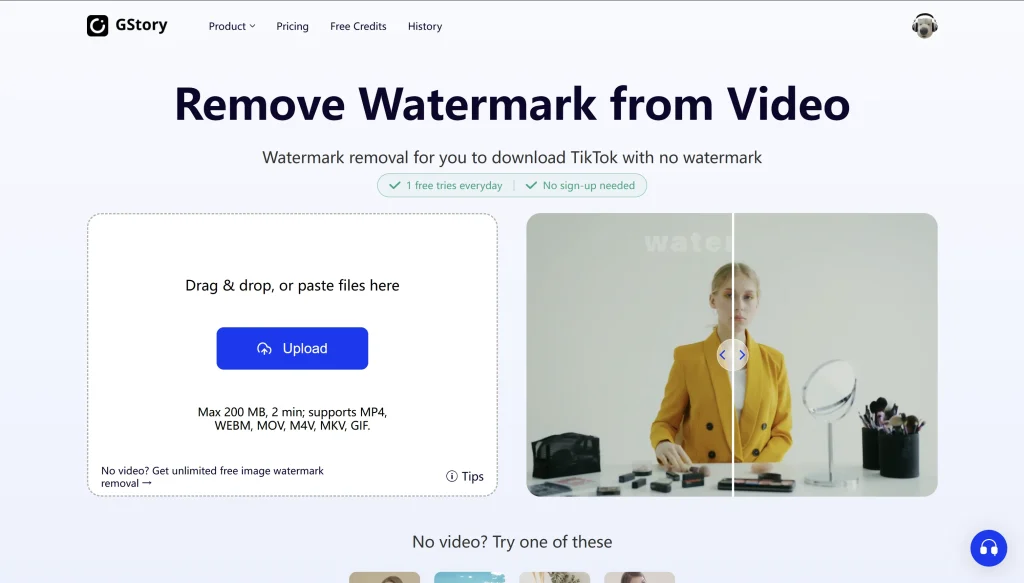
Tools like GStory Video Watermark Remover can be used for this type of task. You upload your video, select the subtitle area, let the AI process it, then preview and export the result.
Crop the Subtitle Area
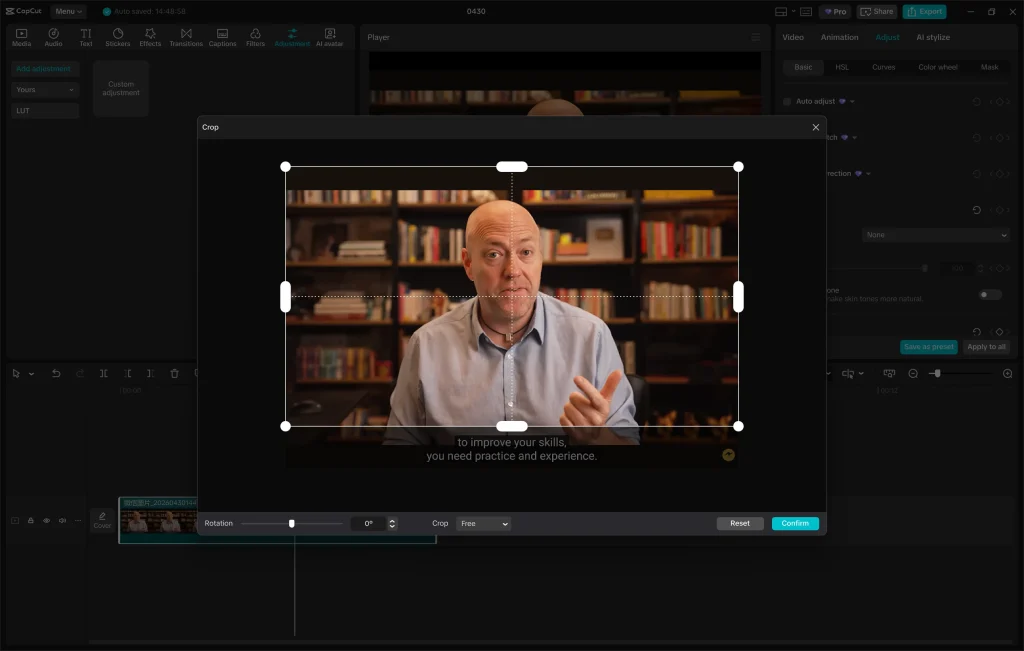
Cropping is the simplest solution when subtitles appear at the bottom of the video.
Instead of removing the text, you cut off the part of the frame where it appears. This works well for vertical videos like TikTok, Reels, or Shorts, especially when the bottom area is not important.
The downside is that you lose part of the video, so it’s not suitable if the subtitles cover important content.
Cover or Replace the Subtitles
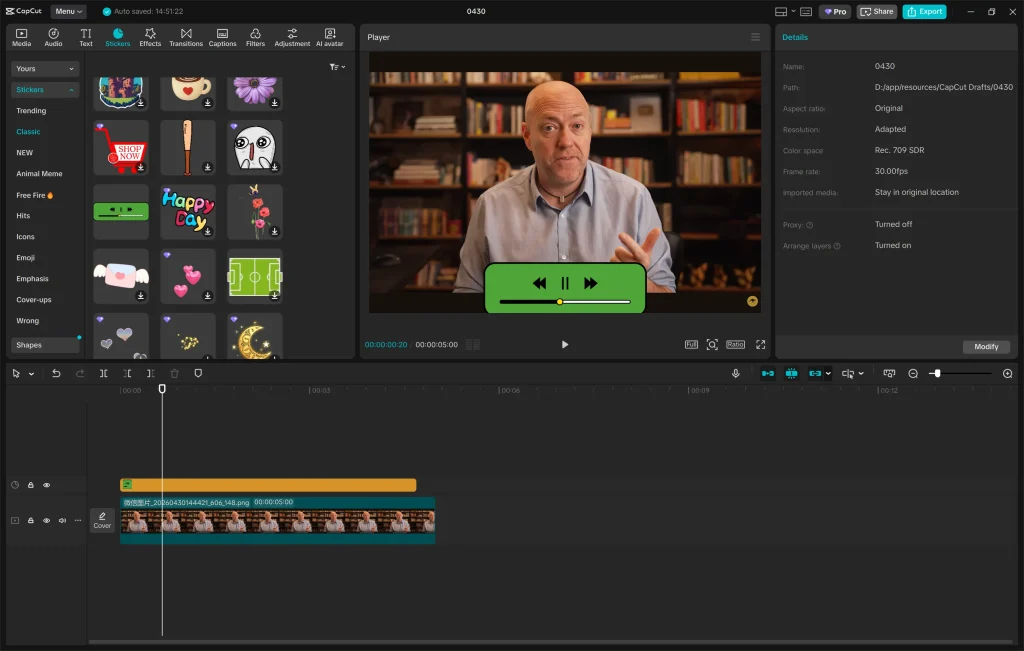
Another practical option is to cover the original subtitles.
You can use a blur strip, a color bar, a branded lower third, a sticker, or new subtitles placed on top. This doesn’t actually remove the text, but it can make the video easier to reuse.
For example, when translating a video, it’s often faster to cover the original subtitles and add new ones instead of trying to completely erase them.
FAQ About Removing Subtitles from a Video
Can you remove subtitles from a video without losing quality?
Yes, but only if the subtitles are removable.
If the subtitles are stored as a separate track or subtitle file, removing them will not change the video image, so the quality stays the same.
If the subtitles are burned into the video, there is no truly lossless method. The video has to be edited because the text is already part of the picture. AI removal can often create a clean result, but complex backgrounds, faces, or fast movement may still leave small artifacts.
How to remove subtitles from TikTok, YouTube, or other social media videos?
It depends on how the subtitles were added.
If they are auto-generated captions, you can usually turn them off in the app or video player. For example, YouTube captions can often be disabled with the CC button.
But if the creator added subtitles before uploading, the text is already part of the video. This is common in TikTok videos, YouTube Shorts, Instagram Reels, CapCut exports, and reposted clips.
In that case, you need an AI subtitle remover, cropping, or a cover-up method.
How do I remove subtitles from an MP4 video?
First, check whether the subtitles can be turned off in a video player.
If they can, the MP4 may contain a removable subtitle track. You can remove that track with a video tool.
If the subtitles stay on screen even after captions are turned off, they are burned into the MP4. In that case, you need AI removal, cropping, or a cover-up method.
Can AI remove subtitles from any video?
Not perfectly.
AI subtitle removal works best when the subtitles stay in one place and the background is simple, such as a wall, floor, sky, or plain surface. It becomes harder when the text covers faces, products, hands, detailed textures, or fast-moving scenes.
That is why it is always better to preview the result before exporting the final video.
Is it better to blur subtitles or remove them?
If you want the video to look clean, removing subtitles with AI is usually better.
Blurring is faster, but the blurred area is still visible. It works for quick social media edits, but it may look less polished.
For product videos, repurposed content, or videos you want to publish professionally, AI removal is usually the better choice. For quick edits, a blur strip, color bar, or new subtitle overlay may be enough.
Conclusion
Removing subtitles from a video is easy once you know what type of subtitles you have.
If the subtitles are removable, you can turn them off, delete the subtitle file, or remove the subtitle track without changing the video quality.
If the subtitles are burned into the video, normal subtitle settings will not work. In that case, you can use an AI subtitle remover like GStory, crop the subtitle area, or cover the old subtitles with new text or design elements.
Start by checking whether the subtitles can be turned off. Then choose the method that fits your video, your quality needs, and how much editing you want to do.
Leave a Reply