Last Updated on December 9, 2025 by Leslie
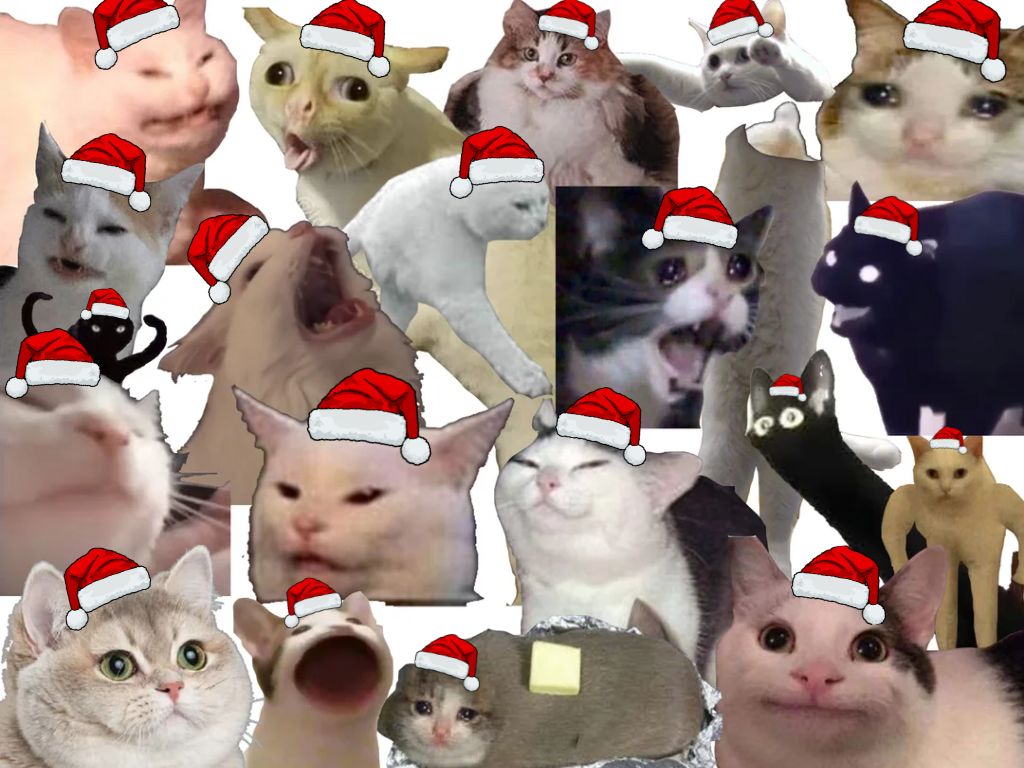
The holidays are here, your feeds are turning red and green, and suddenly everyone wants to add santa hat to photo and turn a profile picture into a little Christmas moment.
You’ve probably noticed the trend going around on TikTok and other platforms—some people even get a Santa hat added automatically, while others don’t see it at all. No worries: you can still get the same festive look (and often a cleaner result) using simple tools like AI editors, Canva, and mobile apps.
In this guide, we’ll walk through a few easy, beginner-friendly ways to:
- Add santa hat to photo / pfp
- Use AI tools (Dreamina, OpenArt, Fotor, Dzine, etc.)
- Use Canva with stickers or santa hat PNG overlays
- Edit on your phone in just a few taps
- Even add Santa to photo for a full holiday vibe
Step by step, we’ll help you get a festive result you’ll actually want to use—whether it’s for your profile pic, a holiday post, or a quick Christmas card. 🎅✨
Why Everyone Wants to “Add Santa Hat to Photo” This Year
Before we jump into tools, a quick look at why this trend keeps coming back every December:
- Instant holiday mood – Just dropping a tiny red Santa hat on your pfp makes your WhatsApp, TikTok, Instagram or Discord feel festive.
- Super low effort – You don’t need a full Christmas photoshoot. One selfie + one hat = done.
- Perfect for trends – TikTok and Instagram Reels love visual trends like “add santa hat to pfp”, “christmasify photo”, or “add santa to photo free”.
Good news: you don’t have to be a designer. You just need one of the methods below.
Add Santa Hat to Photo with Dreamina
Dreamina is an AI image & video generator that can use ByteDance’s Seedream 4.5 model, which is designed for super consistent, high-quality editing and image generation.
This is perfect if you want to add santa hat to photo and keep your face, lighting, and overall style very accurate.
How to add a santa hat to a photo with Dreamina
Open Dreamina
Go to Dreamina’s AI image generator (inside CapCut or the web version).
Choose an image editing or image-to-image mode powered by Seedream 4.5.
Upload your photo
Use a clear selfie or portrait where your head is visible.
This will be your base image for the add santa hat to photo edit.
Mark the area to edit
Use the brush / mask tool to paint over the top of your head (where the Santa hat should go).
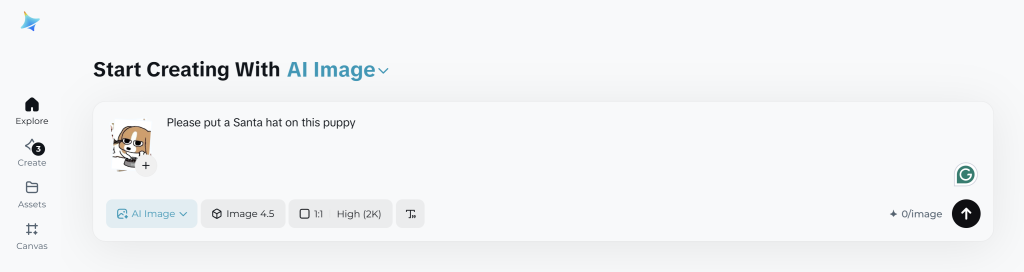
Write your prompt
Example prompts:
“add a red Santa hat with white fluffy trim, matching the lighting”
“add a cute xmas hat image with soft fur, slightly tilted to the side”
Generate & refine
Click generate and wait for Seedream 4.5 to render.
If you don’t like the first result, tweak the prompt (“bigger hat”, “more fluffy”, “cartoon style”) and regenerate.
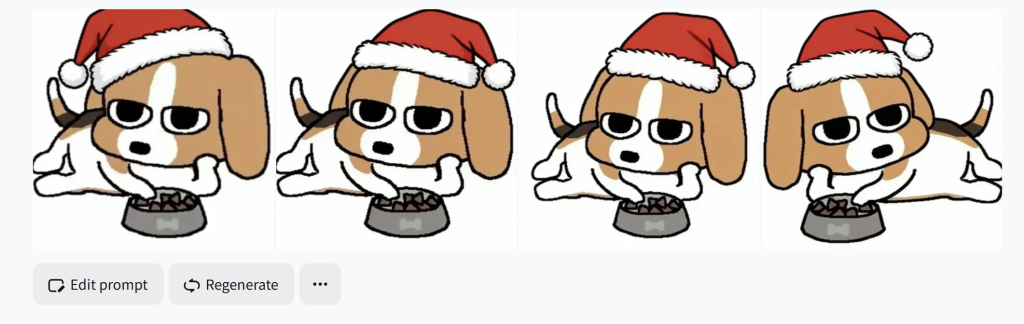
Because Seedream 4.5 is good at preserving identity and details, you usually get a Santa hat that fits your head shape and lighting instead of a random sticker floating above you.
This method is amazing when you want to:
- Make a high-quality Christmas profile picture
- Keep your brand style consistent across multiple images
- Create a whole series: same face, different xmas hat pictures and outfits
Add Santa Hat to Photo in Canva (Web & Mobile)
If you love design tools, Canva is a super easy way to add santa hat to photo with drag-and-drop stickers.
Steps to add santa hat to picture with Canva
Open Canva and create a design
Choose a square canvas (1080×1080) if you’re making a pfp.
Upload your photo
Drag your selfie or group photo onto the canvas.
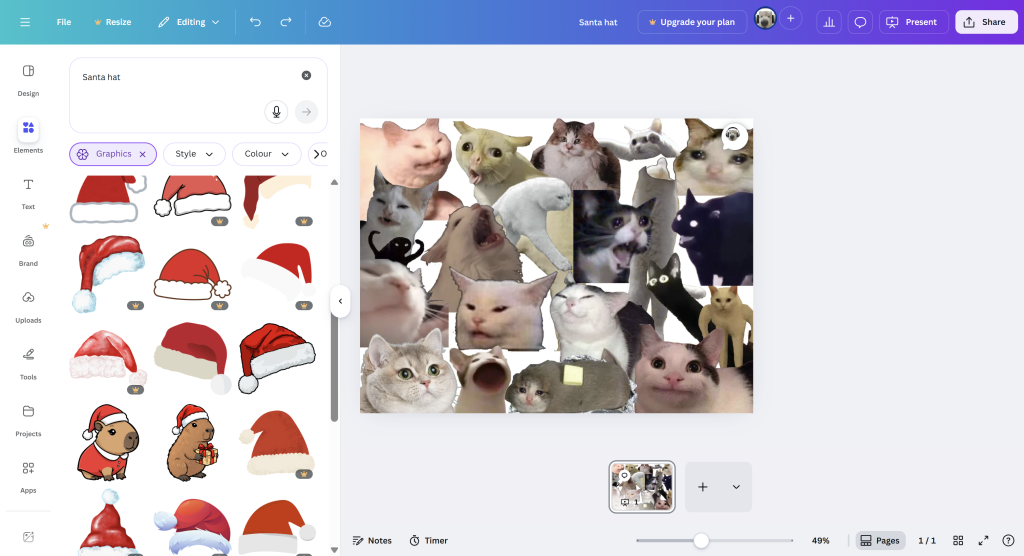
Search for Santa hat elements
Go to Elements.
Search for:
“Santa hat”
“santa hat png”
“Christmas hat”
“xmas hat image”
Add and adjust the hat
Drag the hat onto your head.
Rotate, resize, and flip until it looks natural.
You can even stack multiple hats to add santa hat to image with several people.

Download
Export as PNG or JPG and upload as your new pfp.
This method is great if you like more cute / graphic looks and want to combine hats with text, frames, or other decorations.
Add Santa Hat to PFP on Your Phone (Apps & Stickers)
Sometimes you just want to sit on the couch, scroll TikTok, and quickly add santa hat to pfp on your phone.
General steps (iPhone / Android)
Install a photo editor app
Search for apps that have Christmas stickers or Santa hat PNG inside.
Open your photo
Choose the selfie or family photo you want to “christmasify”.
Find stickers / overlays
Look for:
Santa hats
Christmas outfits
Snow, lights, etc.
Add and adjust the Santa hat
Place it on your head, rotate it, and resize.
This is basically a simple way to add a santa hat to a picture without touching a computer.
Save and upload as pfp
Use it for TikTok, Instagram, WhatsApp, Discord, or anywhere else.
If you want animated effects (sparkles, falling snow) for stories or Reels, some apps will let you export small videos instead of static images.
Bonus – Add Santa to Photo, Not Just the Hat
If “add santa hat to photo” isn’t enough, go full chaos mode and add Santa himself to your picture.
For example, Fotor has an “add Santa to photo” feature that can place a realistic Santa into your image using AI — beard, suit, and all. You can then also add a Santa hat or other clipart around him.
This is perfect if you want to:
- Make a “Santa visited my house” picture
- Create a Christmas card with Santa and your family
- Use “add santa to photo free” tools instead of hiring a photographer
Combine this with a santa claus hat template or extra pictures of Santa hats if you want multiple hats in one scene.
Clean Up Your Photo Before the Hat 🎄
Before you add santa hat to photo, it really helps if your base image looks good:
- Not too noisy
- Not too dark
- Not blurry
This is where you can gently plug in GStory as an internal link:
- Use a GStory AI image enhancer or video enhancer to sharpen low-res selfies.
- Use GStory’s background tools to clean up messy backgrounds before you drop on a Santa hat.
- Then go back to Fotor, OpenArt, Dzine, or Dreamina to add Christmas hat to photo on a clean, high-quality base.
Tips to Make Any Santa Hat Edit Look Natural
No matter which method you use (AI, Canva, or stickers), keep these simple rules:
Match the angle
Tilt the hat to follow your head angle. Straight hat on a tilted head = weird.
Watch the size
If the hat is too big, your head looks tiny.
If it’s too small, it looks like a random sticker.
Check the edges
AI results usually blend edges well.
With santa hat PNG or stickers, zoom in and make sure there’s no strange background.
Think about cropping
If this is your pfp, remember some platforms crop to a circle.
Keep the top of the hat inside that circle, or it’ll be chopped off.
Stay safe with your data
When using AI tools, avoid uploading super-sensitive photos.
Check the tool’s privacy policy if you’re using a work headshot.
Quick FAQ: How to Add a Santa Hat to a Photo
Q1. What’s the easiest way to add santa hat to photo for beginners?
Use an AI site like OpenArt or Fotor: upload, click the add Santa hat feature, and download.
Q2. How do I add santa hat to pfp on my phone?
Open a mobile editor app, add a Santa hat sticker or xmas hat image, place it on your head, and save. Then upload as your profile picture.
Q3. What’s the difference between AI vs. using a santa hat PNG?
- AI tools (Dreamina, Dzine, Fotor) can match light and shadows, so the hat looks more realistic.
- A Santa hat PNG is faster but can look flat if you don’t adjust it carefully.
Q4. How to add Santa on photo, not just the hat?
Use tools that can add Santa to photo free, like Fotor’s “add Santa to photo” feature, which can place a full Santa character into your image.
Q5. Can I use these images for Christmas cards?
Yes, as long as you respect each tool’s license. AI-generated edits of your own photos are usually safe for personal use, but check terms if you’re printing or selling merchandise.
Final Wrap-Up
To add Santa hat to photo in 2025, you’ve got tons of options:
- One-click AI tools (OpenArt, Fotor, Dzine)
- Advanced AI editing with Dreamina + Seedream 4.5
- Canva + santa hat PNG for design lovers
- Mobile apps to quickly add santa hat to pfp on the go
- And GStory in the background helping you upgrade image quality before the festive edit
Pick the method that fits your style and tech comfort level, and by the time the next “New trend alert” hits TikTok, your Santa hat pfp will already be ready to go. 🎅✨
Leave a Reply