Last Updated on January 15, 2026 by Leslie
With more than one billion downloads, CapCut has become a familiar video editor for everyday creators. Its AI features are often described as a fast way to turn text into short videos, but in practice, the experience depends heavily on what version you’re using and what you expect from it. Many users still wonder whether CapCut is actually free, and where the real limitations start.
This guide focuses on how CapCut’s AI video maker works in real use: what you can do with the free AI tools, how pricing changes access to templates and editing features, and what’s different when you work on CapCut Desktop instead of the web version. You’ll also see how the AI-generated results look in practice, and how CapCut compares with other apps offering similar AI video workflows.
What Is the CapCut AI Video Maker?
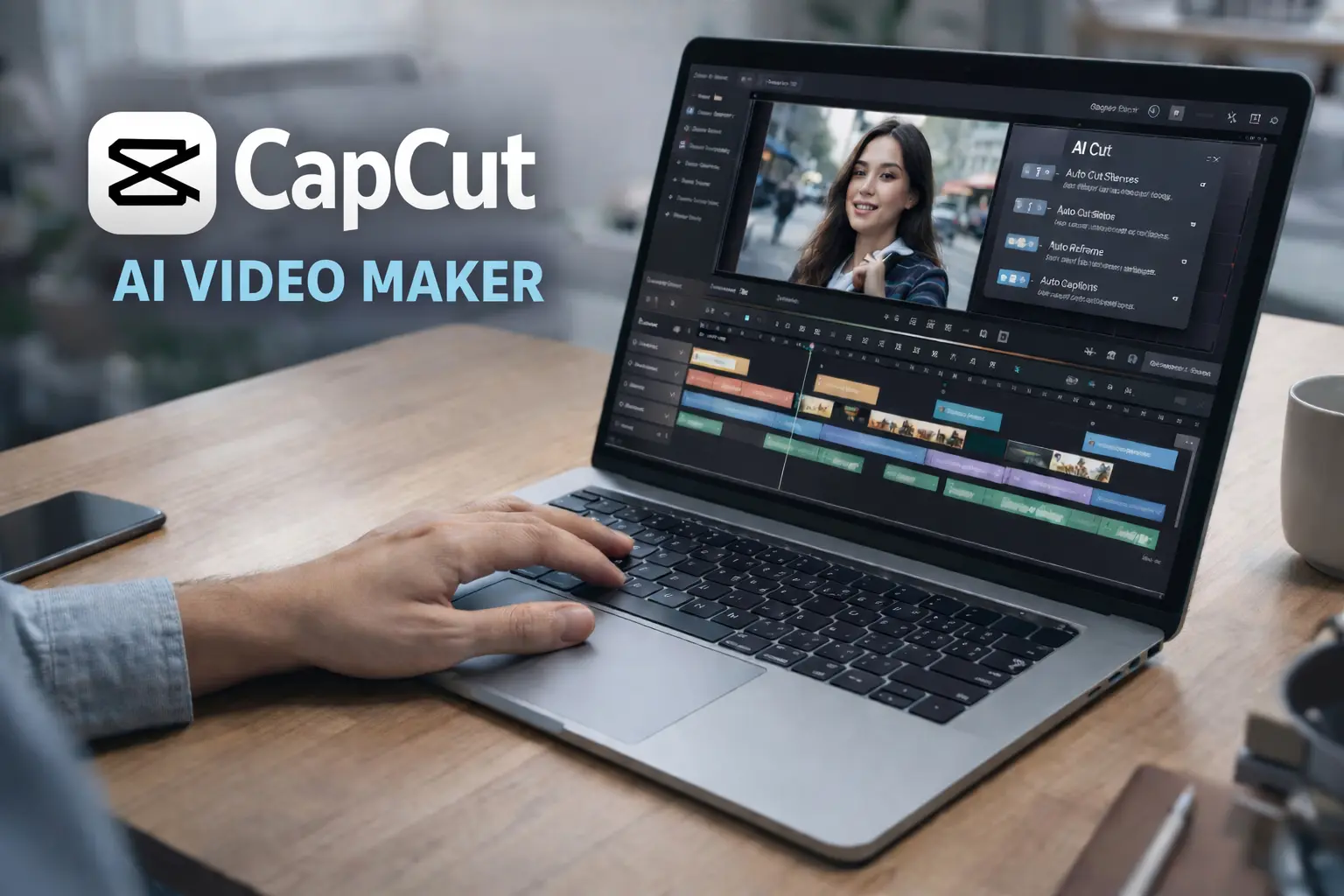
The CapCut AI Video Maker automatically turns text into complete videos. Unlike traditional editing, it can handle footage selection, voiceovers, captions, and transitions all on its own. Using AI, CapCut analyzes your prompts, generates scripts, and assembles the video in just a few minutes.
Key Features of the CapCut AI Video Maker
CapCut’s AI tools make video creation faster and easier. Some of the main features include:
- AI Script Writing – Generate full scripts from a topic or prompt. You can pair these with any CapCut template.
- Text-to-Video – Turn scripts into videos automatically, with visuals matched to your content.
- Digital Avatars – Add AI presenters, customizable through both the web and desktop versions.
- Auto Captions – Create subtitles quickly, with around 95% accuracy, and automatic timing.
- Template Library – Hundreds of templates are ready for TikTok, Reels, Shorts, and more, all compatible with AI-generated videos.
CapCut Desktop vs Web vs Mobile
- Web – Fast and easy access to the AI video maker. No download needed, great for quick generation.
- Desktop – Advanced AI editing tools and better timeline control. Ideal for longer projects, though very large files can be slower. It also allows deeper template customization.
- Mobile – Convenient for quick edits, but AI features are more limited than on desktop.
Tip: Start your project on the web for quick AI video generation, then move to desktop for detailed editing and full template customization.
How to Use the CapCut AI Video Generator (Tutorial)
Here’s a simple guide to using CapCut’s AI video tools, including the free tier. You’ll learn how to create your first AI-generated video and make the most of CapCut’s features.
Step 1: Set Up Your Account
Go to CapCut.com and sign up. From the dashboard, you can access the AI video maker CapCut. Keep in mind that generating AI videos requires credits, so check your balance before starting, whether you’re using CapCut Desktop or the web version.
Step 2: Create Your Video
You have two ways to start your project:
- Write a prompt and let the AI expand it into a script.
- Paste a script for the AI to visualize.
Next, choose a style from the template library. You can also customize digital avatars and other elements using CapCut’s AI editing options. Your video is usually ready in 2–5 minutes, though larger projects may work better on CapCut Desktop.
Step 3: Review the AI Video
Once the AI finishes, you can view the video result to see how it turned out. Check the scenes, captions, pacing, and overall flow before making any adjustments.
Step 4: Customize with AI Editing
CapCut’s AI editing tools let you refine your project:
- Swap or reorder scenes from the media library
- Adjust timing using the desktop editor
- Edit captions for accuracy
- Change music or switch templates for a different look
Using CapCut Desktop alongside the AI video maker gives you more control and professional results.
CapCut AI Video Generator Pricing
Understanding CapCut’s pricing is important, especially if you plan to create multiple AI videos.
Free Tier
The free version gives basic AI editing and limited video generations. Exports come with watermarks, and access to templates is restricted, so it’s more of a trial experience.
Pro Plan
- Cost: $6.30–$8.35 per month
- Includes 600 AI credits per month
- Removes watermarks
- 4K exports via desktop
- Full template library and premium AI editing features
Credits
Even with Pro, projects use credits:
- Simple video: 20–40 credits
- Complex video with avatars: 50–100 credits
- Editing and template adjustments: 5–30 credits each
With 600 credits, Pro users can typically create 6–30 projects monthly. Heavy users may find the system limiting, so combining the web and desktop workflow is often the most efficient.
Privacy & Terms of Service
CapCut, owned by ByteDance, collects device info, usage data, and uploaded content. Their terms grant broad rights over content created with the AI video maker, including modification and redistribution. For those concerned about privacy, exploring apps like CapCut with clearer policies may be worth considering.
Best Apps Like CapCut: Alternatives
If the capcut ai video maker concerns you, consider these apps like capcut:
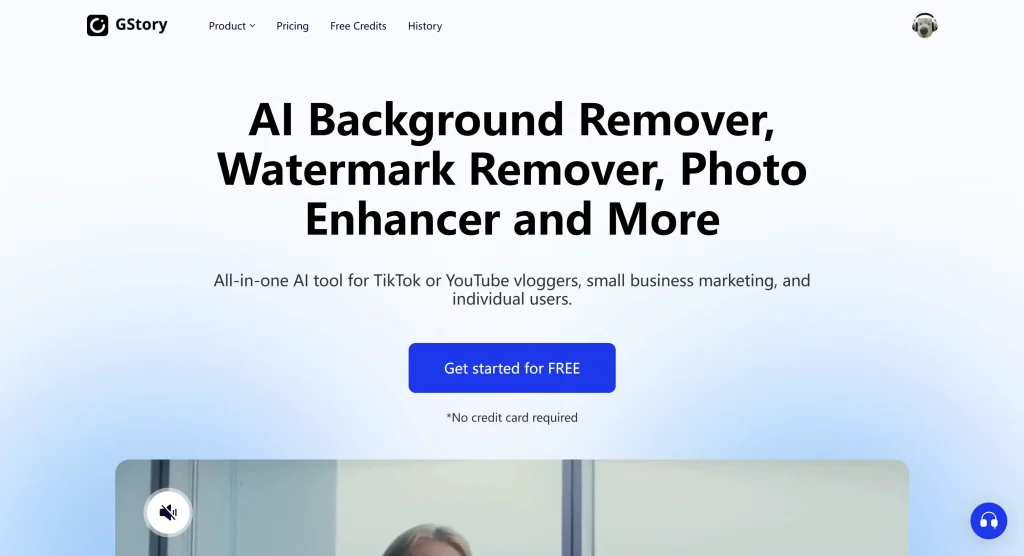
GStory.ai
GStory.ai offers capcut ai video maker alternatives without subscriptions. Unlike capcut pricing models, GStory uses pay-per-use. Features include AI Clip Maker and Subtitle Generator—similar to capcut ai video maker tools and capcut ai editing but with clearer terms than the ai video maker capcut.
DaVinci Resolve
The most recommended capcut desktop alternative for apps like capcut. Free professional editing with no watermarks, no capcut pricing, and zero privacy concerns. Steeper learning curve than the capcut ai video maker and capcut desktop but superior control. Unlike capcut desktop, DaVinci requires no subscription.
Quick Comparison
| Feature | CapCut AI | GStory.ai | DaVinci Resolve |
| Price | Free/$8/mo | Pay-per-use | Free |
| Privacy | High concern | Low concern | None (desktop) |
| AI Video | Yes | Yes | Studio only |
| Watermark | Free tier | No | No |
FAQs
Is CapCut free to use?
CapCut offers a free tier that includes basic AI editing, but serious use of the AI video maker CapCut requires credits. To create multiple AI videos without limits, you’ll need the Pro plan or additional credit purchases.
What is CapCut AI video generator pricing?
The free version is limited, while the Pro plan costs $6.30–$8.35/month and includes 600 AI credits. If you run out of credits, additional charges apply for more AI video generation.
Why isn’t my AI video project working?
Common issues include generation stuck at 99% (try clearing cache or using Chrome), voiceover errors (simplify your script), or insufficient credits. For large projects, CapCut Desktop often performs better than the web version.
Are there apps like CapCut with better privacy?
Yes. Tools like GStory.ai provide browser-based AI video creation without CapCut’s data concerns. DaVinci Resolve is another alternative, offering full control and strong privacy for professional users.
What’s the difference between CapCut Desktop and Web?
The desktop app offers more control, better performance, and handles larger projects, while the web version gets new AI features first. A good workflow is to generate your video in the web version, then refine it on CapCut Desktop.
Can I use CapCut Desktop to create AI clips for YouTube?
Absolutely. Combining the AI video maker CapCut with the desktop editor lets you produce professional-quality content suitable for YouTube and other platforms.
Conclusion
The CapCut AI video maker is fast, simple, and effective. Its AI editing tools, template library, and workflow make it easy for creators to produce videos quickly. Using CapCut Desktop alongside the AI tools adds flexibility and advanced customization.
- Casual creators: The free or Pro tiers provide good value. Use templates and desktop editing to enhance your projects.
- Privacy-conscious users: Alternatives like GStory.ai offer similar AI video creation without data concerns.
- Professional users: DaVinci Resolve provides superior control, professional-grade editing, and no subscription fees.
If you’re ready to try AI video creation, explore tools like GStory clip maker. Compare AI features, template options, and desktop workflows to find the solution that fits your needs.
Leave a Reply