Last Updated on March 27, 2026 by gaojie
Tired of CapCut slapping watermarks on your carefully edited videos? You’re definitely not alone—thousands of creators deal with this frustration every single day.
Here’s the problem: CapCut’s watermark system is genuinely confusing. Between ending clips, template marks, AI-generated labels, and unclear subscription tiers, it’s hard to know what you’re even dealing with. Many users pay for subscriptions only to discover watermarks still appear.
This guide breaks down 7 proven methods to remove every type of CapCut watermark—from quick free fixes to powerful AI tools—so you can export clean, professional videos every time.
Does CapCut Have a Watermark? Understanding the Different Types
Before diving into removal methods, you need to identify which watermark type you’re facing. CapCut uses multiple watermark systems, and each requires a different approach.
The Ending Clip Watermark
This is the most common type—a branded outro clip that automatically appears at the end of your video. The good news? It’s the easiest to remove and doesn’t require any paid subscription. Simply delete it from your timeline.
Template Watermarks
When you use CapCut’s pre-made templates, watermarks often get added regardless of your subscription status. Some templates retain these marks even for Pro subscribers unless you export through specific workarounds.
AI-Generated Content Watermark
The newest and most frustrating type. CapCut labels any content made with AI features as “AI Generated”—and this applies even to Pro subscribers. This mandatory mark has sparked significant backlash in the creator community.
Pro Feature Watermarks
Certain premium effects, transitions, and assets display watermarks when used on free accounts. These indicate the feature requires an upgrade to access without branding.
Method 1: Remove the Ending Clip (Free & Easy)
The simplest solution that works for everyone. You can delete the branded outro in under 30 seconds.
Step-by-Step: Mobile (iOS & Android)
- Open your project in CapCut
- Scroll to the end of your timeline
- Tap the CapCut ending clip to select it
- Hit the Delete button
- Export your video normally
Step-by-Step: Desktop (PC & Mac)
- Open your project in CapCut desktop
- Navigate to the timeline’s end
- Click the CapCut outro clip
- Press Delete or Backspace
- Export without the watermark
Step-by-Step: Online (Web Version)
- Access CapCut’s web editor
- Locate the ending clip on your timeline
- Select and remove it
- Download your clean video
Key Takeaway: This method has a 100% success rate and causes zero quality loss.
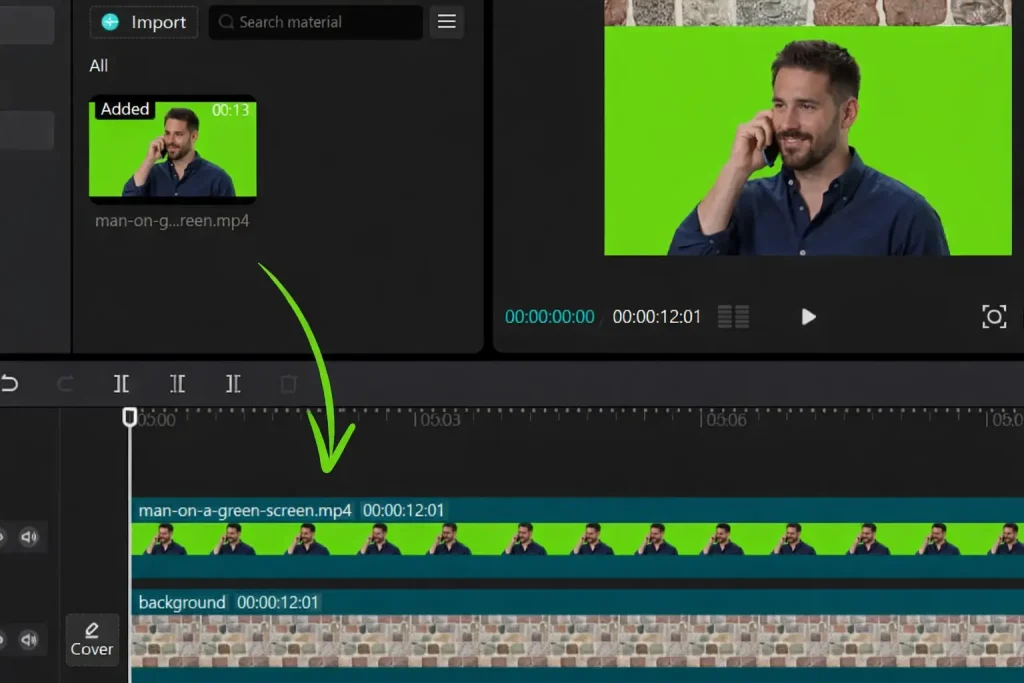
Method 2: Avoid Templates or Use Template Workarounds
Template watermarks are tricky but beatable with the right approach.
Identifying Templates That Add Watermarks
Before committing to a template, preview it carefully. Look for watermark indicators in the preview screen. Some templates clearly show branding while others hide it until export.
The TikTok Export Workaround
Community members discovered that exporting templates directly to TikTok bypasses watermark restrictions. Connect your TikTok account, share directly, then download from TikTok if needed.
Creating Custom Templates
Build your own templates from scratch to avoid watermark issues entirely. Save your preferred effects, transitions, and layouts as custom presets for future projects.
Method 3: Fix AI-Generated Content Watermarks
The “AI Generated” watermark frustrates even paying subscribers. Here are the current working methods.
Export Selected Clips Method
On PC, try using “Export Selected Clips” to bypass AI watermark detection:
- Select only the clips you need
- Right-click and choose Export Selected Clips
- This sometimes bypasses the AI detection system
Separate Timeline Method
When the selected clips method fails, try this alternative:
- Export your AI content to a separate timeline
- Create a new project and import it
- Export from the new project
Important: These Methods May Be Patched
CapCut actively patches workarounds. Keep older app versions as backup, and check for guide updates regularly. What works today might not work tomorrow.
Method 4: Use Older CapCut Versions
Before recent monetization updates, CapCut had fewer watermark restrictions.
Recommended Versions
Community-verified versions with minimal watermark issues:
- Mobile: Version 6.0.0
- Desktop: Version 1.5.0
Search for legitimate APK sources or archived installers to find these versions.
Risks and Considerations
Older versions lack new features and security patches. Weigh the trade-offs carefully—you’re sacrificing updates for watermark-free exports.
Method 5: Use AI Watermark Removal Tools
When built-in methods fail, AI-powered tools can clean up your videos seamlessly.
How AI Watermark Removal Works
AI analyzes surrounding pixels and frames to intelligently fill watermarked areas. Modern tools produce natural-looking results without obvious artifacts or blur.
GStory.ai Video Watermark Remover
GStory’s Video Watermark Remover offers a browser-based solution with key advantages:
- Supports videos up to 2 hours and 5GB
- Uses a brush tool for precise watermark marking
- Produces artifact-free results
- Free credits available to try before purchasing
No downloads required—it works directly in your browser on any operating system.
Other Tools Worth Considering
- Watermarkremover.io: Fast processing, freemium model
- Media.io: Quality-focused, paid service
- Magic Eraser: Completely free option
Each has trade-offs between quality, speed, and cost.
Method 6: CapCut Pro vs Standard—Which Removes Watermarks?
CapCut’s subscription tiers confuse many users. Here’s exactly what each level removes.
What Free Gets You
Free tier includes removable ending clips but faces:
- Template watermarks on most templates
- AI-generated content watermarks
- 5 exports per week limit (recently implemented)
What Standard ($13.49/mo) Removes
- Auto-removes ending clips
- Removes some template watermarks
- Does NOT remove AI-generated content watermarks
- Unlimited exports
What Pro ($27.99/mo) Removes
- Removes most watermarks including templates
- AI-generated watermarks are reduced but not eliminated
- Regional pricing varies significantly (some see $9.99/mo)
The Verdict: Is Upgrading Worth It?
Skip upgrading if: You mainly need to remove ending clips (free method works) or create original content without AI features.
Consider Pro if: You heavily use templates and can’t tolerate any watermarks. But even Pro doesn’t guarantee watermark-free exports on AI content.
Method 7: Switch to Watermark-Free Alternatives
Sometimes the best solution is switching apps entirely.
VN Video Editor (Mobile & PC)
Highly recommended CapCut alternative with:
- Similar user interface
- Zero watermarks ever
- Completely free
- Available on mobile and desktop
DaVinci Resolve (PC/Mac)
Professional-grade editing without watermarks:
- Industry-standard features
- Steeper learning curve
- Free version includes nearly everything
- No mobile app available
Other Solid Options
- Youcut: Mobile, simple interface
- ShotCut: PC, capable features
- KDenlive: Open-source
- iMovie: Free for Apple users
FAQs About CapCut Watermark Removal
Is CapCut Watermark Removal Free?
Yes, methods 1-4 cost nothing. Ending clip removal works for all users, and template/AI workarounds are completely free.
Why Does My CapCut Video Have a Watermark Even With Pro?
Pro doesn’t eliminate all watermarks. AI-generated content and certain templates still display marks. Use Method 3 for AI content or Method 2 for templates.
Can I Remove Watermarks From Videos I Downloaded From TikTok?
Yes, AI watermark removal tools like GStory’s Video Watermark Remover can remove TikTok logos. However, only remove watermarks from content you own—respect others’ work.
Will These Methods Still Work in 2026?
Methods 1, 5, 6, and 7 are permanent solutions. Methods 2-4 may get patched as CapCut updates. Check back for the latest working workarounds.
Is It Legal to Remove CapCut Watermarks?
Removing watermarks from your own original content is legal. Removing watermarks from others’ content to claim as your own may violate copyright laws and platform terms of service.
Conclusion
CapCut watermarks come in multiple forms—ending clips, templates, AI marks, and Pro feature indicators—each requiring different removal approaches.
Start with Method 1 for instant, free results on ending clips. For stubborn template or AI watermarks, try the workarounds in Methods 2-4. When built-in methods fail, AI tools offer powerful, accessible solutions.
If watermarks remain a constant frustration, consider switching to alternatives like VN Editor or DaVinci Resolve—both deliver professional results without any branding.
Leave a Reply