Last Updated on November 14, 2025 by gaojie
Why Video Quality Matters More Than Ever
Think about the last time you scrolled through YouTube or TikTok.
You probably stopped longer on a crisp, bright, high-resolution video than on a blurry one, right?
That’s not a coincidence — today, audiences judge a video’s credibility, effort, and storytelling value based on how it looks before they even hit “play.”
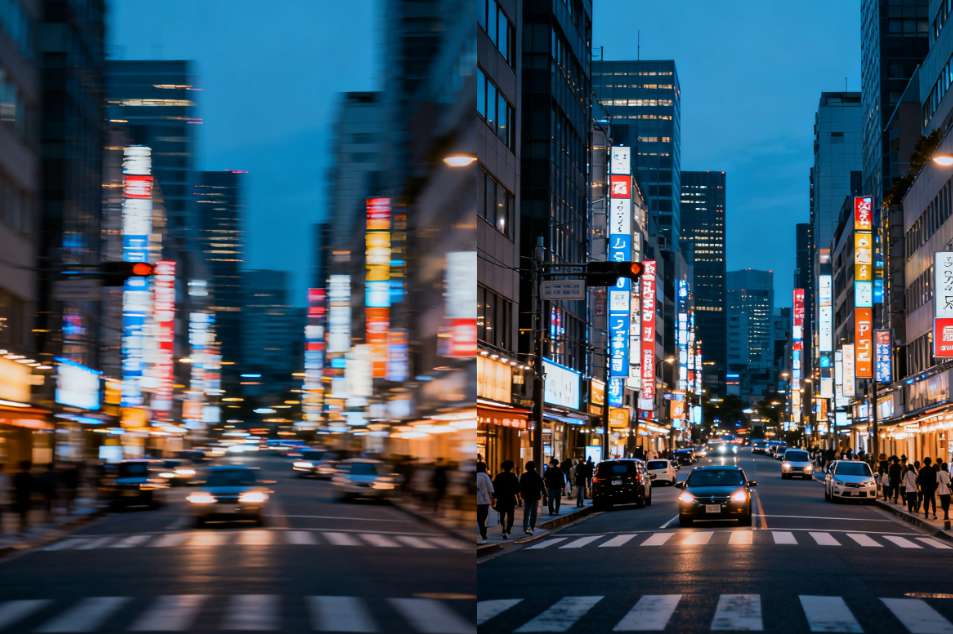
In 2025, high-quality visuals aren’t just nice-to-have. They’re a must. Whether you’re a YouTuber, educator, marketer, or just someone who loves documenting memories, learning how to enhance video quality can make a huge difference.
But here’s the good news: you don’t need expensive gear or editing skills to do it anymore.
Thanks to AI and smarter online tools, you can transform a grainy 720p clip into a clean, vibrant 1080p or 4K video in minutes.
What Does “Enhancing Video Quality” Really Mean?
Enhancing video quality is more than just making your footage look “clearer.”
It’s about improving multiple aspects that together create a professional-looking result:
- Resolution — Upscaling from low quality (480p or 720p) to Full HD or 4K.
- Sharpness — Defining edges and details that look blurred in the original.
- Color Correction — Balancing tones, fixing exposure, and adding natural contrast.
- Noise Reduction — Removing grainy visual noise common in dark scenes.
- Frame Stabilization — Smoothing out shaky camera movements.
- Lighting and Brightness — Adjusting underexposed or overexposed scenes.
When done right, these changes make your video more engaging, easier to watch, and more trustworthy to viewers — especially if you’re creating educational content or brand videos.

Why Do Videos Often Look Low-Quality After Uploading?
Here’s something that frustrates many creators: you record a nice video on your phone, but after uploading to YouTube or Instagram, it looks terrible. What happened?
1. Compression Kills Details
Social media platforms re-encode your video to save bandwidth. That means they reduce file size by removing data — and quality — from each frame.
2. Low Bitrate Settings
If you export your video with a bitrate that’s too low, platforms have even less detail to work with. The result? Artifacts, blurriness, and loss of sharpness.
3. Wrong Resolution or Frame Rate
Uploading a 720p video to a 4K player screen will always look stretched or pixelated. Frame rate mismatches can also cause motion blur and stuttering.
That’s why many creators today prefer to enhance video quality before uploading — so platforms have a high-fidelity source to compress from. The difference is visible immediately.
How AI Is Changing the Game
In the past, improving video quality required expensive software like Adobe Premiere or DaVinci Resolve — and a lot of manual tweaking. Now, AI has made it almost effortless.
Modern AI models can analyze each frame, detect blurry objects, and predict how they should look in higher resolution. They don’t just “sharpen” pixels — they actually rebuild missing details based on context.
AI video enhancers can also auto-balance color, reduce noise, and restore old footage that would have been unusable a few years ago. It’s like having a professional colorist and editor inside your browser.
Step-by-Step: How to Enhance Video Quality Online
Let’s walk through the simplest way to do it — using an online AI video enhancer such as GStory Video Enhancer.
You don’t need to download software or know how to edit; everything runs automatically in the cloud.
Step 1: Upload Your Video
Go to the tool’s page and upload the clip you want to fix. Most formats like MP4, MOV, or AVI work fine. If you’re using GStory, free users can upload up to 500 MB.
Step 2: Choose Enhancement Level
You can usually pick between “Standard,” “HD,” and “4K Enhance.”
AI upscalers will analyze your footage and predict how to rebuild details while keeping motion smooth.
Step 3: Let AI Do the Work
In a few minutes, the system automatically removes noise, fixes lighting, and sharpen edges without introducing artifacts. This is where machine learning models really shine.
Step 4: Preview and Download
Most platforms let you preview the “before & after” split screen. If you like the results, you can download the enhanced video in your chosen resolution.
That’s it — no timeline, no manual sliders, no learning curve.
When You Should Enhance Video Quality
You don’t have to run every video through an AI enhancer. But these situations make a huge difference:
- Old Family Videos — Restoring decades-old home footage to relive memories.
- Business Presentations — Sharpening slides and faces for professional impression.
- Online Courses — Clearer visuals improve attention and trust.
- Marketing Content — Sharper videos perform better in ads and social media.
- YouTube Uploads — Upscaling to 4K before upload helps you get a better bitrate from YouTube’s algorithm.
Even for casual users, enhancement can turn a dark clip into a memorable moment worth sharing.
How to Avoid Common Mistakes
Enhancing video quality is easy, but some small choices can lead to poor results.
Mistake 1: Over-Sharpening
Cranking up the “sharpness” too high makes faces look harsh and unnatural. Let AI handle it automatically instead of manual sliders.
Mistake 2: Ignoring Lighting
AI can brighten a video, but it can’t add light that was never captured. Try to film in good lighting and then enhance for best results.
Mistake 3: Expecting 4K Miracles
Upscaling 480p footage to 4K will never look like real 4K. Enhancement improves what’s there — it doesn’t create new footage.
Mistake 4: Skipping Audio Quality
Viewers notice bad sound faster than bad video. Pair your enhanced video with clean audio or AI noise reduction tools.
Mistake 5: Not Testing Before Publishing
Always preview the enhanced clip on multiple devices (laptop, phone, TV) to make sure the colors and brightness look good everywhere.

AI vs. Traditional Video Editing — What’s Better?
Traditional editors like Premiere or Final Cut give you manual control — great for professionals.
But for most people, AI video enhancers win because they save time and require no skills.
| Feature | Traditional Editing | AI Video Enhancer |
| Skill Needed | High | None |
| Speed | Hours to days | Minutes |
| Hardware | Powerful PC required | Runs in browser |
| Cost | Often subscription-based | Usually freemium |
| Consistency | Depends on user settings | AI auto-balances every scene |
For many creators, AI isn’t replacing editing — it’s becoming the first step before editing.
Real-World Examples: What Enhanced Videos Can Do
Imagine a teacher who recorded lectures during lockdown with a cheap webcam.
Now, AI enhancement can turn that grainy recording into a bright, clear lesson fit for YouTube.
Or a small business that shot a product demo on a phone under poor lighting. Instead of reshooting, they upload to GStory Video Enhancer — in five minutes, colors pop, edges are sharper, and the clip looks studio-ready.
Even old VHS transfers can look modern again with noise removal and AI upscaling. What used to take hours of manual editing is now possible in minutes.
How to Choose the Right Video Enhancement Tool
When picking a platform, look for these key factors:
- Supported Formats — Make sure it works with MP4, MOV, AVI, and other popular types.
- Resolution Options — Some only go up to 1080p; others support 4K or even 8K.
- Processing Speed — Cloud AI tools like GStory are faster than desktop software.
- Privacy and Security — Your videos should be deleted from servers after processing.
- Free Plan or Trial — So you can test before committing to a subscription.
Remember, the “best” tool is the one that matches your workflow and comfort level.
FAQs About Enhancing Video Quality
Q1. Can I Enhance Video Quality for Free?
Yes! Many online tools offer free plans. GStory Video Enhancer lets you enhance short clips online for free without watermarks.
Q2. Will Enhancing a Video Affect Audio?
Usually no. Most AI enhancers focus on visual data only. Your audio remains untouched unless you choose a noise reduction option.
Q3. Can I Enhance Videos on My Phone?
Yes. Many browser-based tools are mobile-friendly, and some apps also offer AI enhancement features.
Q4. Is AI Video Enhancement Safe for Private Clips?
Check the platform’s privacy policy. Reputable sites encrypt uploads and delete files after processing. GStory, for example, follows strict data security standards.
Q5. How Long Does Enhancement Take?
Typically a 2-minute video processes in under a minute on cloud AI servers. Longer clips may take a few minutes.
The Future of Video Enhancement
AI video enhancement is just getting started. Next-generation models will soon be able to fix motion blur, recolor old black-and-white footage, and even synthesize missing frames for smoother motion.
We’re also seeing real-time enhancement in video calls and live streams — so you can look sharp even without perfect lighting or a high-end camera.
For creators, it means one thing: focus on storytelling, not technical hurdles. The machines can handle the details now.
Final Thoughts — Your Videos Deserve to Look Their Best
Enhancing video quality isn’t about showing off — it’s about respecting your audience and your story.
A clearer video helps viewers connect emotionally and keeps them watching longer.
Whether you’re a YouTuber trying to stand out in a sea of content, a teacher making your lessons shine, or a parent reviving old memories, you don’t need to be a professional editor to create professional-looking videos.
With tools like GStory Video Enhancer, anyone can bring their footage to life — brighter, cleaner, and ready to share with the world.
So the next time you watch a blurry clip and think, “This could look better,” remember: it can. And now, it’s just one click away.
Leave a Reply