Last Updated on December 25, 2025 by gaojie
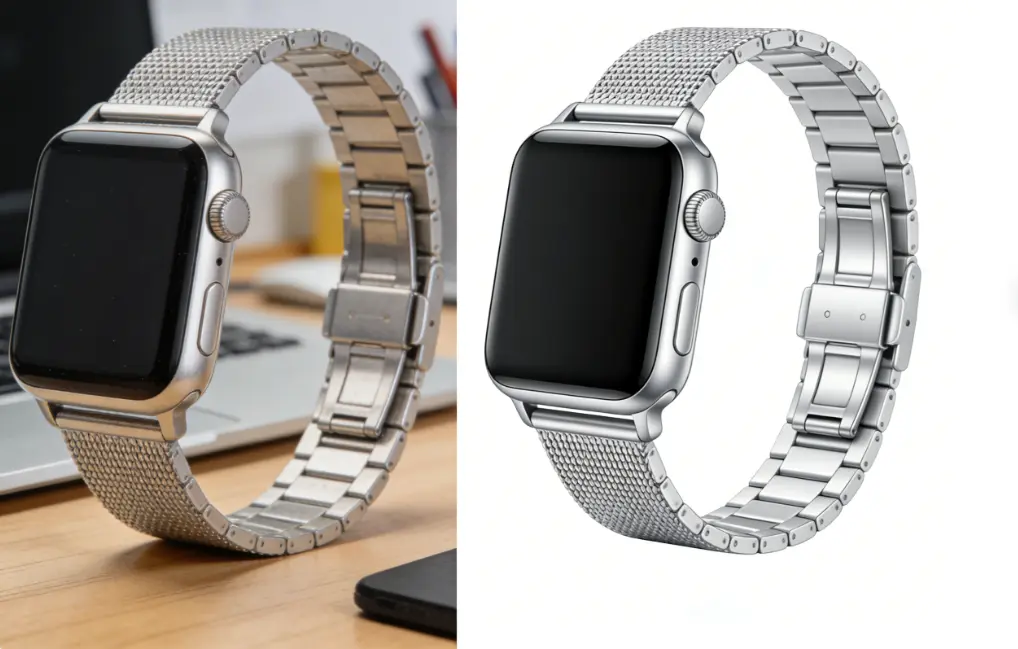
You searched “free PNG creator” because you want one simple outcome: a PNG with a transparent background you can drop onto anything—an e-commerce listing, a YouTube thumbnail, a slide deck, a sticker, a logo mockup, whatever.
Here’s the funny part: most pages ranking for free png creator are not “PNG drawing apps.” They’re basically one of these:
- a transparent PNG maker (upload → remove background → download PNG)
- a PNG converter (JPG to PNG / WebP to PNG)
- a background remover that exports PNG
That’s why the results look so similar. Adobe Express talks about making a transparent PNG by removing the background. Canva frames its “PNG maker” around transparency and background removal. Pixelcut does the same (JPG → transparent PNG). Tools like remove.bg are straight-up “remove background automatically” tools that people use as a PNG transparency shortcut.
So this guide is built around the real job you’re trying to do:
Create a transparent PNG that looks clean—no ugly white outline, no crunchy edges, no “download is locked behind a paywall” surprise.
I’ll keep it middle-school readable, but still practical enough to actually fix your result.
What “Free PNG Creator” Usually Means (and What It Doesn’t)
When people type free png creator, they usually mean one of these common searches:
- transparent png maker
- png maker
- make png transparent
- convert jpg to png
- jpg to png transparent
- remove background png
- png background remover
- logo transparent background
- transparent background maker
Most “free PNG makers” are not letting you design a PNG from scratch. They’re helping you turn an existing image into a PNG with transparency.
The 3 main tool types you’ll see in Google results
- Background removers that export PNG
These do one key thing: separate the subject from the background and export a PNG. remove.bg is a classic example of the “one click background remover” category. - PNG converters (JPG → PNG)
These change file format, but format conversion alone does not magically create transparency. You only get a transparent background if the tool also removes the background (or if your original already had transparency). - Design tools with PNG export
Tools like Canva and Adobe Express sit here. They often combine light editing + background removal + export to PNG.
Quick reality check:
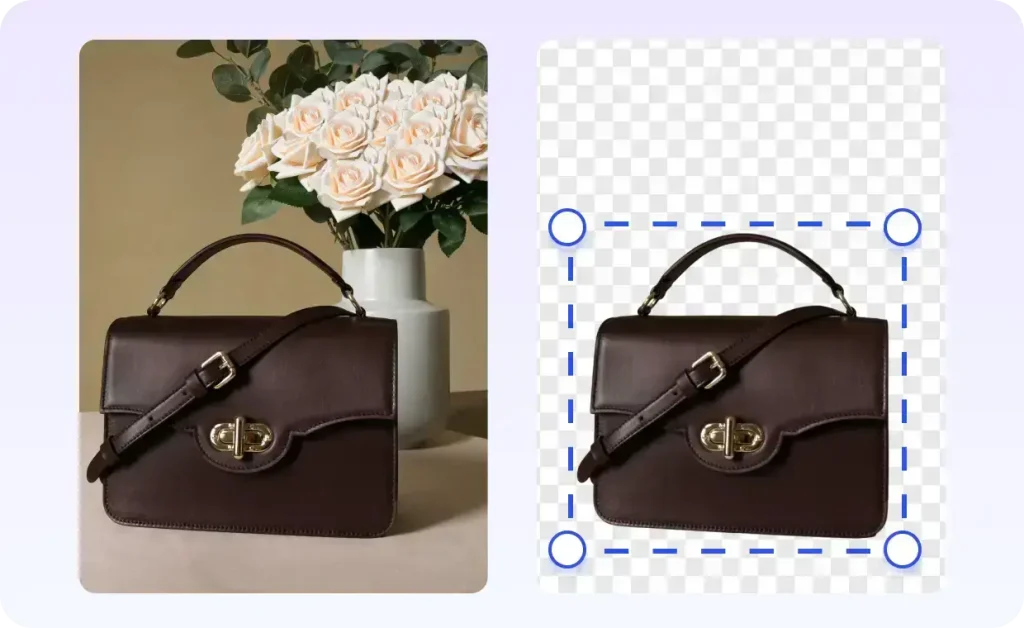
If you need a transparent background, your tool must do background removal (or masking) somewhere in the workflow.
The “Never Breaks” Workflow for a Clean Transparent PNG
If you only remember one thing from this article, make it this:
Good transparent PNGs are made in this order:
- Start with a clean image (sharp, not noisy)
- Remove background
- Fix edges (halo/jaggies)
- Export PNG (with correct settings)
Step 1 — Start with the highest-quality image you can
This sounds obvious, but it’s where most people lose quality.
If your original is:
- blurry
- low-resolution
- heavily compressed (blocky)
- noisy (low light grain)
your cutout edges will look worse. Hair, fur, and product edges get messy fast.
A simple upgrade move: enhance the image first, then remove the background.
For example, GStory’s AI Photo Enhancer focuses on improving resolution/clarity, sharpening, and reducing noise—basically creating a cleaner “base image” before you do cutouts.
That matters because background removal works best when edges are clear and the subject is not smeared by noise.
Practical tip: if your subject is small in the frame, crop in closer first, then enhance. Bigger subject = better edge detection.
Step 2 — Use a background remover that matches your image type
Different images need different “cutout brains.”
Best-case images (easy mode)
- products on a solid background
- people with clear edges
- logos with flat colors
Almost any transparent PNG maker will do fine here.
Hard-case images (need smarter tools)
- hair / fur / feathers
- semi-transparent objects (glass, veil)
- motion blur edges
- busy backgrounds with similar colors
In hard cases, pick a tool that lets you refine the mask or “keep/remove” parts manually. Some tools advertise manual tweaks or preserving detail/edge precision.
Step 3 — Fix the #1 complaint: the white halo outline
If you’ve ever downloaded a “transparent PNG” and it looks like it has a ghost border… that’s the halo.
It happens because the old background color gets blended into the edge pixels. When the background disappears, those edge pixels still carry that old color.
Quick fixes (from easiest to most effective):
- Choose a better input: avoid images with harsh compression or soft focus. (This alone reduces halo a lot.)
- Use “Refine edge” / “Decontaminate colors” if your tool has it.
- Add a tiny feather (like 0.5–1 px). Not more. Too much feather = blurry cutout.
- Slightly shrink the mask (1 px) if the tool allows it. This removes the outer “dirty” edge.
- Export on transparent, not “white background”. Sometimes people export on white by accident and think it’s transparency.
A fast test: place your PNG on a dark background and a bright background. If it looks clean on both, you’re good.
Step 4 — Export settings that keep your PNG crisp
When people say “my transparent PNG looks blurry,” it’s often not the cutout. It’s export.
Here’s what matters:
- Export PNG, not JPG (JPG can’t store transparency)
- If your tool offers size options, pick original size or 2× for logos/stickers
- Avoid “tiny preview downloads” (some sites give a low-res PNG unless you pay)
If you’re making a logo transparent background file for a website, crisp edges matter. A small low-res PNG will look fuzzy on retina screens.
Convert JPG to PNG vs Make a Transparent PNG (Don’t Mix These Up)
This confusion is everywhere because people search things like convert jpg to png and jpg to png transparent interchangeably.
Here’s the truth:
- JPG → PNG only changes format
- Transparent PNG requires a cutout (background removal / masking)
So if your goal is transparency, don’t waste time on a pure “PNG converter” that doesn’t remove background.
That’s why top ranking “PNG maker” pages often talk about background removal as the real feature.
Pick the Right “Free PNG Creator” for Your Job
Not all transparent PNGs are the same. Your use case changes what “good” means.
(1) E-commerce product photos (Amazon, Shopify, Etsy)
You want:
- clean edges (no halo)
- accurate shape
- consistent size across products
Workflow that works:
- If the photo is noisy or soft, enhance it first (sharper base = better mask).
- Remove background
- Put it on pure white or transparent depending on platform rules
- Export PNG
If you need pure white background (common in e-commerce), you might still export PNG during editing, then final export to JPG for listing if required.
(2) Stickers, memes, and “cutout characters”
You want:
- slightly thicker outline sometimes (for sticker look)
- punchy colors
- no jagged edges
Do this:
- After you get a clean PNG, add an outline in a design tool (don’t rely on messy cutout edges to act like an outline).
(3) Logos and icons
You want:
- perfect sharp edges
- no blur
- correct transparency
If your logo is blurry to begin with, fix that first. Upscaling and sharpening can turn a low-quality logo into a usable base. GStory’s page describes upscaling and sharpening/noise reduction as part of enhancement.
Then do background removal (or, for flat logos, sometimes you can remove a single color cleanly).
Pro tip: If you have the logo as SVG, use that instead of PNG whenever possible. But if you only have a screenshot, a clean transparent PNG is still useful.
The “Fake Free” Traps (How to Spot Them in 10 Seconds)
A lot of SERP pages say free—and many do offer a free tier. Adobe Express mentions a free plan. Canva offers limited background removal for free, then pushes Pro features.
That’s normal. The problem is when “free” is basically a demo.
Before you upload anything sensitive, check these:
- Is there a watermark on free downloads?
- Is the download size capped? (tiny PNG)
- Do you need an account to export?
- Do they keep your uploads / use them for training? (look for privacy controls)
This isn’t about paranoia. It’s just: you should know what you’re trading—money, login, or data.
Troubleshooting: Why Your Transparent PNG Still Looks Bad
Problem: “My PNG has jagged edges”
Causes:
- low-res input
- heavy compression
- the tool is using a rough mask
Fix:
- use a higher-res image (or upscale first)
- try a tool with edge refinement
- add a tiny feather (0.5–1 px)
Problem: “The cutout looks blurry”
Causes:
- too much feather
- the site exported a low-res preview
- you zoomed in on a small subject and the tool guessed
Fix:
- reduce feather
- export original size
- crop closer before removing background
Problem: “Hair looks like a chopped helmet”
Causes:
- busy background + similar color
- the tool can’t separate strands
Fix:
- pick a tool with “hair” mode or edge refine
- use a clearer base image (enhance + denoise first can help)
Problem: “Transparent background is not actually transparent”
Causes:
- exported JPG by mistake
- exported PNG but placed on a white canvas and flattened
Fix:
- check file type: must be .png
- open it on a checkerboard background (most editors show transparency)
A Simple “Best Results” Checklist (No Fancy Skills Needed)
Before you click download, do these quick checks:
- Put the PNG on dark and light backgrounds (halo check)
- Zoom to 200% and look at edges (jaggies check)
- Confirm export is PNG (not JPG)
- Confirm the size is not tiny (resolution check)
This takes 30 seconds and saves you from redoing the whole thing later.
Where GStory Fits in This Workflow (Without Forcing It)
If your main search was free png creator, you probably don’t want a sales pitch. Fair.
But there’s a genuinely useful place for an AI photo enhancer in a PNG workflow:
Use enhancement before background removal when your image is:
- blurry
- noisy
- low resolution
- screenshot quality
GStory’s Photo Enhancer page describes one-click enhancement, upscaling, sharpening, and noise reduction—exactly the kind of cleanup that can make background removal work better.
Think of it like this:
You don’t need it for every image. But when your cutouts keep looking rough, the problem is often the input—not the tool.
FAQ: Quick Answers People Search For
Is a PNG creator the same as a transparent background maker?
Most of the time, yes. In Google results, “PNG maker” pages usually mean “make transparent PNG by removing background.”
Can I make a transparent PNG on my phone?
Yes—most online tools work in mobile browsers, and some explicitly mention mobile workflows.
Will converting to PNG improve quality?
No. PNG can preserve quality better than JPG, but it won’t “enhance” a blurry image by itself. For quality improvement, you need an enhancer/upscaler or a better original.
What’s the safest way to avoid a white outline?
Start with a sharper image, remove background carefully, then refine edges (shrink/feather slightly). Halo is usually an edge-pixel problem, not “PNG being bad.
Final Take: The Best “Free PNG Creator” Is the One That Matches Your Image
If your image is already clean, almost any free PNG maker will get you a decent transparent PNG.
If your image is messy (blurry/noisy/screenshot quality), you’ll get better results by upgrading the input first, then doing background removal. That’s why tools that focus on clarity (upscale/sharpen/denoise) can improve the final cutout quality.
Either way, the goal stays the same:
A transparent PNG that looks clean on any background.
Leave a Reply