Last Updated on January 23, 2026 by Leslie
Lately, it feels like every video editing app has switched to the “free trial, pay to export” model. A reader recently shared a frustrating experience: after spending three hours editing a video, they tried to export it only to be blocked by pop-ups demanding payment for transitions or AI features like background removal. Without paying, they’d have to export the video with a giant watermark. For content creators, this feels like seeing your hard work treated like garbage.
As someone who tests tools daily, I’ve been there too. That’s why I’ve put together a list of six video editing software free no watermark solutions that are still honest and reliable. Some are desktop apps, some mobile, and a few are AI-powered tools—so you can pick one that suits your workflow.
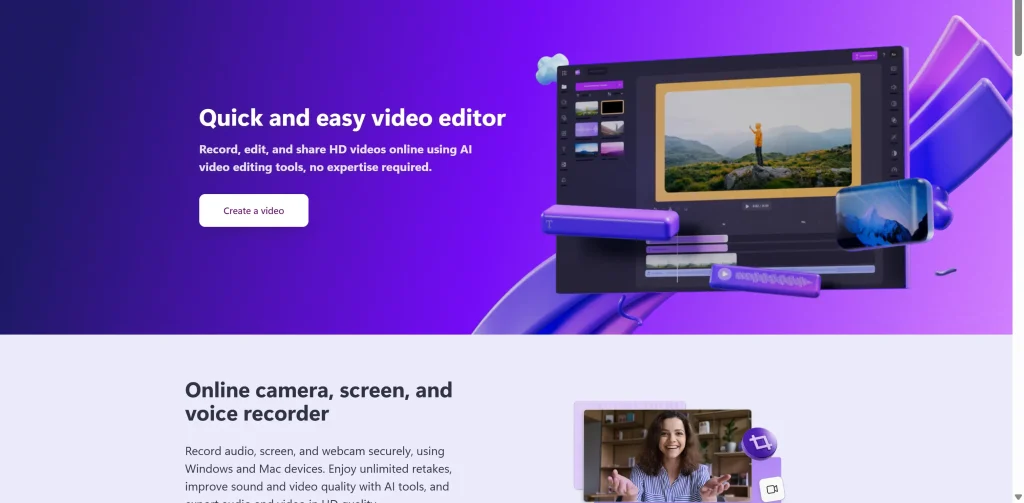
Clipchamp: Fast Desktop Editing Without Watermarks
Many people don’t realize that Windows already includes a solid video editor. Clipchamp, now integrated by Microsoft, has a sleek interface with automatic subtitles, templates, and fast export. Its free tier allows video editing software free no watermark in certain resolutions, making it a great choice for beginners or anyone who wants to get content out quickly.
I’ve used Clipchamp for several corporate short videos. While it’s not professional-grade, it’s perfect for quick projects where speed matters. The built-in AI subtitle feature also saves a lot of time.
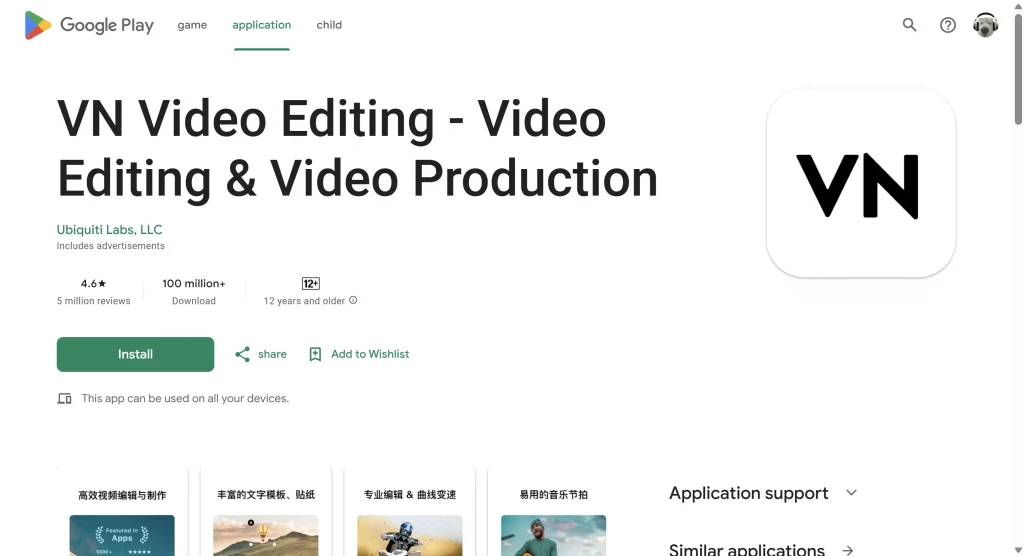
VN: Minimalist Mobile Editing for Daily Uploads
If you’re looking for a truly free video editor no watermark on mobile, VN is my top pick. It sticks to a minimalist design and doesn’t force watermarks on exports. Features like tempo sync, templates, and transitions work seamlessly, making it ideal for creators posting short videos regularly. Google Play even highlights its “no watermark” policy.
In short: drop your clips in, spend a few minutes, and get a watchable video without an annoying logo in the corner.
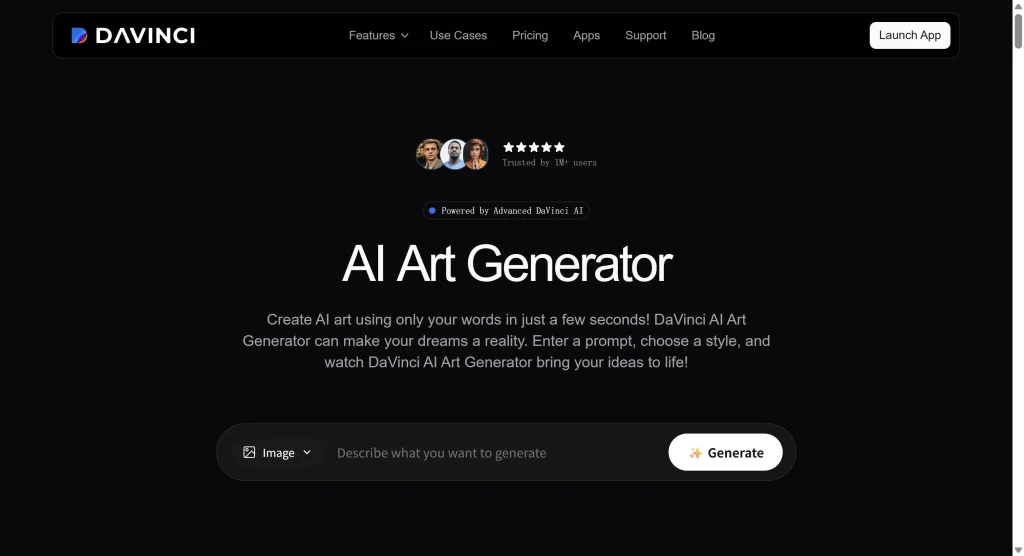
DaVinci Resolve: Professional-Grade Free Editing
DaVinci Resolve has long been the heavyweight of free video editing software. Its free version includes editing, color grading, sound design, and more—without watermarks. Many creators produce high-quality content entirely with the free version.
The catch? DaVinci requires some patience to learn. If you only want to make short, casual videos on a low-spec computer, it can be overwhelming. But for creators serious about content, investing time here pays off.
Canva: Quick, Design-Oriented Video Production
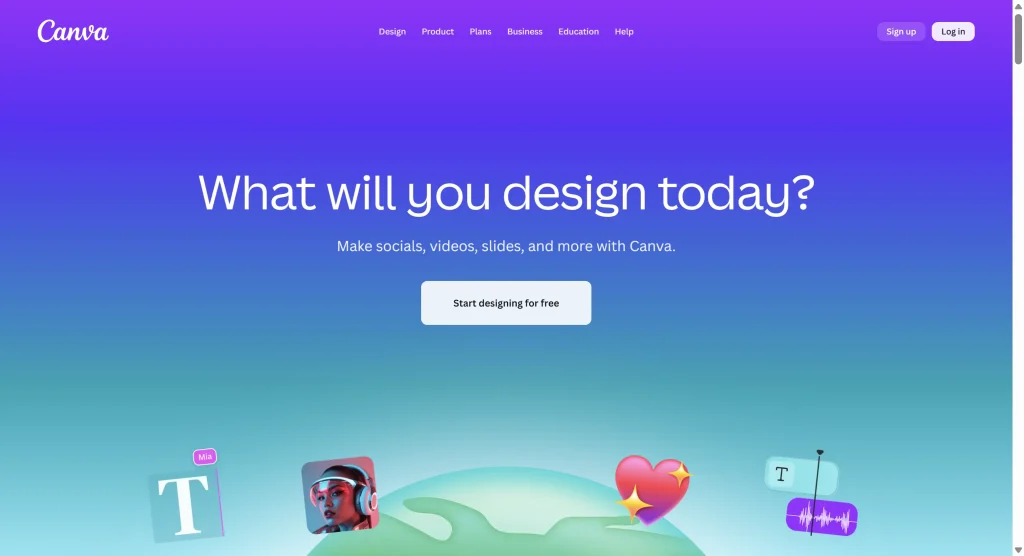
For those more interested in visual polish than technical editing, Canva’s AI-powered video tools are extremely helpful. You can turn horizontal content into vertical, apply simple animations, remove backgrounds, and create short videos with minimal effort. Using your own media ensures free video editor without watermark outputs—just watch out for premium templates or stock assets, which may require payment.
Canva is perfect for social media marketers or anyone looking to quickly produce attractive videos without diving deep into editing techniques.
GStory: Browser-Based AI Editing for Fast Workflow
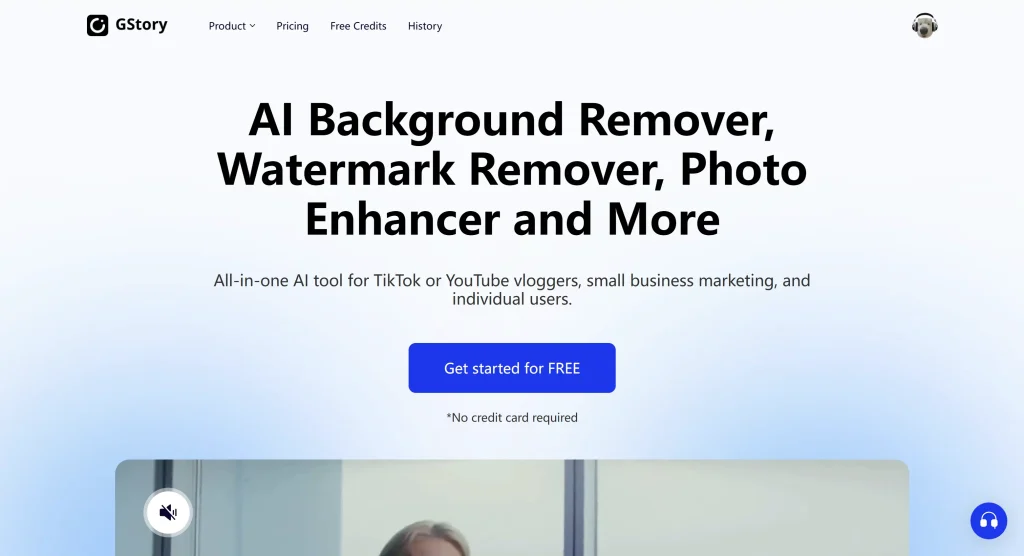
Several AI-powered browser platforms have emerged recently, but GStory stands out for combining useful features in one place. It offers AI auto-editing (detects highlights from long videos), subtitles, video enhancement, background removal, and even a free video editor software tier with some watermark-free export capability (credits/limits apply).
I recommend using GStory as part of a “quick pipeline”: auto-select highlights, generate subtitles, then fine-tune clips in VN, Clipchamp, or DaVinci. It’s not a complete solution for polished editing, but it saves tons of time on repetitive tasks.
Choosing the Right Free Video Editor Without Watermark
Picking the right tool depends on your workflow and goals. If you mainly create on mobile and need fast, polished results, VN is ideal—it delivers video editor no watermark free exports without complicated settings. For desktop users who want zero learning curve and quick outputs, Clipchamp is perfect, offering free video editor software features like templates and AI subtitles.
If quality matters and you’re willing to invest time, DaVinci Resolve stands out as one of the best free video editing software no watermark, capable of professional-grade edits and 4K exports. Canva works best for creators focused on design-heavy social content; its AI tools and templates make producing visually appealing videos simple while keeping them free of watermarks.
For those who prefer full control over local editing, Shotcut is open-source and reliable, letting you export without watermarks while keeping your workflow private. And if you want to speed up repetitive tasks, GStory’s AI-assisted highlights and auto-subtitle features help you quickly turn long footage into short clips, which can then be polished in VN or Clipchamp.
FAQs About Free Video Editors No Watermark
Is CapCut still free to use?
CapCut works, but many features now require payment. For serious projects, it’s not a reliable long-term free video editor no watermark solution—best for quick mobile drafts.
Can DaVinci Resolve export 4K for free?
Yes, the free version supports high-quality 4K exports. Advanced studio features need a paid license, but it’s still one of the best free video editing software no watermark options for creators willing to learn.
Are there true no-watermark options on mobile?
VN consistently delivers video editor no watermark free exports. It’s perfect for short-form content and daily uploads, unlike many apps that force watermarks on free versions.
What about AI-assisted editors like GStory?
GStory offers some free watermark-free exports but with limits. Use it to auto-generate highlights and subtitles, then finalize edits in VN or Clipchamp for full control.
Do desktop editors like Shotcut compromise quality?
Not at all. Shotcut is open-source, fully local, and produces free video editor software exports without watermarks. The interface is simple, but you get full editing freedom.
Don’t Let Watermarks Block Your Creativity
I’ve received messages from readers saying they almost quit content creation because monthly subscription fees were too high. That’s heartbreaking. Creating content should be about expressing ideas, not negotiating with a corner logo.
These tools aren’t perfect, but they share one principle: they let you focus on creation rather than payment. Start by identifying your content format (short videos, long videos, refined edits), pick a tool from the list, and begin. Once you’ve built your workflow and skills, switching tools won’t waste your accumulated experience.
Whether you’re a beginner or an experienced creator, these best free video editing software no watermark options help you produce videos efficiently without compromising your creative freedom.
Leave a Reply