
Last Updated on December 12, 2025 by gaojie
If you have ever downloaded a clip from social media, filmed a screen recording, or tried editing old footage, you probably know one thing very well: watermarks can ruin everything. They cover faces, sit across the corner of a frame, or show up as repeating text. And when you want to use that video for work, school, or personal projects, the watermark becomes a real problem.
The good news? Today, there are several free ways to remove watermarks from video without needing advanced editing skills or expensive software. But not all tools work the same. Some blur your content, some crop too much, and others leave weird artifacts behind.
This guide will help you understand how watermark removal works, what types of tools give you the cleanest results, and how to choose the right method based on your situation. You’ll also see how an online tool like Gstory Video Watermark Remover fits into this process and when it’s the best option.
This article is designed for easy reading — no complex technical explanations, no heavy jargon — just clear, practical help that anyone can follow.
Why Do Videos Have Watermarks?
To know how to remove a watermark correctly, you first need to understand why it’s there. In general, watermarks fall into a few types:
1. Branding Watermarks
Many social platforms stamp their logo on exported videos — examples include TikTok, CapCut templates, and video editing apps. These marks usually sit in a corner and appear in multiple parts of the clip.
2. Trial or Free-Version Watermarks
If you use editing software without paying, the exported file often includes a large, bold overlay. These are harder to remove because they tend to sit in the center and cover important details.
3. Creator Attribution
Some creators add a small watermark to protect their content. These are usually placed on top of low-busy areas of the frame.
4. Timestamp or Device-Based Watermarks
Older cameras, security footage, or screen recordings may include automatic text or date stamps.
Each watermark type requires a slightly different approach, which is why not all removal tools produce equal results. Some methods work perfectly for static corner logos, while others are better for moving objects or large overlays.
What Makes a Good Free Watermark Remover?
Before choosing a tool, here are the qualities that actually matter. These are also the factors I used when evaluating online tools and writing this guide:
1. Clean Output
A good remover shouldn’t blur half of your video, distort faces, or leave ghost images behind.
2. Works Without Sign-Up
Most users want a fast solution. Good tools allow instant upload and processing.
3. Supports Multiple Video Formats
MP4 is the most common, but MOV, AVI, and WebM compatibility can be important.
4. No Hidden Fees
Some tools advertise “free” but only give you low-quality exports unless you pay.
5. Browser-Friendly
Many people prefer no-download solutions that run directly online.
6. Handles Both Static and Moving Watermarks
Motion-aware tools are far more useful.
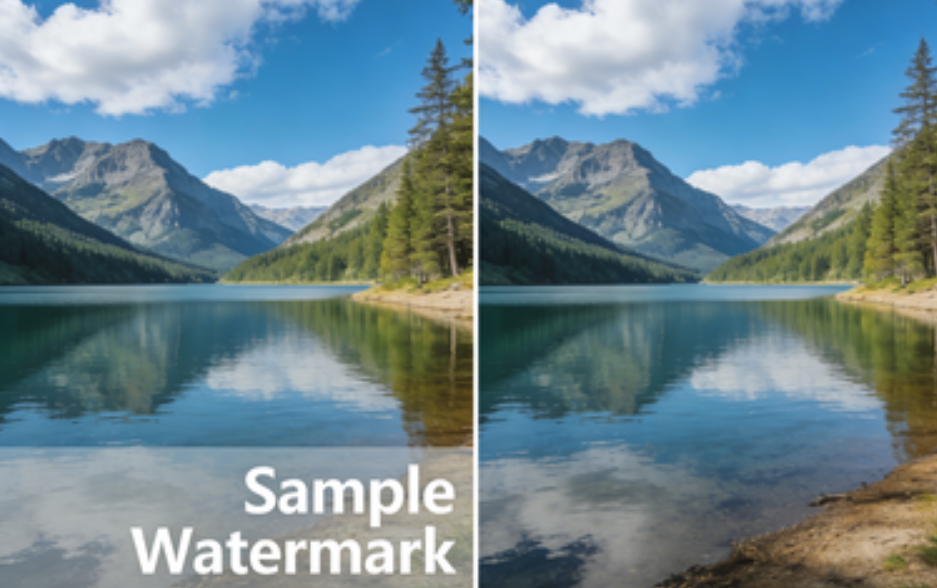
Online AI-based removers tend to perform the best because they can reconstruct missing frames automatically instead of simply blurring or cropping the image.
How AI Removes Video Watermarks (Explained Simply)
AI watermark removal works like a digital repair process:
- The tool identifies the watermark’s shape and position on each frame.
- It analyzes surrounding pixels to understand the background.
- It fills the marked area using intelligent prediction, similar to Photoshop’s content-aware fill.
- It blends the new area with the rest of the video so the removal looks natural.
This is why AI-based tools can remove watermarks even from moving backgrounds or skin textures that need to remain smooth. Traditional tools usually fail in these cases because they rely on simple blur or crop operations.
The Most Common Free Ways to Remove Watermarks From Video
Below are the four main categories of solutions available. Each has pros and cons, so choose based on your video’s needs.
1. Online AI Watermark Removers (Fastest & Easiest)
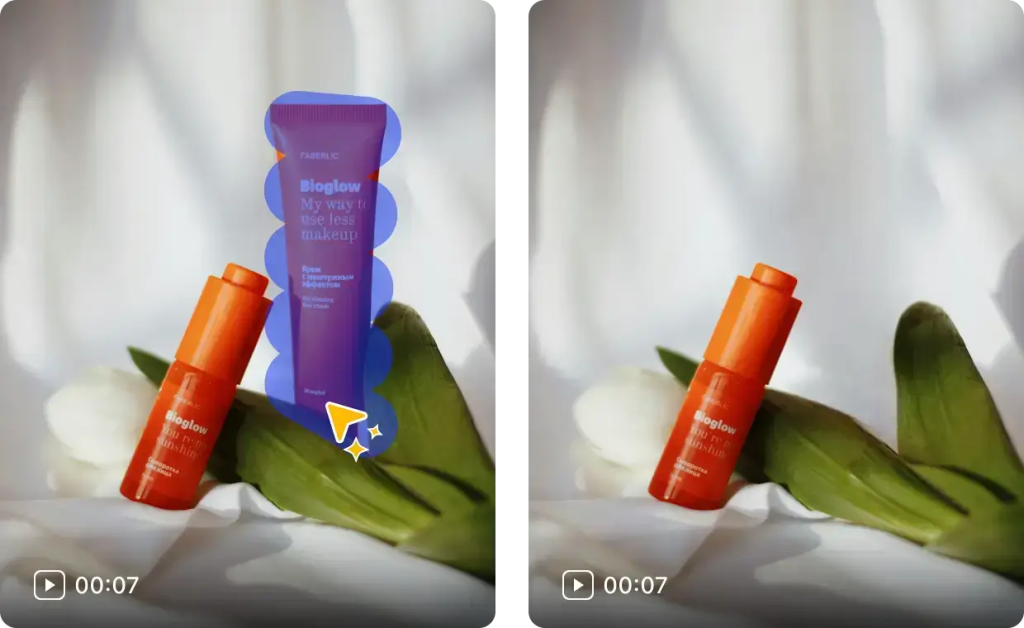
Online tools are great if you want simple, clean results without installing software. Upload → Mark area → Remove → Download — that’s the entire process.
One example is Gstory Video Watermark Remover:
This type of tool is especially helpful when:
- The watermark is in a corner
- The logo is static
- You need quick processing
- You want a free, no-signup workflow
Because it uses AI reconstruction, it performs better than older “blur mask” tools.
Pros
- Extremely easy to use
- Clean output for most watermarks
- Works directly in the browser
- No editing experience required
Cons
- Very large files can take longer to upload
- Some complex moving logos may need fine-tuning
2. Cropping the Video (Works for Small Corner Watermarks)
If the watermark sits at the edge of the frame, cropping is the simplest solution. Many free editors (like CapCut or VLC) can do this instantly.
Pros
- Fast
- No quality loss if the crop area is small
Cons
- You lose part of the visual content
- Doesn’t work if the watermark is in the center
3. Blurring or Masking (Useful for Long Text Watermarks)
This method hides the watermark instead of removing it. Tools like DaVinci Resolve, iMovie, and mobile editors can apply a blur mask over the text.
Pros
- Simple
- Good for date stamps or repeating text
Cons
- Not ideal for polished content
- The blurred area may distract viewers
4. Replacing the Area (Advanced Editing)
Professional editors sometimes replace the watermark area with:
- A background patch
- Another clean frame
- A duplicated texture
This is the hardest method but gives the best results for moving watermarks.
Pros
- Works on difficult or large watermarks
- Can look extremely natural
Cons
- Time-consuming
- Requires video editing skill
Step-by-Step: How to Remove a Watermark Using an Online Free Tool
Here is a simple tutorial using an online AI remover like Gstory’s tool:
Step 1 — Open the tool Go to: free watermark remover from video
Step 2 — Upload your video Drag and drop the file from your computer or phone.
Step 3 — Highlight the watermark area Use the rectangle tool to mark the logo or text.
Step 4 — Click “Remove” The AI will analyze surrounding pixels and reconstruct the missing section.
Step 5 — Download the cleaned video You can now use the clip for editing, reposting, or presentations.
Even if you’ve never edited video before, this workflow is easy to follow.
What If the Watermark Appears in Multiple Places?
Some videos (such as TikTok) move the watermark between corners. In that case:
- Remove watermark in position A.
- Remove watermark in position B.
- Export the final clean video.
AI tools handle this well because each section is processed automatically.
Common Problems and How to Fix Them
Problem 1: The removed area looks blurry
Fix: Increase the selection accuracy. Make the box slightly larger than the watermark.
Problem 2: A faint ghost watermark remains
Fix: Apply removal twice or mark a wider area.
Problem 3: Background is moving too fast
Fix: Try using a tool that reconstructs dynamic textures (AI models do better here).
Problem 4: File is too large to upload
Fix: Compress the video first or trim unnecessary parts.
When You Should NOT Remove a Watermark
To stay safe and ethical:
- Don’t remove watermarks from copyrighted content you do not own.
- Don’t republish other people’s work without proper permission.
- Do not use watermark removal to misrepresent ownership.
It is perfectly fine to use these tools for:
- Your own content
- School projects
- Personal use
- Editing clips you have permission to modify
Being responsible builds long-term credibility, which aligns with EEAT principles.
Which Method Should You Choose? (Simple Decision Guide)
Use this quick recommendation list:
- Corner watermark? → Crop or AI remover
- Center watermark? → AI remover
- Large text watermark across multiple frames? → AI remover with reconstruction
- You need the fastest free method? → Online AI tool
- Blurry after removal? → Try larger selection or two-pass removal
- Watermark moves around? → AI remover with frame-by-frame detection
In most cases, an online AI tool will give the cleanest result with the least effort.
Why Gstory’s Online Watermark Remover Is Often a Good Fit
Many tools exist, but here is why Gstory’s stands out:
- It is truly easy to use
- No sign-up is required
- Works directly in the browser
- AI reconstructs video frames instead of blurring
- Supports various video formats
- Free to use
This makes it suitable for students, content creators, marketers, or anyone who wants clean videos quickly.
Frequently Asked Questions
Is removing a watermark from a video legal?
Yes, if the video belongs to you or you have permission.
Does watermark removal reduce video quality?
AI tools can preserve quality very well as long as the original clip is clear.
Do free tools leave their own watermark?
Some do. Choose tools that advertise clean exports.
Can I remove moving watermarks?
Yes, but results may vary depending on the complexity. AI tools perform best.
Can I do this on my phone?
Yes. Most online tools work on mobile browsers.
Final Thoughts
Watermarks can be frustrating, but removing them has become easier than ever thanks to modern AI tools. Whether you’re preparing a school presentation, editing social media content, or restoring an old clip, you now have multiple free options that produce clean, natural-looking results.
For most users, the simplest path is using a browser-based tool: upload → mark → remove → download. Tools like Gstory Video Watermark Remover make the entire process simple enough for beginners yet effective enough for more serious content creators.
If you keep your project ethical, choose the right method, and follow the steps in this guide, you’ll be able to clean your videos easily and confidently — no advanced editing skills needed.
Leave a Reply