Last Updated on January 19, 2026 by Leslie
You’ve seen the demos—a static photo suddenly blinks and moves. But what those demos hide are the failed attempts and confusing pricing. This guide shows you how to create video with images using image to video AI tools that actually work. Whether you want to learn how to create a video with pictures for social media or create a video from photos for professional projects, we cover it all.
How to Create Video with Images: Understanding Image to Video AI
Before uploading your first photo, understand how to create video with images effectively. Using image to video AI requires knowing what these tools can and cannot do.
Traditional Slideshow vs. Image to Video AI: The Key Difference
Understanding how to create video with images starts with knowing the two main approaches. When you create a video from photos using traditional slideshow tools (Canva, Animoto), images stay static with transitions between them. When you use image to video AI tools (Veo 3, Kling, Hailuo), the AI generates actual motion within your image—making subjects move, breathe, and react.
Each approach to create a video with pictures serves different needs. Traditional tools work for multi-photo stories. Image to video AI works best when you want to create video from photos with dramatic motion in a single hero image.
Realistic Expectations When You Create Video from Photos
When learning how to create video with images, know these limitations:
- Clip length: Most image to video AI tools generate 4-8 second clips
- Motion unpredictability: You cannot precisely control what moves
- Quality variation: Results differ between attempts
These aren’t dealbreakers when you create a video from photos—just realities. Understanding how to create video with images means working with image to video AI rather than fighting it.
When to Create a Video from Photos with AI vs. Traditional Tools
Use image to video AI when:
- You have a striking single image to animate
- You’re creating short-form social content
- Experimenting with how to create video with images
Use traditional tools when:
- Multiple photos tell a sequential story
- You need predictable output to create video from photos
5-Minute Guide: How to Create Video with Images
Ready to learn how to create video with images quickly? Let’s get your first image to video AI creation done in minutes.
Step 1: Choose a Photo That Works with Image to Video AI
Not every photo works when you create a video with pictures. Image to video AI performs best with:
- Simple compositions with one clear subject
- Images with implied motion
- High-contrast subjects against clean backgrounds
Pro tip: Start with a portrait when learning how to create video with images.
Step 2: Enhance Your Image First
A crucial step in learning how to create video with images is image preparation. Image to video AI produces better results from quality sources. Before you create video from photos:
- Upscale to at least 1080p resolution
- Sharpen slightly for clearer details
- Reduce noise if the photo is grainy
Tools like GStory Photo Enhancer can upscale to 4K—essential prep before using image to video AI.
Step 3: Create a Video from Photos Using Your Chosen Tool
For beginners learning how to create video with images, use Hailuo AI or CapCut:
With Hailuo AI:
- Upload your enhanced image
- Add a motion prompt
- Generate and download your image to video AI result
With CapCut:
- Import your image
- Use the AI animation feature to create video from photos
- Export your creation
You’ll have your first image to video AI creation in under 5 minutes. That’s how simple it is to create a video from photos today.
Step 4: Enhance Your Output (Optional)
Image to video AI often outputs lower resolutions. Use GStory Video Enhancer to upscale to 4K when you create a video from photos for professional use.
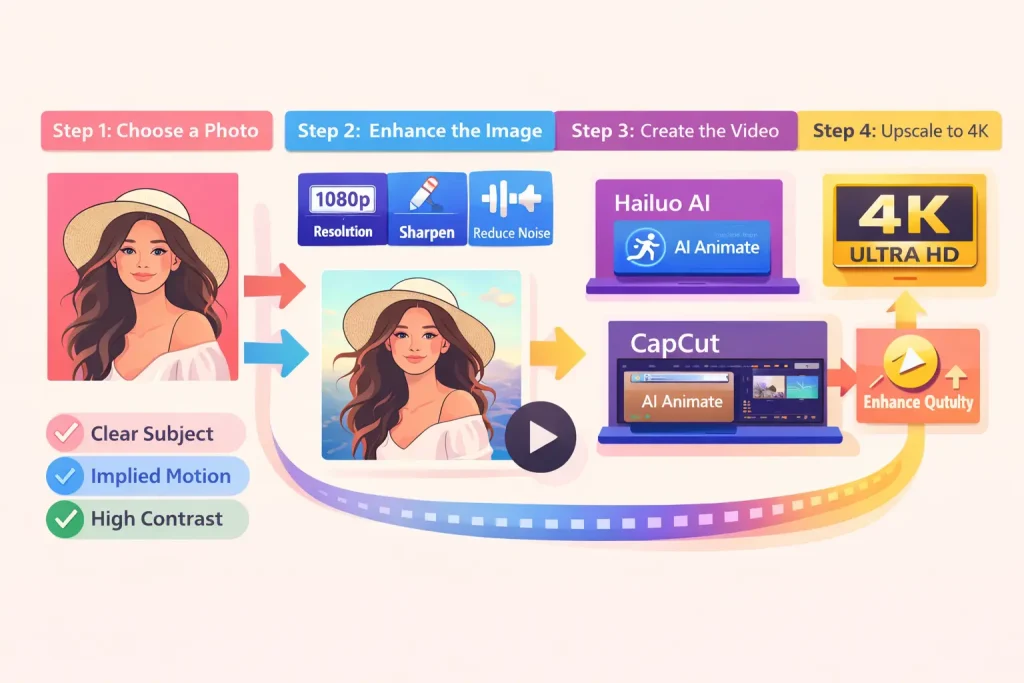
Image to Video AI Tools Tested: Honest Results
Now that you know how to create video with images, let’s examine which tools deliver the best results.
Google Veo 3
Best for: Users who want to create a video from photos with top-tier quality and already pay for Google services.
Veo 3 is excellent when you want to create video with pictures, generating videos up to 8 seconds with sound. The downside: requires a subscription. Still, it’s a powerful option when learning how to create video with images professionally.
Kling AI
Best for: Patient users who want to create a video from photos without payment.
Free credits available, but generation times can reach 3+ hours. Solid image to video AI if you can wait. Many users learn how to create video with images on Kling because of the free credits.
Hailuo AI: Best Free Image to Video AI Option
Best for: Beginners wanting to create video from photos with quality results.
Most realistic motion among free image to video AI tools. Community consensus says it’s the best option when learning how to create video with images without paying.
Runway
Best for: Professionals who need reliable image to video AI for business, who want to create a video from photos with consistent quality.
Industry-leading quality to create a video with pictures, but expensive. The free tier barely lets you test how to create video with images.
CapCut: The Hidden Free Video Creator Using Photos
Best for: Beginners wanting image to video AI integrated with editing.
Truly free with no credit system—the real deal when you want to create video from photos casually.
The “Free” Trap When You Create a Video from Photos
Most “free” image to video AI tools follow this pattern: sign up, get limited credits, run out fast, then pay. When learning how to create video with images, know which tools offer genuinely usable free tiers:
- CapCut: Actually free image to video AI
- Hailuo AI: Limited but usable when you create a video from photos
- Clipchamp: Some free features available
Red flags: Watermarks, preview-only exports, credits that expire. If you want to learn how to create video with images without surprises, stick to these recommended tools.
Troubleshooting Your Image to Video AI Results
Even when you know how to create video with images, problems occur. Here’s how to fix common issues.
Photo Won’t Animate Right
When you create video with pictures unexpectedly, try:
- Different image to video AI tools
- Simpler compositions
- More detailed prompts
Output Quality Is Poor
When your image to video AI result looks worse than expected:
- Upscale source images before you create video from photos
- Use video enhancer post-processing
Generation Takes Too Long
When learning how to create video with images feels slow:
- Try off-peak hours
- CapCut generates in seconds; Kling takes hours
FAQ: How to Create Video with Images
What’s the best free image to video AI in 2026?
Hailuo AI offers the best quality when you create a video from photos for free. CapCut provides unlimited free use if you want to create video with pictures with no credit system.
Can image to video AI create longer videos?
Currently 4-8 seconds maximum. To create video from photos longer than that, generate multiple clips and edit together. This is standard when learning how to create video with images for longer content.
Why doesn’t my image to video AI match the demos?
Marketing demos are cherry-picked. When you learn how to create video with images, expect multiple attempts before achieving polished results.
Conclusion
Now you know how to create video with images using modern AI tools. Image to video AI in 2026 lets you create video from photos with impressive results—but set realistic expectations. Success when you create a video with pictures comes from quality source images, choosing the right image to video AI tool, and accepting variation.
Your action plan to create video from photos:
- Choose your best photo
- Enhance with GStory Photo Enhancer
- Use Hailuo AI or CapCut as your image to video AI
- Enhance output with GStory Video Enhancer if needed
Ready to learn how to create video with images? You now have everything needed to create a video from photos. Grab your favorite photo and try these image to video AI tools today. Learning how to create video with images has never been easier.
Leave a Reply