Last Updated on March 17, 2026 by Leslie
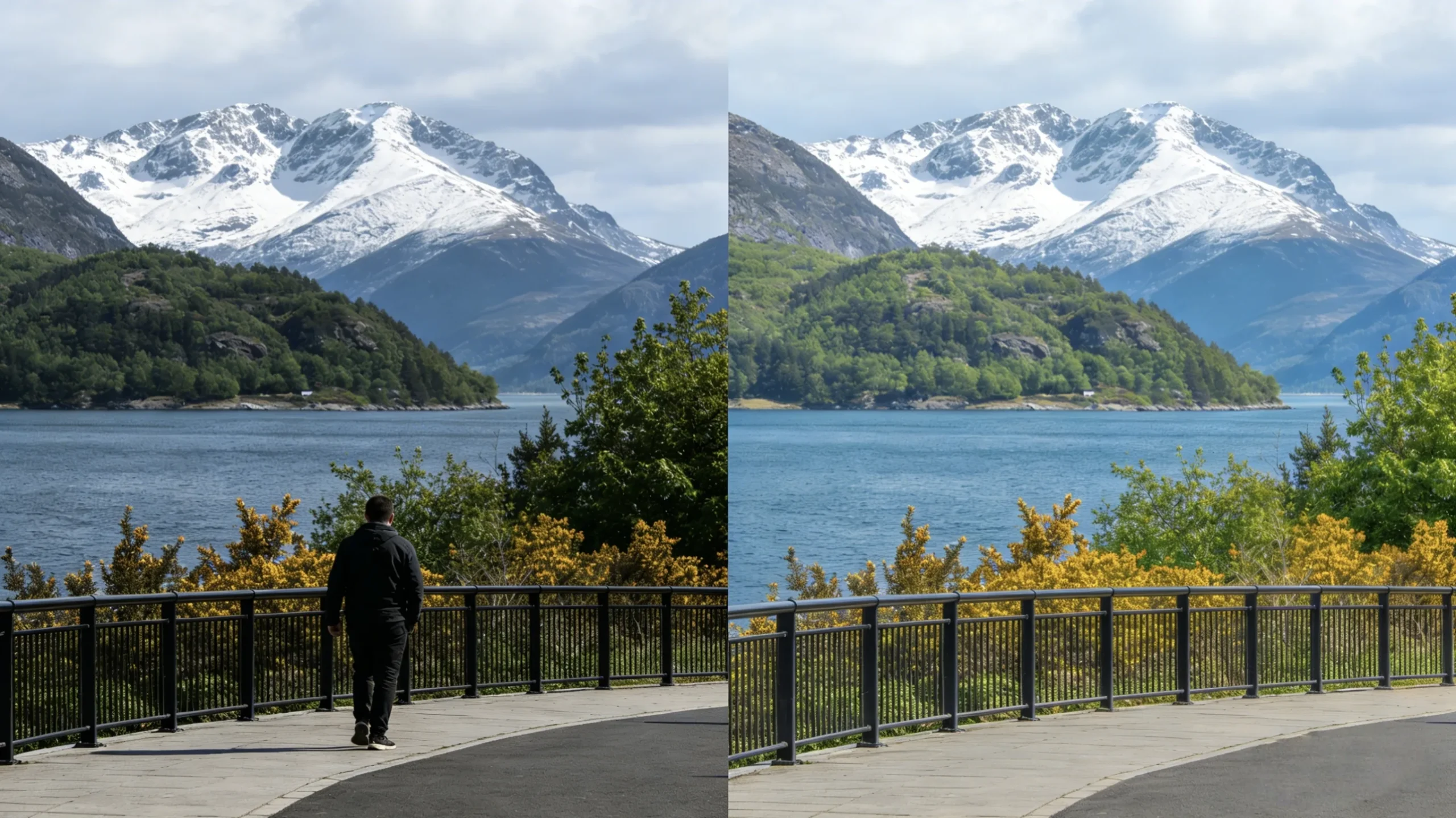
You take a great photo, then notice one annoying detail: an extra person in the frame.
Maybe it is a stranger behind you at a landmark. Maybe it is a photobomber in the background. Maybe it is simply someone you no longer want in the picture. Whatever the case, the good news is this: it is now much easier to remove someone from a photo than it was a few years ago.
Today, many phones, apps, and editors use AI to erase people and rebuild the missing background in seconds. Some tools are built into your device. Others work online or on desktop. The trick is choosing the right method for the kind of photo you have.
A single person against a plain wall is usually easy to erase. A crowded street scene, detailed building, shadow on the ground, or reflection in glass is much harder. That is why the “best” method depends on your image, your device, and how natural you want the final result to look.
Quick Answer: What Is the Easiest Way?
If you just want the fastest option, start here:
- iPhone: Use Apple Photos Clean Up
- Android: Use Magic Eraser or your phone’s built-in AI eraser
- Online: Use a browser-based remover for quick edits
- Desktop: Use Photoshop for the cleanest results on hard images
If you are wondering about the best app to remove someone from a photo, the answer depends on your workflow. For quick mobile edits, built-in phone tools are often enough. For harder edits, Photoshop is still the strongest choice.
How to Remove a Person from a Photo on iPhone
If you want to learn how to remove a person from a photo on iPhone, the easiest place to start is the Clean Up tool in the Apple Photos app on supported devices.
This tool is designed to remove distracting objects and background people with just a few taps. In many simple cases, it works surprisingly well.
How to do it:
- Open the photo in the Photos app
- Tap Edit
- Select Clean Up
- Tap, circle, or brush over the person you want to remove
- Let the tool process the image
- Check the result and save
When it works best:
- One person in the background
- Clear separation between the unwanted person and the main subject
- Simple backgrounds such as sky, walls, grass, or pavement
When it struggles:
- Overlapping people
- Fine details like railings, text, or windows
- Strong shadows or reflections
For iPhone users, this is usually the first method to try because it is fast, built in, and beginner-friendly.
Use Google Photos Magic Eraser
Google Photos is one of the easiest ways to remove someone from a photo on Android, and in some cases on other devices as well.
Magic Eraser is especially useful for removing background tourists, people standing far away, or random distractions that break the composition. It is quick, simple, and often good enough for casual editing.
Why people like it:
- Very easy to use
- Good for travel photos and background people
- Fast enough for everyday social media edits
Best use cases:
- Removing a stranger from the edge of the frame
- Cleaning up a landmark shot
- Erasing small distractions near the background
Still, always zoom in after the edit. AI can remove the person, but sometimes it rebuilds the area with patterns that look slightly off. Stone walls, windows, floor tiles, and fences are common problem areas.
Samsung and Other Android AI Erasers
If you do not use a Pixel, your Android phone may still have a built-in tool that can remove someone from a photo.
Samsung Galaxy devices, for example, include Object Eraser in the Gallery app. Some newer models also offer tools for shadows and light reflections, which is useful because those are often what make a person-removal edit look fake.
This is a good option if:
- You want a quick edit without downloading anything
- The person is clearly separate from your subject
- You need to clean up casual photos fast
Tip:
After removing the person, check the ground and nearby glass surfaces. If a shadow or reflection remains, the photo may still look edited even if the main figure is gone.
Best App to Remove Someone from a Photo
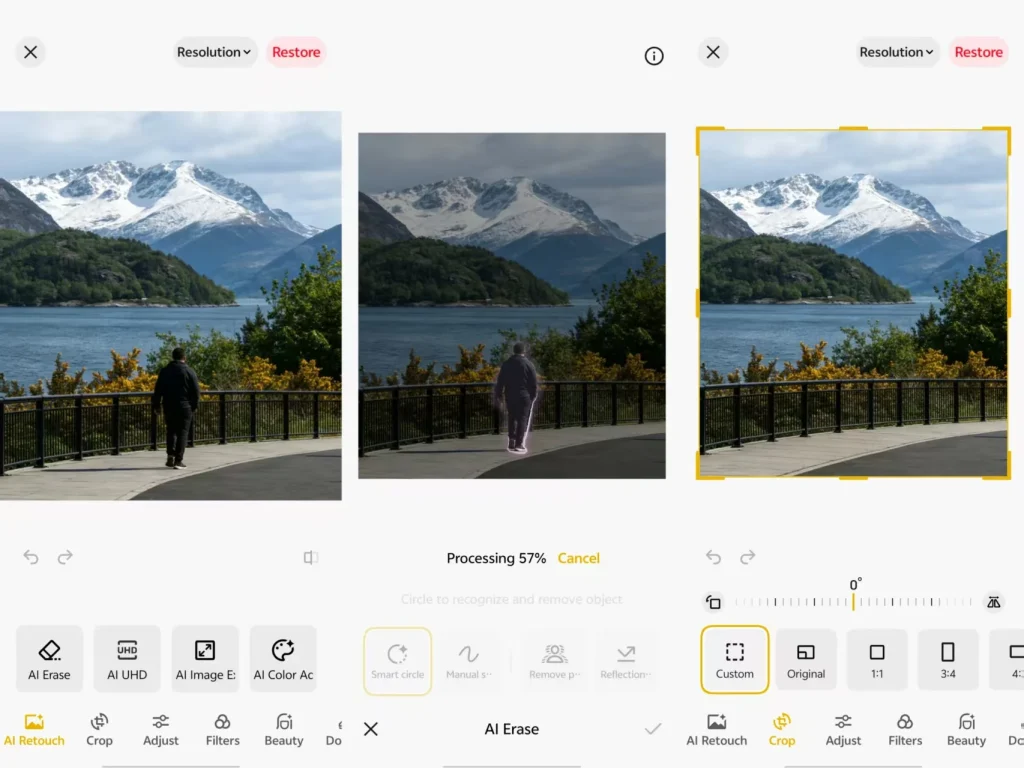
If you want the best app to remove someone from a photo, there is no single winner for every situation. Different apps are better for different levels of difficulty.
Here is a simple way to think about it:
Best for beginners
- Built-in phone editors
- Fast, easy, minimal learning curve
Best for quick mobile editing
- Google Photos Magic Eraser
- Samsung Object Eraser
- Apple Clean Up
Best for detailed touch-up
- TouchRetouch
- Great when you need more control on mobile
Best for advanced results
- Adobe Photoshop
- Best when the background is complicated or the image matters a lot
If your goal is just to post a photo on social media, a phone tool may be all you need. If the image is important, sentimental, or commercial, a stronger editor is worth the extra effort.
How to Remove a Person from a Photo Online
If you do not want to install an app, you may be searching for how to remove a person from a photo online.
Online tools are useful because they work directly in your browser. You upload the image, highlight the unwanted person, and let the AI rebuild the missing area.
Why online tools are popular:
- No download required
- Good for quick one-time edits
- Easy to use on almost any device
They work best for:
- Simple backgrounds
- One person or small distractions
- Casual content for blogs or social media
They are less ideal for:
- Complex travel photos
- Images with detailed textures
- Photos with sentimental or professional value
If you use an online tool, always inspect the image carefully before downloading it. A preview may look clean, but small artifacts often appear when you view the full-size image.
How to Remove a Person from a Photo in Photoshop
If you want the cleanest, most reliable result, you should learn how to remove a person from a photo in Photoshop.
Photoshop is still one of the best options for difficult edits because it gives you more control than phone apps or browser tools. It is especially useful when AI makes mistakes and you need to fix the result manually.
Basic workflow:
- Open the image in Photoshop
- Select the Remove Tool
- Brush over the person you want to erase
- Let Photoshop generate the replacement area
- Zoom in and inspect the result
- Clean up any weird textures or broken edges if needed
Photoshop is best for:
- Detailed architecture
- Crowded tourist scenes
- Product or real estate images
- Important personal photos you want to keep looking natural
If you need to remove someone from a photo without ruining the background, Photoshop is usually safer than relying only on a simple mobile tool.
Lightroom and Other Smart Alternatives
If Photoshop feels too heavy, Lightroom can be a useful middle option. It is especially good when the extra person is a distraction in the background rather than a major subject in the frame.
This makes Lightroom a smart choice for:
- Travel photos
- Portraits with background distractions
- Creator workflows where you already edit color and exposure there
It is not always as flexible as Photoshop, but it can be faster for everyday cleanup.
Tips to Make Person Removal Look Natural
No matter which tool you use, these habits will give you better results:
Remove one person at a time
Large selections often confuse AI. Smaller edits usually look cleaner.
Zoom in before saving
A photo may look fine from far away but show obvious mistakes at full size.
Check shadows and reflections
Sometimes the person disappears, but their shadow stays on the ground.
Watch repeating patterns
Tiles, bricks, windows, fences, and railings are where AI often fails.
Start with the easiest tool first
For a simple photo, do not overcomplicate it. For a hard photo, do not expect a basic app to work miracles.
Final Thoughts
If you want to remove someone from a photo, there are now easy ways to do it on almost any device. iPhone users can start with Apple Clean Up, Android users can try Magic Eraser or similar built-in tools, and online editors work well for quick browser-based fixes. For more detailed edits and better background reconstruction, Photoshop remains one of the best options.
In the end, successful photo cleanup is not just about erasing a person. It is about making the final image look natural, balanced, and believable.
Leave a Reply