Last Updated on November 28, 2025 by gaojie
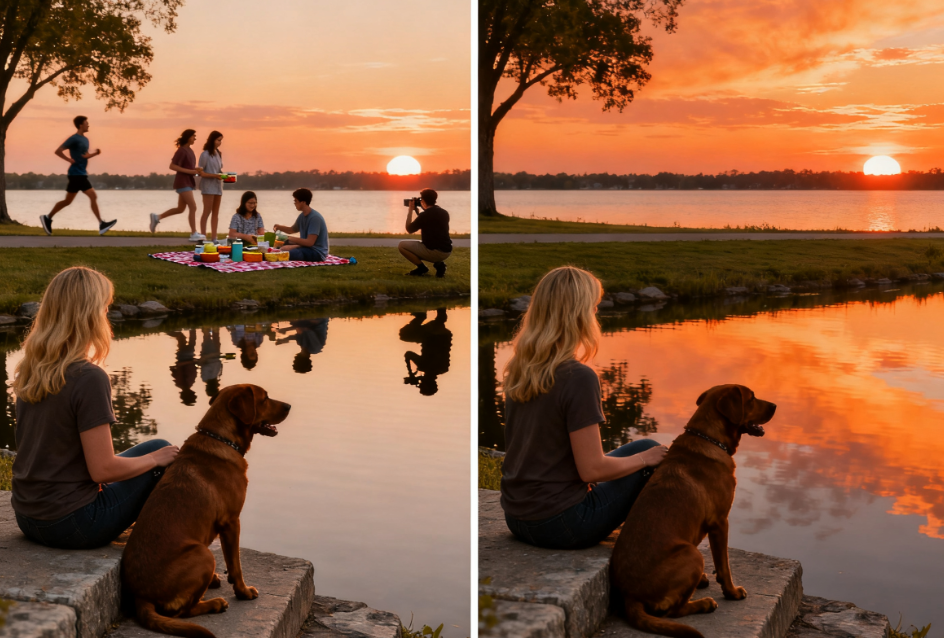
Capturing the perfect photo is harder than it seems. You can plan the angle, wait for the lighting, and focus on the right subject—and then just when you click the shutter, someone walks into the frame. This happens during travel, outdoor events, city photography, or even simple family gatherings. You may return home with a beautiful shot, only to notice a stranger standing in the background, a person wearing a bright shirt on the side, or someone unintentionally blocking part of the scene.
That’s why so many people search for how to remove people from photos. The goal isn’t to change reality—it’s to restore the photo to what it should look like. Maybe you want a cleaner image, maybe you want a more professional look, or maybe you want to protect someone’s privacy. Whatever the reason, learning how to remove unwanted people from pictures has become a practical skill for everyday users, not just professional editors.
The good news? Removing people from photos is easier now than at any point in the past. You no longer need years of Photoshop experience. Modern tools can fix images with just a few clicks, and the results can look amazingly natural.
This guide will help you understand:
- The main reasons people remove unwanted figures from photos
- The different tools available today
- How Photoshop professionals do it
- How AI tools make the process much faster
- How to use online tools like Gstory.ai’s Photo Watermark Remover
- Shooting techniques that reduce the need for editing
- Ethical considerations
- A full workflow you can follow anytime
The goal is simple: after reading this guide, you’ll know exactly how to clean up your images with confidence—whether you’re fixing a vacation photo or preparing a picture for your business.
Why People Remove Unwanted People From Photos
Before jumping into tools and tutorials, it’s helpful to understand why people want to remove unwanted subjects in the first place. This helps you think about what kind of result you’re aiming for.
1. To Improve Image Composition
A photo can be technically perfect, but a single distracting person in the background changes where the viewer’s eyes go. Removing them refocuses attention on the subject—whether it’s a building, a product, a landscape, or a person.
2. To Create Cleaner, More Professional Photos
Content creators, travel bloggers, business owners, and product photographers all want images that look clean and intentional. Strangers in the background often make photos feel amateurish.
3. To Protect Privacy
If someone you don’t know appears clearly in your photo, removing them avoids exposing someone without their consent. This is especially important when posting on social media.
4. To Save a Great Photo
Sometimes the lighting is perfect, the moment is right, and the expression is natural—but a tourist walked into the corner at the wrong moment. Instead of discarding the shot, you can fix it.
5. To Strengthen the Story of the Photo
Photos tell stories. Removing a distracting background figure can make the narrative clearer and more emotionally engaging.
None of these reasons are about deception—they’re about improving quality and respecting privacy.
The Three Main Ways to Remove People From Photos
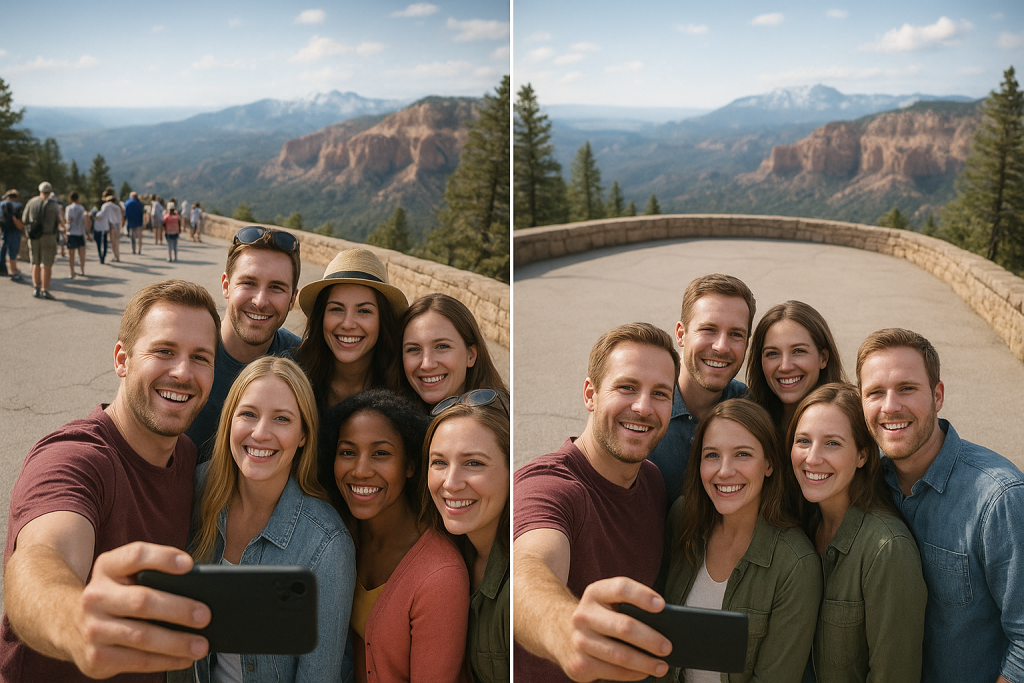
Today, there are three reliable ways to erase unwanted people from your images:
- Professional editing software (Photoshop, Affinity Photo, GIMP)
- AI-powered online tools (fast, automated, beginner-friendly)
- Photography techniques that reduce the need for editing
Each method has different strengths, and you’ll see that the best results often come from combining them.
Let’s break them down.
1. Removing People Using Photoshop
Adobe Photoshop remains the most powerful tool for image editing. While it takes practice, it offers unmatched precision. Below are the Photoshop features most commonly used to remove people from photos.
Content-Aware Fill: The Most Popular Method
This feature automatically analyzes the surrounding pixels and fills the selected area with matching textures and colors.
How to use it:
- Open your image in Photoshop.
- Select the person using the Lasso, Object Selection Tool, or Quick Selection Tool.
- Go to Edit → Fill.
- Choose Content-Aware.
- Photoshop generates a fill that matches the background.
- Clean up minor imperfections with the Healing Brush.
This method works best on simple backgrounds like sky, sand, walls, and grass.
Patch Tool: Great for Medium-Level Backgrounds
The Patch Tool lets you draw around the person and drag that selection to an area with similar background.
Photoshop blends the textures to create a seamless result. It’s ideal for natural patterns like foliage, stone, or water.
Clone Stamp Tool: The Most Precise Method
For tricky backgrounds—brick walls, repeating patterns, strong lines—the Clone Stamp gives you total control.
How to use it:
- Select the Clone Stamp Tool.
- Hold Alt/Option to choose a source area.
- Paint over the unwanted person carefully.
It’s slower, but it gives the most professional results.
Photoshop’s New Remove Tool
Recent versions include a new AI-driven Remove Tool. Simply brush over the person, and Photoshop fills the area intelligently.
This tool is excellent for beginners and saves lots of time compared to manual methods.
2. Using AI Tools to Remove People From Photos
AI has completely changed photo editing. Instead of manually blending pixels, AI tools understand the image structure and rebuild missing areas automatically.
If you’re not a Photoshop user—or if you want a fast, simple solution—AI is the best starting point.
Why AI Tools Are Becoming Popular
- No advanced editing skills required
- Great results within seconds
- Works directly on your browser
- Ideal for travel photos, social media posts, and everyday edits
- Extremely beginner-friendly
Gstory.ai Photo Watermark Remover
Although designed for watermark removal, the underlying AI inpainting technology also works extremely well for removing people from photos.
You can use it here: https://www.gstory.ai/photo-watermark-remover
How to use it:
- Upload your photo.
- Highlight the person you want to remove.
- Apply the AI removal.
- Download the cleaned image.
Benefits of using tools like Gstory.ai
- No installation
- Very fast
- Easy for anyone to use
- Natural-looking background reconstruction
- Perfect for quick edits
Limitations
AI can struggle with:
- Highly complex backgrounds
- Large foreground objects
- Repeating patterns (tiles, bricks, fences)
Still, for most users and most photos, AI tools deliver results good enough that additional editing isn’t necessary.
3. Techniques to Reduce Editing Before You Even Press the Shutter
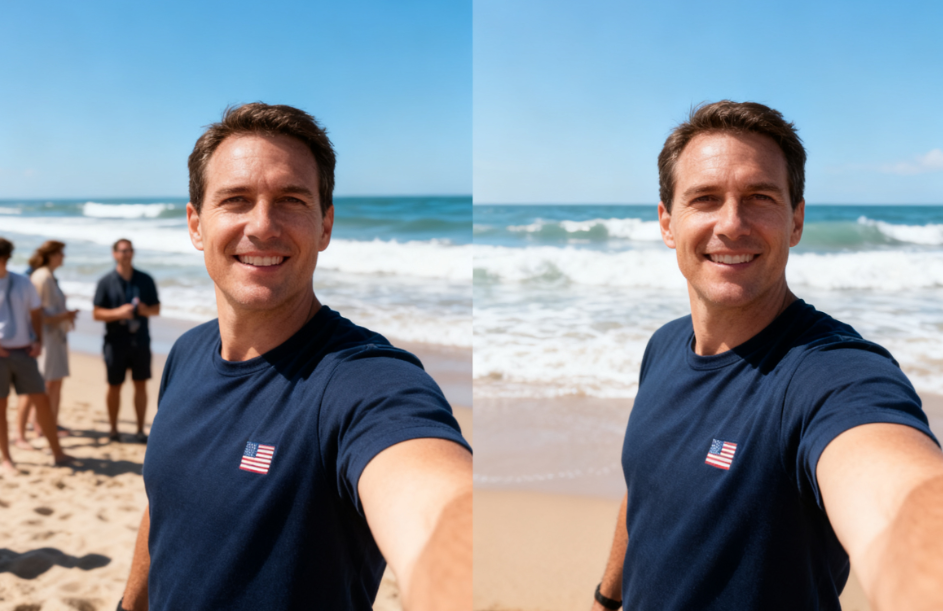
The easiest way to clean up a photo is not needing to clean it up at all. With a few simple photography habits, you can greatly reduce the chance of unwanted people appearing in your pictures.
Take Multiple Photos From the Same Angle
If you take 5–10 shots while standing still, the background people usually move. Later, you can merge photos or choose the cleanest one.
Use a Tripod for Stability
A tripod makes it easier to align multiple shots and remove moving objects digitally.
Wait for a Natural Gap
Often, crowds move in waves. A few seconds of patience can give you a cleaner shot.
Use Foreground Objects to Block Unwanted People
Benches, plants, railings, door frames, or pillars can help hide parts of the crowd.
Change Your Angle
Shooting from above, below, or from the side can help you avoid capturing people behind your subject.
These techniques make editing easier—or unnecessary—later on.
Ethical Considerations When Removing People
Removing people from photos seems harmless, and in most cases, it is. Still, it’s worth thinking about the implications.
Ethically safe edits include:
- Removing strangers from travel photos
- Cleaning up product images
- Protecting privacy
- Fixing unintentional photobombs
Think twice when:
- Removing people from group photos without telling them
- Altering historical or documentary images
- Changing the story of an event
Transparency is important when a photo represents a real situation. But for travel, memories, social posts, or personal photography, cleaning up the background is completely fine.
Common Problems and How to Fix Them
1. AI creates strange artifacts
Solution: Repaint a smaller area, or fix manually with the Healing Brush.
2. Repeating textures look unnatural
Use the Clone Stamp to add subtle variations.
3. Colors don’t match
Use Hue/Saturation or Curves to adjust the patch.
4. Edges look too soft
Add slight texture or noise around the fixed area.
5. Shadows look inconsistent
Clone nearby shadows with low opacity to make them match.
These small adjustments make a huge difference.
Creative Uses for Person Removal
Removing people isn’t just about fixing mistakes. It opens up creative opportunities.
You can:
- Turn a busy marketplace into a quiet scene
- Highlight architecture by removing the crowd
- Create cinematic shots for storytelling
- Improve product photos by cleaning the environment
- Enhance travel photos for social media
- Produce minimalist artwork
When you control the presence of people, you control the mood of the image.
Conclusion: Removing People From Photos Is Easier Than Ever
Whether you want cleaner travel photos, better social media content, or more professional images for work, you no longer need complex tools or advanced editing knowledge. Today, anyone can learn how to remove people from photos with a few simple steps.
You can choose:
- Photoshop for full manual control
- AI tools like Gstory.ai’s Photo Watermark Remover for quick, automatic fixes
- Photography techniques to avoid unwanted subjects in the first place
Each method has its strengths, and together they give you everything you need to make your images clean, beautiful, and distraction-free.
Leave a Reply