
Last Updated on December 10, 2025 by Xu Yue
We have lived in a world where AI video generators are everywhere. You scroll YouTube Shorts or TikTok and see Sora-style trailers, Kling-style clips, anime edits, and a lot of “wait, is this real footage?” type videos. Some are cringe, some are brilliant, and many are quietly racking up millions of views. I made a clip, too, just for fun. But the problem turned into that why the watermark of AI video generator is so eye-catching?
This is the story of how I went from “there must be a free video watermark remover somewhere” to “okay, I’ll just use GStory and be done with it.”
Why I Started Caring About How to Remove Watermark from Video
From AI nerd to cat director
Sora, Veo, Runway Gen-3, Kling, Dream Machine… every month something new shows up, generating AI videos that look surprisingly good. As someone who works around AI (let’s say I’m “AI-adjacent”), I couldn’t resist trying it myself. After watching the model wars for a long time, I decided to join the chaos— on a tiny, very domestic scale.
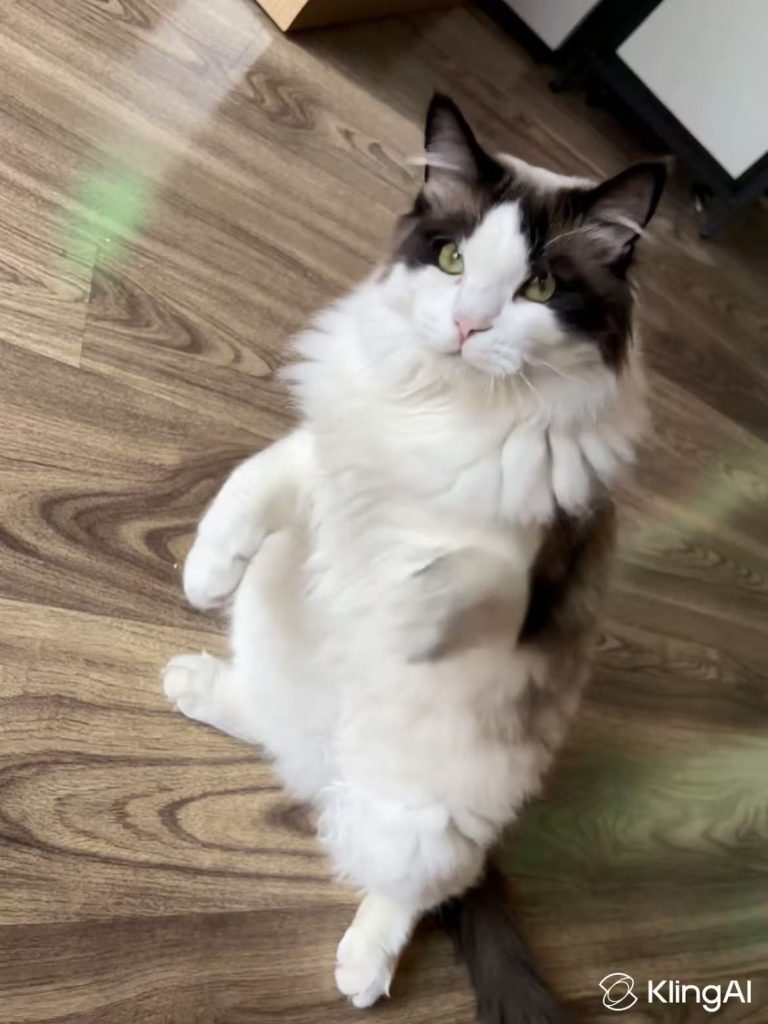
I grabbed a photo of my cat lying on the floor, fed it into Kling AI, burned through some free credits, and got back a short, TikTok-style video: my cat doing a little dance.
The result? It was genuinely cute. It was also branded with a very visible watermark in the bottom-right corner.
The Kling AI clip and its corner logo
The watermark is:
- Static,
- White color,
- Sitting in the bottom-right corner,
- And very obvious if you’re watching on a phone screen.
Technically, it’s there for a reason: branding, platform attribution, discouraging people from pretending they made the video manually. I get that. But in my case:
- I generated it myself, using a photo I took.
- I just wanted to show it to my friend, no plans to monetize.
- I would rather the watermark is smaller and semi-transparent.
I didn’t want to crop, which may ruin the composition or resize the frame. I just wanted to remove the watermark from the video, keep the full visuals, and then share it with friends.
Searching for “Free” Watermark Remover for Videos on Reddit
Once you type how to remove watermark from video into Google or Reddit, you discover something very quickly:
- At least a reply assume you’re a copyright thief.
- The others are sketchy tool recommendations, but some are ads.
I wanted neither.
Thief accusations vs real use cases
On several threads (AskReddit, r/software, r/AfterEffects, r/COPYRIGHT), people asking about video or TikTok watermark removers often get hit with comments like:
“Why are you trying to steal someone else’s content?”
“Just pay for the full version.”
Legally speaking:
- Removing a watermark from content you don’t own or don’t have rights to can violate copyright and terms of use.
- It’s usually both unethical and risky, especially if you then repost it as your own.
But there’s another category that doesn’t get enough empathy:
- You created the content yourself (or have a valid license).
- The only version you still have is watermarked — maybe you lost original files, or the free export added a logo.
- Or you generated it with AI using your own assets, and the tool added a platform watermark.
In those cases, many legal experts agree it’s often fine to remove the watermark — because you’re the creator or have rights to the underlying content.
How people actually hide watermarks on videos
Many people hide watermarks in very practical ways:
- Cropping the frame so the TikTok or tool logo disappears.
- Zooming in slightly so the watermark falls outside the visible area.
- Blurring or pixelating the region with a mosaic.
- Placing another element on top — a sticker, a lower-third, a new logo.
In other words, the majority of non-technical users are not doing actual content reconstruction. They’re just covering the watermark in a way that doesn’t bother them.
That works for some TikTok reposts, or if you don’t care about composition. But in my cat video:
- Cropping would kill the framing.
- A blur would look worse than the original watermark.
- Dropping another logo on top felt visually cheap.
I didn’t want “how to hide watermarks on videos.”
I wanted “how to remove watermark from video, as cleanly as possible, without cropping.”
Try out the recommended AI tools in the reply post
In one thread about how to remove watermarks from a video for free, people mentioned several tools:
- Pixbim Video Watermark Remover AI – desktop, offline.
- WatermarkRemover.io – simple browser-based tool that “worked really well” for some users(video editing is still BETA version).
- Media.io that promise to remove watermarks, logos, and date stamps online.
So I did what any rational person would do:
- Clicked into one of the tools that people recommended (in my case, Media.io, because someone said it was “free” and “doesn’t add its own watermark”).
- Created an account.
- Logged in, ready for my free run.
And then…
- No usable free AI video credits for my watermark job.
- The image/video AI editor section clearly wanted paid credits for serious use.
To be clear:
- Offers change all the time; your experience may differ.
- Media.io is not “bad” — it just didn’t match what the comment mentioned for my specific use case.
What I took away from this:
“Free” watermark removers are often not really free — or they’re heavily limited, or they add their own watermark back onto your exported video.
My Workflow: How I Removed the Watermark from a Kling AI Video with GStory
This is where I stopped doomscrolling Reddit and went back to a stack of tools I know better — including GStory.
My goal was simple:
- Use an AI watermark remover for videos that:
- Lets me upload the clip,
- Select only the logo area,
- Let AI rebuild the background,
- And download a clean version without a new watermark on top.
That’s exactly what the GStory Video Watermark Remover is designed to do: AI detects and removes logos, text, and overlays from videos, reconstructing the background as cleanly as possible.
Here’s how it went.
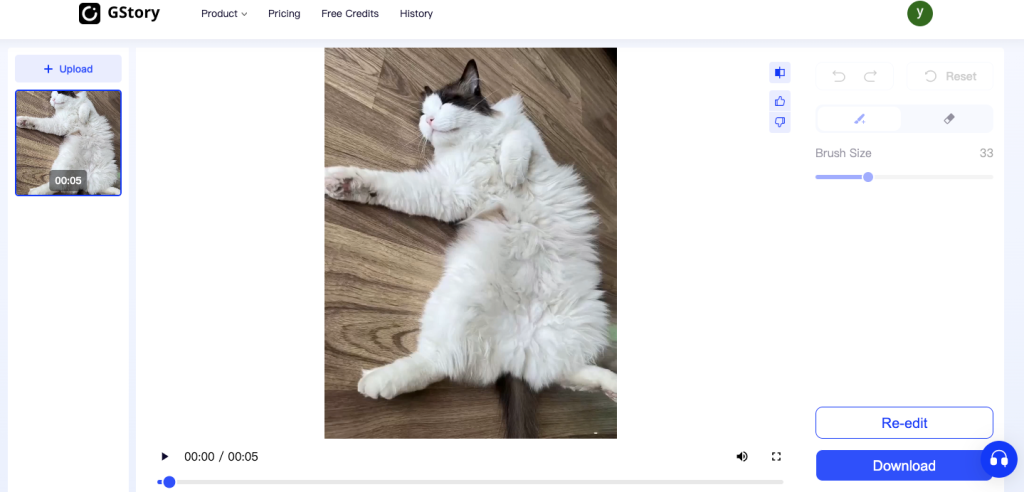
Marking only the logo area
First, I uploaded my cat video to GStory’s video watermark remover.
The interface is pretty much “point, click, drag”:
- Upload your MP4 / MOV / etc. (mine was a typical vertical clip).
- The tool shows you a preview frame.
- You brush the watermark region — in my case, the bottom-right logo.
I deliberately marked only the watermark: the smaller the selection, the easier it is for the AI to maintain detail around it. That’s the same logic used by other AI removers: they work best when you clearly target the logo area, not the entire corner.
At this stage, I wasn’t resizing, cropping, or changing the frame at all. The goal was to remove logo from video while preserving the full composition.
Letting AI rebuild the background
After the selection, I hit process. It cost 10 gift credits to deal with the 5-second video.
Behind the scenes (short version), tools like GStory’s AI video watermark remover use a form of:
- Detection – modeling what pixels belong to the watermark/logo.
- Inpainting / reconstruction – guessing what was likely behind those pixels, based on surrounding frames and textures.
It’s not “restoring” lost data — that’s gone. It’s predicting what background should be there and painting it in a way that looks natural.
For my Kling cat video, the background under the watermark was:
- Relatively simple floor texture,
- Not a moving object or a face,
- With no heavy camera shake.
That’s pretty much a best-case scenario for AI removal.
Processing a sub-5-second video took well under a minute(actually 30 seconds). When it finished, I had a preview:
- No visible logo where the Kling watermark used to be.
- Floor texture reconstructed in a way that matched the surrounding frames.
At this point, the clip looked “normal” again — not perfect, but not obviously edited.
Checking for blur and ghosts
Of course, if you care about quality, you can’t stop at “the logo is gone in one frame.”
So I did a sanity check:
- Scrubbed through the entire 5 seconds to look for:
- Blurry patches,
- Ghosting (faint echoes of the watermark),
- Color shifts in the bottom-right corner,
- Any flicker where the AI struggled.
Result:
- On normal playback, the corner looked natural.
- Pausing frame-by-frame, I could see a tiny bit of softness in a few frames vs the untouched area — but difficult to be noticed on a phone.
- There was no second watermark added by GStory, which was very important to me.
If this had been a long YouTube video or a commercial project, I might have combined AI removal with a bit of manual masking or grading. But for a short TikTok-style AI clip for friends, this was absolutely enough.
What Using GStory Actually Felt Like on Video Editing
This is not meant to be a hypey “and then everything was perfect forever” section. It’s just my honest impressions after using GStory specifically for this small job — and where it now sits in my AI video workflow.
From signup to first upload in a few minutes
Because I already live in the GStory ecosystem, I went straight in.
If you’re new:
- You sign up,
- Get some free credits as a new user,
- And can use those to test tools like Video Watermark Remover or AI Video Enhancer without paying upfront.
For my 5-second cat video:
- Upload was quick (small file, vertical format).
- Processing time was short.
- One credit-level action covered the entire run.
Compared to the loop of:
- Find a random “free tiktok watermark remover,”
- Hit a paywall,
- Start over on another site…
…this felt refreshingly low-friction.
How clean the watermark removal looked on a 5-second video
Is it absolutely perfect? No AI remover is — that’s just how inpainting works.
But for this specific case (static logo, simple background, short clip):
- The logo was gone.
- The floor texture looked consistent.
- No blur blob, no obtrusive patch, no weird “melting” artifacts.
- On a smartphone screen — which is how my friends would watch — it looked completely natural.
If your scenario is more complex (e.g., watermark over a moving subject, or an animated TikTok logo), you should expect more artifacts and might need to:
- Combine AI removal with mild cropping, or
- Cover a tricky area with your own subtle overlay.
But as a first test of “can I remove a watermark from video without cropping, using AI?”, the result was better than I expected.
Where GStory now sits in my AI video workflow
This little experiment with my Kling cat changed how I think about short-form AI clips in general. My current rule of thumb:
- When I generate AI videos for myself (like this cat clip):
- I’ll happily run them through AI Video Watermark Remover if the platform watermark bothers me.
- Then, if needed, I’ll send the result through AI Video Enhancer to clean noise, sharpen details, or upscale for better quality before posting or sharing.
- When I’m downloading from TikTok / Instagram or using third-party content:
- I treat watermark removal as a red flag unless I clearly own or license the content.
- If it’s my own TikTok and I want a cleaner version, I prefer solutions like saving without watermark when possible, or using tools that are explicitly built as TikTok downloaders with proper terms.
So where does that leave how to remove watermark from video as a topic in 2025?
For me, it’s no longer just a spammy search leading to random “online video cutter” sites. It’s become part of a bigger, more honest workflow:
- Ask if you’re allowed to remove the watermark (rights, licenses, platform rules).
- Decide if you’re okay with cropping / hiding (TikTok/IG only, quick hacks).
- If you need the full frame and have the rights, use a reliable AI watermark remover for videos like GStory.
- Clean up and enhance the final result before sharing.
In my case, that journey started with a dancing AI cat and an annoying corner logo. It ended with a clean clip I felt good about sending to friends — and a sharper sense of when, how, and why to remove video watermarks at all.
Leave a Reply