Last Updated on February 28, 2026 by gaojie
Whether you’re creating a logo, preparing product photos, or making stickers, transparent PNGs are essential for professional-looking designs. Many people assume you need expensive software like Photoshop to create them, but that’s no longer true.
The real challenge isn’t finding tools—it’s choosing the right one from dozens of options. You might face paywalls (like Canva Pro), struggle with quality loss, or wonder why your “transparent” PNG still shows a white background.
This guide cuts through the confusion. We’ve tested and ranked the best free methods to make PNG transparent, explain common pitfalls, and help you choose the right tool for your specific needs in minutes.
What Is a Transparent PNG and Why Does It Matter?
Before diving into tools, let’s understand what we’re actually creating and why it matters for your projects.
Understanding PNG Transparency (The Alpha Channel)
PNG files can store transparency data through something called the alpha channel. Think of it as an invisible layer that tells software which parts of your image should show through and which should remain visible.
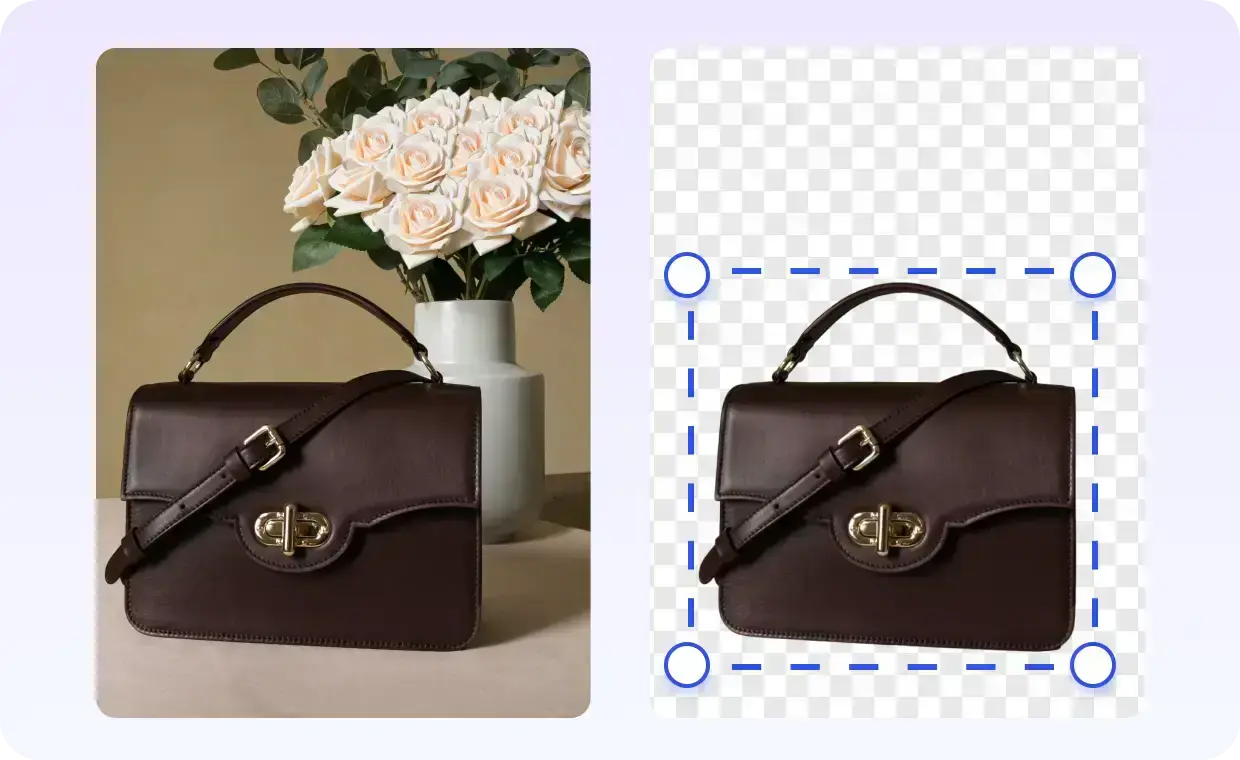
When you see a checkerboard pattern behind an image in editing software, that’s the visual representation of transparency—not actual content. The checkerboard simply indicates “nothing here,” allowing whatever’s behind the image to show through.
This makes PNG unique among common image formats. It preserves full image quality while supporting complete transparency—perfect for logos on websites, overlays in videos, and product images that blend seamlessly with any background.
PNG vs JPG: Why JPG Can’t Be Transparent
One of the most common mistakes users make is trying to create a transparent JPG. JPG format does not support transparency—period.
When you save a transparent image as JPG, the transparent areas automatically convert to white (or sometimes black). This is a technical limitation of the format, not a software bug.
| Feature | PNG | JPG |
| Transparency Support | Yes (alpha channel) | No |
| Best For | Logos, overlays, graphics | Photos, web images |
| File Size | Larger | Smaller |
| Quality | Lossless | Lossy compression |
Bottom line: Always use PNG when you need transparency.
Common Use Cases for Transparent PNGs
Transparent PNGs are essential for:
- Logos and branding – Place your logo on any colored background
- Product photos – E-commerce listings with clean, professional looks
- Watermarks – Subtle overlays that don’t obstruct content
- Social media graphics – Stickers, overlays, and profile elements
- Video production – Lower thirds and overlay graphics
Quick Comparison: 10 Best Free Tools to Make PNG Transparent
Let’s compare the most popular free tools so you can quickly find what works best for your needs.
Tool Comparison Table (Speed, Quality, Ease of Use)
| Tool | Speed | Quality | Ease of Use | Best For |
| Remove.bg | Instant | Excellent | Very Easy | Quick one-off images |
| GStory AI | Fast | Excellent | Very Easy | Batch processing |
| Photopea | Medium | Excellent | Moderate | Detailed editing |
| GIMP | Slow | Excellent | Complex | Professional work |
| Fotor | Fast | Good | Easy | Bulk processing |
| Photoroom | Fast | Good | Very Easy | Mobile users |
| Canva | N/A | Good | Easy | Pro users only* |
*Canva requires Pro subscription for transparent PNG export.
Best Tool by Use Case
- Fastest for single images: Remove.bg
- Best for batch processing: GStory AI or Fotor
- Best free Photoshop alternative: Photopea
- Best for mobile: Photoroom
- Best for complex edits: GIMP
Method 1: AI-Powered Online Tools (Fastest & Easiest)
AI-powered background removers are the fastest way to make PNG transparent. Upload your image, and artificial intelligence handles the rest in seconds.
GStory AI Photo Background Remover
GStory AI’s Photo Background Remover offers a powerful free option that handles everything from simple logos to complex product photos.
How to use it:
- Visit the GStory Photo Background Remover
- Upload your image (supports PNG, JPG, JPEG, WEBP up to 10MB)
- AI automatically removes the background
- Download your transparent PNG
Key advantages:
- One-click background removal
- Batch processing for multiple images
- Replace with custom backgrounds
- Free credits system—no subscription required
- Browser-based, works on any device
For images that need additional cleanup—like removing existing watermarks or logos before making them transparent—GStory also offers a Photo Watermark Remover that preserves original details and colors.
Remove.bg
Remove.bg is one of the most popular automatic background removers. It’s incredibly fast and handles most images well.
Limitations to know:
- Free tier limits output resolution
- Full resolution requires payment or credits
- No batch processing on free plan
For unlimited free use with full resolution, consider alternatives like GStory AI or Photopea.
Photoroom & Other AI Options
Photoroom excels on mobile devices with an intuitive interface perfect for Instagram sellers and small business owners photographing products on smartphones.
Fotor stands out for batch processing—upload multiple images and process them simultaneously. Great for e-commerce sellers with large catalogs.
Method 2: Free Browser-Based Editors (More Control)
When AI tools don’t give you the precision you need, browser-based editors offer more control without requiring downloads.
Photopea: The Free Photoshop Alternative
Photopea is essentially Photoshop running in your browser—completely free. It’s ideal for users who need precise control over their selections when they want to make PNG transparent with complex backgrounds.
Step-by-step guide:
- Go to photopea.com
- Open your image (File > Open)
- Use the Magic Wand tool for solid color backgrounds
- Click the background to select it
- Press Delete to remove
- Export as PNG (File > Export As > PNG)
Pro tip: For complex backgrounds, use the Quick Selection tool and paint over the subject instead of the background.
Canva: The Workaround for Free Users
Canva’s Background Remover requires a Pro subscription, which frustrates many users. Here are your options:
- Free alternative: Use Remove.bg or GStory AI first, then upload the transparent PNG to Canva
- Trial option: Canva Pro offers a free trial that includes background removal
- Better choice: Skip Canva for transparency work entirely and use dedicated tools
Method 3: Desktop Software (Maximum Quality)
For the highest quality results or offline work, desktop software remains the gold standard.
GIMP: Professional Results for Free
GIMP (GNU Image Manipulation Program) is a powerful, completely free alternative to Photoshop. It’s an excellent choice when you need to make PNG transparent with precise edge control.
Making a transparent PNG in GIMP:
- Open your image in GIMP
- Go to Layer > Transparency > Add Alpha Channel (crucial step!)
- Select your subject using Select > Free Select or Select by Color
- Invert selection (Select > Invert)
- Delete the background
- Export as PNG (File > Export As)
Adobe Photoshop (For Those Who Have It)
If you already have Photoshop, use these methods:
- Quick method: Select > Subject, then delete background
- Precise method: Use the Pen tool for complex shapes
- AI method: Remove Background (newer versions)
Method 4: Mobile & AI Chat Solutions
Mobile Apps for On-the-Go Editing
Both iOS and Android offer excellent background removal apps:
Best iPhone apps:
- Photoroom (most polished experience)
- Background Eraser (simple and effective)
Best Android apps:
- Background Eraser
- Remove.bg mobile app
Using AI Assistants
New in 2026, AI assistants like ChatGPT and Google Gemini can help with image editing tasks. While not as precise as dedicated tools, they work for simple images and offer an interesting alternative for tech-savvy users.
Troubleshooting: Why Your PNG Isn’t Transparent (And How to Fix It)
Even after following the steps above, you might encounter issues. Here’s how to fix the most common problems.
White Background Appearing Instead of Transparent
This is the #1 issue users face. Common causes:
- You saved as JPG instead of PNG – JPG doesn’t support transparency
- The receiving software doesn’t support transparency – Test in a different program
- Incorrect export settings – Make sure you’re selecting PNG format during export
Fix: Verify your export format says PNG (not JPG) and test the image by placing it on a colored background in any image viewer.
Checkerboard Pattern Confusion
The checkerboard is not part of your image—it’s a preview indicator showing transparent areas. If you see checkerboard when you open your file, that’s correct! The transparency is working.
Quality Loss After Removing Background
To maintain image quality:
- Start with the highest resolution original
- Use PNG-24 instead of PNG-8 for photos
- Avoid multiple saves and re-exports
- Choose tools with lossless processing
Pro Tips for Perfect Transparent PNGs
Handling Difficult Edges (Hair, Fur, Glass)
AI tools often struggle with fine details like hair or transparent objects. Tips:
- Use tools with “refine edge” features
- Process at highest resolution possible
- For glass/reflections, manual editing in Photopea or GIMP works best
Keeping Shadows When Removing Backgrounds
Natural shadows make images look realistic. Some tools offer “preserve shadow” options:
- GStory AI maintains natural shadows automatically
- In Photopea, select the shadow along with your subject
- Photoroom offers shadow retention toggles
Batch Processing Multiple Images
E-commerce sellers often need hundreds of product images processed. For efficiency:
- Use GStory AI’s batch upload feature
- Fotor processes multiple images simultaneously
- Consider workflow automation for large catalogs
FAQs of Making PNG Transparent
What is a transparent PNG?
A PNG file with an alpha channel that allows the background to show through. This makes it perfect for logos, overlays, and layered designs where you need the image to blend seamlessly with different backgrounds.
Can I make a JPG transparent?
No, JPG format doesn’t support transparency. You must first convert to PNG, then remove the background using one of the methods in this guide. Simply changing the file extension won’t work—you need to actually remove the background.
How do I make PNG transparent without Photoshop?
Use free AI tools like GStory Photo Background Remover or browser-based editors like Photopea. Both are completely free, require no downloads, and produce professional results in seconds.
Why does my transparent PNG show a white background?
Usually because you saved as JPG instead of PNG, or the viewing software doesn’t support transparency. Verify your export format, then test the image in a different application or by placing it on a colored background.
What’s the difference between PNG-8 and PNG-24?
PNG-8 supports 256 colors with basic transparency (on/off). PNG-24 supports millions of colors with full alpha channel transparency (partial transparency). Use PNG-24 for photos and complex graphics, PNG-8 for simple icons with flat colors.
Conclusion
Creating transparent PNGs is simpler than ever with the right tools. For most users, AI-powered solutions like GStory AI or Remove.bg deliver instant results without any learning curve. When you need more control, Photopea offers Photoshop-level editing for free in your browser. And for professional work, GIMP provides unlimited capabilities at no cost.
The key is choosing the right tool for your specific situation:
- Speed: AI tools for instant results
- Control: Browser editors for precision
- Quality: Desktop software for maximum fidelity
Ready to start? Try GStory’s free Photo Background Remover for instant results—no signup required, free credits to start, and batch processing for multiple images. Make your first transparent PNG in under 10 seconds.
Leave a Reply