Last Updated on March 19, 2026 by gaojie
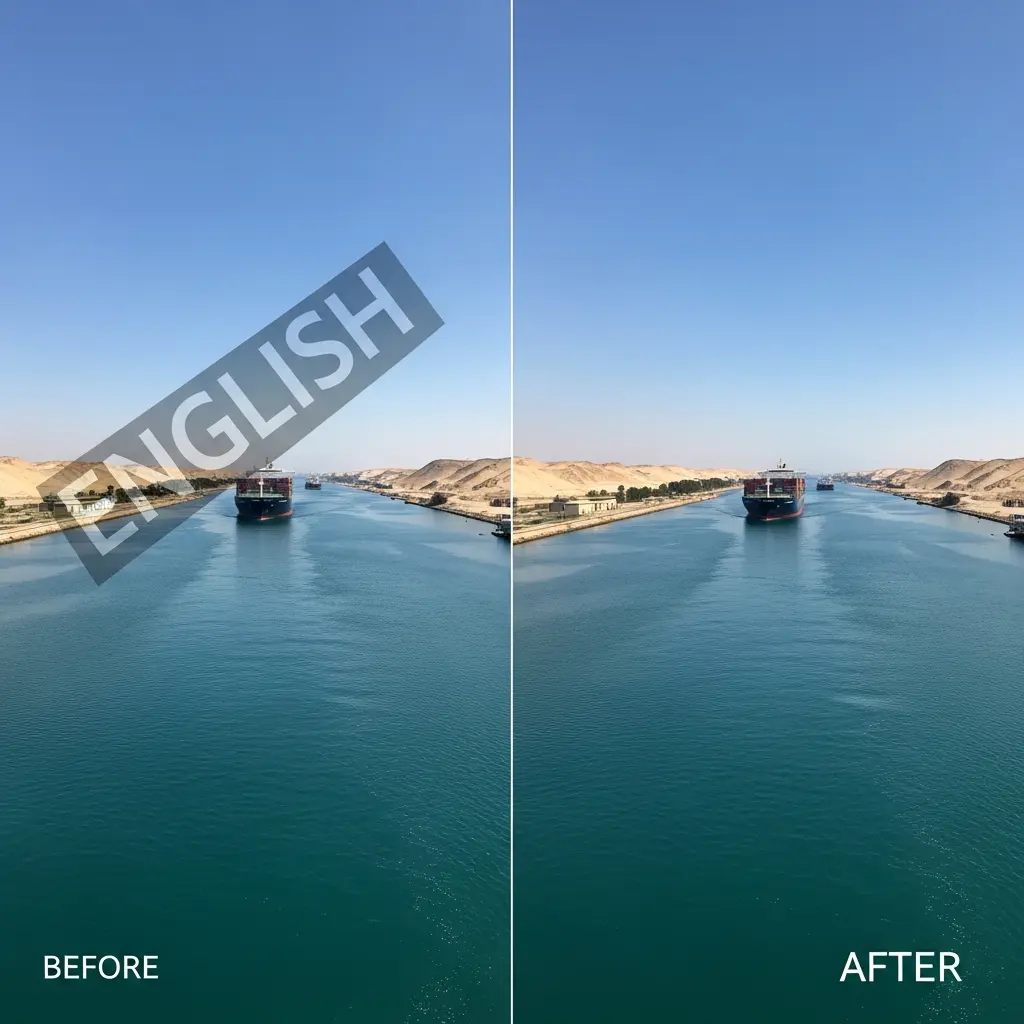
That perfect product photo with an unwanted watermark. The vintage family picture with a distracting date stamp. The meme template you want to repurpose. We’ve all encountered images ruined by text we wish wasn’t there.
The frustrating reality? Most free tools that remove text from image files leave your photos blurry, distorted, or with obvious artifacts. This is the number one complaint across Reddit threads and design communities—quality loss after text removal.
This guide reveals the best free AI-powered text removal tools that actually preserve image quality. You’ll learn step-by-step methods to remove text from image files for every skill level, from one-click online editors to professional Photoshop techniques.
What Is AI Text Removal and How Does It Work?
Modern AI text removers use sophisticated algorithms to analyze and reconstruct images. Understanding this technology helps you choose the right tool to remove text from image files based on your specific needs.
Understanding AI Inpainting Technology
AI inpainting is the core technology behind modern text removal. When you mark text for deletion, the AI examines surrounding pixels—colors, textures, and patterns—then intelligently fills the gap.
Advanced models like LaMa (Large Mask Inpainting) can reconstruct complex backgrounds including gradients, textures, and repeating patterns. The AI essentially “paints in” what should logically exist behind the text.
Why Traditional Methods Often Fail (Clone Stamp, Blur, etc.)
Manual methods like clone stamping require significant skill and time. Even experienced editors struggle with:
- Visible seams where cloned areas meet original pixels
- Repetitive patterns that look unnatural
- Color mismatches in gradient backgrounds
AI tools process thousands of similar cases during training, making them far more effective at producing seamless results when you need to remove text from image backgrounds.
Types of Text You Can Remove
AI text removers handle various content types:
- Watermarks from stock photos
- Date stamps on vintage photos
- Captions and subtitles on screenshots
- Logos and brand marks
- Meme text for template creation
10 Best Free AI Tools to Remove Text from Images [Comparison]
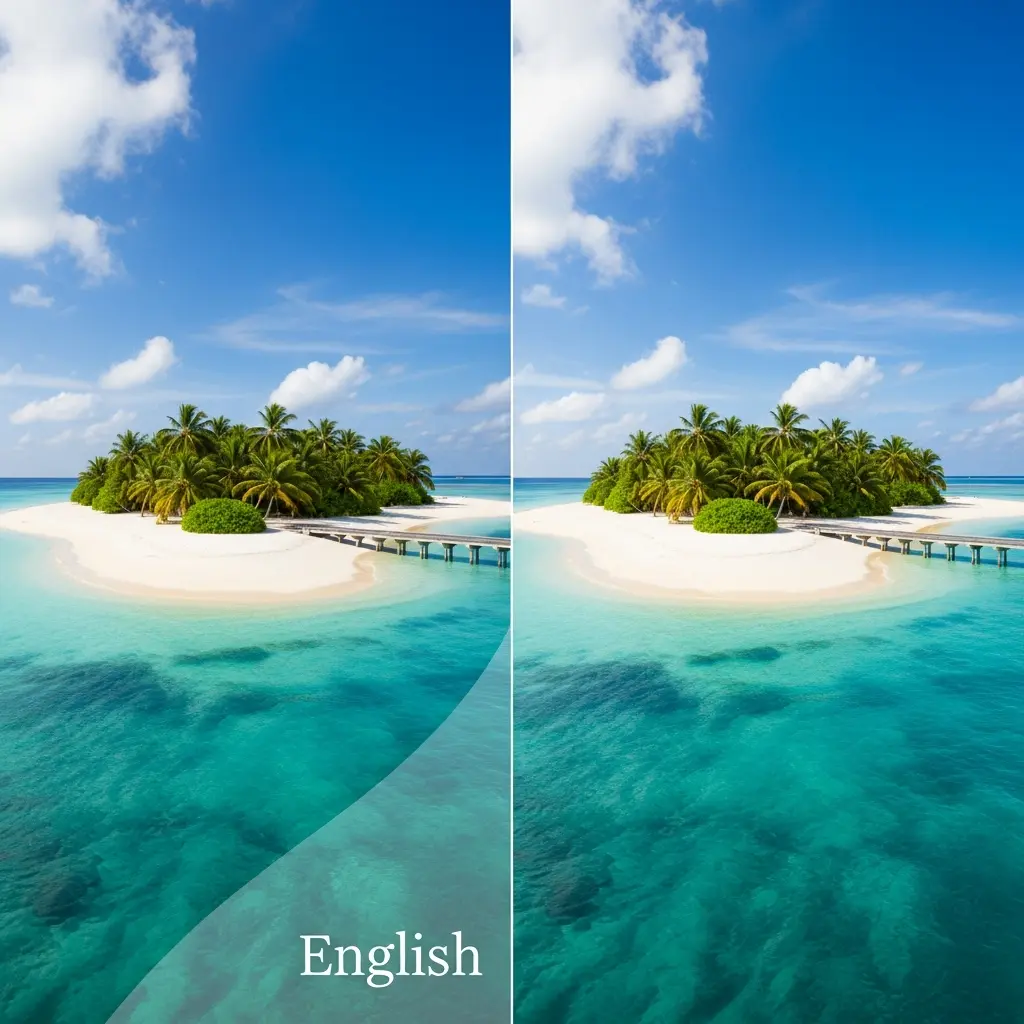
After testing numerous options, here are the top tools that deliver quality results without subscription requirements.
Quick Comparison Table
| Tool | Free Tier | No Signup | Mobile App | Best For |
| GStory.ai | Yes (credits) | No | No | Clean results |
| Cleanup.pictures | Yes (720p) | Yes | No | Professional quality |
| Picsart | Limited | No | Yes | Prompt-based removal |
| Canva | Pro feature | No | Yes | Design workflows |
| Clipdrop | Yes | Yes | No | API/developers |
| EzRemove | Unlimited | Yes | No | Completely free |
| Pixa | Yes | Yes | Yes | Mobile users |
| AnyRemover | Credits | Yes | No | Privacy-focused |
| Artguru | 5/day | Yes | No | Daily allowance |
| Lama Cleaner | Unlimited | Yes | No | Open-source |
GStory.ai Photo Watermark Remover – Best for Clean, Natural Results
GStory.ai Photo Watermark Remover uses intelligent pixel analysis to deliver natural-looking results. The brush-based interface lets you precisely mark unwanted text areas.
Key strengths: Preserves original details and colors, supports PNG/JPG/WEBP up to 10MB, free credits for new users.
Cleanup.pictures – Best for Professional Quality
This tool offers excellent inpainting AI, though free users are limited to 720p output. Ideal for complex backgrounds with textures and patterns.
Picsart – Best for Prompt-Based Removal
Picsart’s unique feature lets you describe what to remove instead of manually selecting it. The massive platform (1B+ downloads) includes additional editing tools.
Canva Grab Text – Best for Design Workflows
Integrated into Canva’s ecosystem, Grab Text automatically identifies and removes text. Requires Pro subscription but powerful for frequent users.
Clipdrop Text Remover – Best for Developers (API Available)
Part of the Jasper AI ecosystem, Clipdrop offers one-click removal plus API access for programmatic processing at scale.
EzRemove – Best Completely Free Option
No signup, no watermarks, high-resolution output. EzRemove supports PNG, JPG, JPEG, WEBP, and BMP formats without hidden limitations.
Pixa (Magic Eraser) – Best for Mobile Users
With dedicated iOS and Android apps, Pixa offers a simple 3-step process trusted by over 2 million users. Great for on-the-go editing.
AnyRemover – Best for Privacy-Conscious Users
Images are automatically deleted after processing. Offers both Fast and Smart AI modes with brush-based selection.
Artguru – Best Free Daily Allowance
Five free removals per day, browser-based with no download required. Good for occasional users who don’t need bulk processing.
Lama Cleaner – Best Open-Source Solution
For technical users wanting local processing without cloud uploads, Lama Cleaner runs entirely on your machine. Free, customizable, and private.
How to Remove Text from Image Without Removing Background
The key challenge is erasing text while preserving what’s behind it. Here’s how to achieve professional results.
Step-by-Step Guide Using AI Tools
- Upload your image to your chosen tool
- Select precisely using brush or selection tools—cover only the text
- Process and let the AI reconstruct the background
- Review results and reprocess if needed
- Download your cleaned image
Tips for Complex Backgrounds (Textures, Patterns, Gradients)
- Zoom in before selecting for accuracy
- Use smaller brush sizes around text edges
- Process in sections for large text blocks
- Consider multiple passes with slight adjustments
Avoiding Common Mistakes That Cause Blur
Blur typically occurs when:
- Source image resolution is too low
- Selection area is too large
- Wrong tool is chosen for the background type
Solution: Always start with the highest resolution available and select only the text pixels.
How to Remove Text from Image in Photoshop
For users with Adobe Photoshop access, these professional methods offer maximum control.
Method 1: Content-Aware Fill (Fastest)
- Select text with Rectangle Marquee Tool
- Go to Edit > Fill > Content-Aware
- Press Ctrl/Cmd + D to deselect
Works best on simple, uniform backgrounds.
Method 2: Spot Healing Brush (Best for Small Text)
Use a brush slightly larger than the text. Paint over letters and let Photoshop blend automatically. Ideal for scattered small text.
Method 3: Clone Stamp Tool (Most Control)
Hold Alt/Option to sample a clean area, then paint over text. Requires skill but provides precise control for complex backgrounds.
Method 4: Generative Fill (AI-Powered in Photoshop)
Select the text area and choose Generative Fill. Photoshop’s AI creates context-aware replacements, often matching dedicated AI tools in quality.
How to Remove Text from Image on iPhone and Android
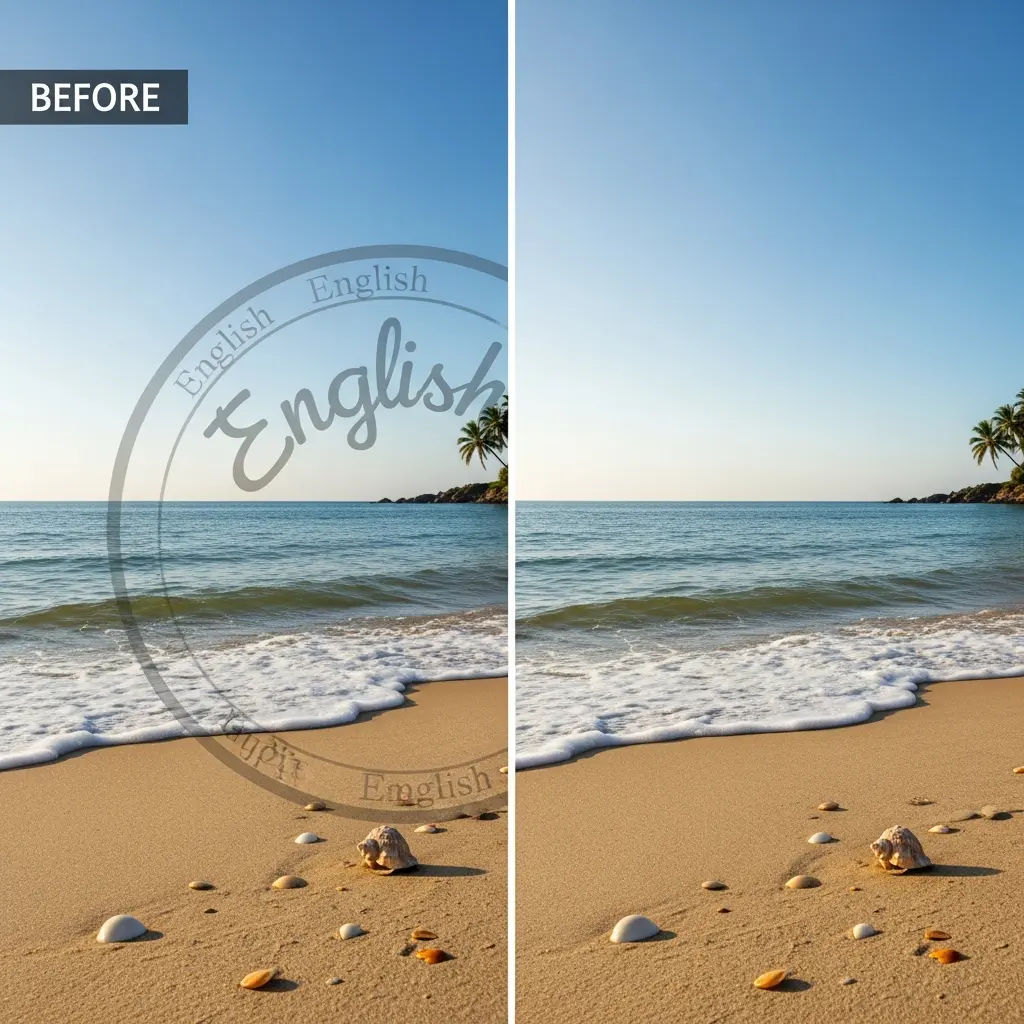
Mobile solutions have improved significantly, making phone-based editing practical.
Best Mobile Apps for Text Removal
- Picsart (iOS/Android) – AI-powered with additional editing
- TouchRetouch (iOS/Android) – Dedicated object removal
- Snapseed (iOS/Android) – Free Google app with healing tool
- Pixelmator Photo (iOS) – Professional-grade editing
Step-by-Step: Removing Text on iPhone
Open your photo in TouchRetouch or Picsart, use the brush tool to highlight text, tap remove, and save. Most apps complete the process in under 30 seconds.
Step-by-Step: Removing Text on Android
Samsung Gallery includes a built-in eraser tool. Otherwise, install Picsart or Snapseed from Play Store and follow similar brush-and-remove workflows.
Common Use Cases for Text Removal
Different scenarios call for different approaches when you need to remove text from image content.
E-commerce Product Photos
Remove supplier watermarks from sample images before listing products. Batch processing tools like Clipdrop API save hours for large catalogs.
Social Media Content Creation
Clean meme templates, remove usernames for resharing, or create fresh content from existing images.
Photo Restoration
Remove date stamps from scanned family photos without damaging precious memories.
Marketing and Design
Repurpose stock images by removing existing text, allowing new messaging in your brand’s style.
Privacy Protection
Remove visible personal information (addresses, phone numbers) before sharing images online.
Troubleshooting: Fixing Blurry Results and Common Issues
When results disappoint, these fixes usually help.
Why Your Results Look Blurry (And How to Fix It)
Common causes and solutions:
- Low-res source: Use highest quality original available
- Over-selection: Select only the text, not surrounding area
- Wrong tool: Switch to a tool better suited for your background type
Dealing with Artifacts and Visible Seams
If AI leaves visible marks, try manual touch-up with clone or healing tools. Sometimes a second pass with different selection helps.
When to Combine Multiple Tools
For stubborn cases, use AI for initial removal, then Photoshop for refinement. This hybrid approach handles most complex scenarios.
When to Hire a Professional
If text covers a face or critical detail, or results consistently disappoint, professionals on Fiverr or r/PhotoshopRequest typically charge $10-15 for complex removals.
FAQs of Remove Text from Image
Can I remove text from image files in JPEG and PNG formats?
Yes, most AI tools support JPEG, PNG, WEBP, HEIC, and BMP formats. Quality preservation works regardless of format.
Is it legal to remove watermarks from images?
Removing watermarks from images you’ve legitimately purchased or own is generally fine. Removing watermarks to avoid licensing fees violates copyright law.
How do I remove text from image files without Photoshop?
Free online tools like GStory.ai Photo Watermark Remover, Cleanup.pictures, and EzRemove achieve similar results without software installation.
What’s the best free AI text remover with no watermark?
EzRemove and GStory.ai both offer watermark-free downloads on their free tiers with high-resolution output.
Can I remove text from multiple images at once (batch processing)?
Yes—Clipdrop API, Pixa, and several desktop applications support batch processing for handling large image volumes.
How do I remove text from image content on my phone without an app?
Browser-based tools like GStory.ai and Cleanup.pictures work on mobile browsers without requiring app downloads.
Conclusion
Removing text from images no longer demands Photoshop expertise or expensive subscriptions. AI-powered tools like GStory.ai Photo Watermark Remover, Cleanup.pictures, and Picsart make it easy to remove text from image files and achieve professional results in seconds—without the dreaded blur that plagued older solutions.
The key is matching your tool choice to your specific background complexity and use case. For quick one-off removals, browser-based tools work perfectly. For batch processing or complex backgrounds, consider API solutions or professional software.
Leave a Reply