Last Updated on April 21, 2026 by
Getting a transcript from a YouTube video should be easy, but it often is not. On desktop, the option is usually there if you know where to click. On mobile, it is harder to find. And on some videos, the transcript does not appear at all.
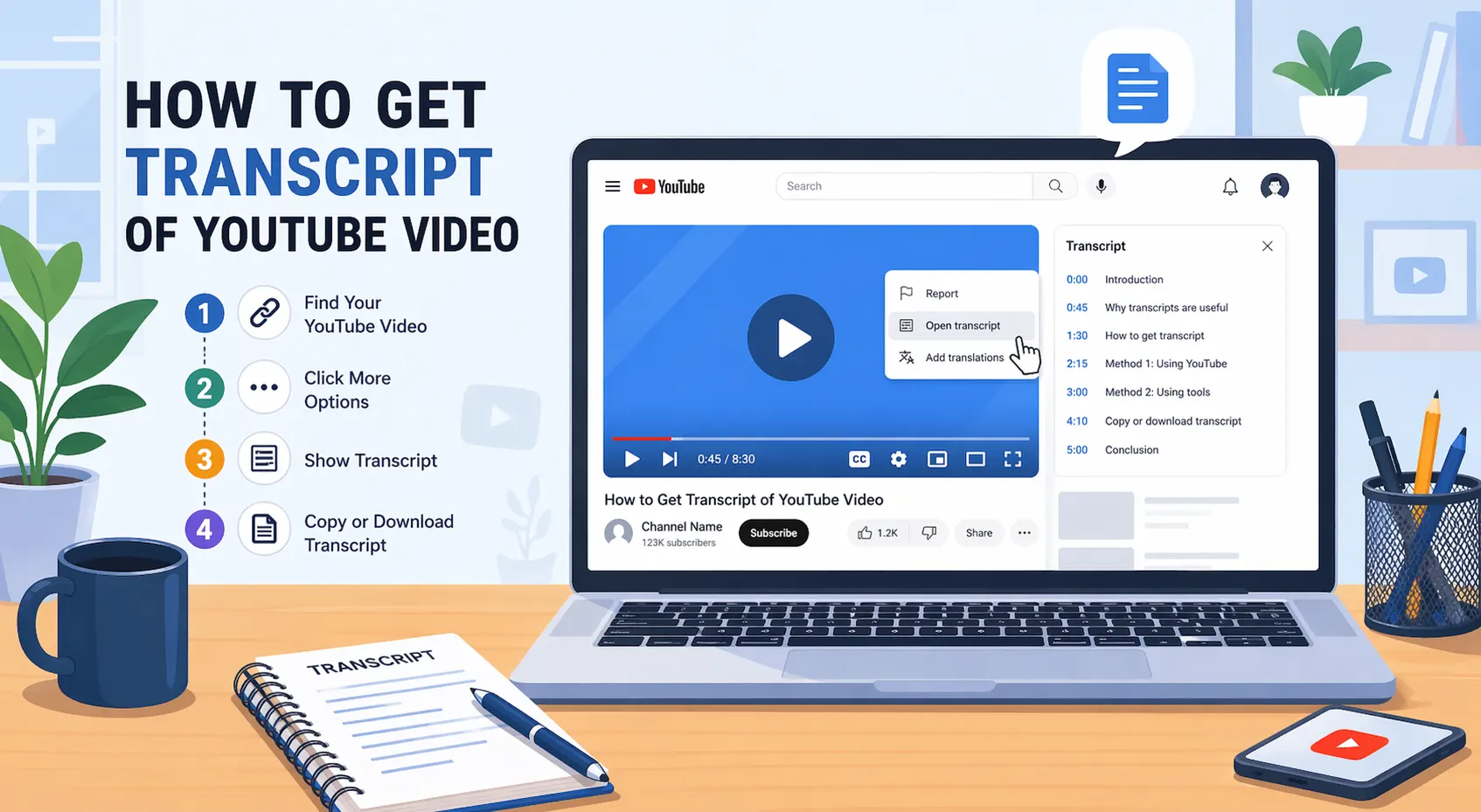
If you are trying to figure out how to get transcript of YouTube video, this guide walks you through the fastest working methods step by step. You will learn how to open the built-in transcript on desktop, how to find it on phone, how to handle YouTube Shorts, and what to do when the Show transcript button is missing.
Method 1: Use YouTube’s Built-In Transcript on Desktop
For most people, this is the best place to start. It is free, fast, and built right into YouTube.
How to Open the Transcript Panel
- Open the YouTube video in your browser.
- Click the description area below the title.
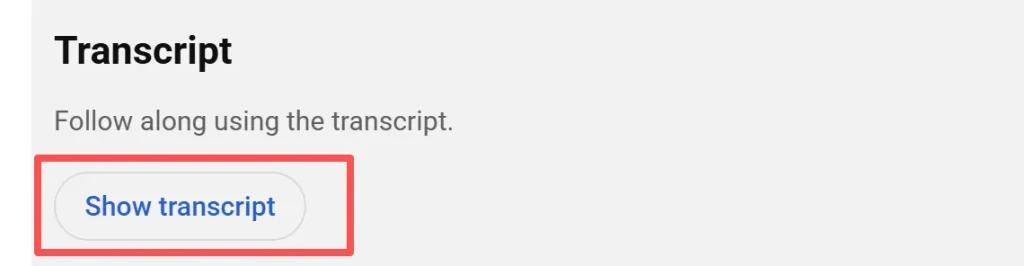
- Look for Show transcript and click it.
The transcript panel will open beside the video. Each line is timestamped, and you can click a line to jump to that part of the video.
How to Copy the Transcript
Once the panel is open, you can select the text and copy it into a document or note-taking app.
If YouTube shows timestamps and you do not want them, use the transcript panel options to hide them first when that option is available. Then copy the text as a cleaner block.
This method works best when the video already has captions, whether they were uploaded by the creator or generated automatically by YouTube.
Method 2: Get a YouTube Transcript on Mobile
You can also get transcripts on iPhone or Android, but it is usually less convenient than on desktop.
Using the YouTube App
- Open the video in the YouTube app.
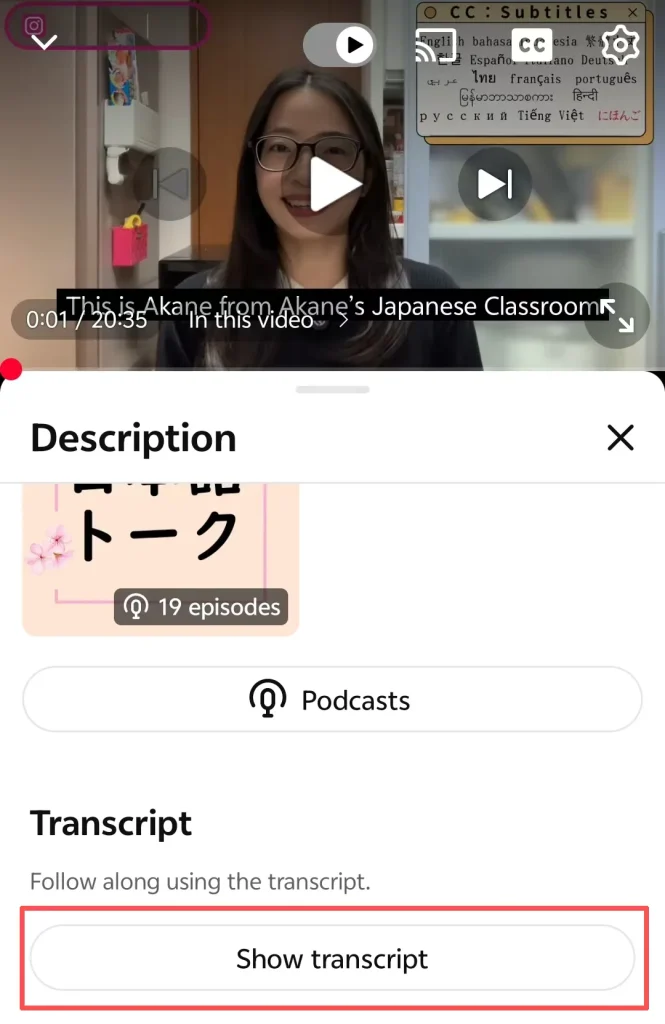
- Tap the title or description area to expand the video details.
- Scroll down and tap Show transcript if it appears.
The transcript will open below the video information.
The main drawback is usability. Copying long text on mobile can be awkward, and some app versions make transcript access harder than desktop.
Method 3: Use a Mobile Browser and Request the Desktop Site
If the YouTube app does not show the transcript option, a mobile browser is often the easiest workaround.
- Open the video in Chrome or Safari.
- Open the browser menu.
- Tap Request Desktop Site.
- Use the desktop version of YouTube and open Show transcript there.
This gives you a layout closer to the desktop experience, which makes transcripts easier to find and copy.
For users asking how to get a transcript of a YouTube video on phone, this is often the most reliable backup method.
Method 4: Convert a YouTube Short Into a Regular Video
YouTube Shorts usually do not show the transcript option in the same way as standard videos. A simple URL trick can help.
If the link looks like this:
youtube.com/shorts/VIDEO_ID
change it to:
youtube.com/watch?v=VIDEO_ID
Then reload the page.
That opens the Short as a regular YouTube video, where the transcript panel may become available. If captions exist, you can usually access the transcript the normal way after that.
Method 5: Use a Transcription Tool When No Transcript Exists
Sometimes the Show transcript button is missing because the video does not have captions at all. In that case, you need a tool that generates text directly from the audio.
A few common options include:
- NotebookLM for turning YouTube content into text and summaries
- Whisper for offline or local transcription
- Subtitle tools that generate transcripts from audio when YouTube does not provide one
This is the right method when the video has no captions, the transcript never appears, or you need a downloadable text file instead of copy-pasting from YouTube.
Why the “Show Transcript” Button Is Missing
If you do not see the transcript option, one of these reasons is usually the cause:
- The video has no captions
- The creator disabled captions or did not provide them
- The video is very new and auto-captions are not ready yet
- The video is a live stream, premiere, or restricted format
- YouTube is testing a different interface or the page is bugging out
Before trying third-party tools, do these quick checks:
- Refresh the page
- Try another browser
- Open the video on desktop instead of mobile
- Confirm that captions are actually available on the video
If the video has captions but the transcript still does not appear, switching devices often solves the issue faster than troubleshooting the app.
What to Do If You Need the Transcript as Plain Text
Many users do not just want to view the transcript. They want to copy it, clean it, and use it somewhere else.
Here is the simplest workflow:
- Open the transcript in YouTube
- Hide timestamps if possible
- Copy the full text
- Paste it into a document or notes app
- Clean up line breaks if needed
If you need export formats like TXT, SRT, or VTT, a transcription tool may be more practical than YouTube’s built-in panel.
Which Method Should You Use?
The best method depends on the video and the device you are using.
- Desktop YouTube is best for quick access
- Mobile app works for simple viewing
- Mobile browser + desktop site is best when the app fails
- Shorts URL trick helps with YouTube Shorts
- Transcription tools are best when no captions exist
For most users, the built-in desktop transcript is still the fastest option.
FAQs About How to Get a Transcript of a YouTube Video
Can I get a transcript of any YouTube video?
Not always. A transcript usually depends on whether captions exist. If the video has no captions, you will need a transcription tool to generate text from the audio.
How do I get a YouTube transcript without timestamps?
Open the transcript panel and hide timestamps if YouTube gives you that option. Then copy the text. If that option is not available, you may need to remove timestamps manually after pasting.
Why can’t I see the transcript on mobile?
The YouTube app does not always make transcripts easy to access. Try expanding the video details first. If that does not work, open the video in a mobile browser and request the desktop site.
Can I get a transcript from YouTube Shorts?
Yes, sometimes. Change the Shorts URL into a regular watch URL, reload the page, and then check whether the transcript option appears.
What if the YouTube video has no transcript?
If there are no captions, YouTube cannot show a transcript. In that case, use a speech-to-text or subtitle generation tool to create one from the audio.
Conclusion
If you want to know how to get a transcript of a YouTube video, start with YouTube’s built-in transcript feature on desktop. That is the fastest method when captions are available.
If you are on mobile, try the app first, then switch to a browser and request the desktop site if needed. For Shorts, open the video as a standard watch page. And if the video has no captions at all, use a transcription tool instead.
The best approach is simple: use YouTube when the transcript already exists, and use a transcription tool only when it does not.
Leave a Reply