Last Updated on December 5, 2025 by Xu Yue
Ever tried posting a beautiful photo to Instagram only to see half the magic chopped off? That majestic skyline, the sweeping landscape, or the carefully framed family portrait — gone. It’s like ordering a full-cake and getting only a slice. 🍰
If that has happened to you, you’re not alone. With Instagram’s ever-evolving size and aspect-ratio rules, it’s easy to get caught off guard. The good news: with a little know-how (and maybe some clever tools), you can resize your images for Instagram without losing a single pixel of what matters.
Let’s dive in — and make sure your next post looks exactly as you intended.
Why Instagram Sizes and Format Rules Matter in 2025
Current IG post size standards
- As of 2025, Instagram’s preferred feed image size for portrait posts is 1080 × 1350 px, with an aspect ratio of 4:5.
- Landscape posts should size around 1080 × 566 px (approx. 1.91:1), and square posts remain 1080 × 1080 px.
- For Stories or Reels, the recommended size is 1080 × 1920 px (aspect ratio 9:16).
Why wrong aspect ratio triggers cropping or auto-compression
If your photo doesn’t match one of Instagram’s supported ratios, Instagram will often auto-crop or compress the image to make it fit.
That means parts of your photo — sometimes the most important parts — get cut out without warning.
How automatic cropping threatens your full-frame composition
For photographers, travel-shooters or anyone who cares about composition, auto-cropping can ruin the entire feel of a shot. A balanced skyline becomes lopsided, a group photo loses half the people, or product photos lose their clean look. If you’re not careful, what you post on IG ends up nothing like what you originally saw or had in mind.
Common Mistakes When Resizing for Instagram: Why Cropping Loses More Than You Think
Blind cropping → cut off important edges / composition loss
Many people simply crop to a square or vertical template and upload. This “blind cropping” often sacrifices key edges, backgrounds, or framing — destroying composition integrity.
Naïve down-scaling → blurry or pixelated photos after upload
Shrinking a large photo without considering resolution or compression can lead to loss of detail. Once Instagram compresses your upload, the result may look soft, pixelated, or muddy — a particular problem for landscapes or detailed shots.
Ignoring safe zones — risk of UI overlays hiding content
Instagram sometimes overlays UI elements (like captions, usernames, etc.) or displays posts as thumbnails in feed grids. If your important subject sits too close to the edge, it risks being partially hidden or cut off.
How to Resize Image for Instagram While Keeping the Entire Frame Intact
Resize + padding / border method — keep full image inside safe aspect ratio
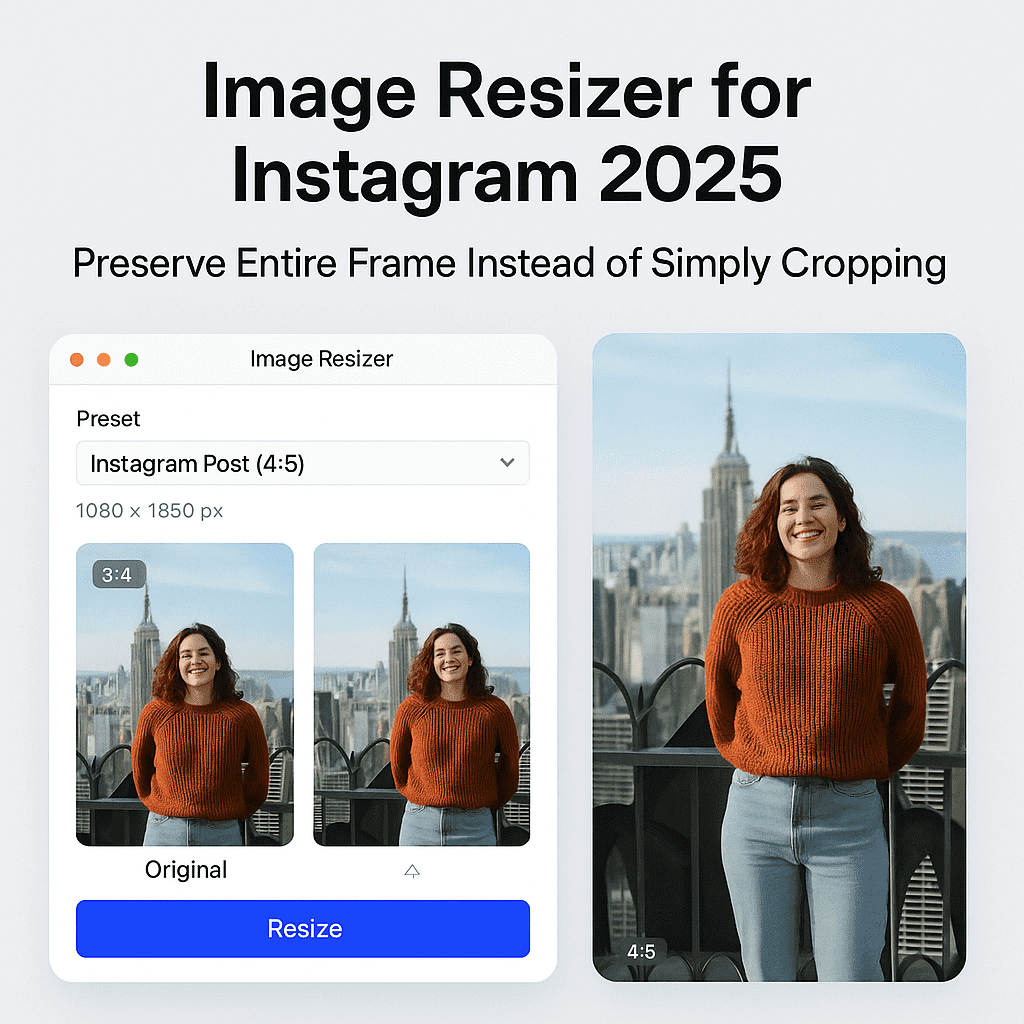
One of the safest methods: don’t crop — instead, resize the image and add padding (borders or blank space) to fit Instagram’s required ratio. This way you keep the whole image content and avoid unintended cropping.
Using correct IG post size templates
Start with a template canvas set to 1080 × 1350 px (4:5), 1080 × 566 px (landscape), or 1080 × 1080 px (square) — depending on orientation. Then place your original image centered, with padding if needed. This ensures you prepare properly for IG’s requirements before upload.
When to use letterbox or pillarbox style to avoid cropping
For very wide panoramas or very tall photos, letterbox (black or color bars top/bottom) or pillarbox (bars left/right) can preserve the full image. This keeps composition intact while fitting ratios. It may look less “full-screen”, but often better than having parts chopped off.
Advanced Workflow for Creators: Batch & Bulk Resizing Without Losing Quality
Why bulk resizing matters
If you’re a travel photographer, run an online store, or regularly post many images (product shots, event coverage, etc.), manually resizing each image is a pain. Batch resizing saves tons of time, ensures consistent size across posts, and avoids repeated manual errors.
Export presets: maintain consistent IG post size and avoid repeated manual work
Set up export presets in your editing software or workflow — e.g., a “IG Feed Portrait 4:5 (1080×1350)” preset, or a “Story 9:16 (1080×1920)” preset. Every time you export, you get consistent, IG-ready images. That way you never have to guess sizes again.
Tips for preserving metadata, resolution and avoiding compression artifacts in batch export
- Always export at recommended dimensions (width 1080 px) to match IG’s preferred sizing.
- Keep original resolution as high as practical before resizing; then downscale instead of aggressive compression.
- Avoid repeated resaving or compression — export once properly to minimize quality loss.
Different Use Cases — How, When, and Why You Should Preserve Full Frame
Photographers / travel & landscape shooters — protect composition & detail
For sweeping landscapes, architecture, street photography or any complex composition, every pixel matters. Preserving full frame ensures you don’t lose background, context, or artistic framing.
E-commerce / product photos — ensure full product visible, consistent aspect ratio
If you run a shop or post catalog photos, it’s critical that the entire product stays visible with proper framing. Padding or templates avoid accidental cropping that might cut off product edges.
Casual users / influencers — keep original vibe, avoid forced crop that loses context
Even casual memories or lifestyle posts benefit — you keep the full context, avoid awkward crop that chops a friend or pet out of the frame, and ensure stories or lifestyle shots look natural.
Multi-image posts or carousels — avoid mismatched framing and ensure smooth visual flow
When posting carousels with images of varying orientations, consistent framing or padded canvases ensure the carousel doesn’t jerk or crop unpredictably between slides, preserving visual flow and professionalism.
How to Resize for Instagram Without Cropping — Practical Tools & Methods
Online resizer tools & free apps — quick fix for single images
There are many browser-based or free mobile tools that let you upload a photo, choose Instagram size or canvas with padding, and download a resized version. Great for quick edits before posting stories or casual uploads.
Desktop editors — full control for quality and precision
If image quality, sharpness, and composition matter — e.g., for portfolio shots, product photos, or serious content — desktop editors (Photoshop, Lightroom, Affinity, etc.) give you full control over resizing, padding, cropping, export settings, metadata, and batch workflows.
Hybrid approach — quick online for stories / drafts, desktop / manual for final feed posts
For many users, a hybrid approach works best: use a quick online tool or phone app for draft stories or simple posts, but do final posts through full editors to guarantee quality, composition integrity, and consistent resizing.
Consider GStory for Final Touches
Sometimes you don’t just need to resize — you need a quick fix for background issues, framing tweaks, or subtle enhancements before uploading to Instagram. That’s where GStory can help.
If a photo’s original ratio is awkward, or you need to pad the background to avoid cropping, using GStory’s background-cleaning or framing adjustment features lets you adapt the image for Instagram without losing the original content. For creators who value speed, simplicity and clean framing before upload, GStory is a convenient last-minute helper.
Final Thoughts
Resizing images for Instagram isn’t just about slapping a template on and hitting upload. It’s about respecting your composition, preserving every detail, and controlling exactly what your audience sees.
By understanding Instagram’s size and ratio rules, using padding or canvas adjustments instead of blind cropping, and adopting proper export workflows — you can make sure every post shows exactly what you intend.
And if you want a quick, hassle-free final polishing before upload, consider tools like GStory to help you frame, clean up, and deliver Instagram-ready images without sacrificing full-frame integrity.
Happy posting — may your next feed be pixel-perfect and crop-free!
Leave a Reply