Last Updated on March 9, 2026 by Xu Yue
You’ve lost precious photos—but the path to getting them back depends entirely on how you lost them. Use the wrong tool, and you’ll waste time, money, and possibly lose your photos forever.
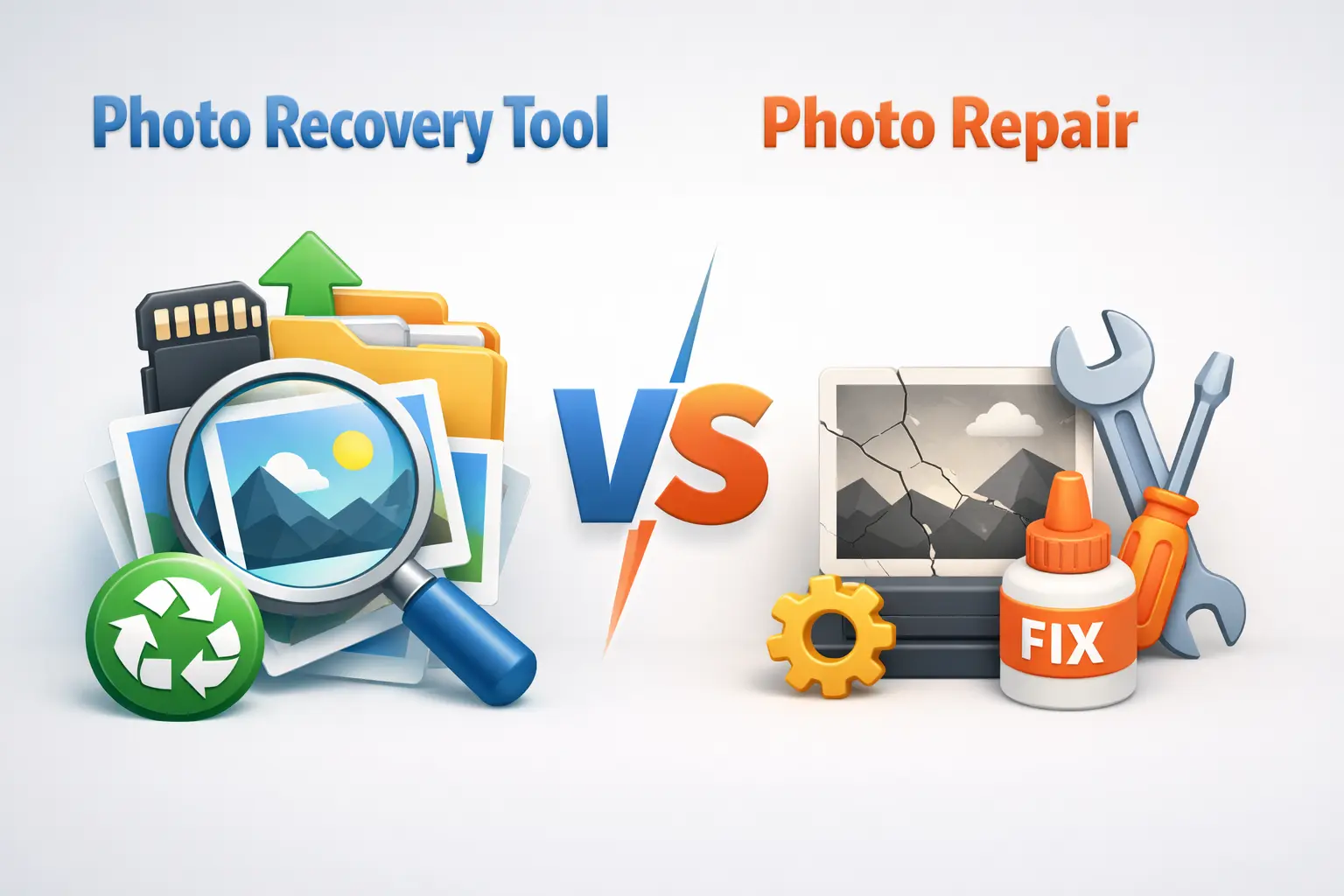
Here’s the problem: most people don’t know the difference between photo recovery (finding deleted files) and photo repair (fixing corrupted files). This confusion leads to choosing the wrong tools and failed recovery attempts.
This guide cuts through the noise. You’ll learn exactly which type of tool you need, how to diagnose your situation in seconds, and the best options for each scenario. Whether your photos are deleted, corrupted, or just poor quality, you’ll know exactly what to do.
Recovery vs Repair: Understanding the Fundamental Difference
Before spending money on software, you need to understand a crucial distinction. Recovery and repair solve completely different problems. Getting this wrong means wasting your time.
What Is Photo Recovery?
Photo recovery means retrieving files that were deleted from storage. When you delete a photo, the data often still exists on your disk—it’s just marked as “available for overwriting.”
Recovery tools scan your storage device to find these deleted files and reconstruct them before new data overwrites them. The file itself was fine; it was just removed from your file system.
Think of it like this: recovery is finding a document someone threw in the trash before the garbage truck arrives.
What Is Photo Repair?
Photo repair means fixing files that exist but are damaged. The file is there in your folder, but it won’t open properly, shows visual artifacts, or appears partially broken.
Repair tools analyze the file structure and attempt to fix corrupted data. The file was never deleted—something just damaged it during saving, transfer, or due to storage errors.
Think of this as fixing a water-damaged document that’s still in your filing cabinet but has become unreadable.
Quick Diagnostic: Which Problem Do You Have?
Use this simple decision tree:
- Can you see the file in your folder?
- No → You need recovery
- Yes, but it won’t open or shows errors → You need repair
- Yes, and it opens but looks blurry/low-quality → You need enhancement
[Image: Decision flowchart showing recovery vs repair vs enhancement paths]
When You Need a Photo Recovery Tool
Recovery tools are your solution when files have been deleted and you need to get them back. Time is critical here.
Scenario 1: Accidentally Deleted Photos
You deleted photos from your camera, phone, or computer. They’re no longer in the Recycle Bin or Trash folder.
The good news: the data likely still exists on your storage device. The bad news: every second you continue using that device increases the risk of permanent loss.
Scenario 2: Formatted Memory Card or Drive
You accidentally formatted an SD card or hard drive. Everything appears gone.
Formatting typically doesn’t erase the actual data immediately—it just clears the file system’s index. Recovery tools can often find these “invisible” files if you act quickly.
Scenario 3: Emptied Recycle Bin or Recently Deleted Folder
You emptied your trash, deleted from iPhone’s “Recently Deleted” folder, or permanently deleted files. They’ve passed the “second chance” stage.
Recovery is still possible if the storage space hasn’t been overwritten with new data.
Critical First Step: Stop Using the Device Immediately
This is the most important advice in this entire article.
Key Takeaway: Stop using the storage device the moment you realize photos are deleted. Every new file written could overwrite your recoverable data permanently.
According to r/datarecovery community experts, you should create a disk image using Win32DiskImager before running any recovery software. This protects the original data while you work on the copy.
Best Photo Recovery Tools
Based on professional reviews and community recommendations:
- Disk Drill – Best overall. Recovers 400+ file types with preview before recovery. $89 base price, 500MB free.
- PhotoRec/TestDisk – Best free option. Open-source, cross-platform, powerful but command-line based.
- R-Undelete – Free for memory cards. Preserves folder structure and metadata.
- Stellar Photo Recovery – Best for professionals. Supports drones, action cameras, RAID systems.
Important warning for iPhone users: True data recovery on modern iOS is nearly impossible due to encryption, TRIM, and the Secure Enclave. Most “iOS recovery” tools only recover low-resolution thumbnails, not full images.
When You Need Photo Repair Software
Repair tools are necessary when your files exist but are corrupted or damaged.
Scenario 1: Photos That Won’t Open
The file is there, but you get an error when trying to open it. Common causes include:
- Incomplete file transfers
- Storage device errors
- Interrupted saves during shooting
The file header may be damaged while the image data is intact—repair tools can fix this.
Scenario 2: Photos with Visual Artifacts or Partial Display
Your image opens but shows gray areas, color distortion, stripes, or only displays the top half.
This indicates the file header is intact (so it opens) but portions of the image data are corrupted. Repair tools can sometimes reconstruct missing segments.
Scenario 3: Thumbnails Exist But Full Image Is Damaged
You can see the preview thumbnail, but the full-resolution image is broken. This is common with SD card corruption.
This is different from recovery—the file exists. It just needs structural repair.
Best Photo Repair Tools
- Stellar JPEG Repair – Professional-grade tool for fixing corrupted JPEGs
- JPEG Repair Toolkit – Specializes in JPEG reconstruction
- JPEGsnoop – Free diagnostic tool to analyze corruption before attempting repair
When You Need Photo Enhancement (AI Restoration)
There’s a third category that often gets confused with recovery and repair: enhancement. This is for photos that open perfectly but have quality issues.
What Photo Enhancement Solves
Enhancement addresses:
- Low resolution or pixelated images
- Blurry or out-of-focus photos
- Noise and grain
- Faded colors from old photographs
- Degraded prints that were scanned
The file isn’t deleted or corrupted—you simply want to improve its visual quality.
Enhancement vs Recovery vs Repair: Key Differences
| Problem | Solution | What It Does |
| Photo deleted/missing | Recovery Tool | Finds and retrieves deleted files from storage |
| Photo exists but won’t open | Repair Tool | Fixes corrupted file structure |
| Photo opens but looks bad | Enhancement Tool | Improves visual quality with AI |
Best Photo Enhancement Tools
AI-powered enhancement has improved dramatically. Leading options include:
- GStory.ai Photo Enhancer – Browser-based AI tool that upscales images to 4K, removes blur, reduces noise, and restores old photos. No downloads required, with free credits to start.
- GFPGAN – Free open-source tool, excellent for restoring old faces
- Luminar Neo – Professional desktop software for comprehensive restoration
For most users wanting quick results, browser-based AI tools offer the fastest path from blurry photo to enhanced image without software installation.
Common Mistakes to Avoid
These errors waste time and can permanently destroy recoverable data.
Using Recovery Tools on Corrupted Files
If your file exists but won’t open, recovery tools won’t help. They search for deleted files, not fix damaged ones. You’ll scan for hours and find nothing useful.
Using Repair Tools When Files Are Deleted
Repair tools can’t fix what they can’t find. If your photos were deleted, repair software has nothing to work with. You need recovery first.
Continuing to Use Storage Before Recovery
The number one mistake. Every new photo taken, every app installed, every file saved could overwrite your deleted photos. Community experts consistently emphasize: stop using the device immediately.
Trusting Thumbnail Previews
Some scam tools show recovered thumbnails but can’t actually recover full-resolution images. According to r/DataRecoveryHelp, many “free” recovery tools display thumbnails (320-1024 pixels) but require payment to discover they can’t recover the actual photos.
Key Takeaway: Always verify full-resolution recovery is possible before paying for any recovery software.
FAQs of Photo Recovery vs Photo Repair
Can a photo recovery tool fix corrupted photos?
No. Recovery tools find deleted files but don’t repair corruption. If you recover a photo that turns out corrupted, you’ll need a separate repair tool to fix it.
Why did my recovered photos come out corrupted?
The deleted file was likely partially overwritten before you ran recovery. Recovery tools retrieve whatever data remains, but if portions were overwritten, the file will be incomplete or damaged.
Do I need both recovery AND repair tools?
Sometimes yes. You might recover a deleted photo only to discover it’s also corrupted. In that case: recovery first to get the file back, then repair to make it viewable.
Can AI enhancement fix a corrupted photo?
No. AI enhancement improves visual quality (blur, noise, resolution) but can’t fix file corruption. The photo must open properly before any enhancement tool can work with it.
What’s the best free option for each category?
- Recovery: PhotoRec – completely free, open-source, powerful
- Repair: JPEGsnoop for diagnosis (limited free repair options exist)
- Enhancement: GStory.ai offers free credits for AI photo enhancement
Conclusion
The key to saving your photos is understanding which problem you actually have:
- Photos deleted? → Use a recovery tool immediately. Stop using the device first.
- Photos corrupted? → Use repair software to fix the file structure.
- Photos low quality? → Use AI enhancement to improve visual quality.
Using the wrong tool wastes time and money. Worse, using the wrong approach with deleted photos can permanently destroy your chances of recovery.
Start by diagnosing your situation using the flowchart above. If you’re dealing with deleted photos, create a disk image before doing anything else. If your photos are simply blurry or low-resolution, AI enhancement tools can transform them in seconds.
Next Step: Identify your exact scenario and choose the right tool. For quality enhancement on photos that open but look poor, you can try GStory.ai’s Photo Enhancer—it upscales to 4K and removes blur with just a few clicks.
Leave a Reply