Last Updated on January 30, 2026 by
AI has completely transformed the way we edit video on Mac—but with dozens of tools claiming to be “the best,” choosing one can be a real headache. We’ve all been there: you download an app promising “free professional editing,” only to find a massive watermark across your export, a subscription trap, or terms of service that basically claim ownership of your content.
Choosing the wrong tool doesn’t just waste your time; it can be a genuine risk. Some popular apps use deceptive practices that the Reddit community is constantly warning creators about.
This guide cuts through the noise. Instead of a random ranking, we’re matching AI video editing tools to your specific needs—whether that’s auto-captions, video enhancement, clip generation, or background removal. By the end, you’ll know exactly which editor video Mac deserves a spot in your Applications folder.
How to Choose an AI Editor Video Mac (Decision Framework)
Before you start comparing tools, you need to be clear about your workflow. The “best” video editor depends entirely on what you’re trying to achieve.
Best Free Video Editor For Mac – What Type of Content Do You Create?
Your content type dictates which features are “must-haves” and which are just fluff.
- Long-form YouTube Content: This requires a robust timeline, precise color grading, and advanced audio tools. You’ll want desktop powerhouses like DaVinci Resolve or Final Cut Pro.
- Short-form Social Media (TikTok/Reels/Shorts): Speed and trendy effects beat precision here. Browser-based AI tools excel in this space with smart templates and auto-formatting.
- Professional Client Work: This demands color accuracy, wide format support, and reliable collaboration. When clients are paying, a subscription or high one-time cost is usually a justified investment.
- Casual Personal Use: Simplicity is king. Tools like iMovie or lightweight AI apps get the job done without a steep learning curve. This is the sweet spot for a free video editor Mac.
Free Video Editor Mac – What Tasks Do You Need AI to Handle?
Modern AI tools are specialists. Identify your biggest pain point:
- Auto-captions: Automatically transcribing speech to save you hours of manual typing.
- Video enhancement: Upscaling resolution and cleaning up grainy, “old” footage.
- Clip generation: Scanning long videos to find viral-worthy highlights for social media.
- Background removal: Deleting or replacing backgrounds without needing a physical green screen.
- Translation: Dubbing or subtitling your content into multiple languages to reach a global audience.
Pro Tip: If you only need captions, don’t pay for a massive all-in-one suite. Pick a tool that does that one thing perfectly.
Browser-Based vs. Desktop: Editor Video Mac Workflow Comparison
This choice defines your entire editing experience. Neither is objectively “better,” but they serve different purposes.
- Browser-based AI tools: No installation required and they work on any Mac. They are perfect for specific tasks like upscaling or captioning. The trade-off? You have to upload your files, which can be a drag on slow internet connections.
- Desktop apps: These are performance monsters that work offline. They are essential for complex projects with dozens of tracks. The downside is the larger storage requirement and a steeper learning curve.
Key Takeaway: Use browser-based tools for specific AI “fixes” and desktop apps for the heavy lifting.
Best Mac Video Editor Tools by Use Case
Let’s skip the alphabetized lists and get straight to the best tools for your specific goals.
Best for Auto-Subtitles and Captions
Accurate captions are non-negotiable for engagement today. Here are the top contenders:
- DaVinci Resolve: The free version includes solid built-in transcription. It works great for English and integrates directly into your editing timeline.
- Final Cut Pro: Offers native caption support with automatic speech detection. If you prefer the Mac-native ecosystem, this $299 one-time purchase is a powerhouse.
- GStory.ai Subtitle Generator: A browser-based leader with 95% accuracy across dozens of languages. It lets you export SRT files or videos with “burned-in” captions. Since it’s credit-based, you only pay for what you actually use.
- CapCut: Very popular for its trendy text animations, but make sure to read our “Tools to Avoid” section below regarding privacy.
Best for Video Enhancement and Upscaling
If you have low-res clips or shaky old footage, AI can be a lifesaver.
- GStory.ai Video Enhancer: A one-click solution that upscales video to 4K at 30fps. It’s excellent at noise reduction and motion blur correction without needing to install heavy software.
- Topaz Video AI: The gold standard for desktop enhancement. It costs $299 and needs a serious GPU, but the results are world-class.
- DaVinci Resolve Studio: The $295 paid version features the “Neural Engine,” which handles professional-grade upscaling and noise reduction.
Best for Short-Form Clip Creation
Turning a 20-minute video into ten 30-second clips used to take all day. AI has changed that.
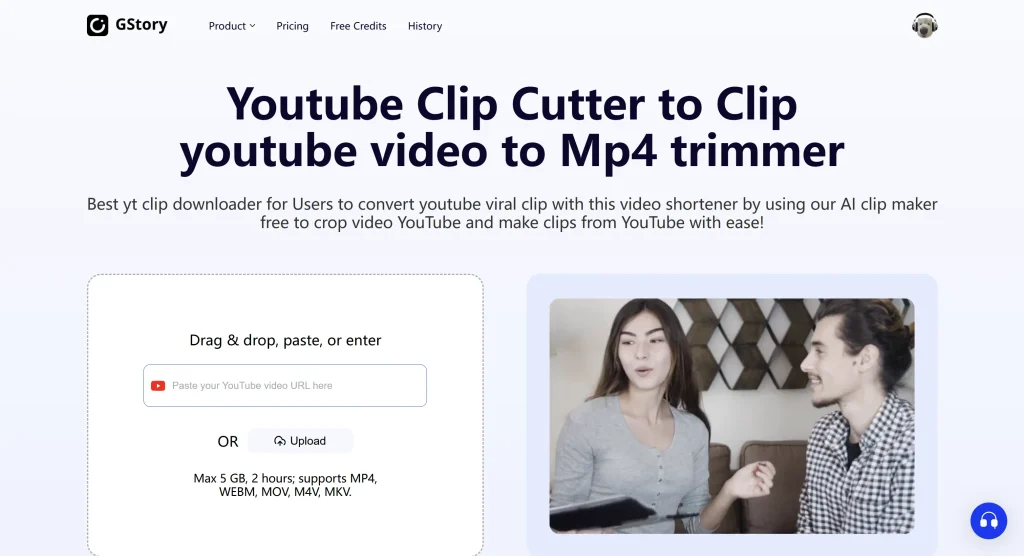
- GStory.ai AI Clip Maker: Just paste a YouTube URL. The AI analyzes the footage, identifies viral moments, and crops them for TikTok or Reels automatically.
- Opus Clip: A favorite for podcasters, using a subscription model to pull out “talking head” highlights.
- Descript: Known for “editing by text.” You edit the transcript, and the video follows. It’s a unique, fast way to cut down interviews.
Best for Background Removal
Green screens are officially optional.
- GStory.ai Video Background Remover: Handles videos up to 2 hours long, allowing you to swap backgrounds for solid colors or transparent layers without manual masking.
- Runway: A professional-grade creative suite that offers incredibly precise “rotoscoping” (background removal), though the subscription is on the pricier side.
Quick Comparison Table: Video Editor For Mac
Here is a snapshot of the landscape as of January 2026.
| Tool | AI Captions | Enhancement | Background Removal | Clip Generation | Pricing Model | Platform |
| DaVinci Resolve | ✅ | ✅ (Studio) | ❌ | ❌ | Free / $295 One-time | Desktop |
| Final Cut Pro | ✅ | ✅ | ❌ | ❌ | $299 One-time | Desktop (Mac) |
| Adobe Premiere | ✅ | ✅ | ❌ | ❌ | $23/month | Desktop |
| GStory.ai | ✅ | ✅ | ✅ | ✅ | Credits (Pay-per-use) | Browser |
| CapCut | ✅ | ❌ | ✅ | ❌ | Free (ToS concerns) | Browser/App |
| iMovie | ❌ | ❌ | ❌ | ❌ | Free | Desktop (Mac) |
Free vs. Paid AI Video Tools: Which Is Worth It?
“Free” can be a loaded word in the software world. Here is what to look out for:
What “Free” Really Means (Credits, Watermarks, Limits)
- Genuine Free: DaVinci Resolve (free version) is the real deal—no watermarks and professional features. iMovie is also completely free for Mac users.
- Credit-based Free: Tools like GStory.ai give you free credits to start. You only pay when you need more, which is great for avoiding monthly bills.
- Watermark Traps: Avoid apps like Filmora’s free version. They let you edit the whole video, but then slap a giant watermark on the export unless you pay.
- Export Limits: Many “free” tools cap your resolution at 720p, which looks blurry on modern screens.
When Paid Makes Sense
It’s worth opening your wallet when you need:
- Professional 4K output without watermarks.
- Commercial rights for business or client projects.
- Advanced AI neural processing for high-end restoration.
Value Tip: One-time purchases like Final Cut Pro or DaVinci Resolve Studio are much cheaper over two years than a monthly Adobe subscription.
Tools to Avoid (And Why)
The creator community on Reddit and YouTube is vocal about which tools to skip.
Watch Out for Hidden Watermarks and Subscription Traps
Filmora (by Wondershare) is frequently flagged on r/VideoEditors. Users often report being surprised by watermarks after hours of editing, difficult cancellation processes, and aggressive upselling. Most pros recommend avoiding Wondershare products entirely.
Content Rights Concerns with CapCut
While CapCut is incredibly easy to use, its Terms of Service (ToS) are worth a close read. They grant ByteDance very broad rights to use the content you create. If you are doing client work or building a brand you want total control over, consider a more “private” alternative.
FAQs of AI Video Editing on Mac
Can I edit 4K video on a MacBook Air using AI tools?
Absolutely. The M4 MacBook Air is a beast. Whether you’re using native apps like Final Cut Pro or browser-based tools like GStory.ai (which uses cloud power), your Air will handle it just fine.
Which AI video editor has no watermark on exports?
DaVinci Resolve (free version), iMovie, and credit-based tools like GStory.ai are your best bets for clean, professional exports.
Are browser-based AI video tools as powerful as desktop apps?
In “micro-tasks” like upscaling or captioning, browser tools are often more advanced. However, for “macro-tasks” like managing a 30-minute documentary with 100 clips, desktop apps are still essential.
Conclusion
The best video editor for Mac is the one that fits your specific project. For heavy-duty editing, go with DaVinci Resolve or Final Cut Pro. For fast, AI-driven tasks like captions or enhancement, browser-based tools are the most efficient choice.
Don’t let “free” marketing lure you into a subscription trap—check the community reviews first!
Would you like me to help you draft a specific workflow for one of these tools based on your current project?
Leave a Reply