Last Updated on January 30, 2026 by
Your grandmother’s wedding photo is fading, but don’t search “photo restoration near me”. Believe me, it will hurt your purse. Since AI can restore it in seconds—but will it still look like her?
This is the dilemma thousands of people face when trying to restore old photos. AI tools promise quick results, but they often change faces beyond recognition, require technical knowledge you don’t have, or cost more than expected. Users struggle with the quality vs. convenience trade-off constantly.
This guide walks you through the entire process—from scanning to final restoration—while solving the 5 biggest problems people face with AI photo restoration. You’ll learn which photos can be saved, how to avoid face-changing issues, and how to get professional results at a fraction of the cost.
What Types of Old Photos Can Be Restored
Before diving into tools and techniques, it’s important to understand what AI can realistically fix. Setting the right expectations will save you time and frustration.
Faded, Discolored, and Poorly Exposed Photos
Photos that have lost color vibrancy, turned yellow, or were taken in poor lighting are often the best candidates for AI restoration. UV damage, oxidation, and humidity cause gradual degradation over decades.
Modern AI tools excel at correcting tone and exposure automatically. Faded wedding photos, yellowed school pictures, and overexposed vacation shots can often be dramatically improved with a single click.
Blurry, Low‑Resolution & Surface‑Damaged Photos
This category includes photos scanned at low quality, shot with vintage cameras, or showing surface damage from age. Scratches, dust marks, and minor tears fall into this group.
AI enhancement can sharpen blurry images, reduce noise, and fill in minor scratches using surrounding pixel information. These improvements work well for most family photo collections.
Severe Damage & When to Consider Professional Photo Restoration
Not every old photo can be fully restored with low-cost AI tools. When damage is extreme—large missing sections, heavy water damage, or faces obscured by tears—you may need professional help.
Professional services typically cost $25-100+ per photo but offer artistic reconstruction that AI cannot match. For irreplaceable one-of-a-kind images, this investment is often worthwhile.
The 5 Biggest Problems with AI Photo Restoration (And How to Solve Them)
Understanding common pitfalls helps you avoid them. These issues come directly from community discussions on Reddit and Quora.
Problem #1: AI Changes Faces Beyond Recognition
This is the #1 complaint from users attempting AI restoration. As one Reddit user noted: “GPT Chat does not photorealistically recreate the SAME person.”
AI “enhances” based on training data patterns, which means it may apply generic beautification that overwrites unique facial features. The solution: use tools with conservative restoration modes that prioritize clarity over facial restructuring.
Problem #2: Quality vs Convenience—You Shouldn’t Have to Choose
Users want quick results AND professional quality. Free tools often have daily limits or hidden costs, creating frustration.
The solution is finding a workflow that balances speed with quality. Credit-based systems like GStory Photo Enhancer let you try before committing—50 free credits with no subscription required.
Problem #3: Technical Confusion (DPI, Formats, Settings)
Common questions flood forums: What DPI (dots per inch) should I scan at? PNG vs JPEG vs TIFF? Scanner vs phone camera?
Simple rules solve this: 600 DPI for normal photos, TIFF for archival storage. We’ll cover these in detail in the digitization section below.
Problem #4: Hidden Costs and Subscription Fatigue
Professional services charge $25-100 per photo. Subscription apps add up quickly, especially when you only need occasional restoration.
Look for pay-per-use alternatives without monthly commitments. This model lets you restore photos when needed without ongoing costs.
Problem #5: AI Content Policy Restrictions
ChatGPT and similar tools often refuse to process photos—especially those containing children—due to content policies. This frustrates users with legitimate family photos.
The solution: use dedicated photo restoration tools that don’t have these restrictions for legitimate family photo restoration.
Before You Restore: How to Digitize Old Photos Properly
“Garbage in, garbage out” applies perfectly here. A high-quality scan dramatically improves AI restoration results.
Scanner vs Smartphone: Which Should You Use?
Flatbed scanners produce better quality. The Epson V600 is frequently recommended in photography communities. However, smartphone apps like Photomyne and Google PhotoScan work well for quick digitization.
Verdict: Use a scanner for precious photos you want to restore. Use your phone for bulk digitization when quality isn’t critical.
The 600 DPI Rule (And When to Break It)
Standard recommendation: 600 DPI for normal-sized photos. This captures enough detail for restoration and moderate enlargement.
Use 1200 DPI for small photos (wallet-sized) or if you plan to create large prints. Going higher rarely helps and creates unnecessarily huge files.
File Format Guide: TIFF vs PNG vs JPEG
- TIFF (16-bit): Best for archival—preserves all image data
- PNG: Good working format with lossless compression
- JPEG: Only for final sharing—uses lossy compression that degrades quality
Always save originals in TIFF before beginning any restoration work.
Physical Handling: Protecting Photos During Scanning
Use cotton gloves when handling old prints. Never use tape on torn photos—it creates reflections and can cause further damage. Clean your scanner glass before each session, and handle photos by their edges only.
Step-by-Step: How to Restore Old Photos with GStory Photo Enhancer
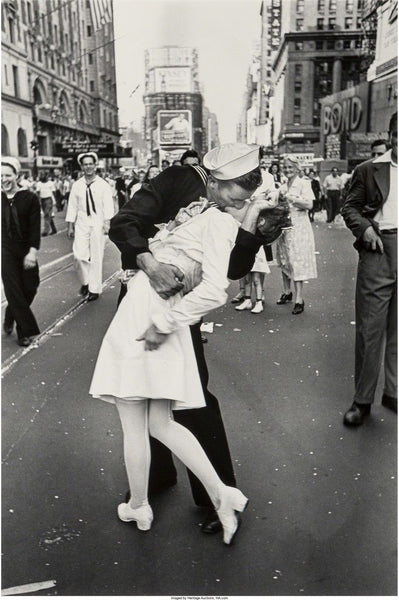
This walkthrough demonstrates an example of restoration workflow with GStory’s browser-based tool, using this classic black-and-white photo taken in the last century.
Step 1: Create a Free GStory Account (50 Free Credits)
Visit GStory and sign up for a free account. You’ll receive 50 free credits immediately—enough to test multiple photos. Invite friends to earn 30 additional credits. No subscription or credit card required.
Step 2: Upload Your Scanned Photo
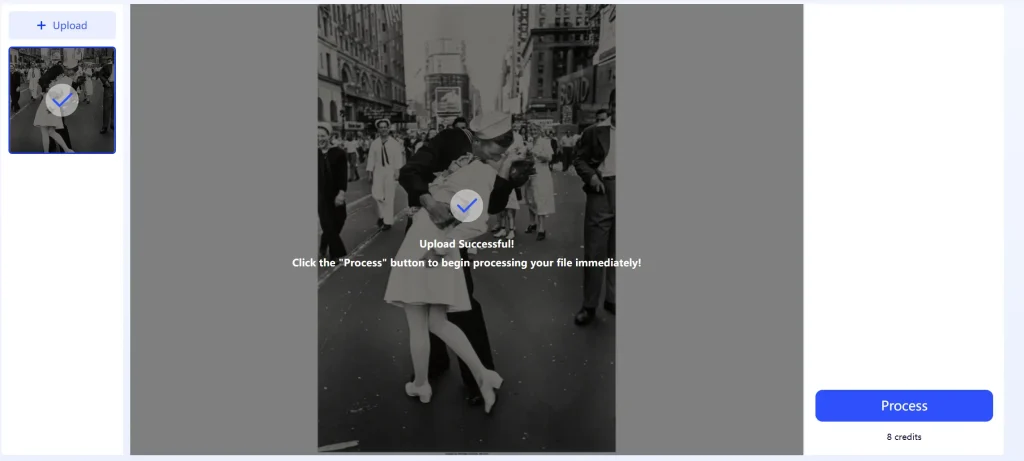
Navigate to the Photo Enhancer. Supported formats include PNG, JPG, JPEG, and WEBP with a maximum file size of 10 MB. Click the button “Process”, it costs 8 credits/photo.
Step 3: Preview and Download Results
The process usually takes less than 1 minute. Now review the AI-enhanced result and compare before/after versions. Download in high resolution. Always save your original separately for archival purposes.
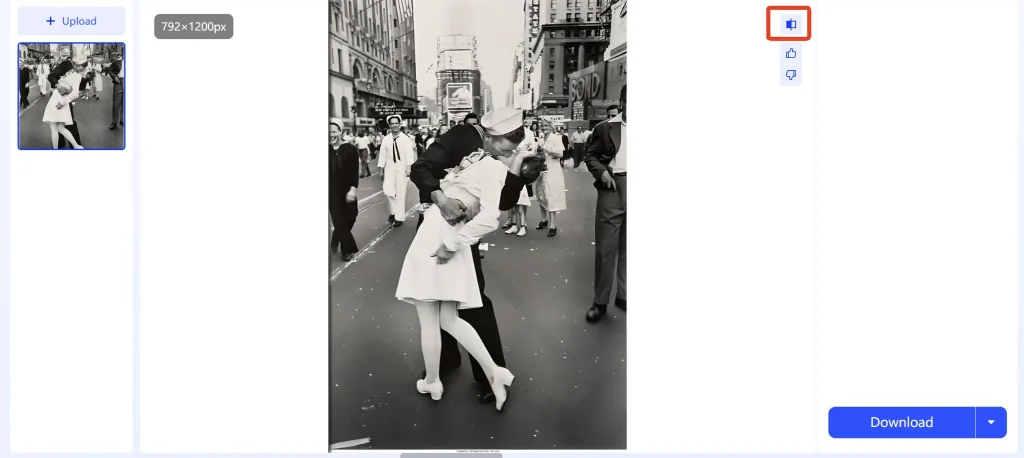
As you can see, compared to the original image, the facial features of the figures and the architectural lines in the background, which were previously blurry, are now much clearer. At the same time, the image noise has been reduced, making the photo appear cleaner. The contrast of the main subject in the image has also been enhanced.
Pro Tips for Best Results with GStory
Start with the highest quality scan possible. Use portrait enhancement specifically for faces. Try different upscale percentages to find what works best. Process one photo first to test settings before batch processing an entire collection.
How to Preserve Faces During AI Restoration
Since face-changing is the most common complaint, this section deserves special attention.
Why AI Changes Faces (The Technical Explanation)
AI models are trained on millions of images and learn patterns of what faces “should” look like. When enhancing a photo, some tools prioritize making faces look “better” according to these patterns—which often means changing unique features that made your grandmother look like your grandmother.
The Conservative Restoration Approach
Use tools with minimal intervention modes that focus on clarity and noise reduction rather than facial restructuring. Avoid aggressive “beautify” or “enhance faces” settings. GStory Photo Enhancer emphasizes clarity enhancement over facial modification.
The Hybrid Workflow: AI for Damage, Manual for Faces
For critical photos, consider a two-step approach:
- Use AI for overall restoration—scratches, fading, noise
- If the face needs work, use targeted tools or manual editing
- Compare results with the original regularly
When to Skip AI and Go Professional
Consider professional services for irreplaceable one-of-a-kind photos, severe facial damage requiring artistic reconstruction, or when AI consistently produces unsatisfactory results.
Free vs Paid: Photo Restoration Options Compared
Understanding your options helps you make smart decisions based on your specific needs.
Free AI Tools: What You Get (And What You Don’t)
GStory offers 50 free credits with pay-per-use pricing after (no subscription). Other free options include Hotpot AI, PicWish, and Airbrush. Common limitations include daily caps, ads, and watermarks on some tools.
Paid Tools: When the Investment Makes Sense
- Luminar Neo (~$6.58/month): Professional quality with comprehensive AI tools
- Adobe Photoshop ($22.99/month): Industry standard with Neural Filters
- Topaz Photo AI ($199 one-time): Specialized sharpening and noise reduction
Professional Services: The Premium Option
Price range is typically $25-100+ per photo depending on damage severity. Best for severe damage, irreplaceable photos, and large restorations. Top services include FixThePhoto, Forever Studios, and WeEdit.Photos.
Cost-Per-Photo Breakdown: Making the Smart Choice
- 1-5 photos: Free tools (GStory free credits)
- 6-20 photos: Pay-per-use credits or one-time software
- 20+ photos or complex damage: Consider subscription or professional service
Beyond Restoration: Colorizing Black and White Photos
Many users want to add color to old black-and-white family photos after restoration.
How AI Colorization Works
AI analyzes image content, context, and era to apply appropriate colors based on training data. Results are interpretive—not historically “accurate” in the documentary sense.
Best Tools for AI Colorization
Specialized colorization tools include MyHeritage InColor, DeOldify, and Pixbim Color Surprise AI. Note that GStory focuses on enhancement and restoration; for colorization, dedicated tools work better.
Historical Accuracy: Setting Realistic Expectations
AI guesses colors based on learned patterns. Clothing and backgrounds may not match reality. If accuracy matters, use reference photos from the era to guide manual adjustments.
FAQs of Old Photo Restoration
Can AI really restore severely damaged photos?
Yes, for most damage types including fading, scratches, and noise. Severe damage with missing parts or heavy tears may need professional work. AI excels at enhancement; reconstruction requires human judgment.
How much does professional photo restoration cost?
Professional services range from $25-100+ per photo depending on damage severity. DIY with AI costs free to a few dollars per photo.
What’s the best free photo restoration app?
For quality and ease, GStory Photo Enhancer offers 50 free credits and runs in your browser. Alternatives include Hotpot AI and PicWish.
Will AI restore my photo or change the person’s face?
Risk exists with some tools. Tools focusing on clarity enhancement rather than facial restructuring minimize this issue. Always compare results with the original and use conservative settings.
Should I scan or photograph my old photos?
Scanning produces better quality—use a flatbed scanner at 600 DPI. Photographing works for quick digitization or bulk processing. For precious photos, always scan.
Can I restore photos with missing parts?
AI can fill small gaps using surrounding context. Large missing sections require professional reconstruction. Most AI tools enhance existing content rather than recreating missing elements.
Conclusion
Restoring old photos no longer requires expensive professionals or complex software. With the right workflow—proper scanning at 600 DPI, AI enhancement with face-preserving settings, and smart preservation using the 3-2-1 backup rule—anyone can revive faded family memories.
The key is choosing tools that prioritize clarity over aggressive “enhancement” and setting realistic expectations about what AI can achieve.
Start your restoration journey today: Upload your first photo to a free AI tool and see the difference modern technology can make—without changing the faces you love.
Leave a Reply