Last Updated on May 18, 2026 by
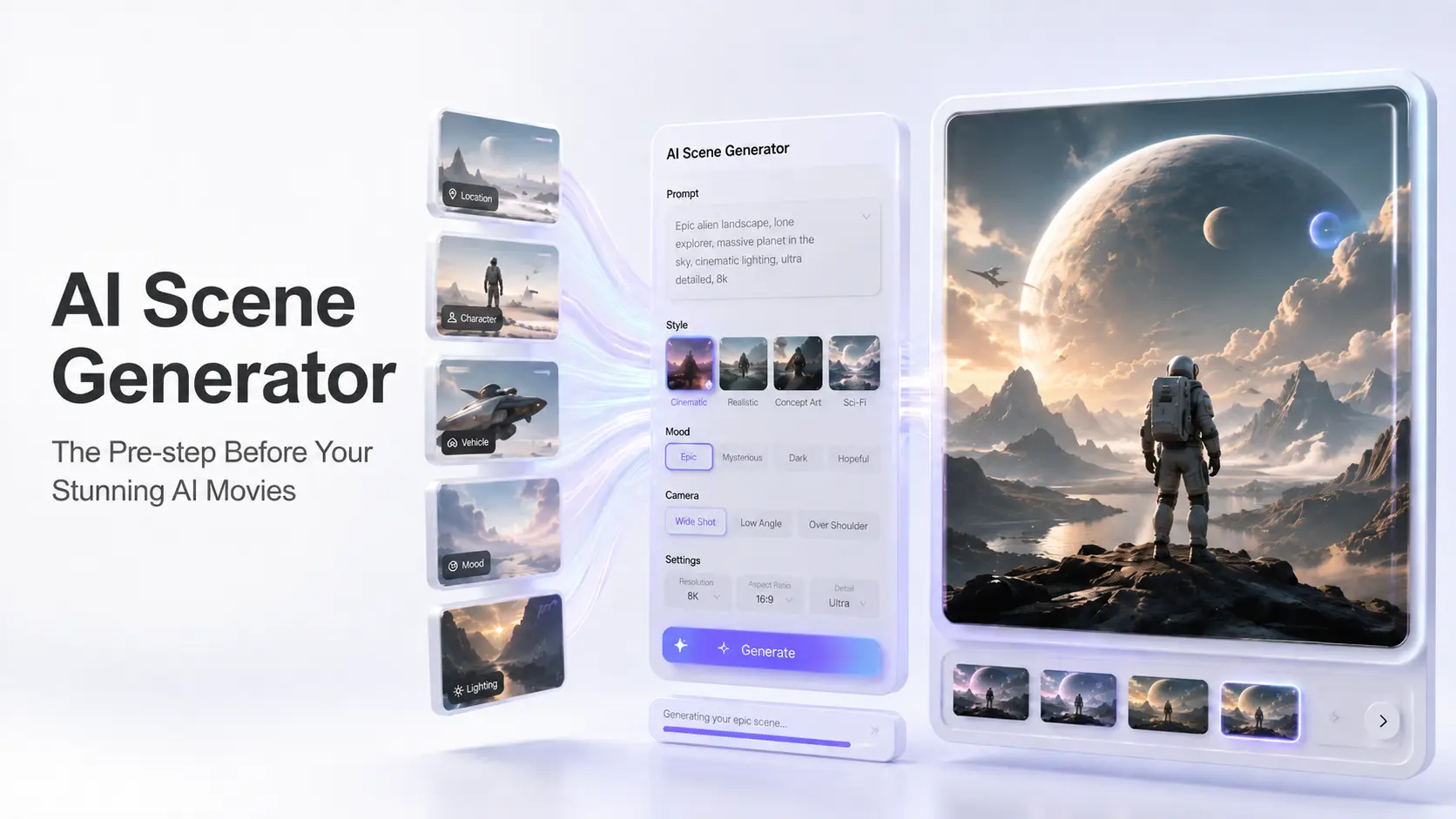
AI scene generators have become an essential tool for video creators, as the mainstream workflow typically starts with generating AI images and then transforming them into videos. Whether to get the concept arts to establish a style or to generate keyframes to improve the accuracy of video generation, a stable and affordable image generator is indispensable.
In particular, to maintain consistency within your imaginative AI microfilm world, producing complete scene images with an AI scene generator before animation can be significant. This step will enhance the overall quality and visual coherence of your videos.
Where AI Scene Generator Fits in the AI Filmmaking Pipeline
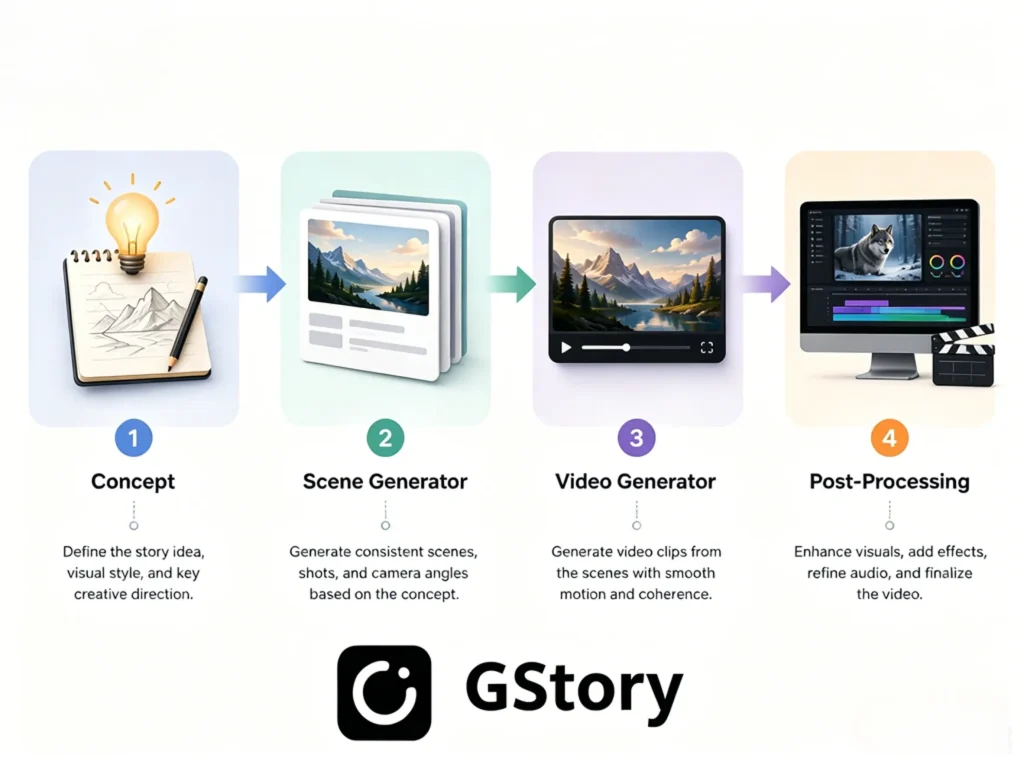
The modern AI creation pipeline isn’t a single tool—it’s a sequence of specialized steps. Understanding where an AI scene generator fits changes how you approach every project.
Here’s the pipeline that professional creators and UK commercial studios are already using:
- Concept/Script — Define your story, mood, and visual direction
- Scene Generation (Reference Images) — Create polished reference frames using an AI scene generator
- Video Generation (Image-to-Video) — Animate your reference scenes into motion clips
- Post-Processing — Enhance, edit, color-grade, and add audio
The scene generation step is the critical bridge between your idea and the final video. Without it, you’re asking a video generator to interpret vague text—and it will guess wrong most of the time.
This mirrors the emerging Blender + AI pre-visualization workflow that some commercial production teams already use in professional work. They build rough 3D layouts first, then feed those frames into AI rendering tools like Seedance 2.0 for photorealistic output. An AI scene generator gives you the same advantage without needing 3D software skills.
Why Use an AI Scene Generator Before Creating AI Videos
Skipping scene generation is like filming without a storyboard. You might get lucky, but most of the time you’ll waste time, money, and creative energy on unusable output.
Reduce Wasted Credits with a Visual Anchor
Community reports consistently show that 30–60% of AI video generations fail when starting from text alone. Every failed generation still costs credits—on platforms like Runway, that means burning through a $100/month subscription with little to show for it.
By starting with a polished scene image, you give the video generator a concrete visual reference instead of forcing it to interpret ambiguous text. This dramatically cuts failed generations. As one Reddit user put it: “The real cost is hours spent stitching/fixing, not the subscription fee.”
Control Lighting, Mood, and Composition Before Animation
Reddit’s r/generativeAI community identified that “90% of the fake look comes from lighting.” When AI video generators handle lighting on their own, they often create mismatched shadows and highlights that trigger the uncanny valley.
An AI scene generator lets you lock in lighting direction, color temperature, and atmospheric effects before the video generator touches the frame. Want Rembrandt lighting for a dramatic portrait? Golden hour warmth for a lifestyle scene? Specify it in the scene generation step, verify it looks right, and then animate with confidence.
Maintain Consistency Across Multiple Scenes
Character and environment drift is the #1 frustration across AI creator communities. Faces change between shots, backgrounds shift, and lighting inconsistencies break the viewer’s immersion.
Building a library of reference scenes creates visual continuity for multi-shot projects. The 3×3 grid technique—generating multiple camera angles of the same subject in one image—helps maintain consistency across your entire project. Save successful generations and reuse them as input references for every subsequent scene in your series.
Common Cinematic Scene Styles for AI Scene Generator Prompts
Learning to “prompt like a director” dramatically outperforms writing narrative descriptions. Below are proven cinematic styles with copy-paste prompt keywords you can use immediately.
Golden Hour & Natural Light Scenes
Warm, soft lighting with long shadows creates an emotional, intimate atmosphere. Ideal for lifestyle content, travel videos, and personal storytelling.
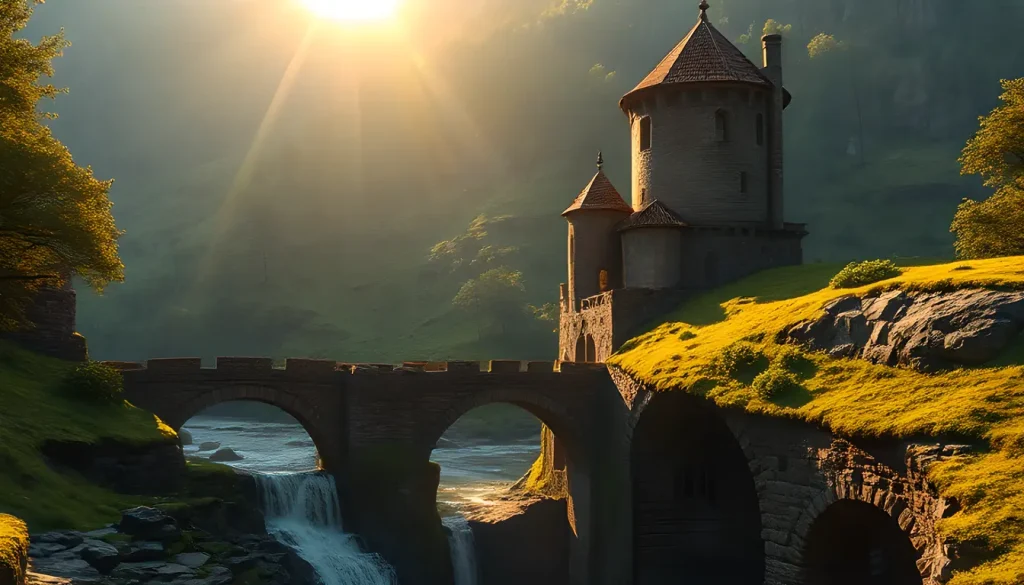
Prompt keywords: golden hour, warm backlight, lens flare, soft shadows, magic hour, natural rim lighting, amber tones, shallow depth of field
Neon Noir & Urban Night Scenes
High-contrast scenes with neon reflections on wet surfaces create instant visual drama. Perfect for sci-fi, thriller, music video, or cyberpunk content.
Prompt keywords: neon noir, rain-slicked streets, cyan and magenta lighting, volumetric fog, moody urban, Blade Runner aesthetic, puddle reflections, halogen glow
Aerial & Epic Landscape Scenes
Wide establishing shots of vast environments command attention. Great for documentary intros, fantasy worlds, and nature content that needs to feel epic.
Prompt keywords: drone shot, aerial perspective, sweeping landscape, epic scale, mist-covered mountains, cinematic wide angle, infinite horizon, atmospheric haze
Cozy Interior & Studio Scenes
Warm, intimate indoor environments with controlled lighting feel professional and inviting. Useful for podcast backgrounds, product showcases, and talking-head video frames.
Prompt keywords: soft ambient lighting, bokeh background, warm interior, studio setup, shallow depth of field, candlelight, window light, wood textures
Fantasy & Sci-Fi Environment Scenes
Otherworldly settings for creative and gaming content help visualize fictional worlds that don’t exist anywhere in stock photography.
Prompt keywords: alien landscape, enchanted forest, futuristic cityscape, crystalline cave, volumetric god rays, otherworldly atmosphere, bioluminescent, floating islands
AI Scene Generator Use Cases Every YouTuber Should Know
Whether you run a cinematic channel or a faceless automation setup, an AI scene generator fits somewhere in your workflow. Here are the most practical applications.
Cinematic Intros and Opening Frames for Video Essays
Generate a polished establishing shot that sets the mood for your video essay or documentary content. Instead of generic stock footage, create a custom scene that matches your exact tone—a moody library for a history video, a futuristic lab for a tech review, a rain-soaked city street for a true crime piece.
This becomes the opening frame that an AI video generator animates into a 5–8 second intro clip, giving your content a cinematic first impression.
Custom Thumbnail and Cover Art Generation
Use an AI scene generator to create eye-catching, unique backgrounds for YouTube thumbnails. Generate atmospheric scenes—dramatic skies, vibrant environments, stylized settings—then composite your text or subject overlays on top.
This eliminates stock photo subscriptions and gives every video a distinct visual identity that stands out in crowded feeds.
Cover and Background Images for Long-Form White Noise and Sleep Videos
This growing niche—long-form ambient videos designed for relaxation—needs exquisite, calming imagery that holds up across hours of viewing. Use an AI scene generator to craft serene scenes: misty mountain lakes at dawn, cozy rain-streaked cabin windows, moonlit forest clearings, softly glowing starfields.
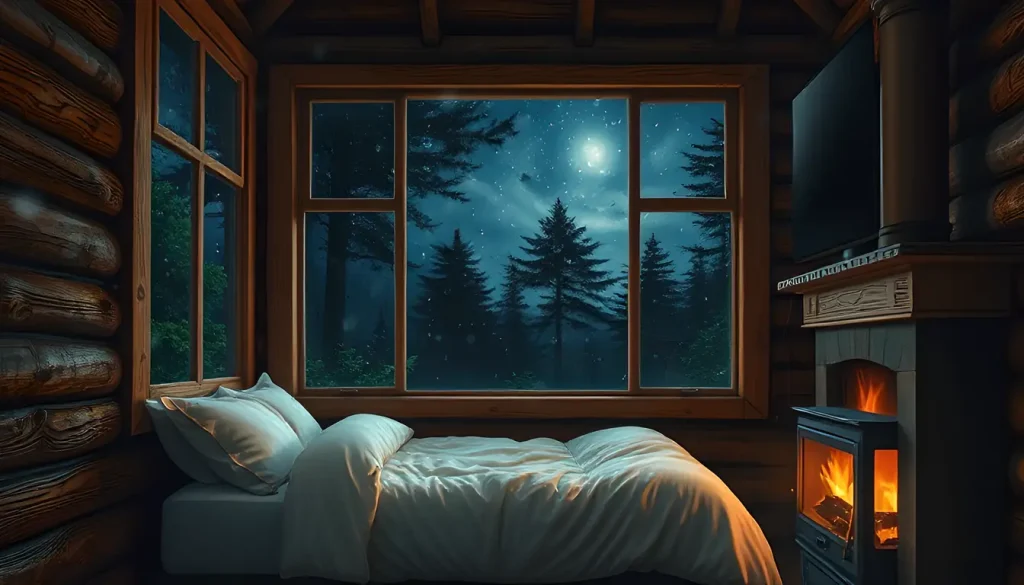
Generate multiple variations for visual rotation throughout the video, maintaining a consistent tranquil atmosphere without repeating the same static frame. GStory make it easy to generate high-quality scene images and enhance them for this exact purpose—no design skills required.
Product Review B-Roll and Lifestyle Scenes
Generate contextual scenes for product reviews—a sleek desk setup for tech reviews, a sunny kitchen for cooking gadgets, an outdoor trail for fitness gear. These reference scenes feed into AI video generators to create smooth, professional B-roll without needing a physical studio setup.
Storytelling and Narrative Short Films
For creators producing short films or serialized stories, generate consistent environment scenes across episodes. Build a library of location references—the protagonist’s apartment, the villain’s lair, the city skyline at night—and use them as anchors to maintain visual continuity throughout the entire series.
How to Start the Drafting Stage with an AI Scene Generator
You don’t need to sketch, storyboard, or hire a concept artist. Here’s the complete workflow from concept to finished video clip.
Step 1—Generate Your Scene with a Detailed Prompt
Start with an AI scene generator using a director-style prompt: camera angle + lighting + environment + mood. Generate 3–5 variations and select the strongest composition. If you are not sure what prompts should be used, don’t worry—20+ built-in styles will help you.
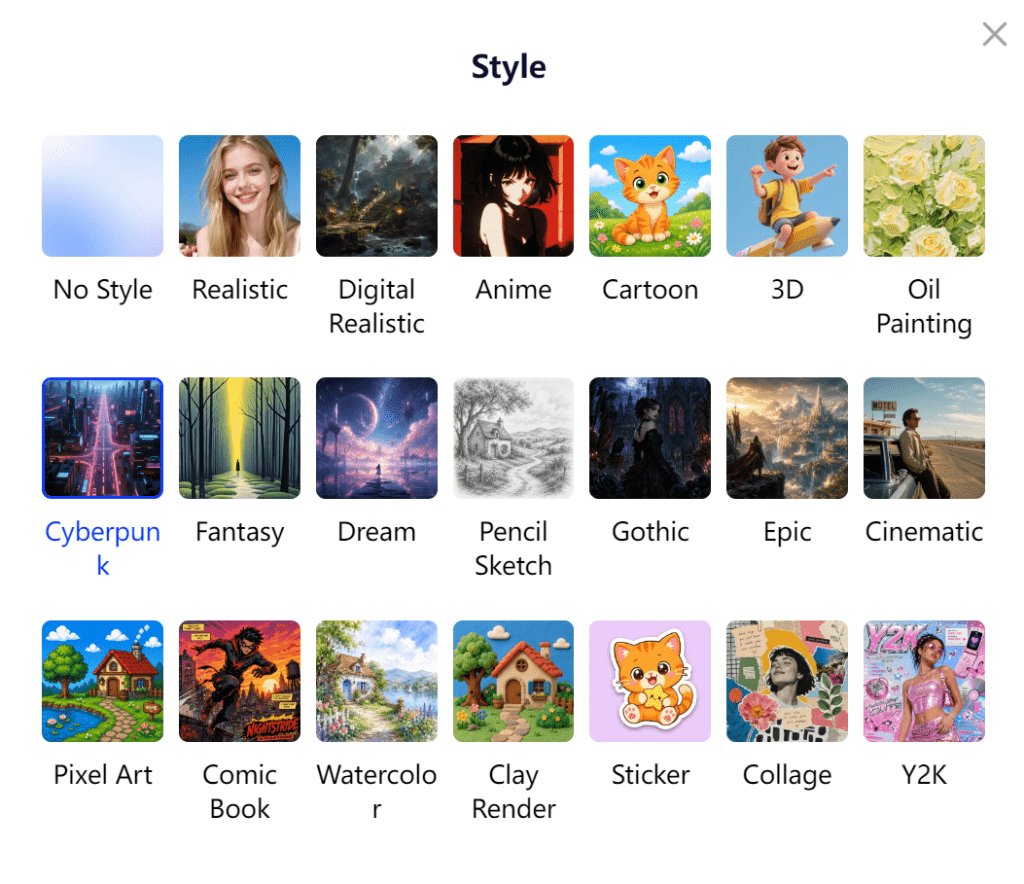
Pro tips:
- Use photography terminology (three-point lighting, Rembrandt lighting, subsurface scattering)
- Specify camera lens type (35mm wide, 85mm portrait, 200mm telephoto)
- Describe the mood separately from the physical environment
- GStory offers an AI image generator that handles detailed cinematic prompts well and delivers fast results without complex setup
Step 2—Refine and Extract the Environment
Isolate the background environment from any character or object elements. Adjust lighting direction, color grading, and atmospheric effects. This clean environmental frame becomes the visual foundation for your video.
Use background removal and enhancement tools to polish the output. If you need to upscale for 4K output, run the scene through an AI photo enhancer before moving to the video stage.
Step 3—Animate Your Scene into a Video Clip
Feed the polished scene image into an AI image-to-video platform to generate a 5–15 second cinematic clip. Platforms like AI Image to Video support multiple AI models including Kling, Veo, and Wan, offering up to 1080p resolution output with no watermarks.
Control motion intensity, aspect ratio, and duration to match your intended use—whether a YouTube intro, social media clip, or atmospheric loop. For creators producing at scale, batch processing features let you animate multiple scenes in a single session.
Step 4—Assemble and Polish the Final Video
Combine your animated scene clips in an editor. Enhancing the resolution to 4k could be better for YouTube creators. Then add audio (voiceover, music, sound effects from tools like ElevenLabs), transitions, and text overlays.
The result: a professional-looking video created entirely from AI-generated scenes, with no drawing, filming, or stock footage required. The entire pipeline—from concept to published content—can happen in a single afternoon.
FAQs About AI Scene Generators
What is the best free AI scene generator?
Options are rare. Perchance AI offers free image generation with multiple results at one time. Most paid platforms like Kling and Seedance also offer limited free tiers. For quick scene creation with enhancement tools included, GStory provides free credits which are friendly to beginners.
Can I use AI-generated scenes commercially?
It varies by platform. Galaxy AI explicitly allows commercial use for all generated images. Most paid platforms—Kling, Runway, Seedance—include commercial rights in their paid tiers. Always check the specific tool’s terms of service before using AI-generated scenes in client work or monetized content.
How do I keep scenes consistent across multiple AI videos?
Use the reference image reuse method: save successful scene generations and feed them as input references for subsequent generations. The 3×3 grid technique—generating multiple camera angles of the same character or environment in one image—provides a consistency anchor. Lock in a consistent lighting setup across all your reference scenes to prevent drift.
Do I need drawing skills to use an AI scene generator?
No. AI scene generators are built for creators who describe scenes in words rather than sketch them. The ability to write descriptive prompts using cinematic vocabulary—lighting terms, camera angles, mood descriptors—completely replaces traditional drawing skills. If you can describe a scene verbally, you can generate it visually.
Conclusion
An AI scene generator isn’t just another tool in the stack—it’s the foundation that makes everything else work better. By generating polished reference scenes before jumping into video production, you cut wasted credits, lock in consistent lighting and composition, and produce professional-quality output regardless of your artistic background.
Start creating your first AI scene today. Use an AI scene generator to build a reference image, then bring it to life with AI Image to Video. Whether you’re crafting cinematic intros, sleep video backgrounds, or narrative short films—the scene comes first, and the stunning video follows.
Of course, AI image generators can do far more than just create scenes—from generating unique profile pictures to unlocking entirely new creative workflows. Follow Arya Xu‘s use-case blog series for more ideas, inspiration, and practical experiments.
Leave a Reply