Last Updated on May 13, 2026 by
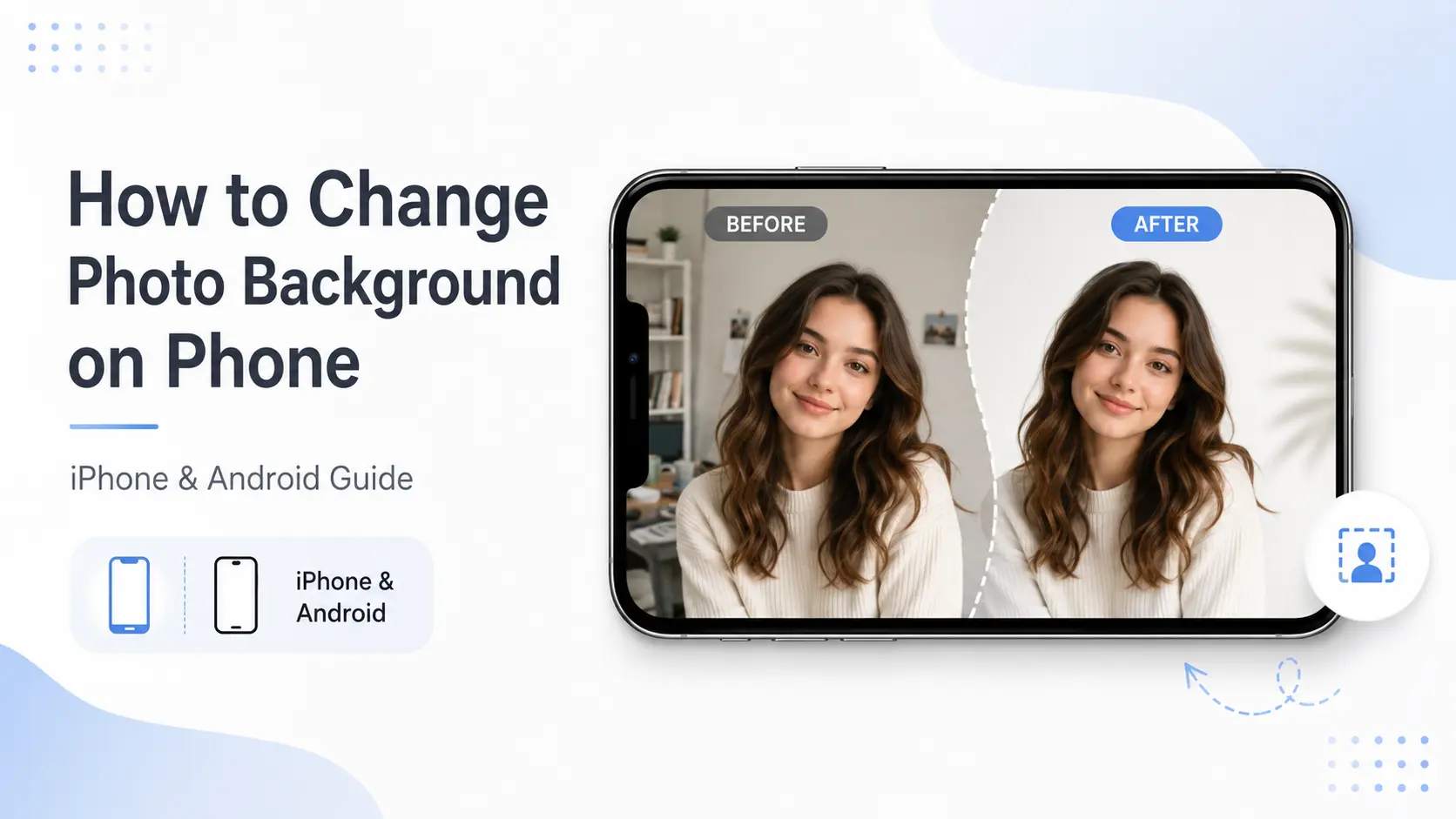
How to change photo background on phone is simple now. Whether your selfie has a messy room behind it, your product photo looks unclean, or you need a white background for a profile image, you can fix it directly on your phone.
The fastest way to change photo background is to use an online photo background changer like GStory Photo Background Remover. Upload your photo, remove the old background, choose a new one, and save the result. It works on both iPhone and Android, with no Photoshop or app download needed.
In this guide, you will learn the easiest way to change background in photo on your phone, plus built-in iPhone and Android options, free tools, and tips to avoid fake-looking edits.
Change Photo Background Online with GStory
Upload your photo, remove the original background, and replace it with a cleaner look directly in your browser. Simple for product photos, profile images, social posts, and quick phone edits.
No app download
Works on phone
Remove & replace background FREE
Why Choose Phone to Change Photo Background
When you edit on your phone, speed matters. You probably do not want to open Photoshop, move files to a laptop, or spend ten minutes adjusting layers. You just want to change photo background quickly and get a clean result.
That is why an online photo background changer is usually the easiest option. Open it in your mobile browser, upload the photo, remove the old background, and choose a new one. No app download, no complicated editing panel, and no design skills needed.
This works best for quick edits like selfies, profile photos, product images, thumbnails, and social media posts. For most users, it is the simplest way to change background in photo on iPhone or Android.
How to Change Photo Background on iPhone
On iPhone, the built-in Photos app can help you remove a subject from a photo, but it does not fully replace the background for you.
If your iPhone supports iOS 16 or later, open the Photos app, choose an image, then tap and hold the subject. When the cutout appears, you can copy or share it. This works well if you only need to separate a person, pet, or object from the original background.
But if your goal is a complete photo background change, this method is not the most convenient. You still need another editor to add a new background, adjust the layout, and save the final image.
For a faster option, use an online photo background changer on your iPhone. Open it in Safari or Chrome, upload your photo, let AI remove the old background, then choose a new one — such as white, transparent, solid color, or custom image.
This is usually the easiest way to change photo background on iPhone because the whole process happens in one place, without Photoshop or extra editing steps.
How to Change Photo Background on Android
Android phones do not all use the same photo editor. Samsung, Google Pixel, Xiaomi, OPPO, and other brands may offer different built-in editing tools, so the steps can vary.
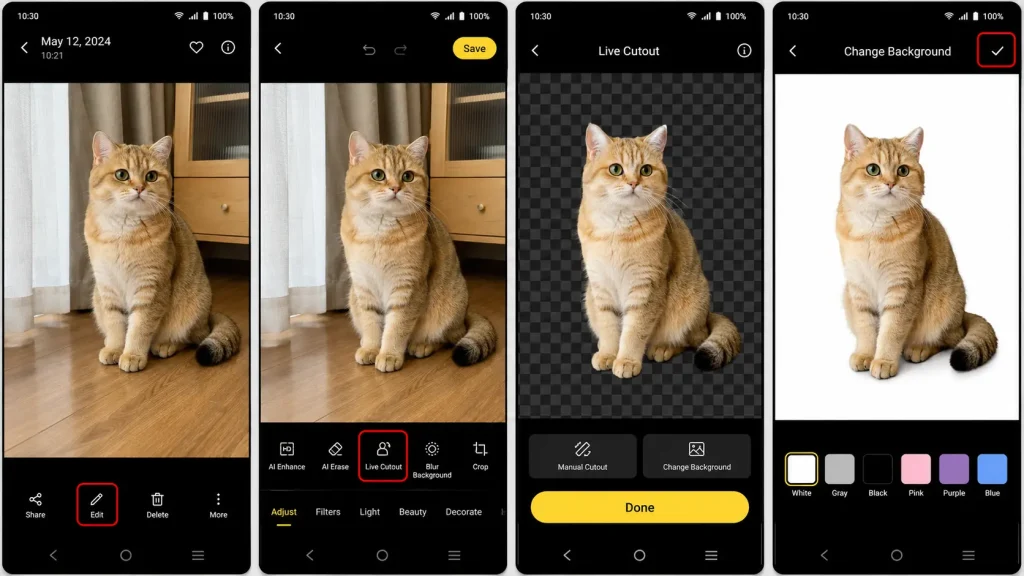
Some Samsung phones include AI editing features such as Photo Assist or Generative Edit. Google Photos may also offer tools like Magic Eraser or background blur. These features are useful for removing small distractions, softening the background, or cleaning up part of an image.
But they are not always the best choice for a full photo background change. In many cases, they help you fix the old background instead of replacing it with a new one.
If you want to change photo background completely, an online photo background changer is usually easier. Open the tool in your Android browser, upload your photo, remove the old background, and choose a new one. This works well for product photos, profile pictures, ID-style images, thumbnails, and quick social media edits.
For most Android users, this is faster than looking for the right editing feature inside different phone brands.
Best Free Tools to Change Photo Background on Phone
If you only need to change photo background once or twice, you do not need a heavy editing app. A browser-based photo background changer is usually enough. The main difference is what you want to do after the background is removed: save a clean cutout, add a new background, design a post, or prepare product photos.
| Tool | Best For | Notes |
| GStory AI Photo Background Remover | Quick photo background change on phone | Works in a mobile browser, so it is useful when you want to remove and replace a background without downloading an app. |
| Remove.bg | Fast background removal | Good for simple cutouts when you mainly need to remove the old background. |
| Canva | Social media designs | Useful if you want to add text, templates, stickers, or brand elements after removing the background. |
| PhotoRoom | Product photos | A strong option for e-commerce sellers who need cleaner product images or marketplace-style visuals. |
| Fotor | Basic online background editing | Useful for simple background removal and quick transparent background edits. |
For most everyday edits, start with the tool that matches your final goal. If you just want a cleaner selfie or product image, use a simple online background remover. If you want to design a full social post, Canva may be more useful. If you need product-style images, PhotoRoom is worth checking.
For GStory users, the main advantage is convenience. You can open it on your phone, upload a photo, remove the old background, and continue editing without switching between apps. This makes it a practical option when you want to change background in photo quickly on iPhone or Android.
Tips for a More Natural Photo Background Change
A photo background change only looks good when the subject and new background feel like they belong together. Before you upload the image, choose a photo with clear lighting and a visible subject. If the photo is too dark, blurry, or crowded, even a good photo background changer may leave rough edges.
After the background is removed, zoom in before saving. Check tricky areas such as hair, fingers, glasses, shoulders, and clothing edges. These details often decide whether the final image looks clean or obviously edited.
The new background also matters. A white or light gray background works well for product photos, profile images, and ID-style pictures. A soft wall, simple room, or clean gradient usually looks better for selfies. For social media, you can use a more colorful background, but avoid anything that fights with the subject.
If you use generative AI to change background in photo, be careful with face photos. Some tools may recreate parts of the image and slightly change facial features. For selfies, profile pictures, or document-style images, it is safer to use a background remover that edits the background only.
Conclusion
Learning how to change photo background on phone does not have to involve complicated editing apps. If you only need a quick cutout, iPhone subject isolation or some built-in Android tools may be enough. But if you want to remove the old background and replace it with a cleaner one, an online photo background changer is usually faster.
For most everyday edits, the best workflow is simple: use your phone browser, upload the image, remove the background, and choose the result you need — white, transparent, solid color, or a custom image. Tools like GStory AI Photo Background Remover make this easier on both iPhone and Android, especially when you want a clean result without downloading another app.
FAQs About Changing Photo Backgrounds on Phone
Can I change photo background on phone without downloading an app?
Yes. The easiest way is to use an online photo background changer in your mobile browser. You upload the image, remove the old background, choose a new one, and save the result. This works on both iPhone and Android, so you do not need Photoshop or a separate editing app.
What is the difference between removing a background and changing a background?
Removing a background means cutting out the subject and leaving the background transparent. Changing a background means replacing the old background with something new, such as white, a solid color, a room scene, or a custom image. If you need a clean cutout for design, a transparent file is better. If you need a finished photo, choose a new background.
How do I make the background transparent instead of replacing it?
After removing the original background, save the image as a PNG if the tool supports it. A transparent PNG is useful for logos, stickers, product images, thumbnails, and design projects. If you mainly need this result, you can read GStory’s guide on how to
make a PNG transparent
.
Can I remove photo background on iPhone without using Photoshop?
Yes. iPhone’s built-in subject isolation can create a quick cutout, but it does not always give you a complete background replacement workflow. For a cleaner step-by-step method, you can use an online tool or follow this guide on how to
remove background from picture on iPhone
.
Why does my edited photo still look fake?
The new background may not match the subject. Lighting, shadows, angle, and image quality all matter. A bright outdoor background may look strange behind a selfie taken indoors. For a more natural photo background change, use a simple background first, such as white, light gray, soft color, or a clean wall-style image.
Leave a Reply